
Add a gmail account
EditPurpose of this guide
This guide will explain how you can add a Gmail or Google account to your /e/OS smartphone.
Advantages
- You can directly access your Gmails from the
Mailapp. - You can access your Google Contact from the
ContactsappDisadvantages
- Please be aware that by granting Google access to your /e/OS Smartphone you are opening up the device to Google.
Recommendation
- Aktiviere oder füge Google-Konten nur dann hinzu, wenn du sie unbedingt auf deinem Gerät benötigst
Add a Google Account to your smartphone
-
Öffne
Settingsauf dem Startbildschirm.
-
Öffne
Accounts.
-
Tippe im Bereich
AccountsaufAdd account.
-
Wähle in der Liste
Googleaus.
-
Es wird ein Hinweis angezeigt, dass Murena Google einen falschen Gerätenamen meldet, um das Tracking zu reduzieren. Tippe auf
OK, um fortzufahren.
- Danach öffnet sich die Google-Anmeldeseite im Browser. Melde dich mit deinem Google-Konto an.
-
Falls Google ein Passwort oder eine Bestätigung per 2-Faktor-Authentifizierung verlangt, schließe diese Schritte dort ab.

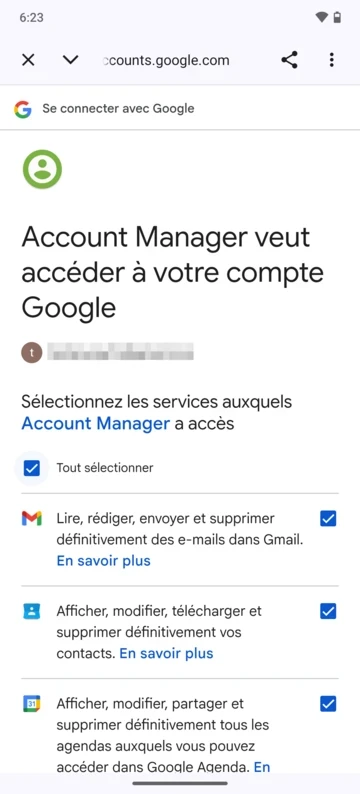
- Google zeigt anschließend die Berechtigungen an, die der Account Manager anfragt. Prüfe sie sorgfältig.
-
Wähle die Google-Dienste aus, die du auf dem Gerät erlauben möchtest, und fahre dann fort.

- Öffne danach erneut
Settings>Accountsund prüfe, ob dein Google-Konto in der Liste erscheint.
Remove the Google Account
You can always remove the Google Account that you have added to your /e/OS Smartphone
- Öffne
Settings. - Öffne
Accounts. - Wähle das Google-Konto aus, das du entfernen möchtest.
- Tippe auf
Remove account.
Dadurch wird das Google-Konto vom Gerät entfernt. Du kannst es später jederzeit wieder hinzufügen.