
Link Murena Workspace on Ubuntu
EditLink
Schritt 1
Öffne auf deinem Ubuntu-System im Browser
Anwendungen anzeigen » Einstellungen
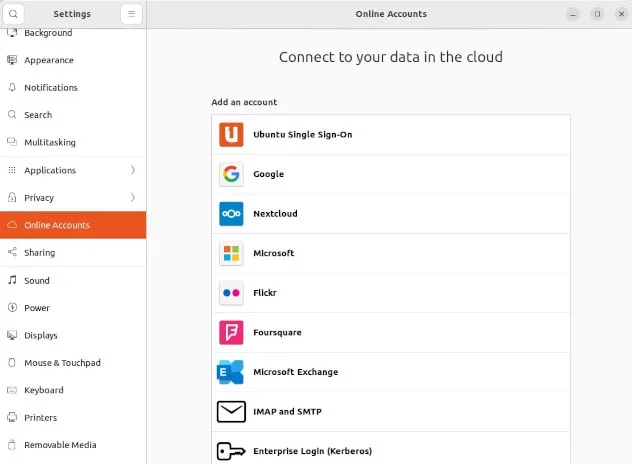
Scrolle nach unten bis zu Online-Konten
Schritt 2
Auf die NextCloud-Option klicken, um den Dialog zu öffnen
Schritt 3
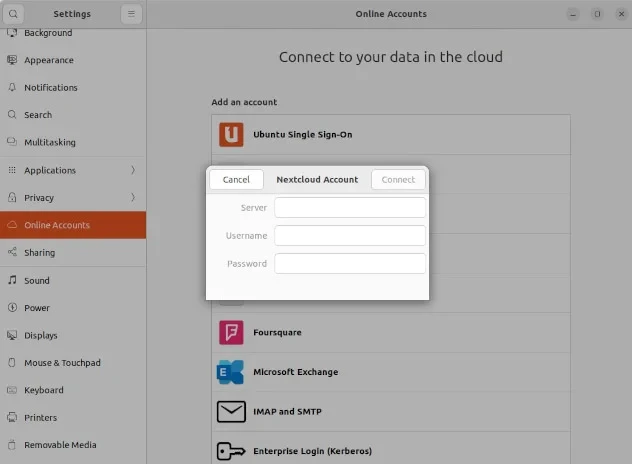
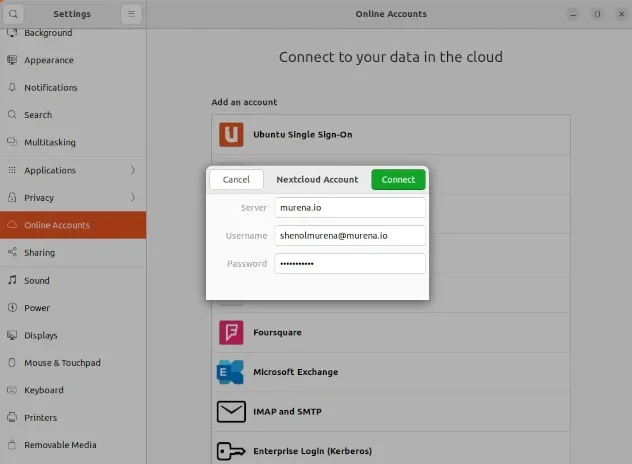
Trage hier die Anmeldedaten ein, wie folgt
server:murena.ioUsername: Your murena ID username. Write the complete username in the format username@e.email or username@murena.ioPassword: Your murena ID password- Press
Connect
Schritt 4
Bei erfolgreicher Verbindung siehst du folgenden Bildschirm
X icon on top right of the pop-up to close this screen. Clicking the Remove Account will remove the account you just created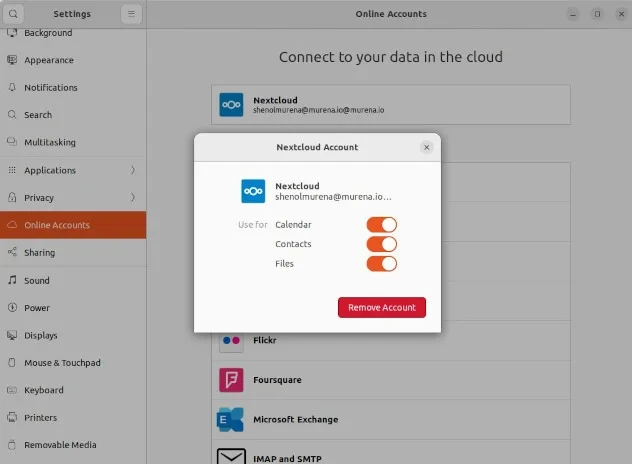
Verify
- In the Settings
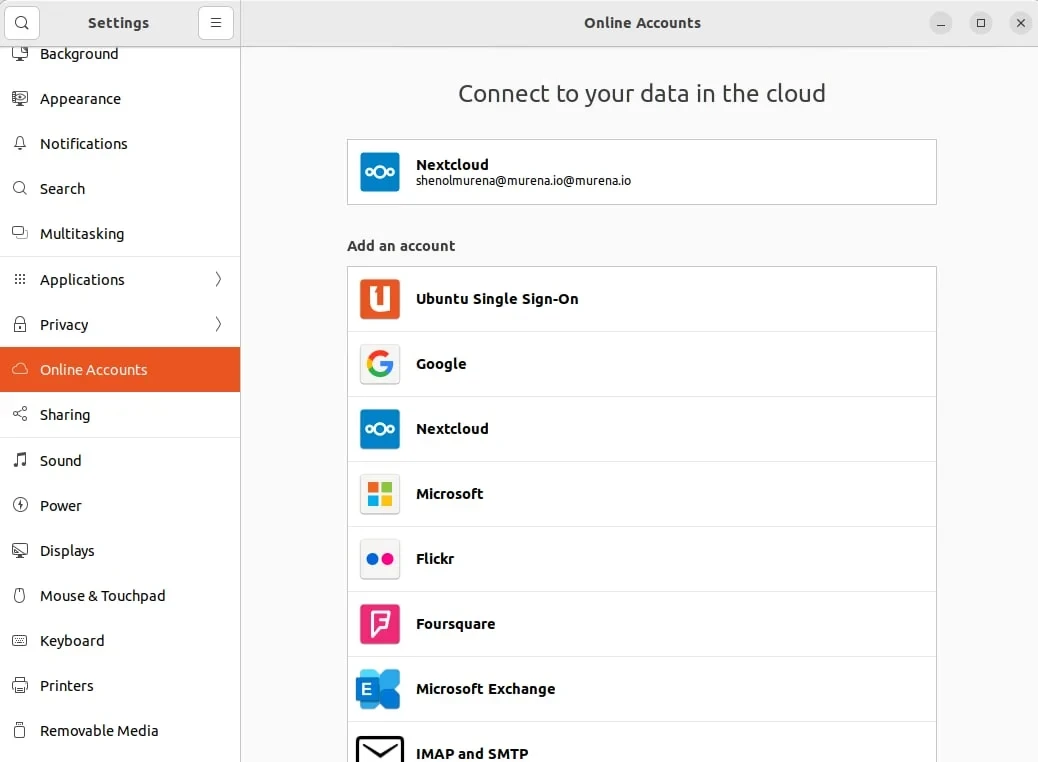
Du solltest nun die neue Verbindung sehen können unter Einstellungen » Online-Konten
- In the Files App
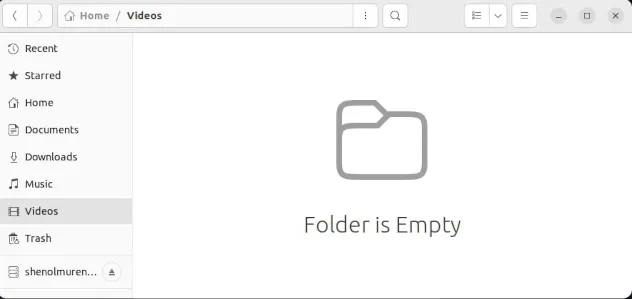
You should be able to see a link to the Murena Workspace account on the left side in the links. It would be in the format yourusername@murena.io@murena.io as seen in the screenshot
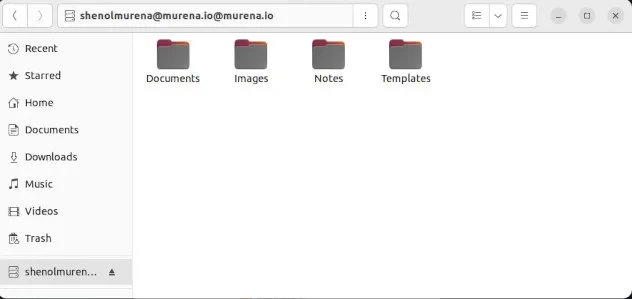
- Clicking on the link will display the folders on your Murena Workspace.
Benutzung
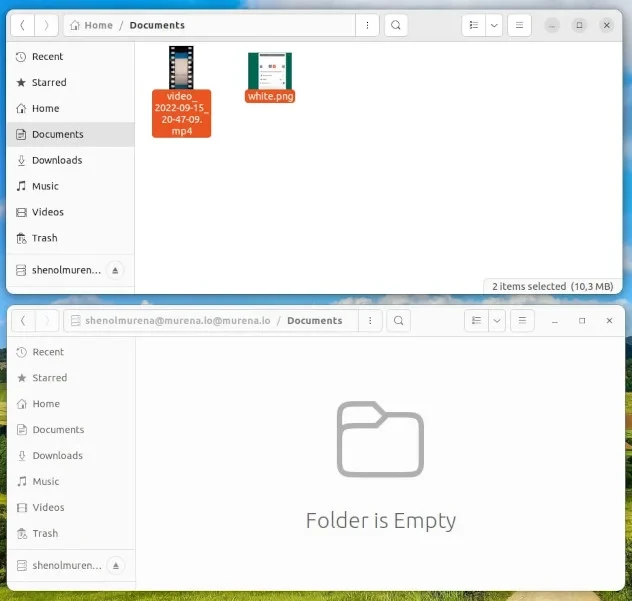
You can now copy folders and files from your local PC to the Murena Workspace. In this screenshot we show two windows one displaying the local folders and the other the Murena Workspace folders.
Bitte beachte, dass der ordnerübergreifende Kopiervorgang von deiner Netzwerkgeschwindigkeit abhängt. Darum bitte etwas Geduld, bis der Kopiervorgang abgeschlossen ist.
Verbindung trennen
To remove or delink the Murena Workspace connection you have two options
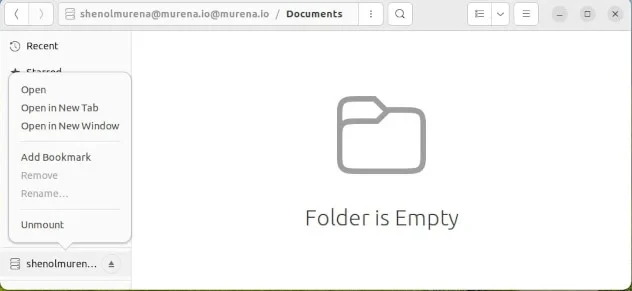
Von der Dateimanager-App
- Ein Rechtsklick auf den Link in der Dateimanager-App, dann Auswerfen auswählen
In den Einstellungen
Settings»Online Accounts» Select the Murena Workspace account » Click theRemove accountbutton