- Take a backup of your data (recommended).
- Charge your phone to at least 50%.
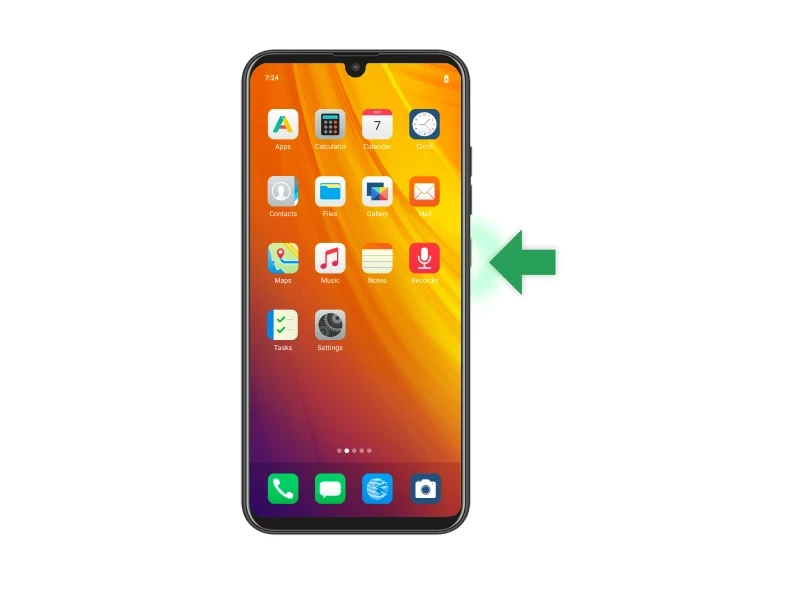
- With your phone’s screen turned on, long press
Power button till you see a side menu.
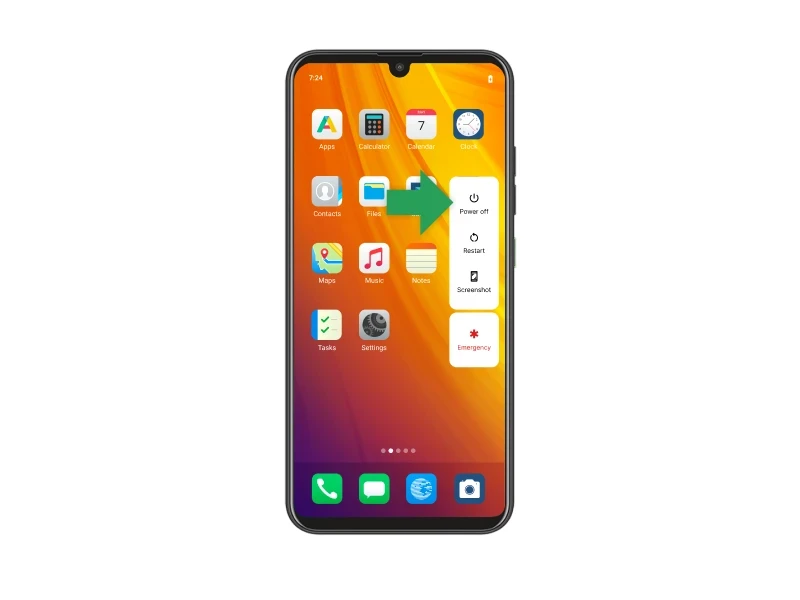
- Tap on
Power off.
- Wait for at least 10 seconds after your phone is completely turned off.
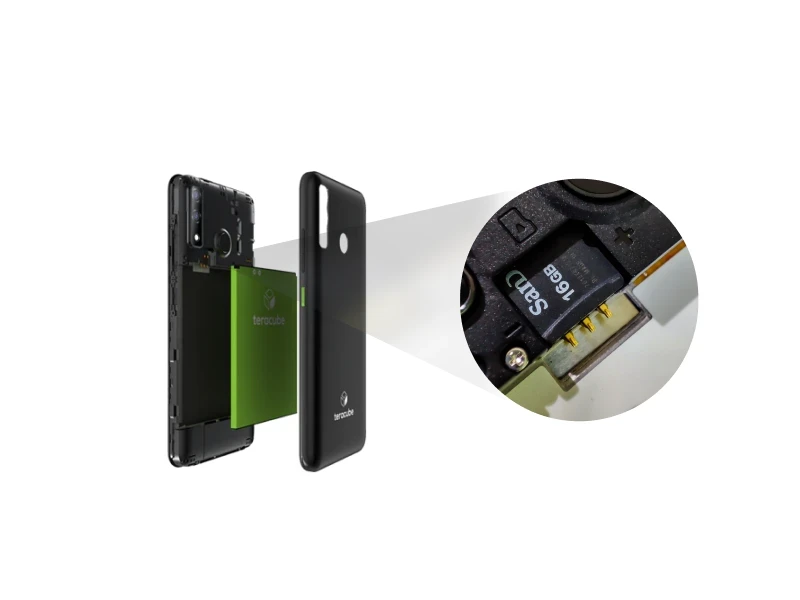
- Open your phone’s backcover and insert the SD card sent to you by Murena.
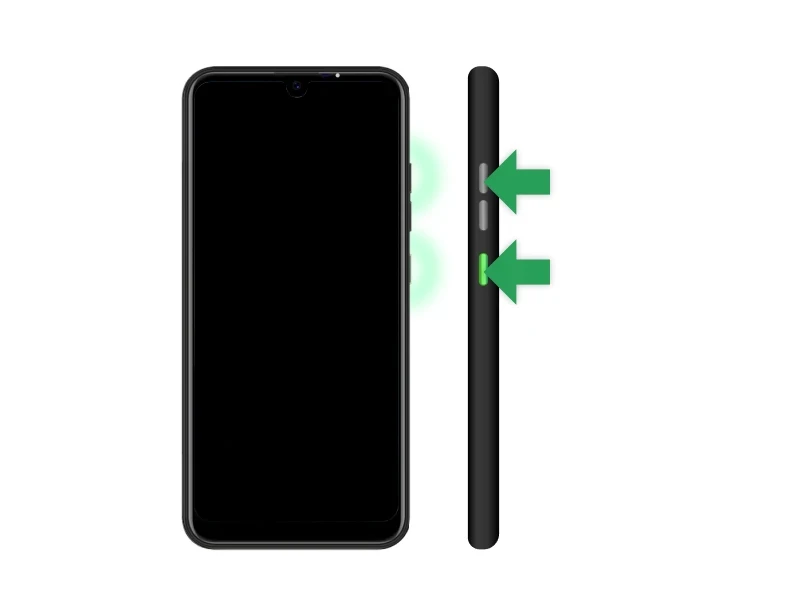
- Long press
Power and Volume up buttons at the same time, until a text menu appears on the screen.
- This text menu cannot be used via touch screen.
Volume up button is used to Navigate the options and Volume down button is used to enter the selected option. An arrow <<== indicates the selected option.
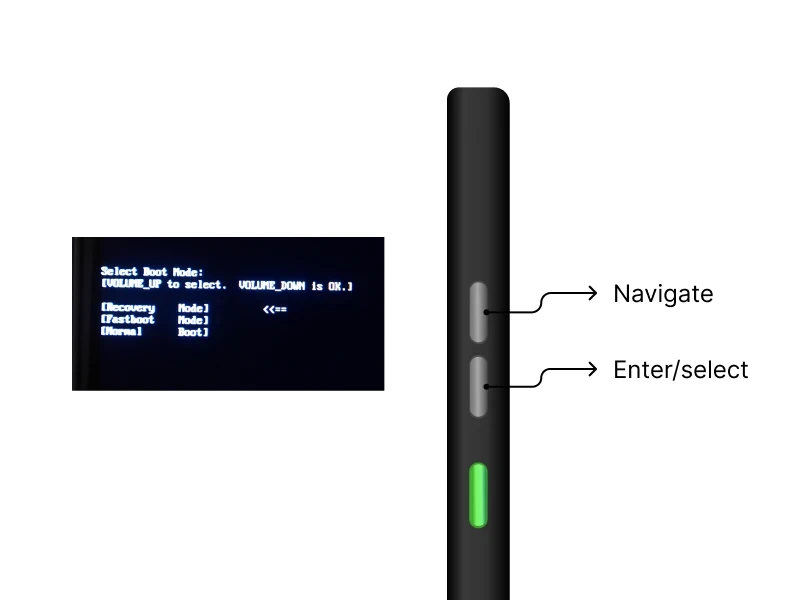
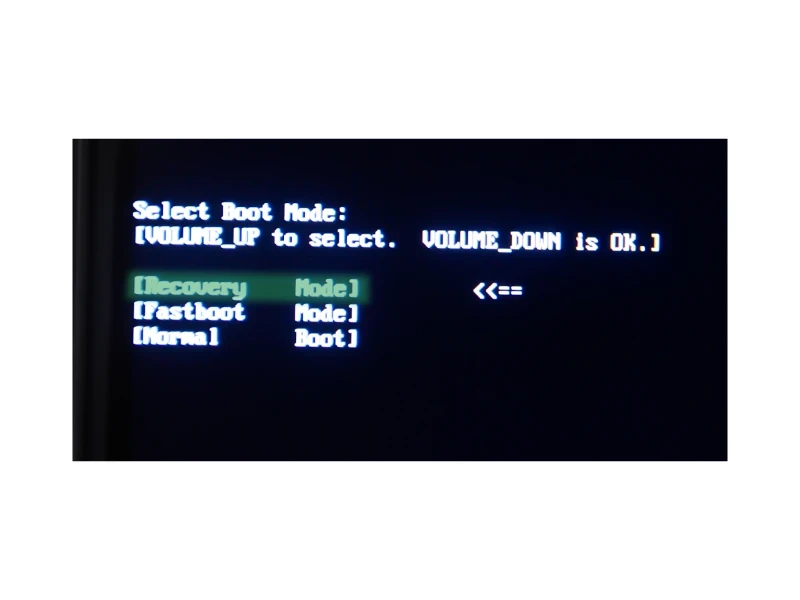
- Navigate to
Recovery Mode using Volume up button and enter the option using Volume down button.
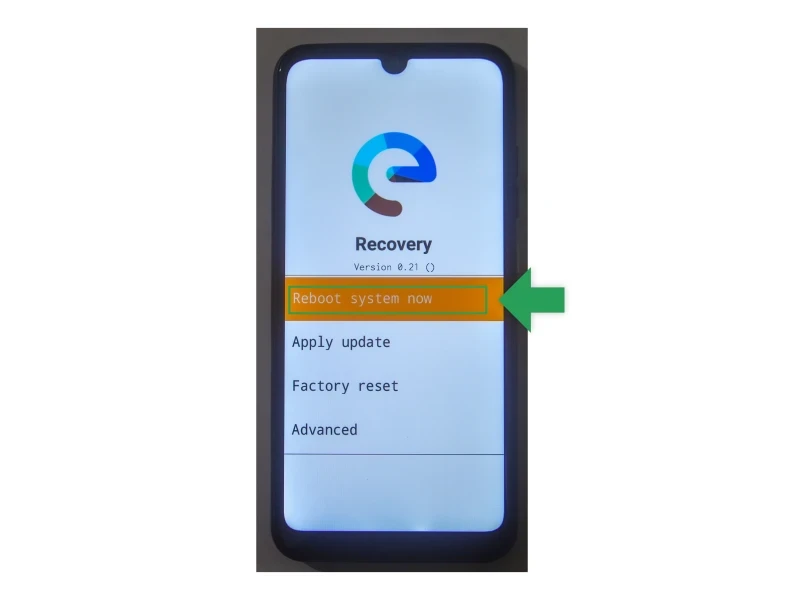
- Once the device boots into recovery mode, you will be able to see the /e/OS logo and
Recovery title below it.
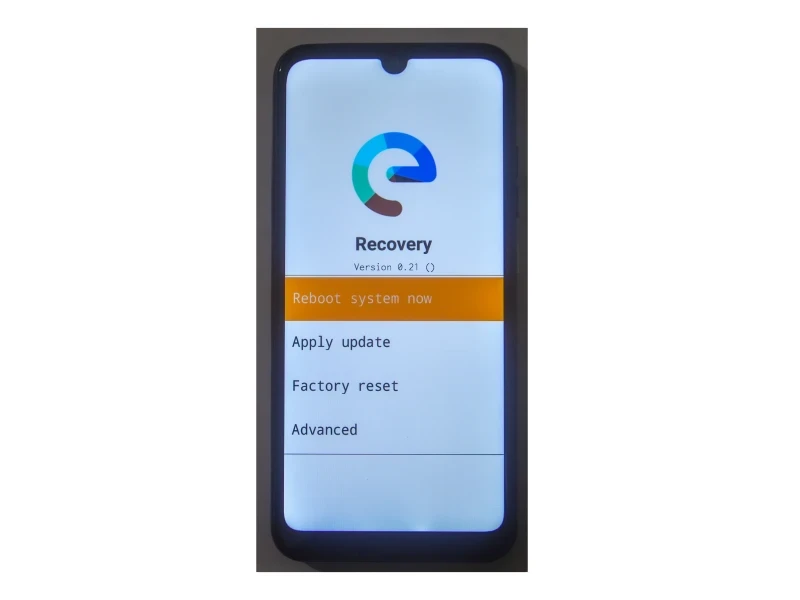
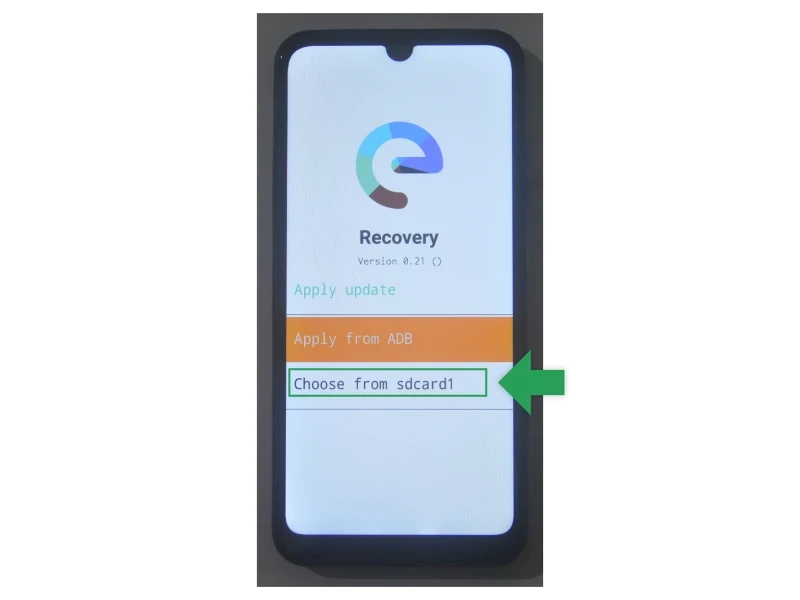
- Tap on
Apply update.
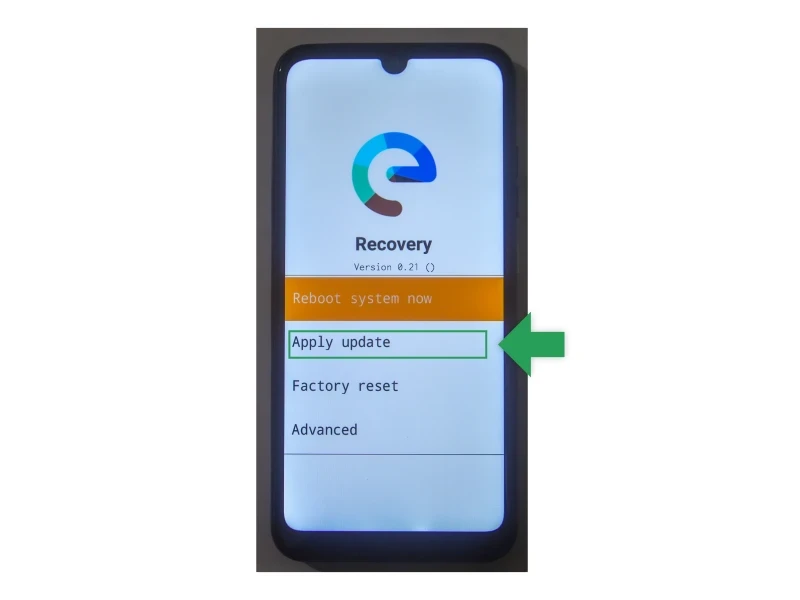
- Tap on
Choose from sdcard1.
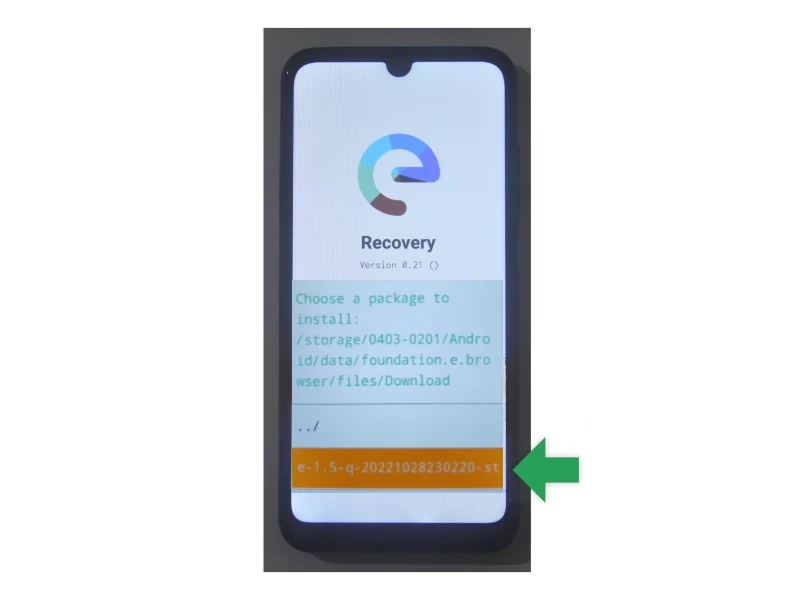
- Tap on
e-1.5-q-2022....
- If you see a message saying
Signature verification failed, you can still tap Yes and safely continue with the process (at least for this guide).
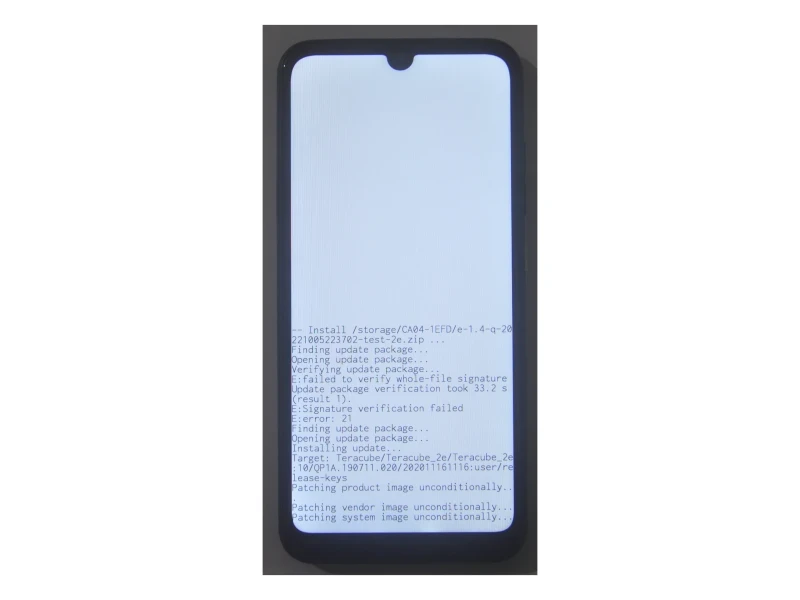
- At this point, the update is being applied. This can take a while to finish, and the progress % might even get stuck at some point. Don’t worry and have some patience, the update will ultimately succeed.
- Once the update completes, you will be able to see
Script succeeded: result was [1.000000].
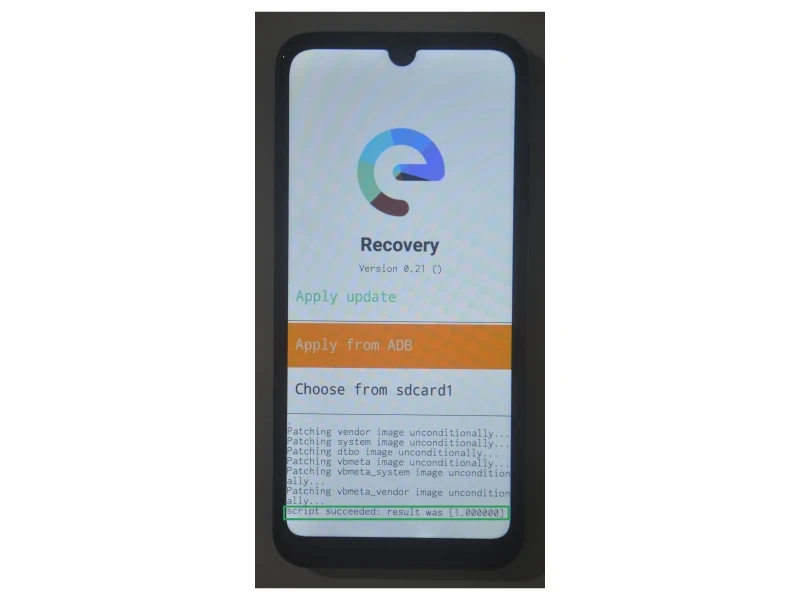
- Swipe left in the empty area above the /e/OS logo.
- Tap on ‘Reboot system now’, and wait for your device to restart.
- Congrats! An updated version of /e/OS was successfully installed on your Teracube 2e. Your system settings will reflect the updated
Version number. Have fun with the update!
