
Account Manager
Edit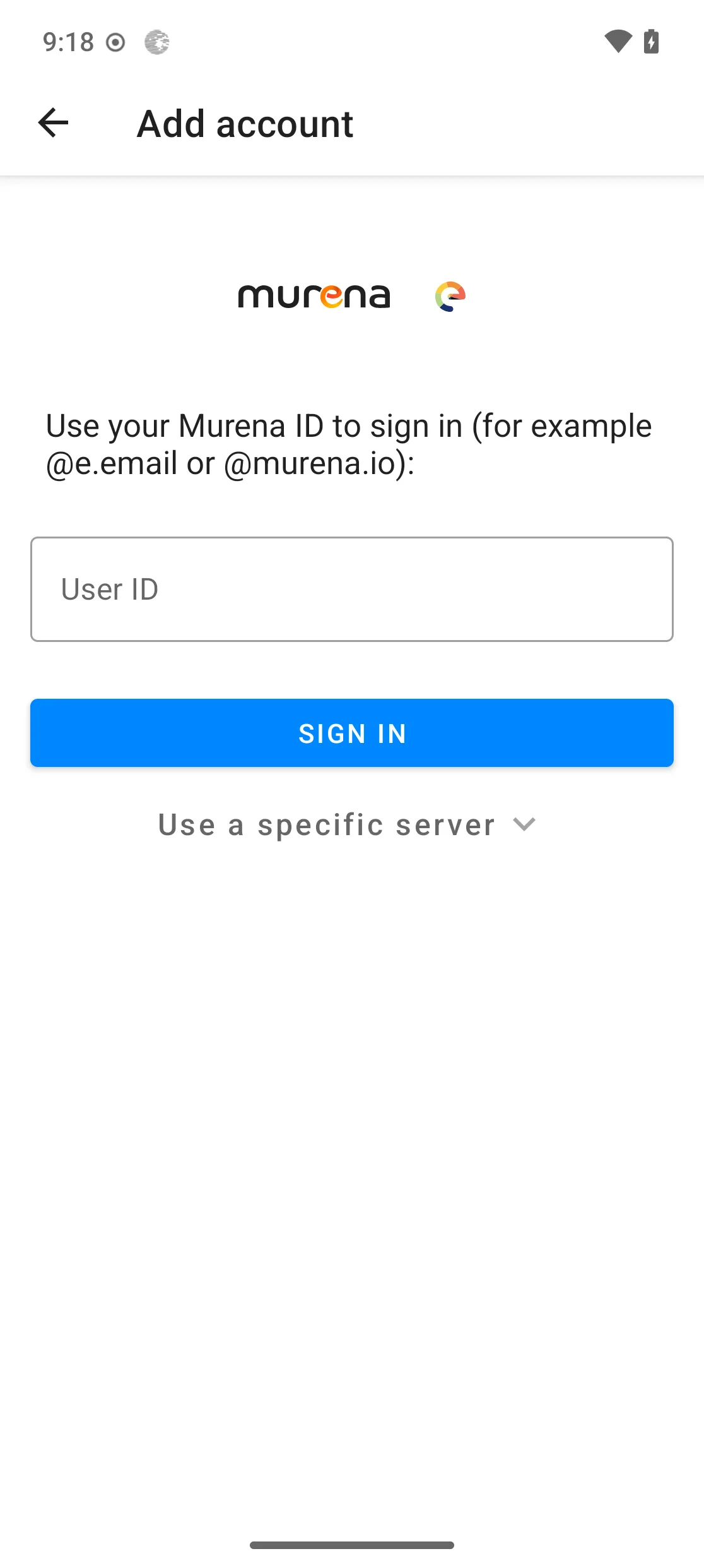
/e/OS comes with Account Manager, the app that adds your online accounts to the device and keeps their mail, contacts, calendars and tasks in sync. It is a fork of the open-source DAVx⁵ CalDAV/CardDAV client, extended by Murena to sign in to Murena Workspace with a single /e/OS identity and to work hand in hand with the preinstalled Mail, Contacts, Calendar and Tasks apps.
Your data is stored locally on the device and is not shared with any third party beyond the provider — Murena Workspace, Google, Yahoo… — needed to authenticate and synchronise it.
Sign in with your Murena ID
Signing in with your Murena ID connects Murena Workspace to /e/OS and keeps your mail, contacts, calendars and tasks in sync. Authentication uses OpenID Connect single sign-on: the sign-in page opens in a browser and Account Manager only ever receives a token — your password is never typed into, or stored by, the app.
-
Open
Settings→Accounts, tapAdd accountand pick Murena.io.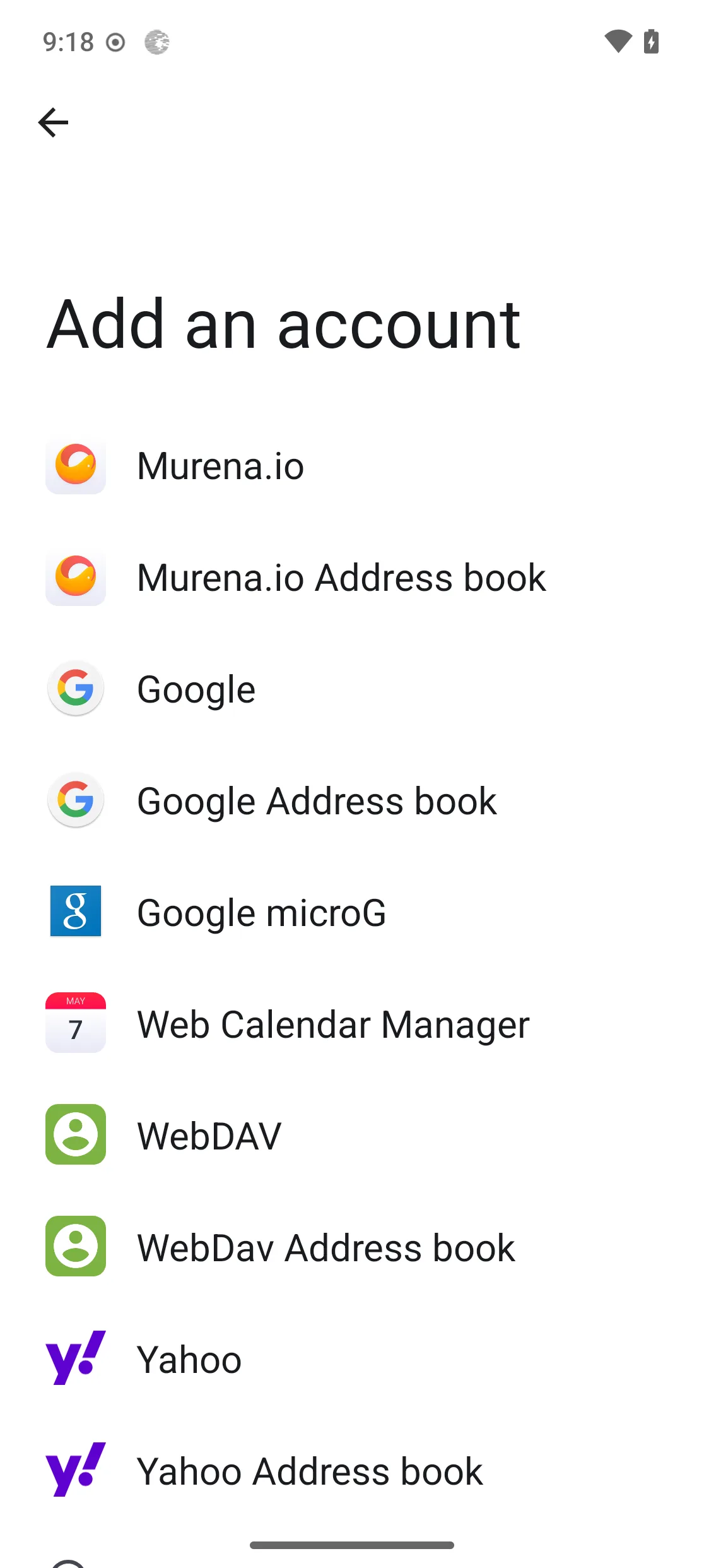
-
Enter your Murena ID — for example
@e.emailor@murena.io— and tapSign in. Self-hosting Murena Workspace? ExpandUse a specific serverfirst to point the sign-in at your own instance.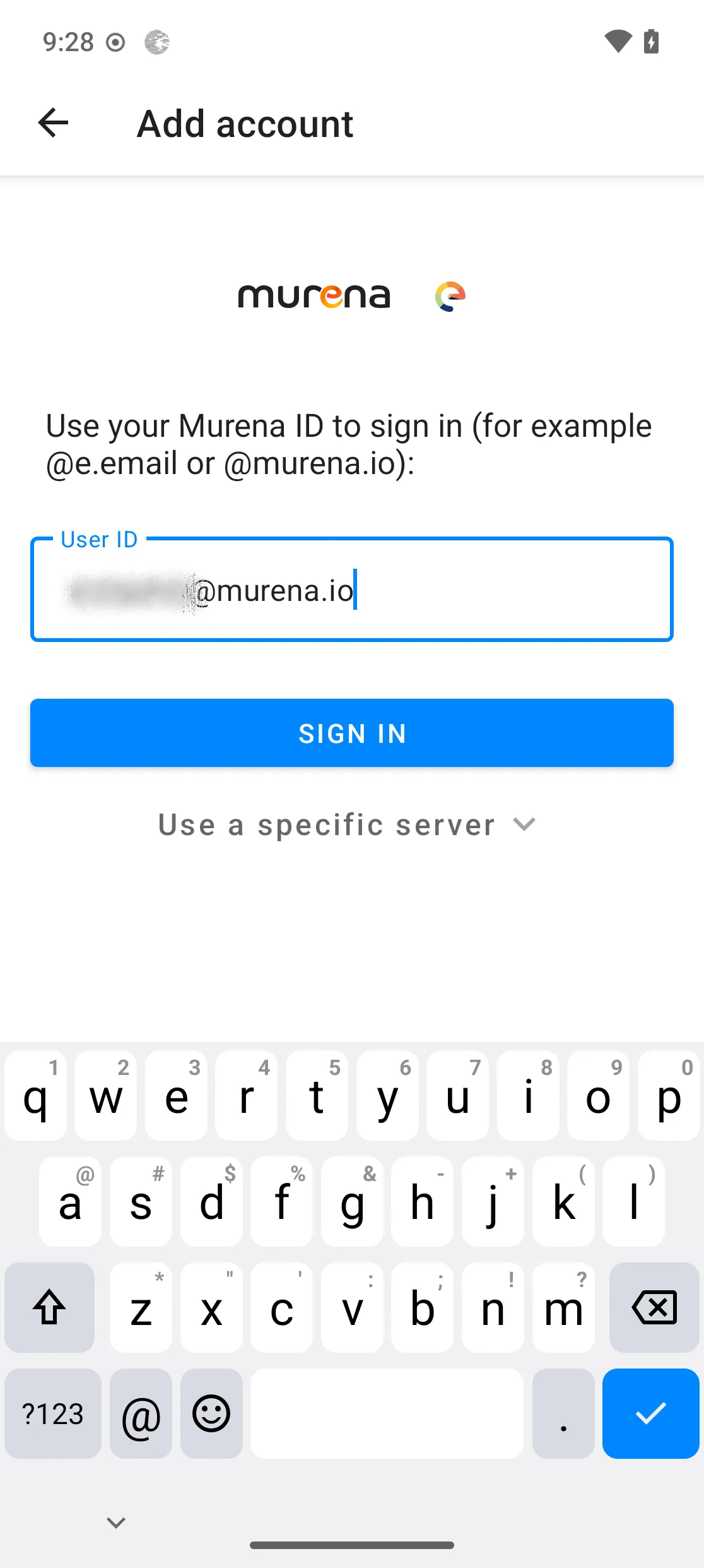
-
The Murena sign-in page opens in the browser. Enter your password and tap
Login.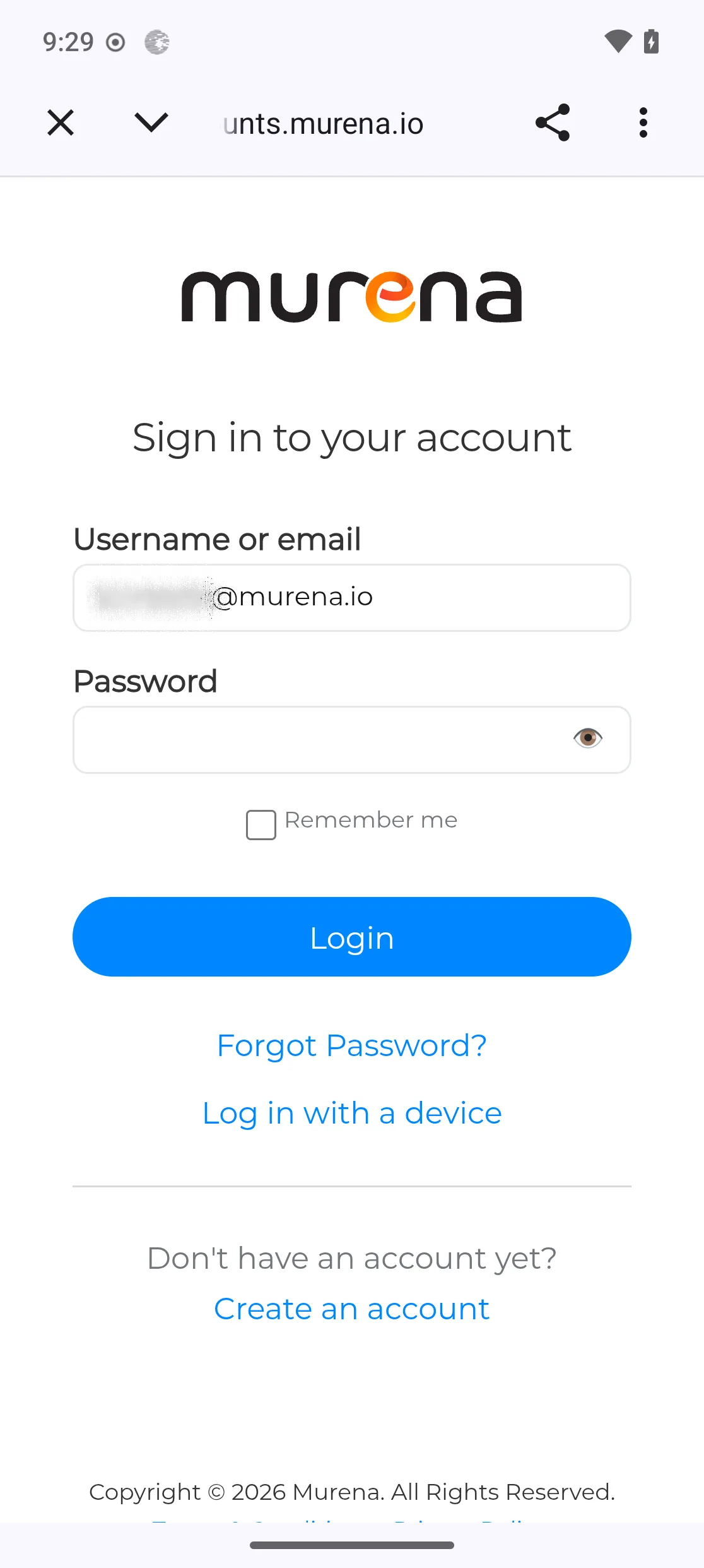
-
You are returned to /e/OS with the account added under
Settings→Accounts. A device holds a single Murena account — one identity for all of Murena Workspace.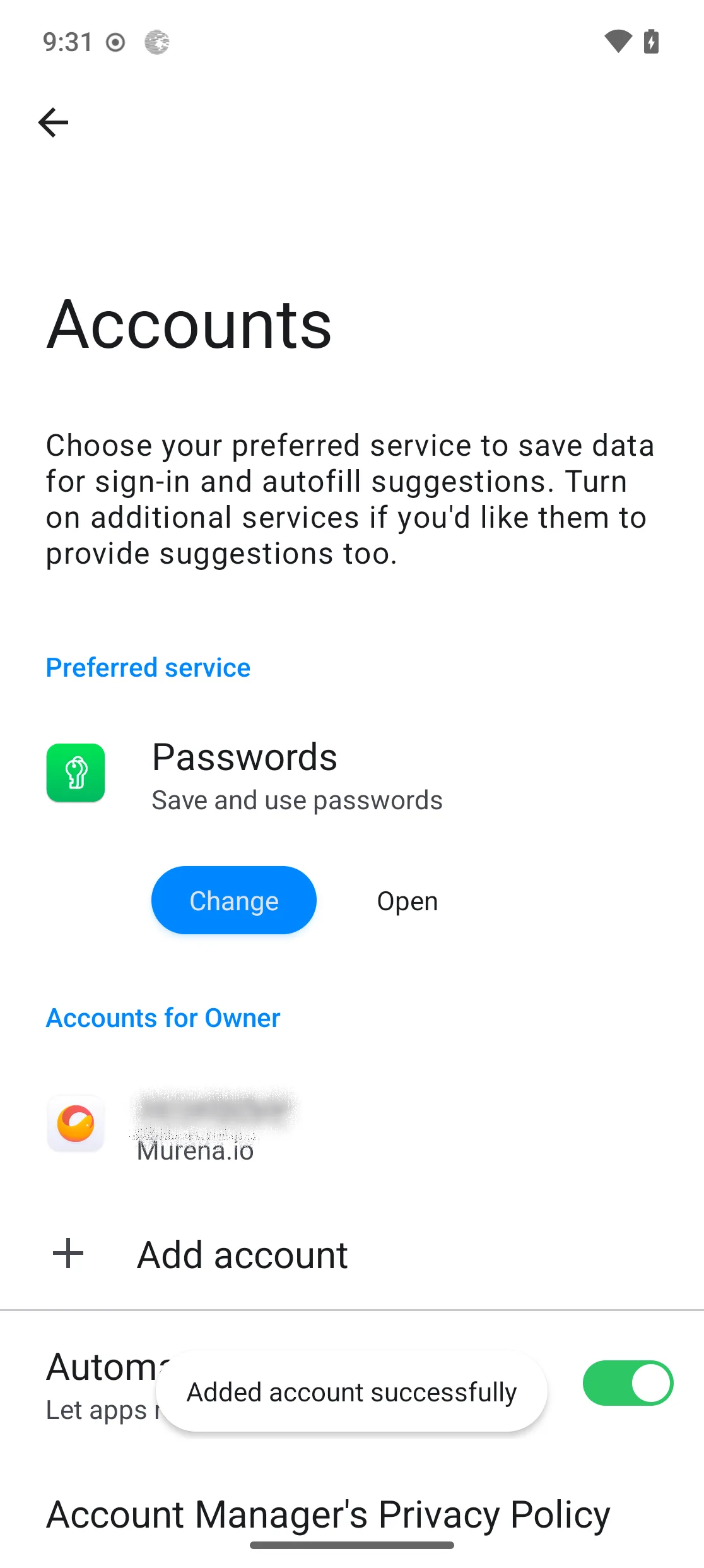
-
Open the account and tap
Account syncto see everything it keeps in sync — address books, calendar, mail, notes and more — and to turn individual items on or off.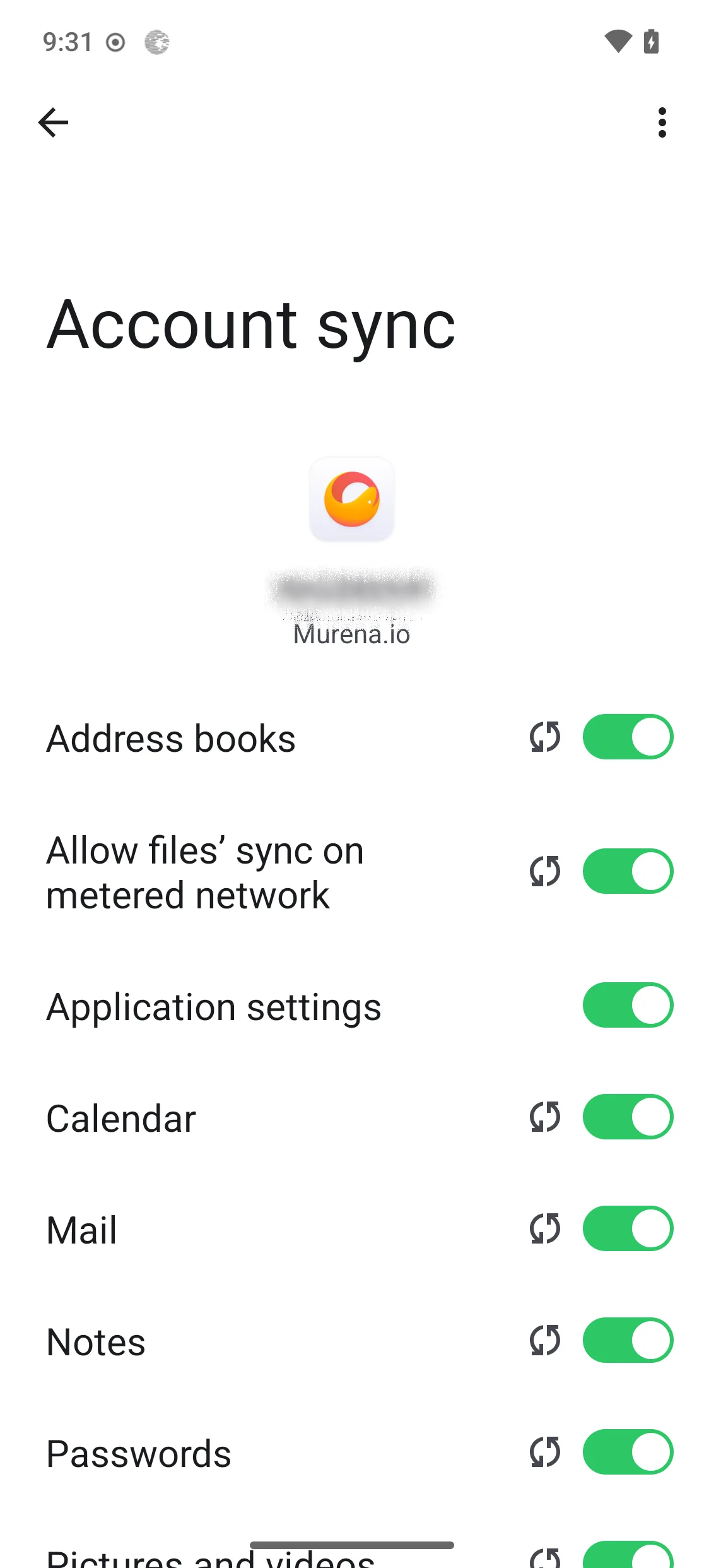
No account yet? Tap Create Account on the sign-in screen to start creating a murena.io account, then come back and sign in. When a session eventually expires, a Sign-in required notification invites you to sign in again to keep Murena Workspace online.
Add another account
Beyond Murena, Add account can connect:
- Google and its address book — reporting a fake device model to Google to reduce tracking. Follow the Add a Google account guide for the full walk-through.
- Yahoo, Nextcloud, or any CalDAV/CardDAV server — choose Login with email address, Login with URL and user name, or Advanced login for special cases.
- WebDAV, a WebDAV address book and the Web Calendar Manager for read-only web calendars.
Synced data appears automatically in the matching /e/OS apps — Mail, Contacts, Calendar and Tasks — and each account can be tuned under Settings → Accounts → your account → Account sync.
What Murena changed from DAVx⁵
Account Manager keeps DAVx⁵’s proven CalDAV/CardDAV engine and adds:
- Murena Workspace sign-in through OpenID Connect, with a single /e/OS-Murena identity instead of a per-service login.
- Deep integration with the /e/OS apps — Mail, Contacts, Calendar and Tasks — rather than a standalone sync client.
- Application-password support for Murena accounts protected by two-factor authentication.
- An in-app path to create a Murena account during setup.
- Silent token refresh and offline-access handling, so sync keeps working between sign-ins.
- No hard dependency on the /e/ Browser — sign-in works with the system browser.