
Advanced Privacy
Edit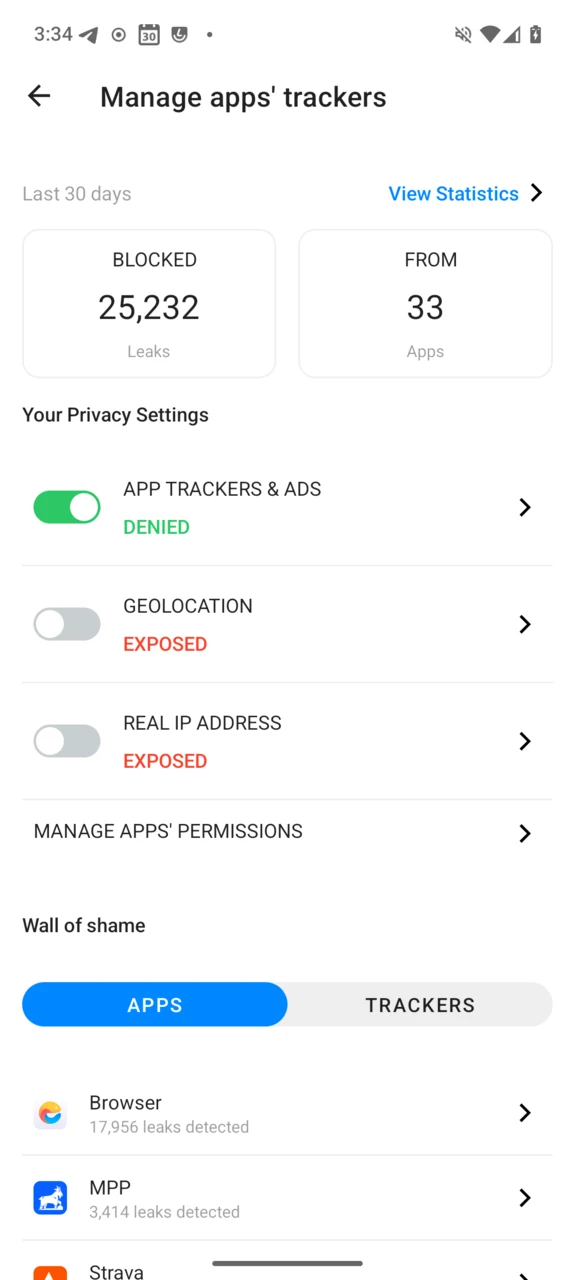
Advanced Privacy is a tool we have developed to limit your data exposure once you have installed third-party apps. When an application snoops in the background, it uses trackers to log your activity even when you are not using the app, collects your IP address to potentially link your internet activity to your device — and to you — and tries to pinpoint your exact location.
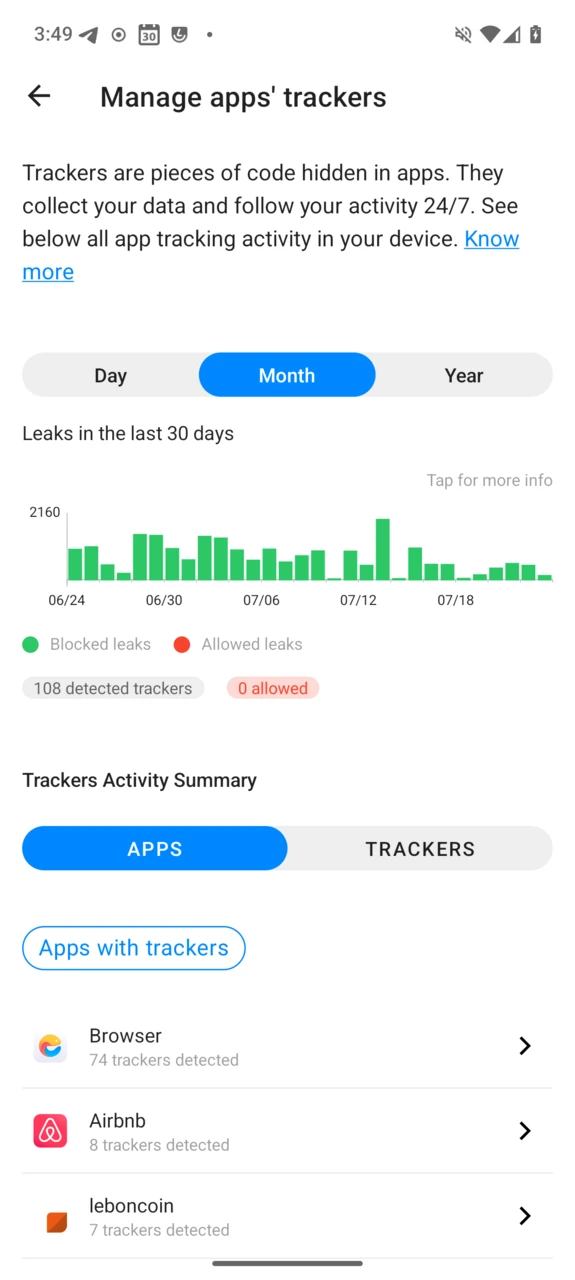
Advanced Privacy lets you manage in-app trackers, your IP address and your location. It is available as a widget and within the operating system settings, and sums up its activity on a dashboard: leaks blocked, apps involved, and the “wall of shame” of the most tracker-hungry apps on your device.
Tracker Blocker
What are we talking about?
A typical tracker is a piece of software initiating requests from the device to send personal data to specific endpoints which collect connection metadata while providing a service. The collection and aggregation of these data are used to track users’ activity and behaviour.
Tracing a tracker means having a look at which applications (or system components) are connecting to which endpoints (when, how much data, which data…).
How does it work?
The Tracker Blocker detects and blocks trackers when they perform DNS (Domain Name System) requests. The DNS is the first step of an internet request: it transforms the name of a service (for instance e.foundation) into its current address on the internet (for instance 157.90.154.178).
We build and maintain a list of tracker domains merging the Exodus, WhoTracksMe and StevenBlack lists with custom /e/OS rules, refreshed daily. The low-level DNS service of /e/OS submits each requested domain to Advanced Privacy, which logs every request matching the tracker list — and blocks it if you enabled tracker blocking.
Weekly report
Every Sunday at eleven, a notification highlights how Advanced Privacy protected you over the past week. Tapping it opens a visual summary of the week’s statistics, alternating between different privacy insights, with a share button to pass the report along with your favourite apps.
Side effects
- Some tracker domains can be mandatory for a service to work. To solve potential issues, you can allow any tracker individually for any application.
- Newer DNS technologies such as DoH (DNS over HTTPS) or DoT (DNS over TLS) can bypass the system’s DNS service, and thus escape the Tracker Blocker.
- The Tracker Blocker may report that a system app loads trackers. This is not a false positive, but it does not imply /e/OS is tracking you: it happens when a system app embeds a third-party component that phones home — for instance Progressive Web Apps run through the system’s PWAPlayer, so trackers loaded by the websites they display are attributed to the System (and blocked all the same).
- App Lounge downloads apps anonymously, so it embeds no tracker by itself. If Advanced Privacy reports trackers for it, it is because you chose to sign in with a Google account.
- Domains may stop tracking users over time; filter lists pick these changes up on update, but past trackers keep appearing in your history — it reflects what happened, not what is currently running.
- Some domains serve several purposes at once. For example
login.microsoftonline.comlets Microsoft users log into Microsoft apps, but is also used to track users in third-party apps. Advanced Privacy cannot tell a willing use from tracking in that case; if a login or feature breaks, allow that domain for that specific app.
Hide My IP
What are we talking about?
IP addresses are the origin and destination addresses of every communication on the internet. Your phone’s visible address is the one attributed by your cellular provider, home connection or Wi-Fi hotspot — and it is the standard way to link internet activity to an individual in the real world: hosting services and internet providers must keep them for legal purposes, advertisers use them to profile you, services use them to geo-restrict content or ban users.
How does it work?
Advanced Privacy embeds an implementation of the Tor network, extracted from the Orbot application, with a user interface on top.
Tor directs Internet traffic through a free, worldwide, volunteer overlay network, consisting of more than seven thousand relays, to conceal a user’s location and usage from anyone performing network surveillance or traffic analysis. — Wikipedia
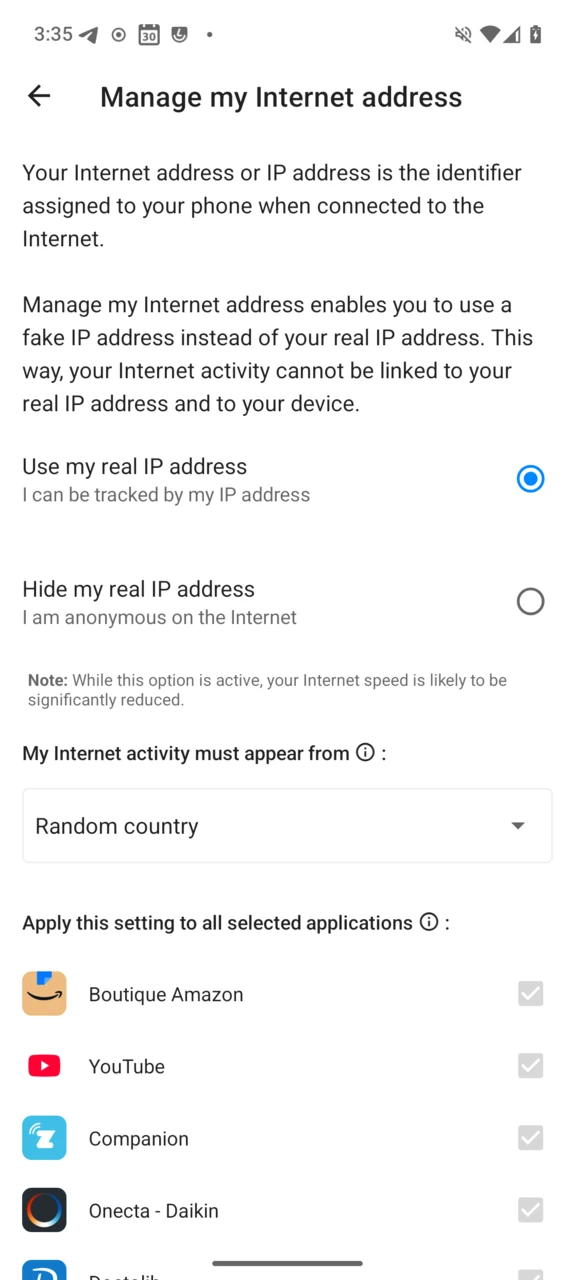
When Hide My IP is active, the device’s internet traffic — all of it, or just selected apps — is routed through the Tor network: your real IP address is masked by an address belonging to the Tor network, and you can choose which country your activity appears to come from.
Side effects
- The Orbot implementation bridges traffic through Android’s VPN facility, so Hide My IP appears as a VPN in /e/OS.
- Bandwidth is reduced and latency increases (typically 200–500 ms): each request wanders through several Tor relays — that is what makes it anonymous.
- Some services detect and block Tor traffic, so features may misbehave while Hide My IP is on.
- Services that derive your location from your IP will see the Tor exit node’s location, which can be anywhere in the world.
Tips
You can keep providing your real IP to chosen apps: open the Real IP address entry of Advanced Privacy and untick the apps that should bypass Tor.
Because of the potential impacts, a permanent Real IP hidden notification shows while your IP is masked. If you understand the impacts, you can remove it: long-press the notification, tap the cogwheel and untoggle the Hide my IP flag.
Fake My Location
Smartphones compute their position with satellite navigation systems (GPS, Galileo…) and by mapping visible cell and Wi-Fi networks. This enables maps and navigation — but also lets apps learn where you live, work and shop, to build precise advertising profiles.
How does it work?
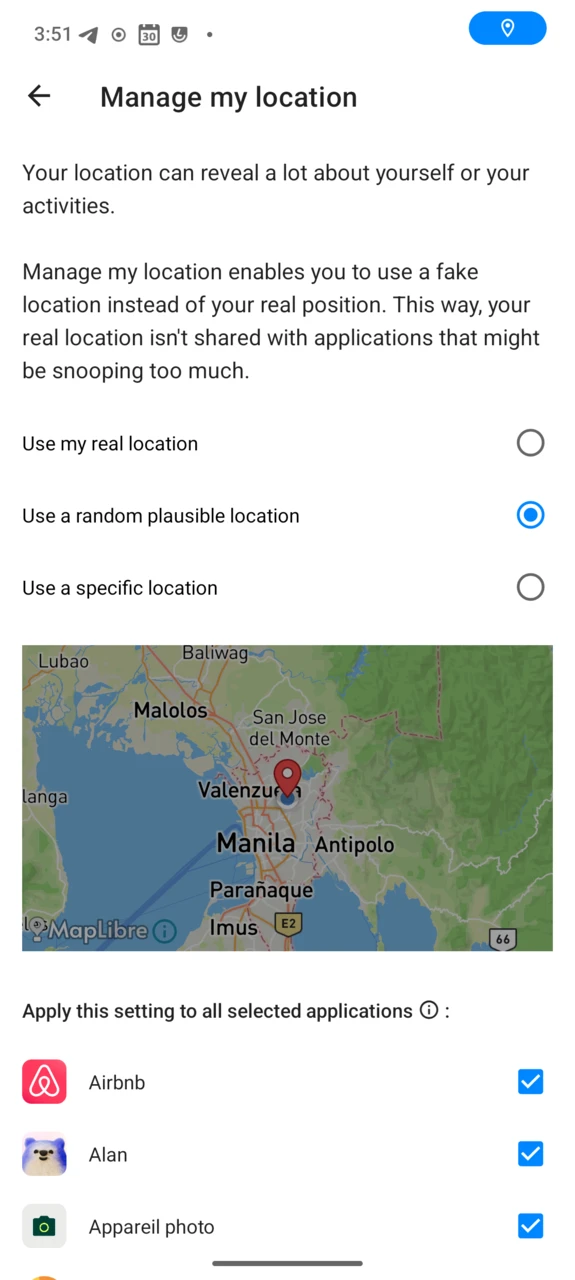
Fake My Location plugs into low-level operating-system features to bypass the real location: applications requesting your position receive the one you chose instead — a random plausible location, or a specific location you pick on a map (rendered with the open source MapLibre library).
Side effects
- The Weather widget follows the fake location; picking a fake spot not too far from the real one keeps it useful.
- Navigation apps (Magic Earth, OsmAnd, Waze…) use the fake location too — disable Fake My Location temporarily when you navigate.
- Automatic dark mode may trigger at the wrong hours if the fake location sits in another time zone.
Tips
You can keep providing your real location to chosen apps (your navigation or weather app, say): open the Geolocation entry of Advanced Privacy and untick them.
As for the IP, a permanent Fake location is on notification shows while the location is faked; long-press it, tap the cogwheel and untoggle the Fake location flag to dismiss it knowingly.
Block or unblock trackers per app
Advanced Privacy blocks every known tracker in every app by default. You can allow a specific tracker for a specific app — other apps stay protected, and your custom choices are saved for the next time you enable tracker blocking.
-
Open the system settings, scroll down and tap
Advanced Privacy.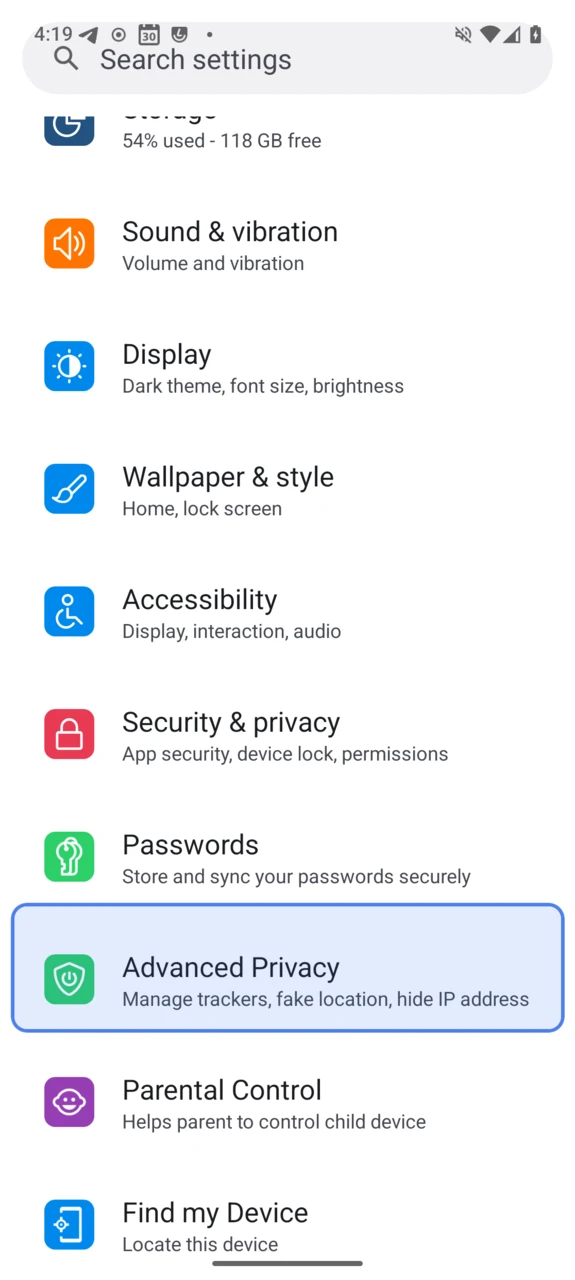
-
Tap
App trackers & ads.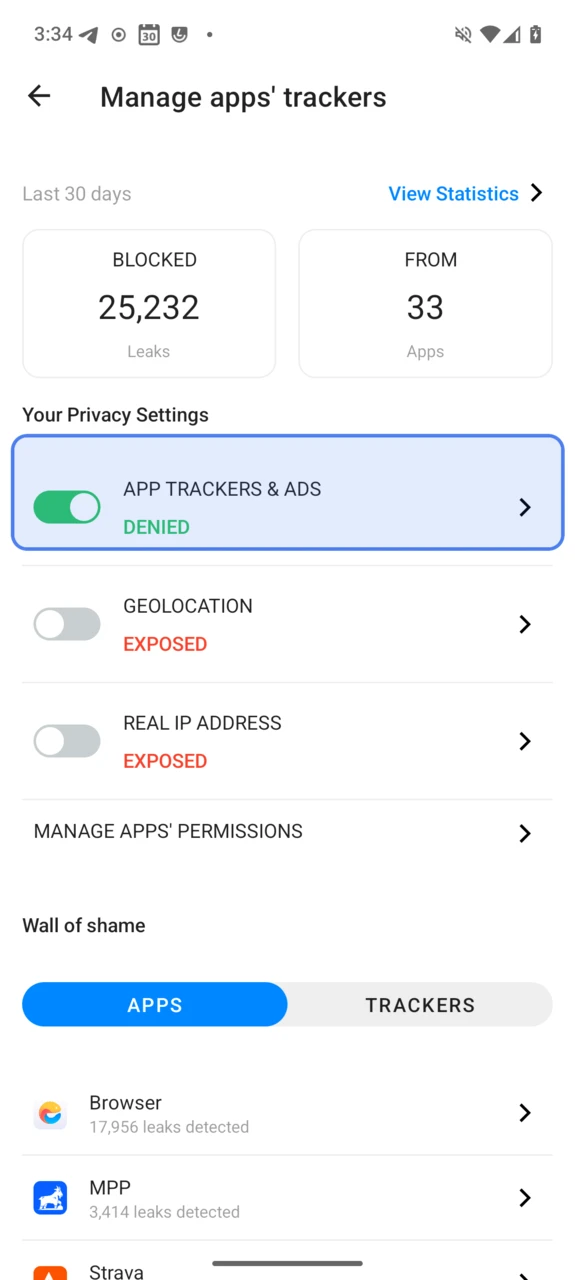
-
Select the app whose trackers you want to manage —
Browserin this example.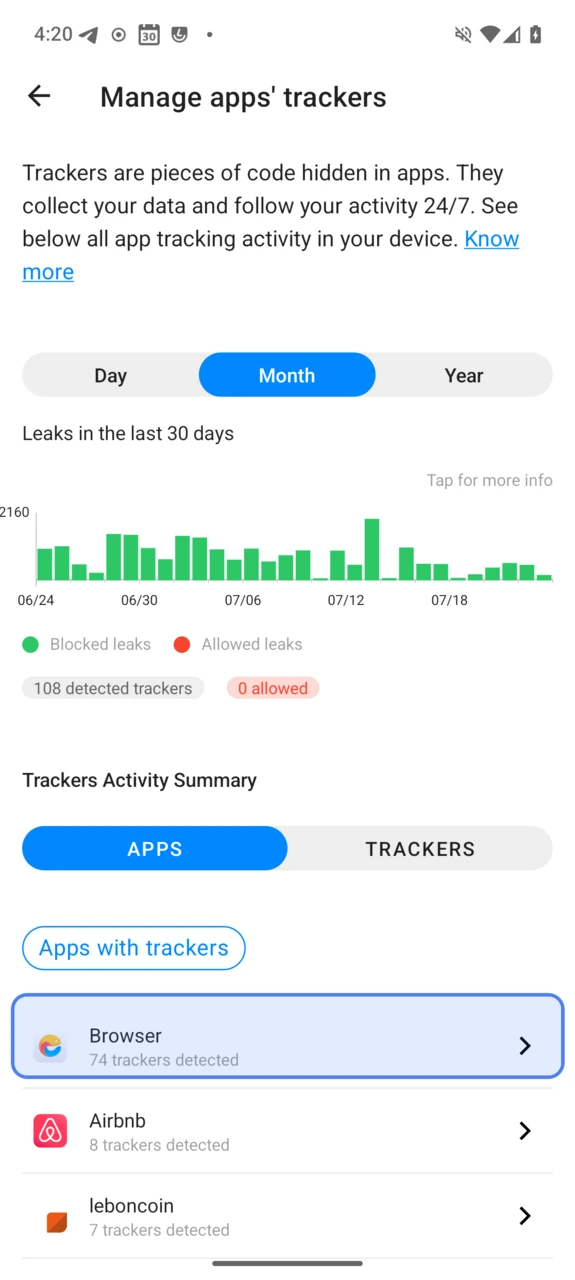
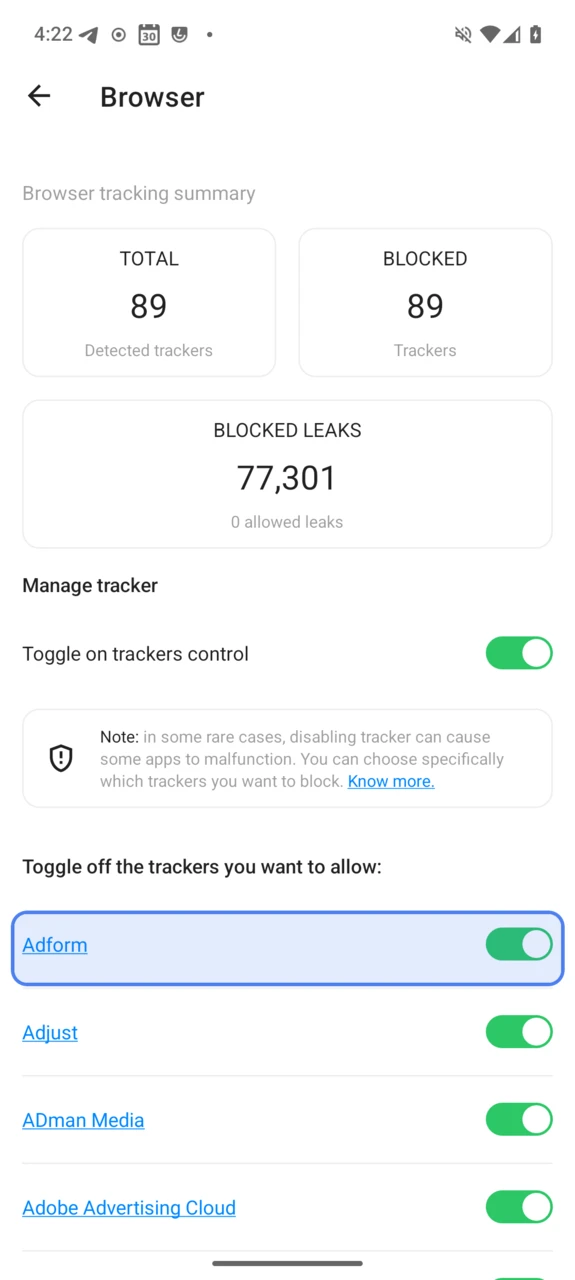
-
Allow or block each tracker with the toggle next to its name.
Advanced Privacy and work profiles
Some /e/OS features do not function properly when a work profile is set up (tested with the Shelter app): the work profile breaks Advanced Privacy’s access to system interfaces, so Fake My Location cannot change the device location.