
Bliss Launcher
Edit
Bliss Launcher is the default home screen of /e/OS. It was designed to be understood at a glance, with almost no learning curve: every installed app sits directly on your home screen pages — there is no separate app drawer to dig into.
All your apps, always visible
Your apps are laid out on home screen pages that you browse by swiping left and right, plus a dock at the bottom for your favorites. When you install a new app, its icon is automatically added to the first page with a free spot.
Apps with waiting notifications show a green counter on the top-left corner of their icon, so you can see at a glance what needs your attention.
Group your apps
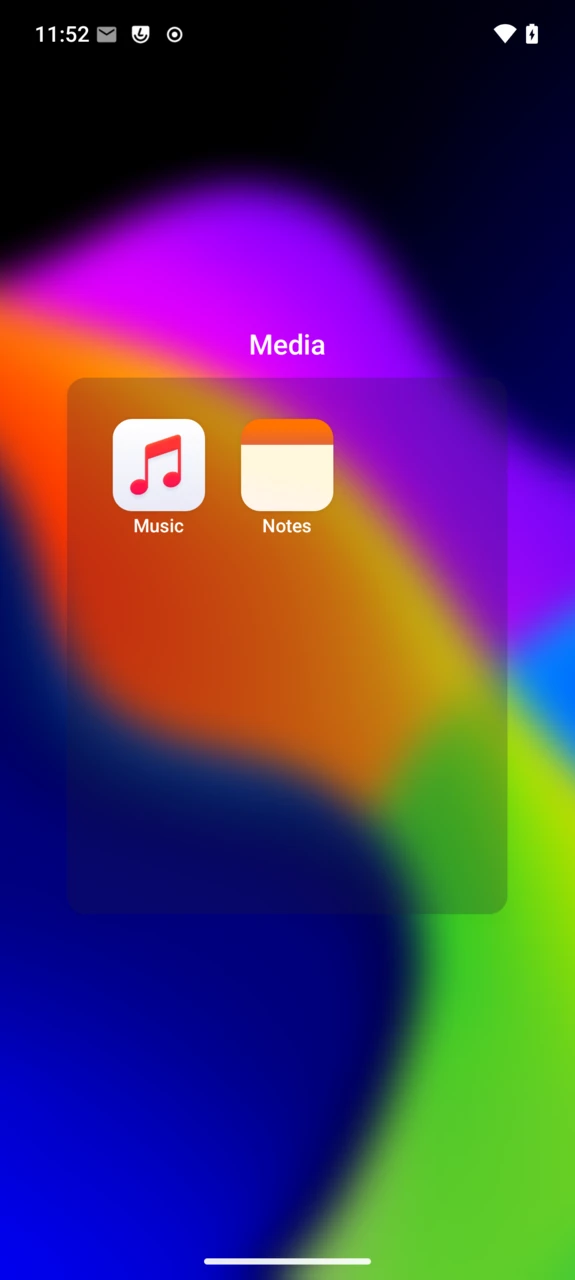
To create a group, touch and hold an app icon, then drag it onto another one: both are placed in a new group named “Untitled”. Open the group and tap its name to rename it.
Inside a group, apps are laid out on pages just like the home screen. To take an app out, touch and hold its icon and drag it outside the group. When only one app remains, the group dissolves automatically.
Arrange your home screen
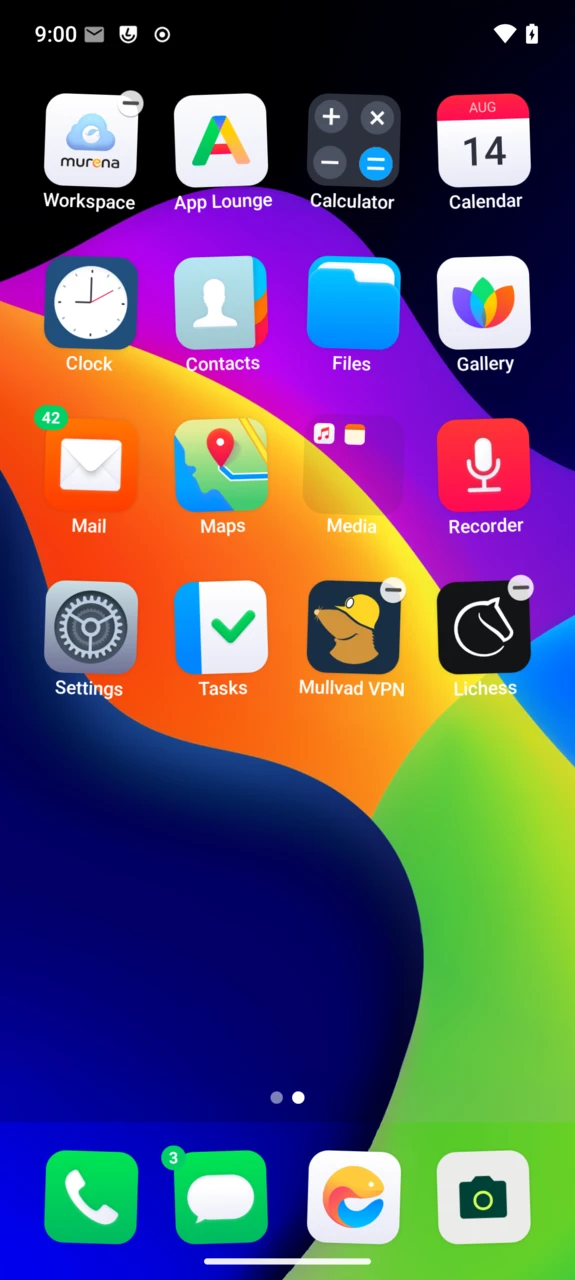
Touch and hold any icon (or an empty spot) to enter edit mode: the icons start wobbling. While they wobble you can:
- Move an icon: drag it to another position, another page, or into the dock.
- Uninstall an app: tap the minus badge shown on its icon and confirm. Since every installed app lives on the home screen, removing it from the home screen means uninstalling it. Preinstalled system apps cannot be uninstalled, so they show no badge.
Tap anywhere else, or press Home, to leave edit mode.
If you want to prevent any accidental change, enable Lock layout in the launcher settings.
Widgets have their own screen
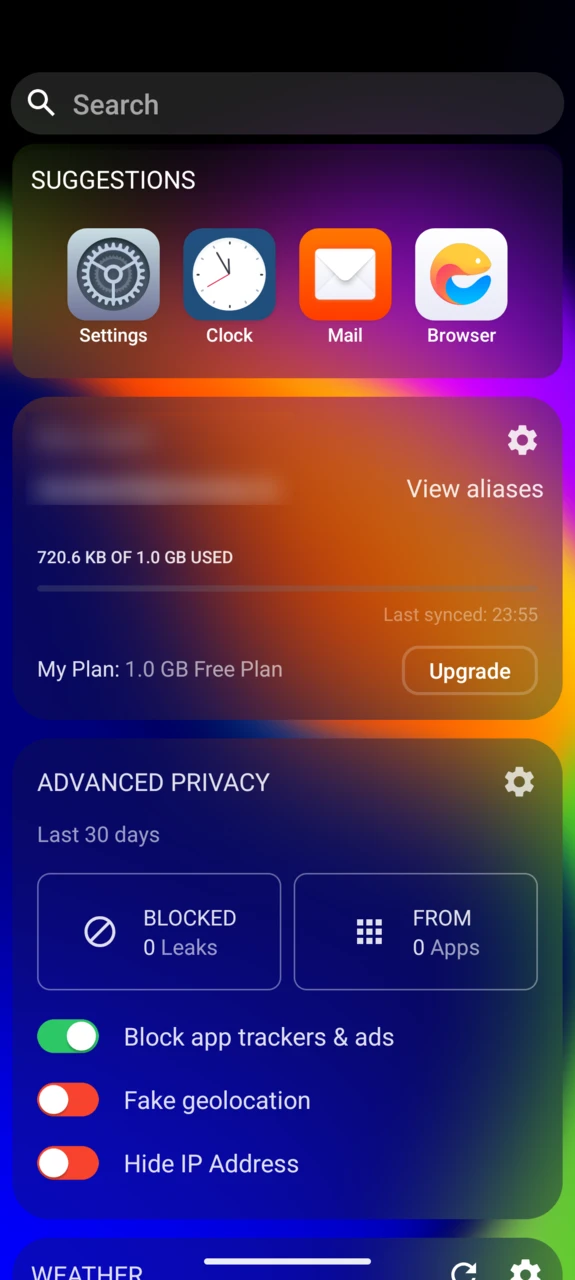
The leftmost screen is dedicated to widgets. Out of the box it hosts three of them — your Murena Workspace account, Advanced Privacy and the weather — but you can shape it to your needs:
- Add opens the widget picker, listing the widgets offered by your installed apps.
- Remove lists the widgets currently on the screen and lets you delete them.
- Touch and hold a widget to resize it with the Min/Max slider (widgets that don’t support resizing say so).
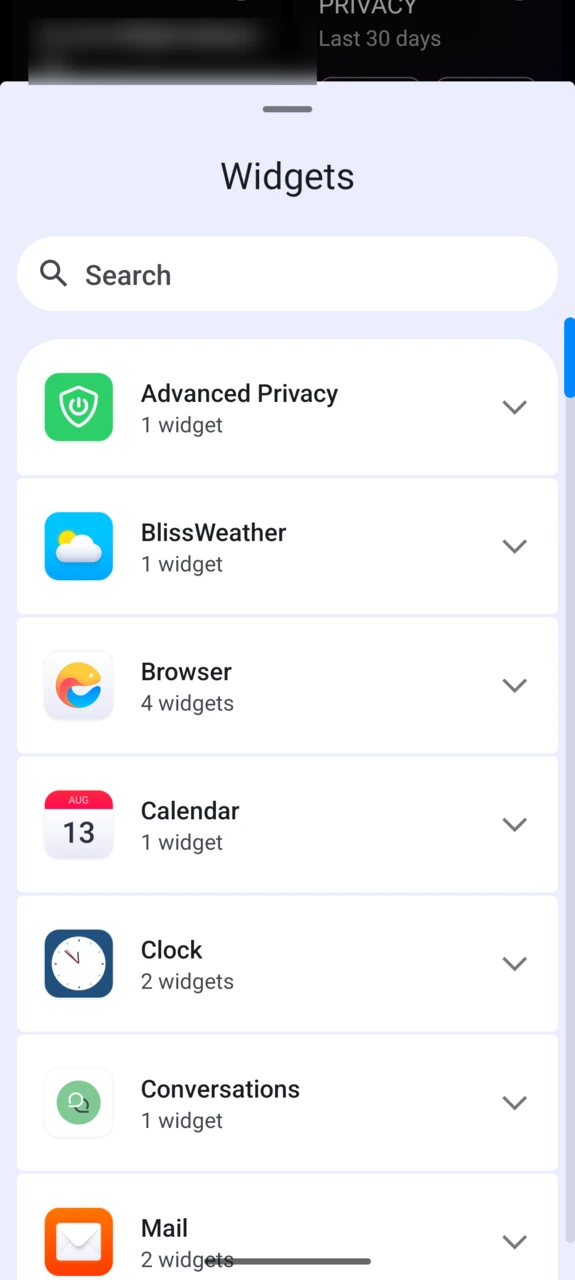
The widget screen also shows Suggestions: a row with your most used apps, based on usage statistics that never leave your device.
Search apps and the web
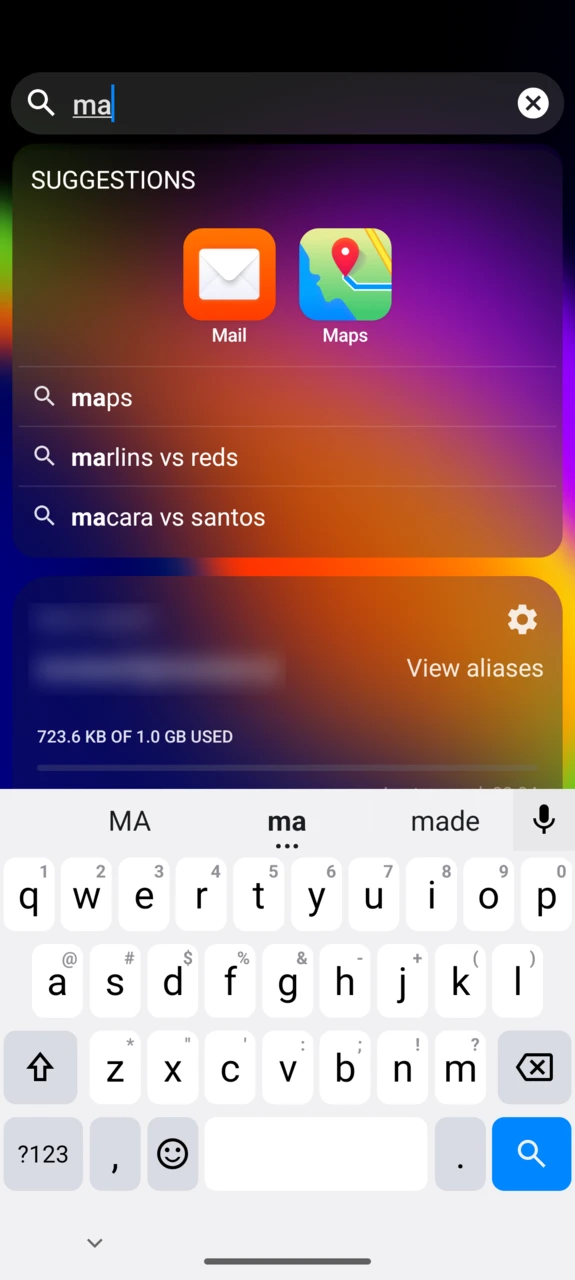
The search bar at the top of the widget screen searches two places at once: your installed apps — including those inside groups — and the web. Web suggestions come from your browser’s default search engine (Murena Find unless you changed it) and open in the browser.
Launcher settings
A few options are available under Settings → Apps → BlissLauncher → Additional settings in the app:
- Lock layout: prevent icons and widgets from being added, moved or removed.
- Notification dots: turn the notification badges on app icons on or off.
- Show notification count: show the number of waiting notifications inside the badge, instead of a simple dot.
FAQ
Where is the app drawer?
There is none, by design. Bliss Launcher keeps all your apps visible on the home screen pages, so nothing gets lost in a drawer. Use groups to keep the pages tidy, or the search bar to launch any app in a couple of keystrokes.
Can I use another launcher?
Yes. Install the launcher of your choice, then select it under Settings → Apps → Default apps → Home app. The community maintains a list of third party launchers known to work well on /e/OS.
Is Bliss Launcher open source?
Yes — the source code is available on our GitLab.
Why don’t I see notification badges?
Check that Notification dots are enabled in the launcher settings, and that the app’s notifications are not silenced. Note that ongoing notifications, like a running timer or a music player, don’t produce a badge.