
eDrive
Edit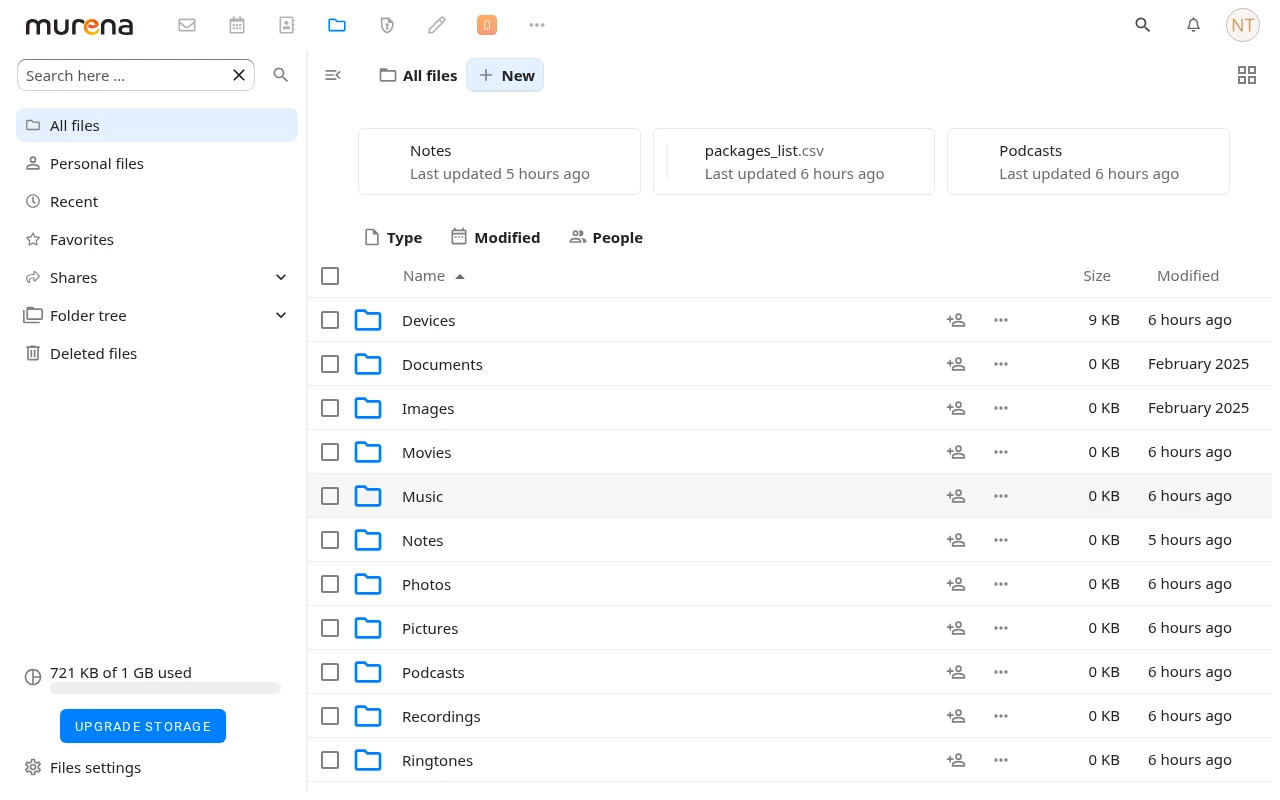
/e/OS comes with eDrive, the built-in service that keeps your files in sync with Murena Workspace — or with any other Nextcloud instance, including one you host yourself. It is not an app you open: eDrive has no icon and no screen of its own. Sign in with your Murena account — see how to sign in with Account Manager — and synchronization starts by itself in the background. Your files then appear in the Files app at murena.io, on the web and on any other device connected to the same account.
What is synchronized
You have full control over which categories are synchronized, but by default eDrive syncs the standard folders of the phone’s internal storage — the ones the Files app shows when you open it:
| Folder on your phone | Folder on the cloud | What it holds |
|---|---|---|
DCIM |
/Photos |
Camera photos and videos |
Pictures |
/Pictures |
Screenshots, edited images |
Movies |
/Movies |
Videos |
Music |
/Music |
Music |
Ringtones |
/Ringtones |
Ringtones |
Documents |
/Documents |
Documents |
Podcasts |
/Podcasts |
Podcasts |
For the technically minded, these folders live at the root of the internal storage, /storage/emulated/0/; the exact map of synchronized directories is in the eDrive README. The cloud folders are created automatically when needed, and synchronization is two-way: new and changed files are uploaded from the device, and changes made in the cloud come back to the device. eDrive never deletes your files — removing a file on one side does not remove it on the other.
eDrive also backs up two things no file manager shows: your device settings and the list of installed applications, saved under /Devices/<device id>/rom_settings/ on the cloud, so you can check what was on a phone when setting up its replacement.
When does it sync?
Two mechanisms work together, and neither needs you:
- As it happens — eDrive watches the synchronized folders, so a new photo or a freshly edited document is queued for upload right away.
- Every 30 minutes — a full scan compares the device with the cloud. This is what brings changes made in the cloud down to the device, refreshes the app-list backup, and catches anything the live watcher missed. It re-arms itself every time the phone boots.
To stay out of your way, eDrive only syncs when the connection is up, leaves the battery alone when it is low, and keeps off metered networks unless you allowed them. When the cloud storage is completely full, uploads are put on hold — downloads keep working.
Choose what is synchronized
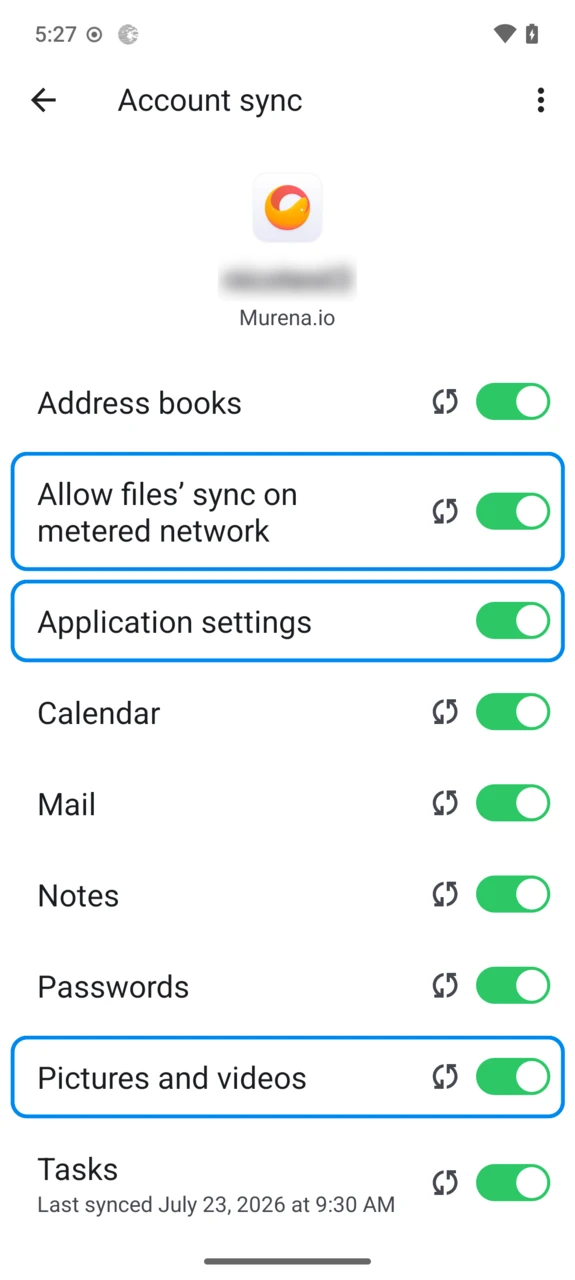
Open Settings → Passwords & accounts → your Murena account → Account sync. Two of the toggles belong to eDrive:
Application settings— the device settings backup (ROM settings).Pictures and videos— the media and document categories: Images, Movies, Music, Ringtones, Documents and Podcasts.
The same screen holds Allow files’ sync on metered network: when disabled, eDrive does not synchronize files over connections that bill by usage, such as mobile data, and waits for an unmetered network like Wi-Fi.
Murena Workspace — or your own Nextcloud
eDrive is made for Murena Workspace: create a free account, sign in once, and your files are on murena.io alongside your mail, contacts, calendars and notes, with nothing to configure.
Murena Workspace is built on Nextcloud, and eDrive speaks the standard Nextcloud protocol — so it synchronizes just as well with any Nextcloud instance, including one you host yourself:
- Open
Settings→Passwords & accounts→Add accountand pick Murena.io. - Expand
Use a specific serverand enter the address of your Nextcloud instance. - Sign in with your credentials on that server — eDrive creates the same folders there and syncs the same way.
Under the hood
- eDrive is free software (GPL v3); its source lives at gitlab.e.foundation/e/os/eDrive and it is built on the official Nextcloud synchronization library.
- Power users can force an immediate scan from a computer over
adb:
adb shell am broadcast -a foundation.e.drive.action.FORCE_SCAN --receiver-include-background