
Find my Device
Edit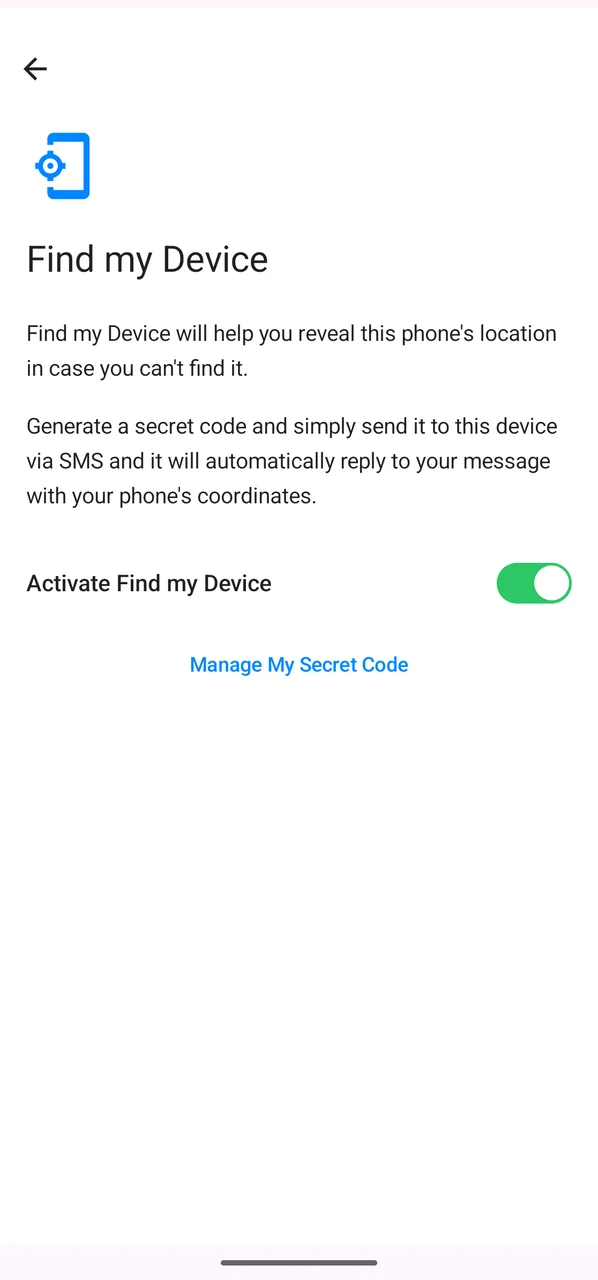
Find my Device helps you locate your /e/OS phone when you misplace it. You set a secret code on the phone; later, sending that code by SMS from any other phone makes your device reply with its current location — GPS coordinates plus an OpenStreetMap link. Everything happens on the device over SMS, with no online account and no Google service involved.
It is designed for the everyday “where did I leave my phone?” case. It does not cover a device that has been switched off, rebooted and not unlocked, or that has no SIM — for example a stolen phone.
How it works
- You generate a secret code in the Find my Device settings and activate the feature.
- From another phone, you send an SMS containing only that code to your lost phone’s number.
- Your phone recognises the code, finds its location, and replies by SMS with the coordinates and a map link.
Your phone only ever answers a message that contains the correct code, so nobody can locate it without knowing your secret.
Set it up
You can configure Find my Device during the First Time Setup Wizard when you install /e/OS, or at any time from Settings. It also gets offered when you enable Parental Control.
To set it up from Settings:
-
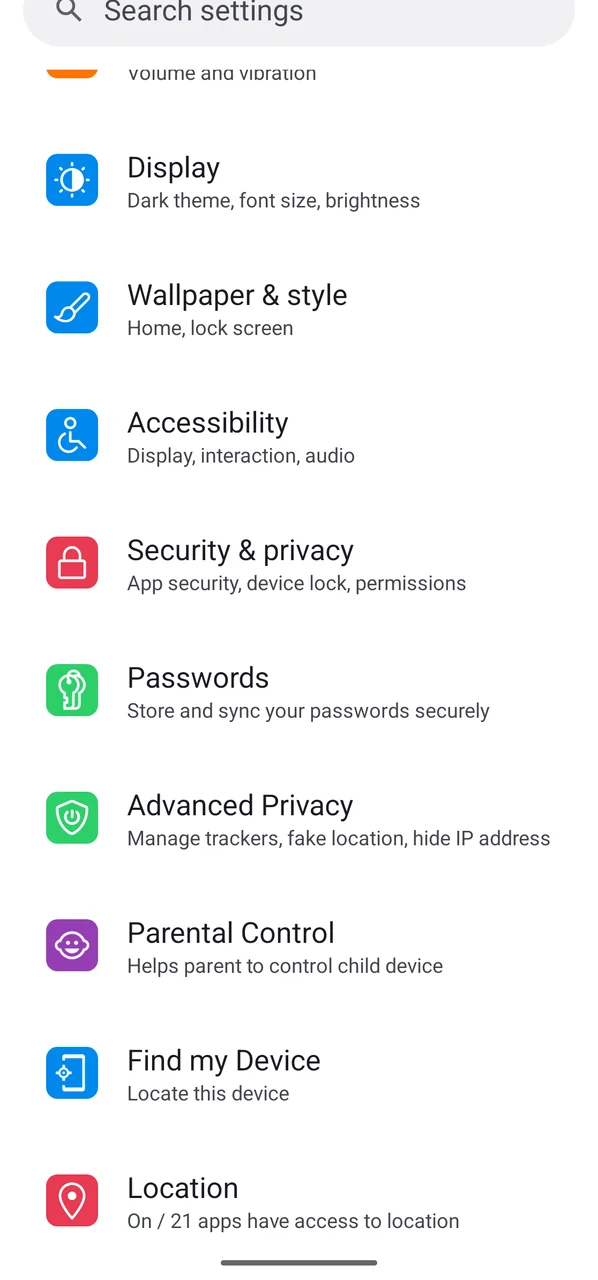
Open Settings and select Find my Device (under Security & privacy).
-
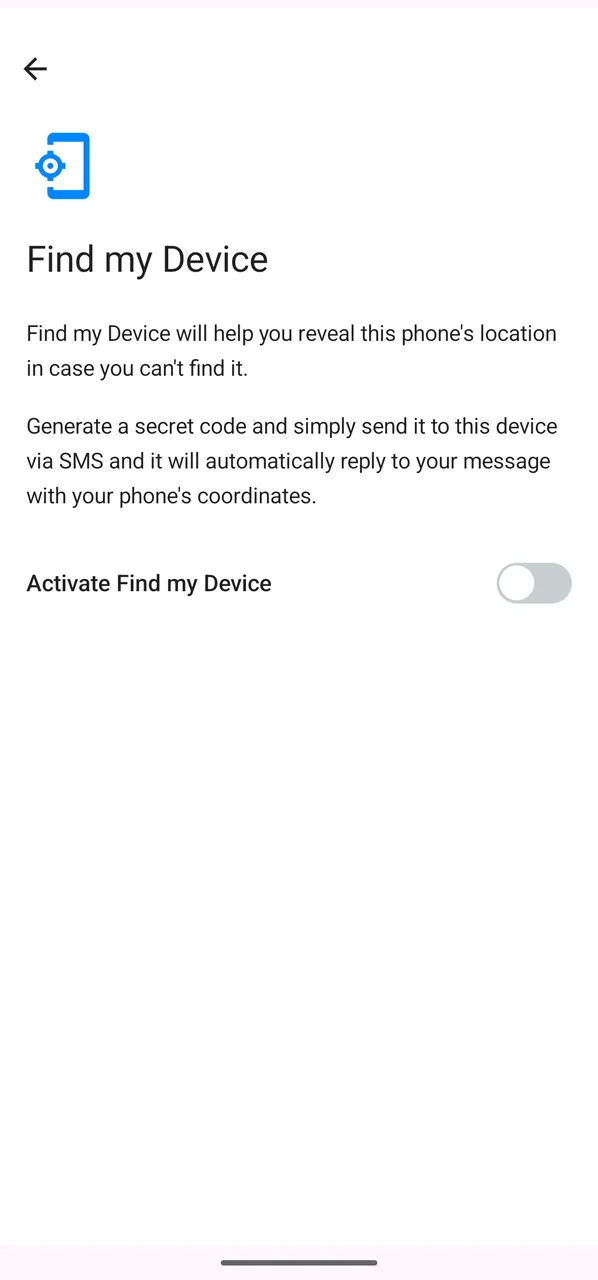
Turn on Activate Find my Device. For security you may be asked to confirm your screen-unlock code first.
-
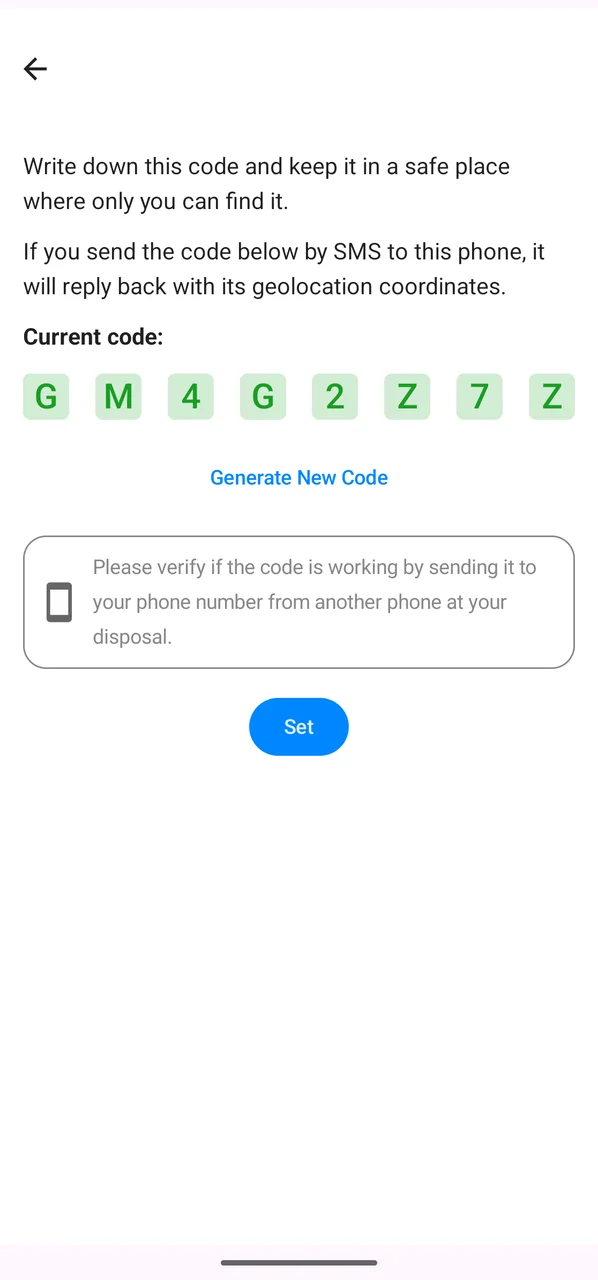
A secret code is generated for you. Write it down and keep it somewhere safe — for example in the Murena Passwords app. Then tap Set.
-
Find my Device is now active. You can come back any time through Manage My Secret Code.
Locate your device
From another phone, send an SMS to your lost phone’s number containing only your secret code. If the code is correct, your phone replies with its location — GPS coordinates and an OpenStreetMap link:
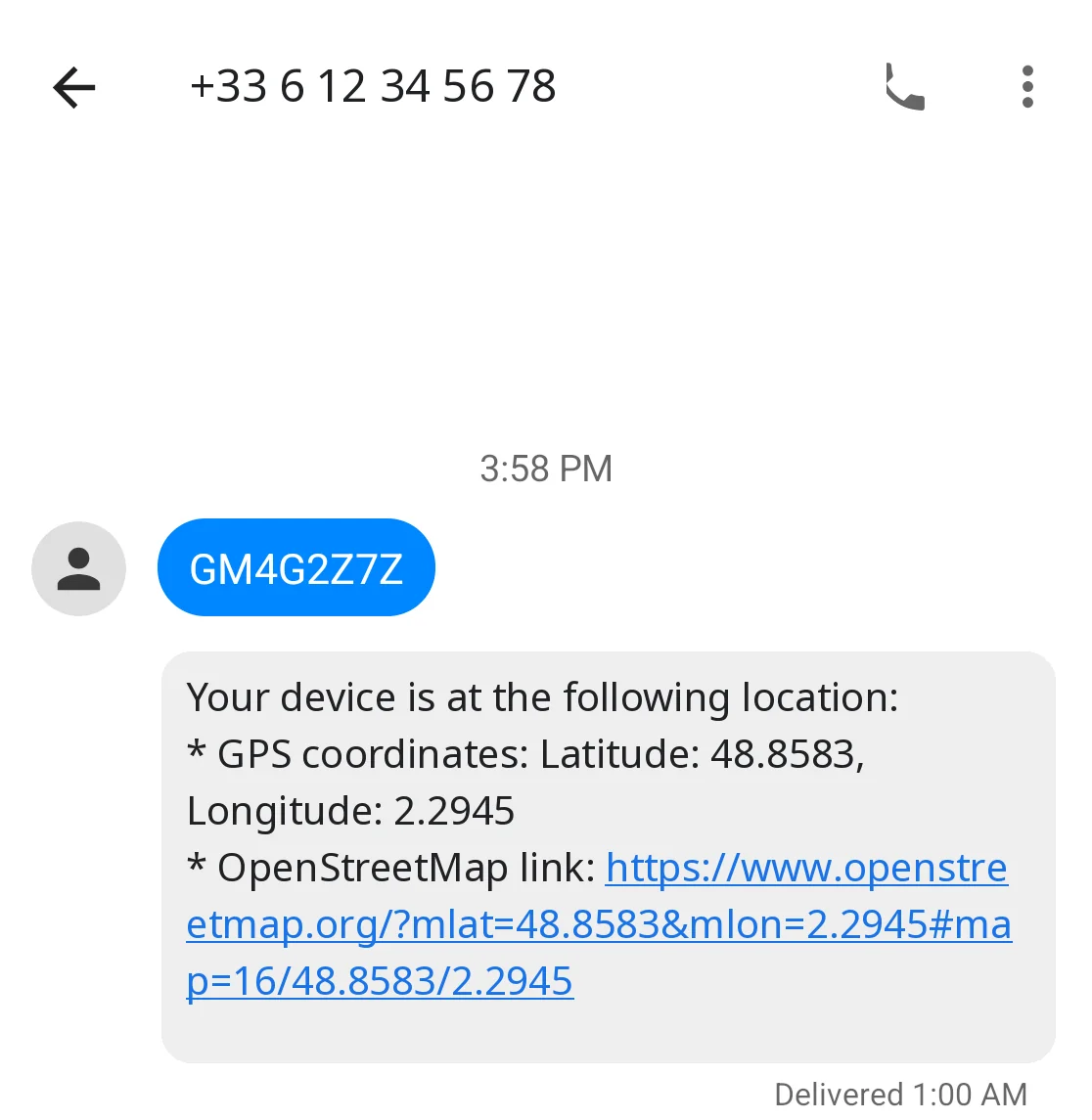
The reply looks like this:
Your device is at the following location:
* GPS coordinates: Latitude: 48.8583, Longitude: 2.2945
* OpenStreetMap link: https://www.openstreetmap.org/?mlat=48.8583&mlon=2.2945#map=16/48.8583/2.2945
Open the OpenStreetMap link to see the position on a map. While it is locating, the phone tries both GPS and network positioning for a short while, so if the first answer is imprecise you can send the code again to get an updated location.
Change your secret code
You can replace your secret code whenever you want:
- Open Settings → Find my Device.
- Tap Manage My Secret Code.
- Tap Generate New Code, then Set.
Good to know
For Find my Device to answer, the lost phone must:
- be powered on and have network connectivity;
- have a SIM card inserted or an active eSIM;
- have been unlocked at least once since it was last rebooted.
So it will not respond if the phone has been switched off, rebooted and left locked, or if the SIM has been removed — which is why it is not a protection against theft. While your phone is working out its location, it briefly shows a “Find my Device by SMS — Tracking location in background” notification.
Troubleshooting
- The phone does not reply. It is switched off, has no network connectivity, or was rebooted and not unlocked.
- The location is not accurate enough. Accuracy depends on available positioning. Send the code again to get an updated fix.
- It cannot determine the location. If the phone has connectivity but cannot get a position, it replies: “Impossible to get current location at the moment. Please try again later.”
Privacy and security
- The secret code is stored on the device and never leaves it.
- Your phone sends its location only in reply to an SMS containing the correct code.
- Keep your secret code confidential — store it somewhere safe such as Murena Passwords.
- Find my Device is free and open source (GPLv3). The source code is available on GitLab.