
Passwords
Edit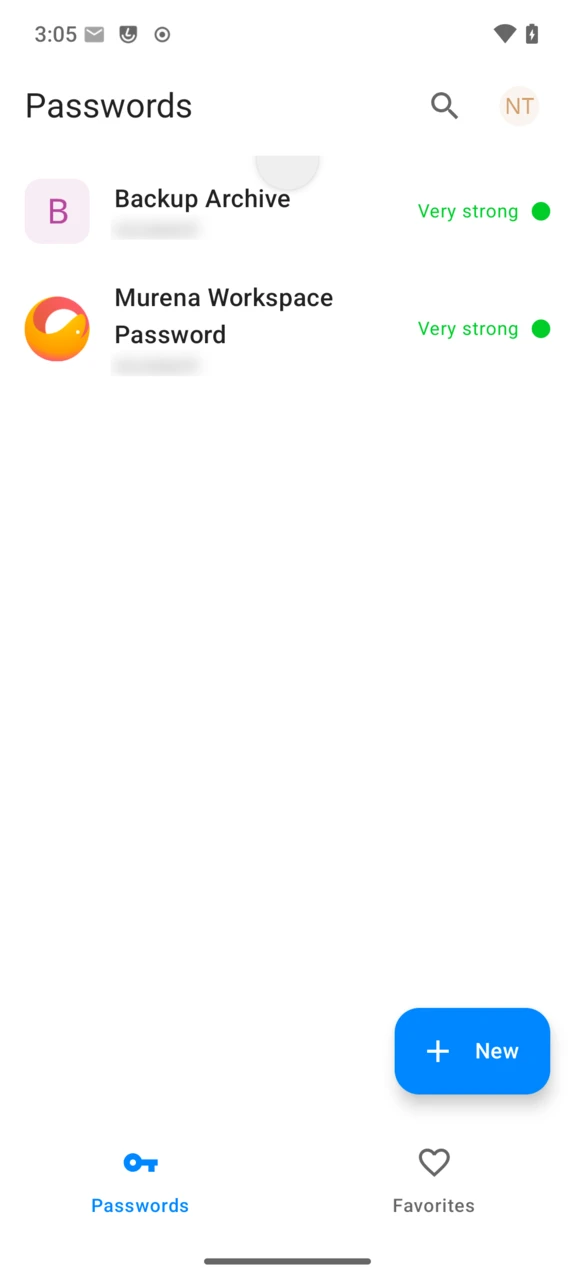
Passwords is the password manager built into /e/OS. It is a Murena fork of the open-source NextcloudPasswords client by hegocre, so under the hood it is a client for the Passwords app of a Nextcloud server: your saved credentials are not stored by Passwords itself, they are synced from that server.
That server can be either:
- Your Murena Workspace — the Passwords app is enabled by default with end-to-end encryption, and /e/OS Passwords signs in with your existing Murena account, nothing to type apart from the encryption password.
- Any other Nextcloud instance that has the Passwords app installed, self-hosted or not — sign in with its address like with any Nextcloud client. In this case, end-to-end encryption is up to that server: see below.
Open Passwords
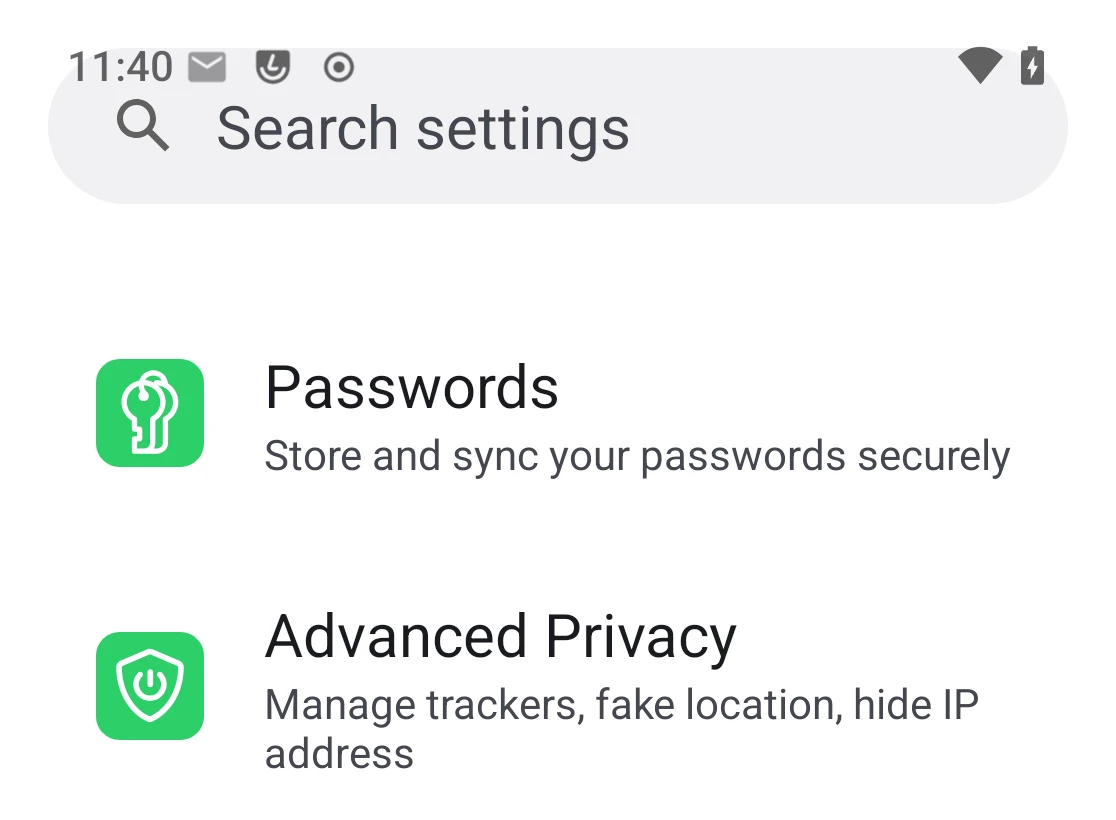
Passwords has no icon on the home screen or in app groups. Open it from Settings → Passwords.
Signing in
If /e/OS already has your Murena account on the device — the common case — Passwords uses it automatically: there is no sign-in screen to go through. If it doesn’t, Passwords shows a welcome screen with two choices: Murena Workspace adds your Murena account through the usual /e/OS account flow, while Other cloud asks for your Nextcloud server’s address and signs in on its own login page — exactly like the sign-in flow of the Account Manager app, or of any other Nextcloud client.
Set up Passwords
Passwords requires end-to-end (client-side) encryption to be set for your account in the Passwords app on the server — without it, entries would only be encrypted in transit and at rest on the server, not end-to-end.
- On Murena Workspace, this is where /e/OS’s account integration matters: the very first time Passwords is signed in, /e/OS notices encryption isn’t set up yet and walks you through it automatically, with the steps below. You won’t see them again afterwards.
- On a self-hosted or other Nextcloud server, this automatic prompt does not apply — /e/OS only offers it for Murena accounts. Enable end-to-end encryption yourself from the Passwords app’s own settings on that server (or ask its administrator to) before or after signing in; Passwords otherwise opens without it.
- Open
Settings→Passwords. TapSet up encryption.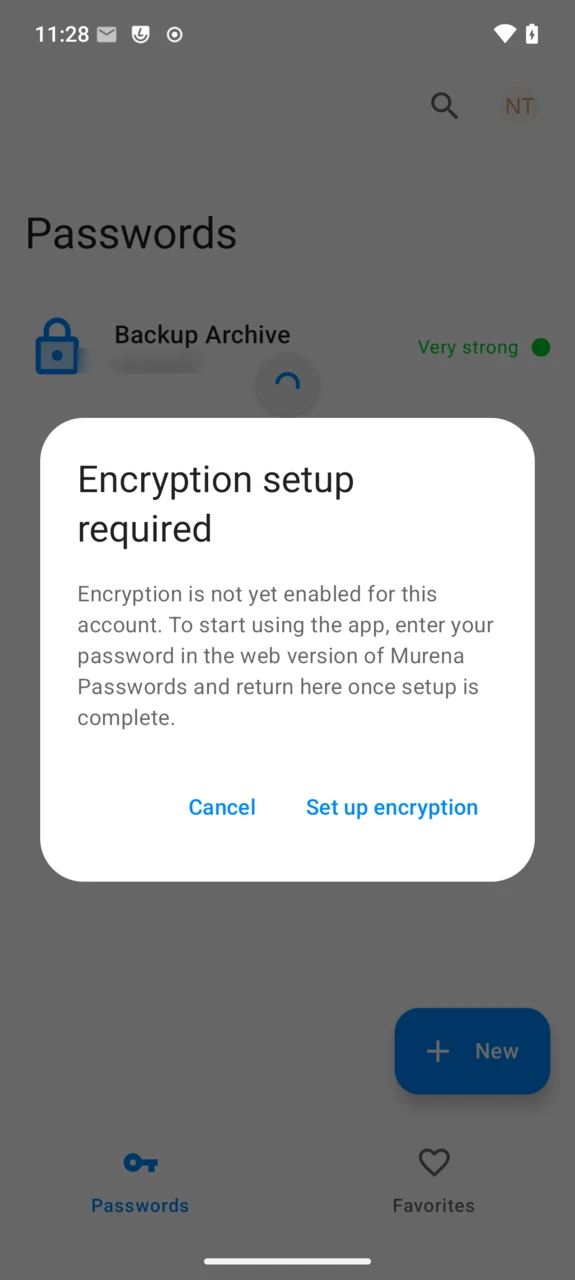
- The setup continues on the web version of Passwords, opened in a browser tab. Sign in there if you’re asked to.
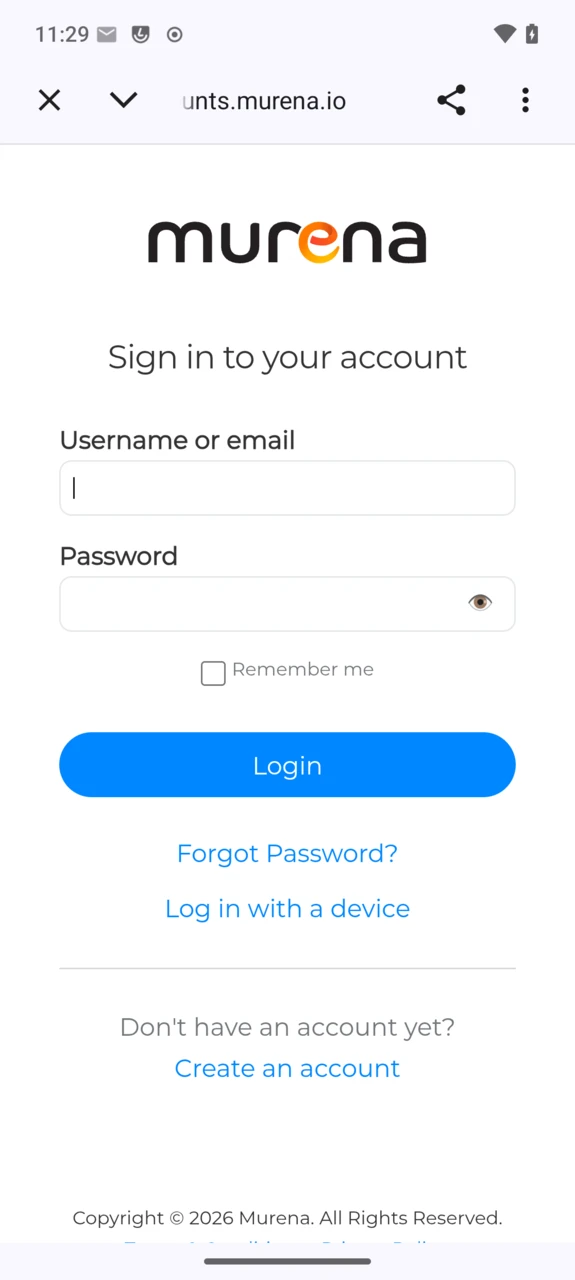
- Enter your Murena Workspace password to protect your credentials, then tap
Save.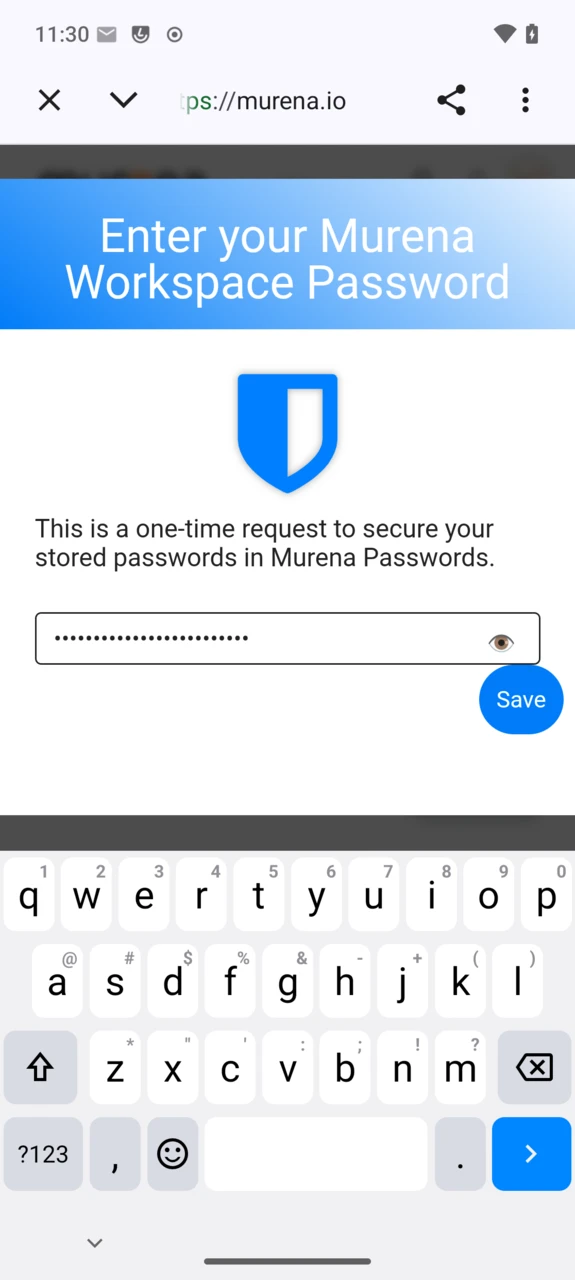
- Close the browser tab and return to Passwords. Enter that same password once more to unlock Passwords on this device. Tick
Save passwordso the device can unlock it automatically next time, using your screen lock or fingerprint.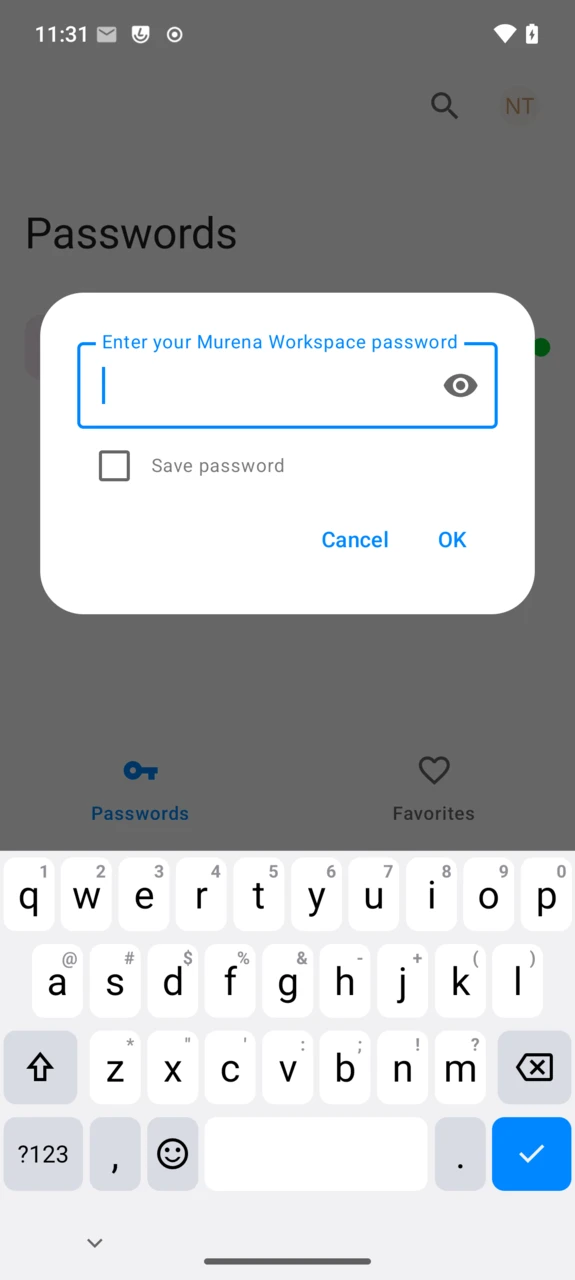
Save password is only offered when the device has a screen lock or biometric unlock set up. Without it, you are asked for the password every time you open the app.
Manage your passwords
The app opens on the Passwords tab — every entry organized into folders — with a Favorites tab and a search bar next to it. Tap any saved entry to see it, copy its username or password, edit it, or delete it.
- Tap
Newto save a login: label, username, password, URL, folder, notes, and custom fields.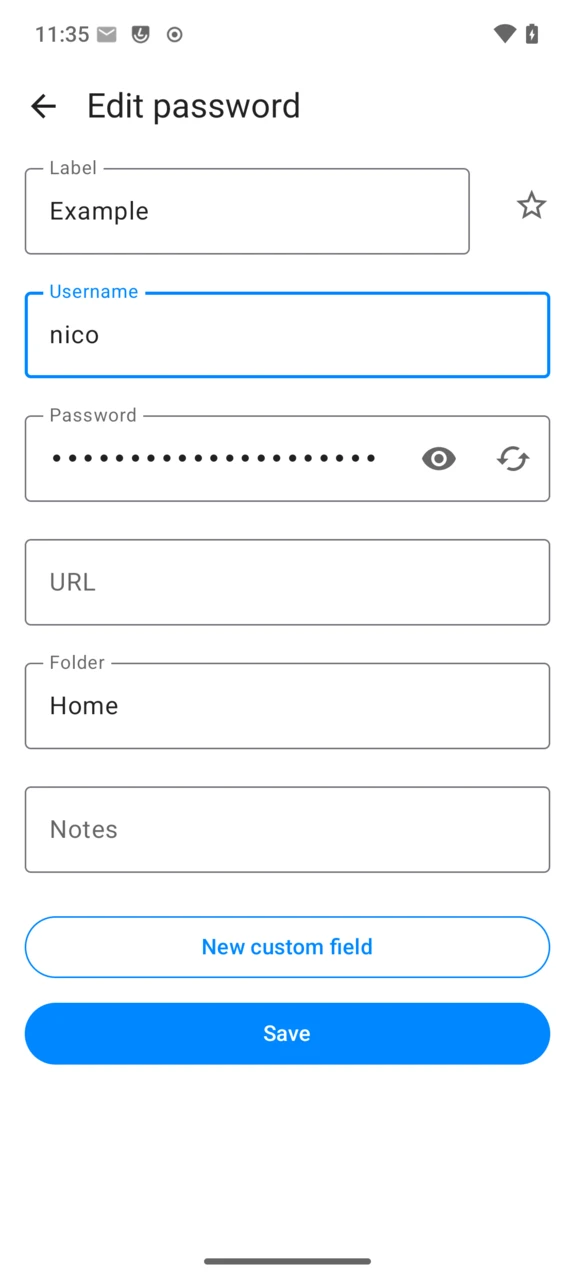
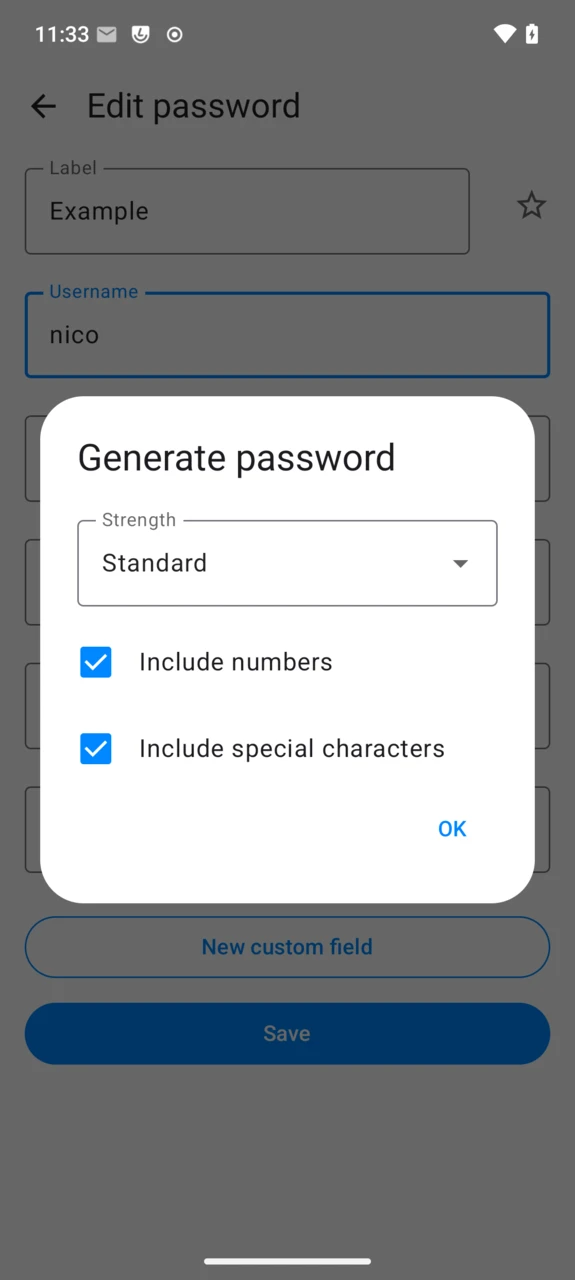
- Tap the generator icon next to the password field to let Passwords create a strong one for you: pick a strength level and whether to include numbers and special characters.
- Once saved, tap the entry to check its security rating, computed by the Passwords app on the server: Leaked means the password was found in a known data breach, Weak means it is reused on another of your entries (or past the maximum age you set, if any).
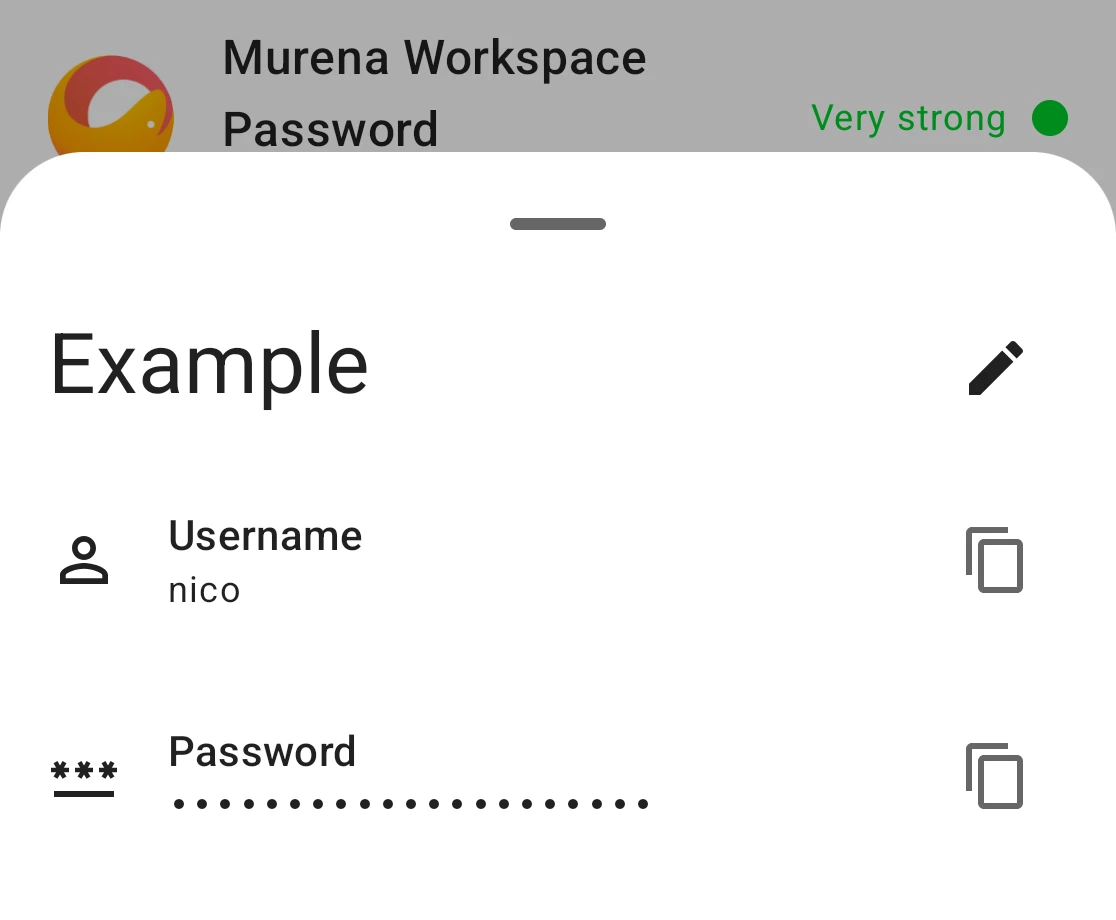
Edit an entry with the pencil icon on its detail screen; Delete password is at the bottom of the edit screen.
Fill in passwords automatically
Once enabled, Passwords can fill in login forms in other apps and in the browser, so you don’t need to open it and copy a password by hand.
- Open
Settings→Passwords→ the account menu (top right) →Settings, then turn onAutofill. This opens the system’s password service picker — choosePasswords.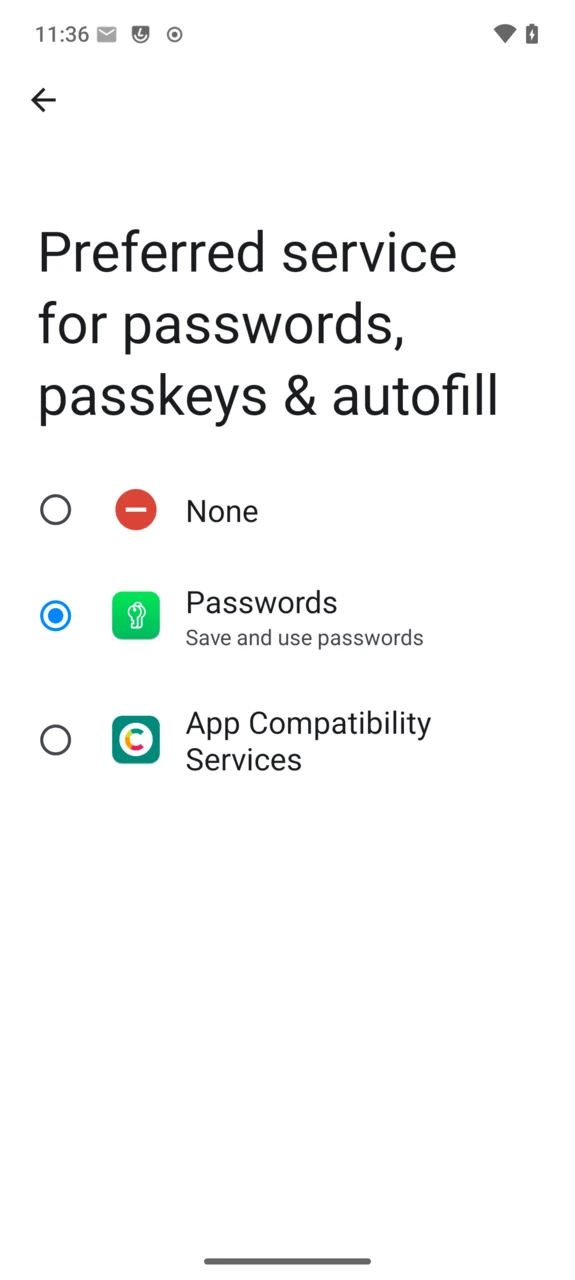
- Confirm by tapping
Change.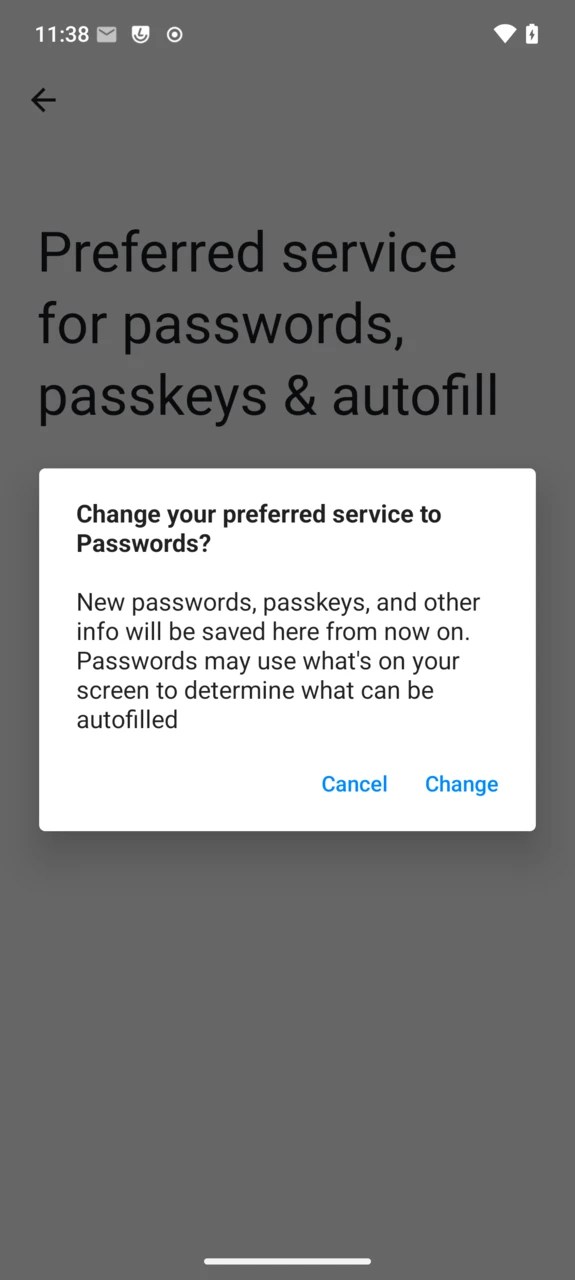
- From then on, tapping a username or password field anywhere offers your saved credentials.
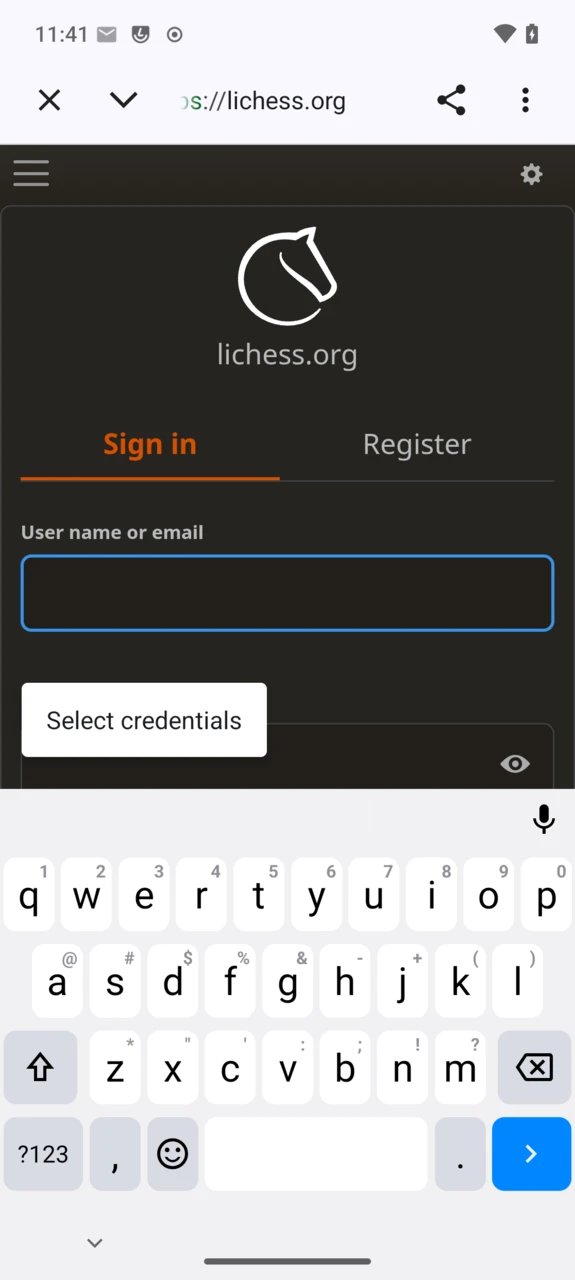
Use inline autofill (in the same settings screen) additionally shows suggestions directly above the keyboard on Android 11 and later.
Settings
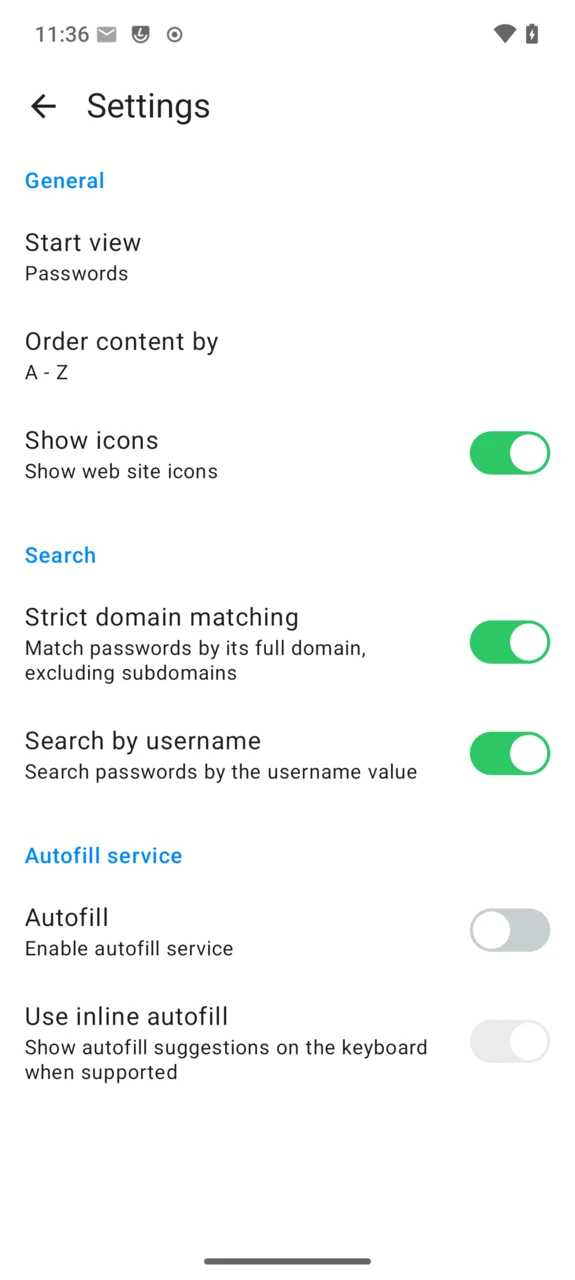
- Start view: open on Passwords or Favorites.
- Order content by: A-Z, Z-A, newest or oldest first.
- Show icons: display each saved site’s icon.
- Strict domain matching: only match passwords to a login page’s exact domain, ignoring subdomains.
- Search by username: also search the username field, not just labels.
- Autofill / Use inline autofill: see above.
FAQ
Where is the Passwords icon?
There isn’t one on the home screen — open it from Settings → Passwords (see above).
Does Passwords work without a Murena account?
Yes. Choose Other cloud on the sign-in screen and enter the address of any Nextcloud server that has the Passwords app installed — self-hosted included.
Why doesn’t Passwords offer to set up encryption on my own Nextcloud server?
The automatic one-time setup described above only applies to Murena Workspace accounts. On any other Nextcloud server, enable end-to-end encryption yourself from the Passwords app’s own settings on that server before signing in — otherwise Passwords opens without it.
How do I sign out of my Murena account in Passwords?
You don’t from within the app which follows your Murena account on the device. To stop syncing passwords, turn it off from Settings → Accounts → your Murena account → Account sync instead.
I lost access to my passwords after changing my Murena Workspace password
This is expected: on Murena Workspace, your saved credentials are tied to your Workspace password. Read Murena Passwords on Murena Workspace for what happens when that password changes or is reset.
“Passwords sync paused” — what does this mean?
Your account has two-factor authentication enabled, which blocks the kind of direct sign-in Passwords uses. Tap Enable sync and follow the steps to create a dedicated app password for it.
Is Passwords open source?
Yes — Murena’s fork is based on the open-source NextcloudPasswords client, itself talking to the open-source Passwords app running on the Nextcloud server.