
Voice to Text
Edit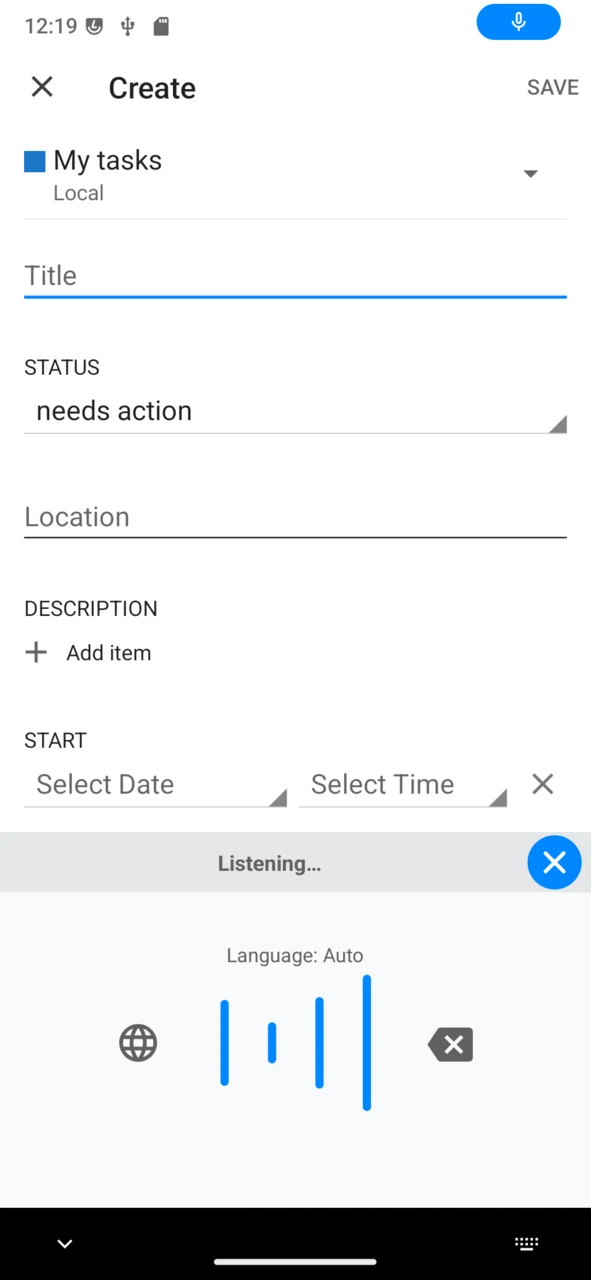
Voice to Text lets you dictate instead of typing on /e/OS. Once it is enabled, a microphone button appears on your keyboard: tap it in any text field, speak, and your words are transcribed straight into the field. After a one-time setup it works fully offline — the speech recognition runs on the device itself, so there is no account, no subscription and no internet connection to worry about, and your voice never leaves the phone.
What changed from the previous version
The earlier Voice to Text was a Premium-only, online feature: it streamed your speech to a third-party AI transcription service through an anonymising proxy, so it required a Murena Workspace Premium subscription and an internet connection.
The new Voice to Text is free, offline and on-device:
- No subscription, no account — it is no longer tied to Murena Workspace Premium.
- No internet needed — after a one-time model download, everything runs locally.
- Stronger privacy — the audio is transcribed on the phone and is never sent to any server.
Under the hood it runs the open source NVIDIA Parakeet TDT speech model (0.6 B parameters, INT8-quantised) through ONNX Runtime, wrapped as an /e/OS keyboard.
Before you start
- Microphone permission — required for any transcription.
- About 700 MB of free storage for the speech model, plus a one-time download the first time you use the keyboard. Wi-Fi is recommended; the keyboard warns you before downloading on a metered mobile network.
- A reasonably recent device: the model runs locally, so very old or low-memory phones may struggle. Device coverage is still expanding as the feature rolls out.
Enable the keyboard
Voice to Text is an on-screen keyboard, so you first turn it on in the system settings:
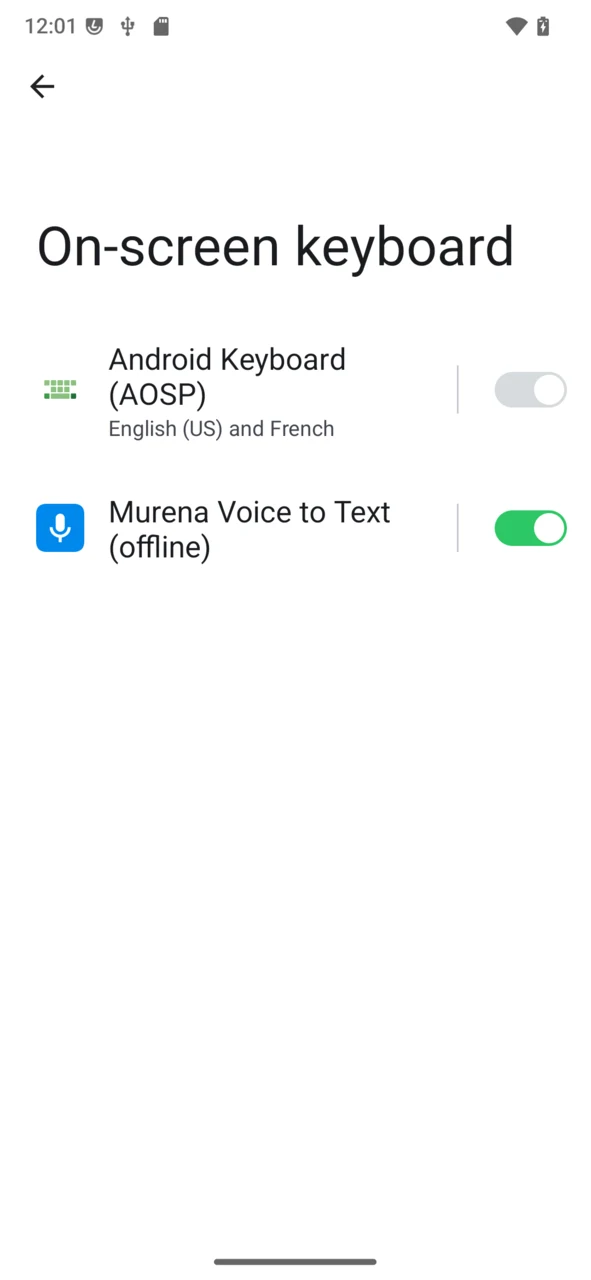
Open Settings → System → Languages & input → On-screen keyboard, and enable Murena Voice to Text (offline).
Dictate in any app
Once the keyboard is enabled you don’t switch keyboards by hand — a microphone button is added to your keyboard whenever you edit text.
- Open any app where you can type — Messages, Mail, Notes, Tasks… — and tap a text field.
-
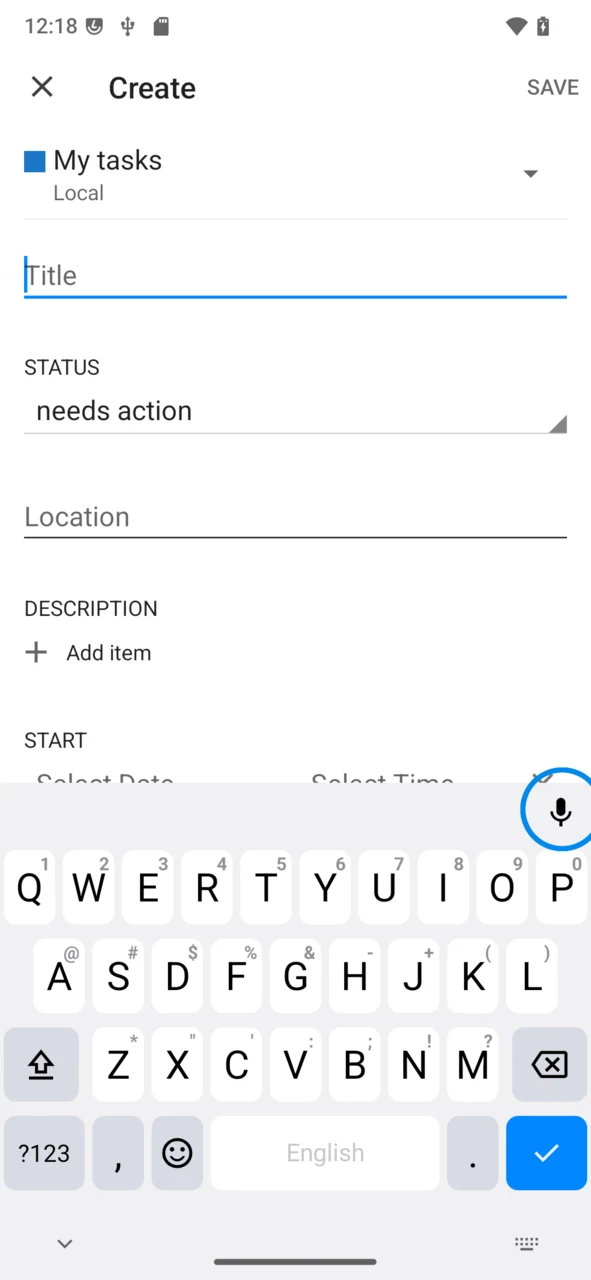
Tap the microphone button at the top-right of the keyboard.
-
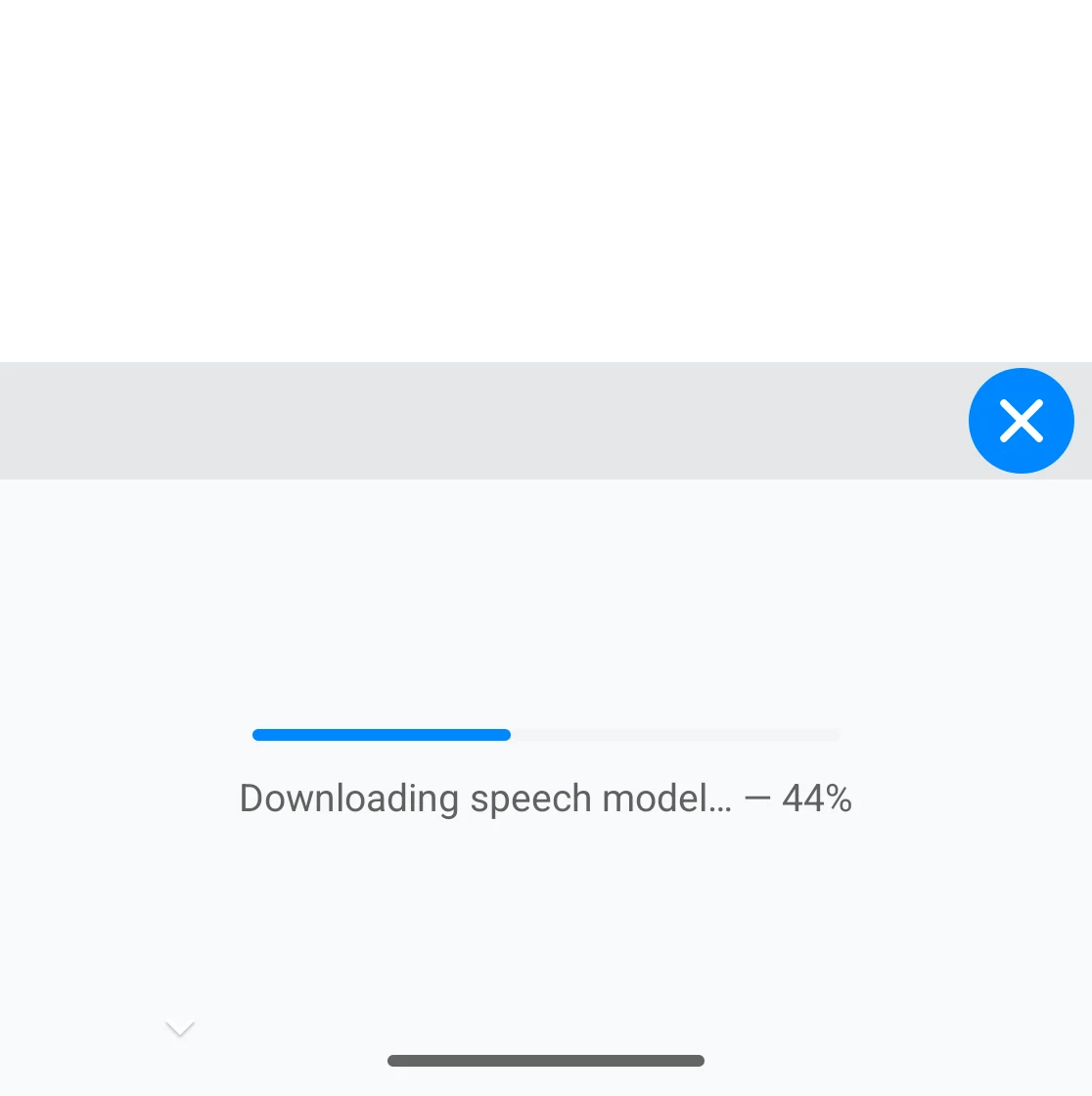
The very first time, the keyboard downloads the speech model (about 700 MB, one-time — keep the phone on Wi-Fi). The progress is shown right in the keyboard; afterwards it works with no connection at all.
- The keyboard switches to voice input and shows Listening… — speak, and the text is inserted into the field as you go. Tap the ✕ to stop, or the 🌐 button to return to your usual keyboard.
- The keyboard follows your system language automatically (Language: Auto).
- If your system language is not one of the supported languages, the keyboard tells you so — switch your device language, or dictate in a supported language.
Supported languages
Voice to Text recognises 25 languages: Bulgarian, Croatian, Czech, Danish, Dutch, English, Estonian, Finnish, French, German, Greek, Hungarian, Italian, Latvian, Lithuanian, Maltese, Polish, Portuguese, Romanian, Slovak, Slovenian, Spanish, Swedish, Russian and Ukrainian.
The language follows your device’s system language. Languages outside this list are not recognised yet.
Current limitations
Voice to Text is still rolling out, so expect it to keep improving:
- Language coverage is limited to the list above, and transcription quality varies between languages.
- Accuracy depends on clear speech and low background noise; punctuation and rare words may need a manual touch-up.
- Device compatibility is still expanding — the on-device model is demanding, so performance varies with the phone.
Troubleshooting
- Nothing is transcribed / “requires microphone permission” — grant the microphone permission to the keyboard in
Settings→Apps. - The model won’t download — you need a connection for the first download only; check your Wi-Fi and tap
Retry. On a metered network the keyboard waits for Wi-Fi unless you allow the download explicitly. - “Your OS language is not supported” — the model does not cover your system language; switch to one of the supported languages.
- No microphone button on the keyboard — make sure Murena Voice to Text (offline) is enabled in the on-screen keyboard settings, and check that you are in an ordinary text field (the button is hidden in password and web-address fields).
Privacy and source code
All speech recognition happens on the device: the audio and the transcript never leave your phone, and no account or server is involved once the model is downloaded.
Voice to Text is open source (GPLv3). The keyboard and its offline engine — a Rust backend built on the transcribe-rs inference library — are available at gitlab.e.foundation/e/os/murena-voice-to-text-offline.