
Validate Android Auto with the Desktop Head Unit
EditGoogle’s Desktop Head Unit (DHU) simulates a car’s head unit on your computer. It pairs with a real Android device over USB, so you can check that Android Auto works on an /e/OS build without access to an actual car.
Install the Desktop Head Unit
The DHU ships as an optional package of the Android SDK command-line tools.
sdkmanager "extras;google;auto"
chmod +x "$ANDROID_HOME/extras/google/auto/desktop-head-unit"
It also needs glibc ≥ 2.32 and the LLVM libc++/libc++abi runtime
libraries. On Debian/Ubuntu:
sudo apt-get install libc++1 libc++abi1
export LD_LIBRARY_PATH="$ANDROID_HOME/emulator/lib64:/path/to/ndk/lib64"
Install the prerequisite apps
Android Auto needs its usual set of Google apps, installed through App Lounge on the /e/OS device — follow Steps to Install Android Auto (including the App Lounge stub-package tip there), then reboot the device.
Unlock developer mode and start the head unit server
Both live inside the Android Auto app’s own settings
(Settings → search Android Auto).
Search Settings for
Android Autoand open it.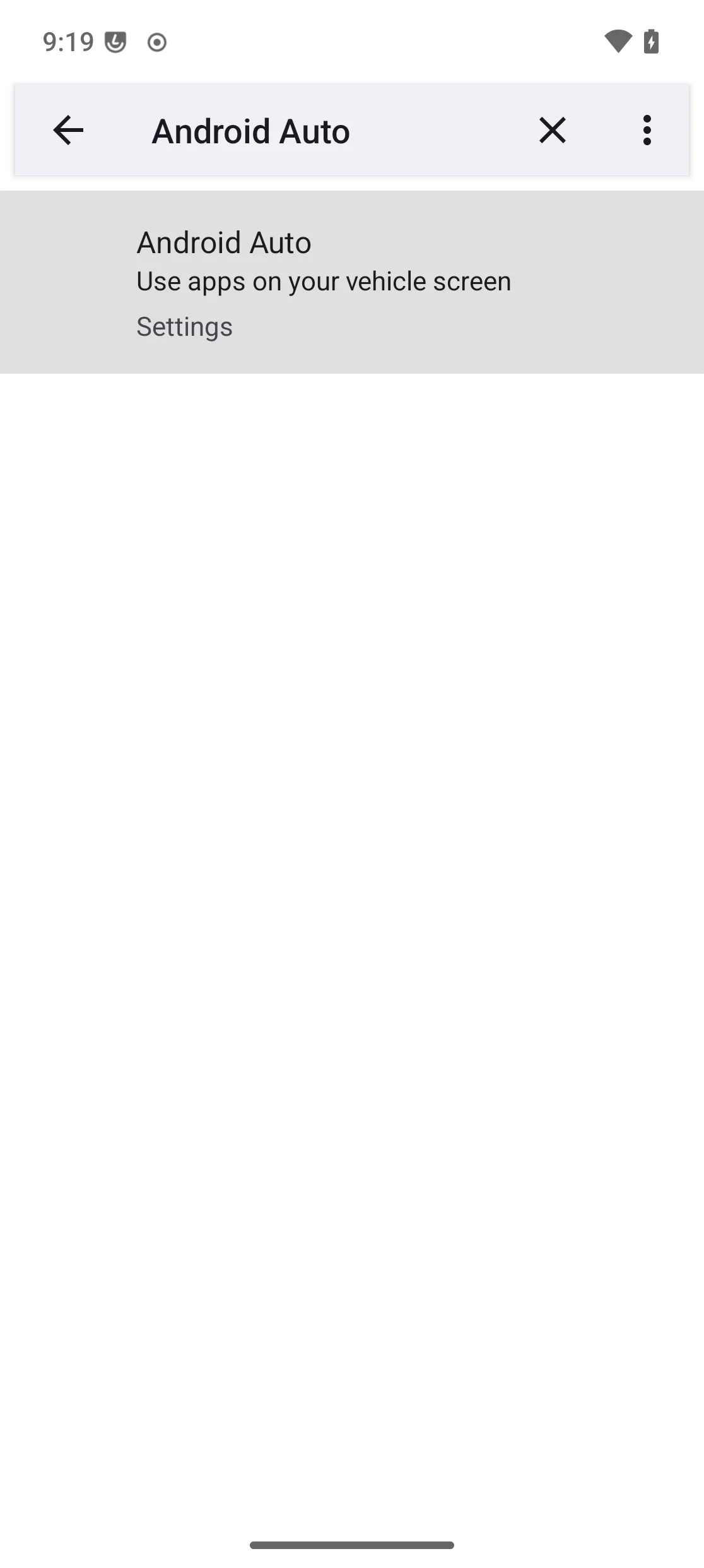
Scroll to the bottom and tap
Version10 times.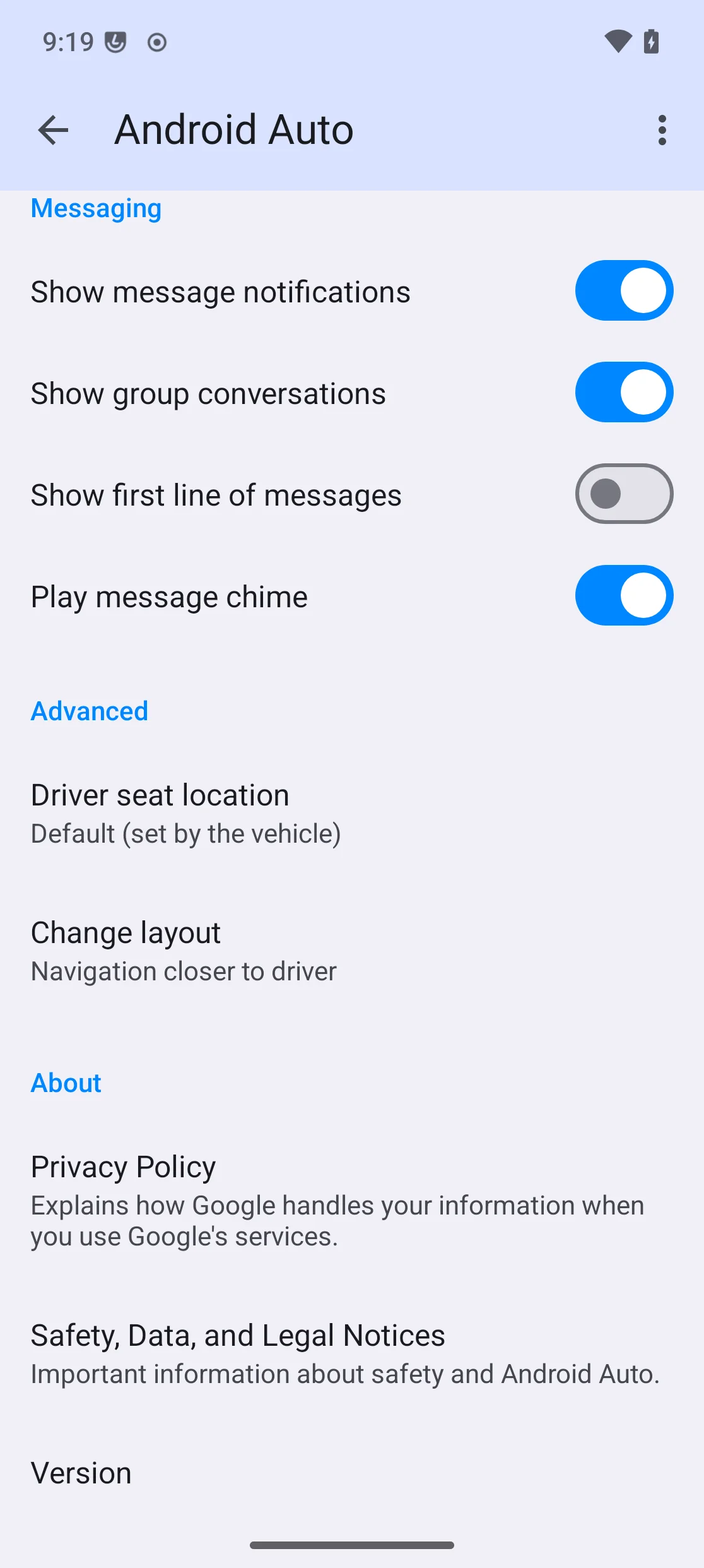
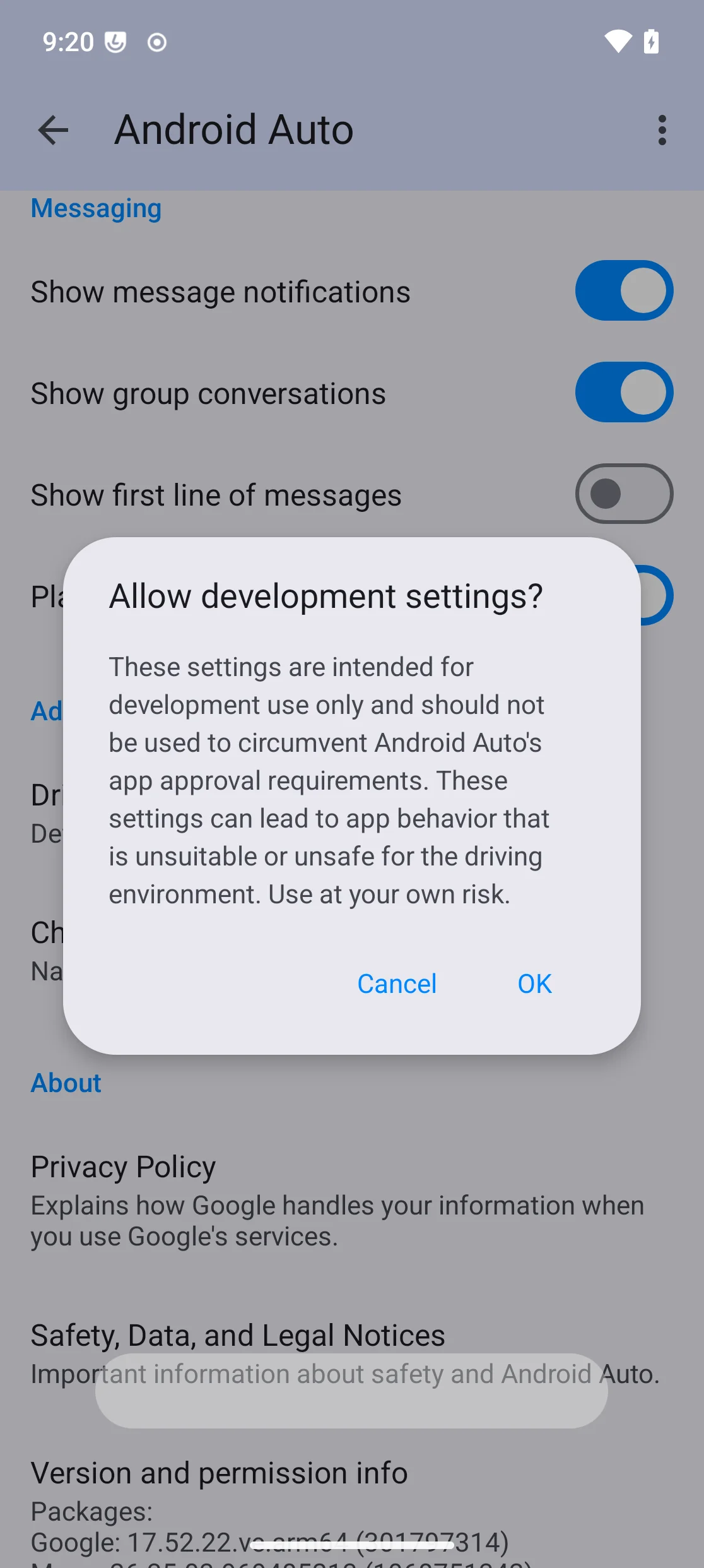
Confirm the “Allow development settings?” prompt.
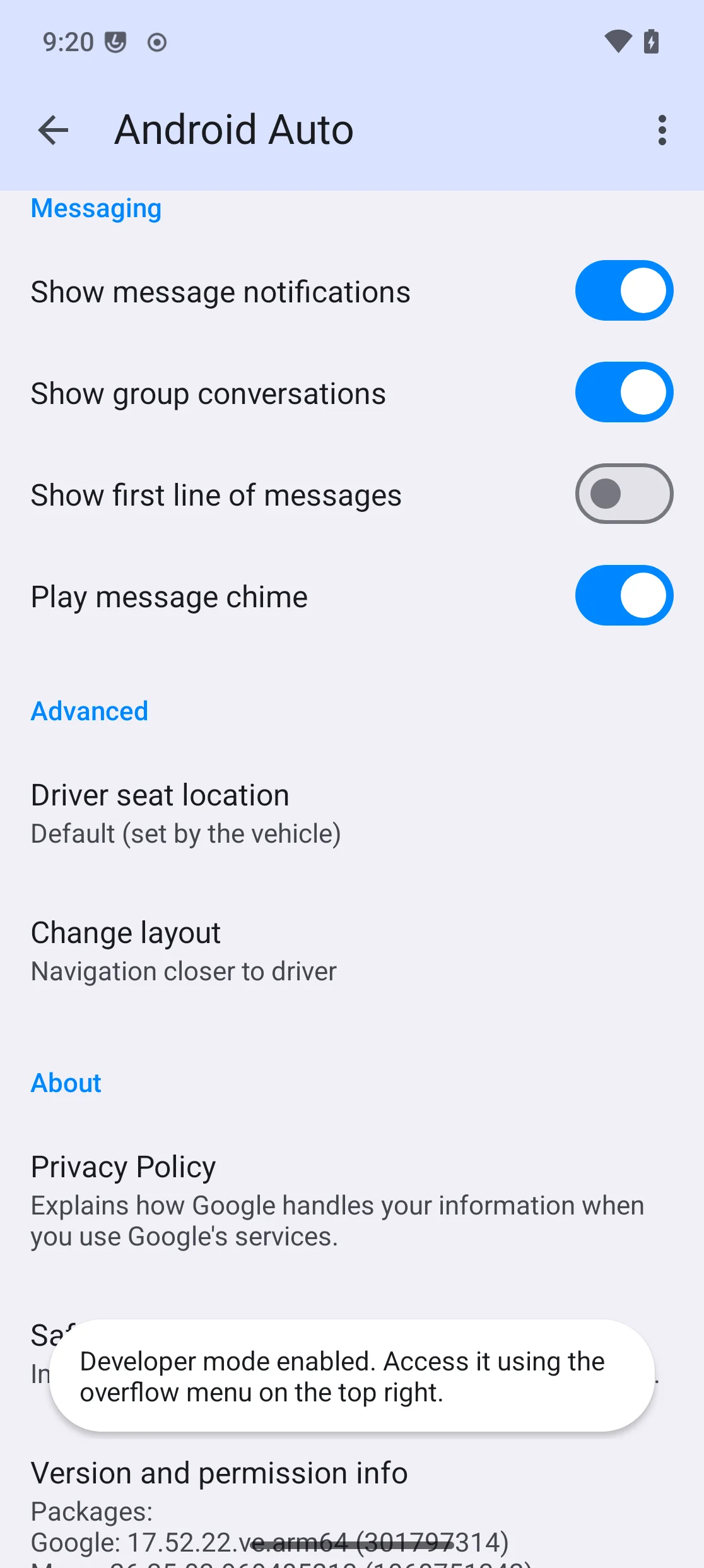
Developer mode is now unlocked, accessible from the overflow menu.
Open the overflow menu (⋮, top right).
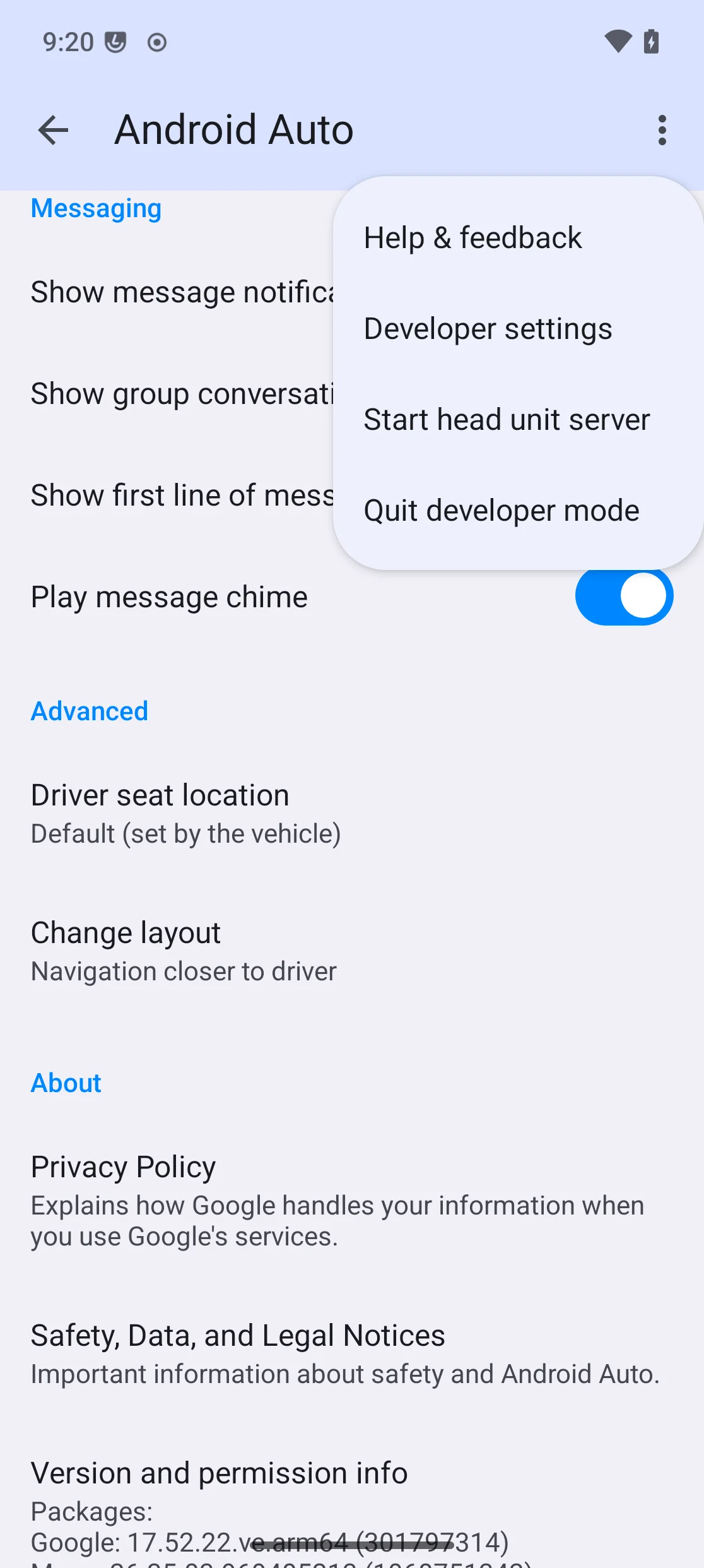
In
Developer settings, turn onUnknown sources.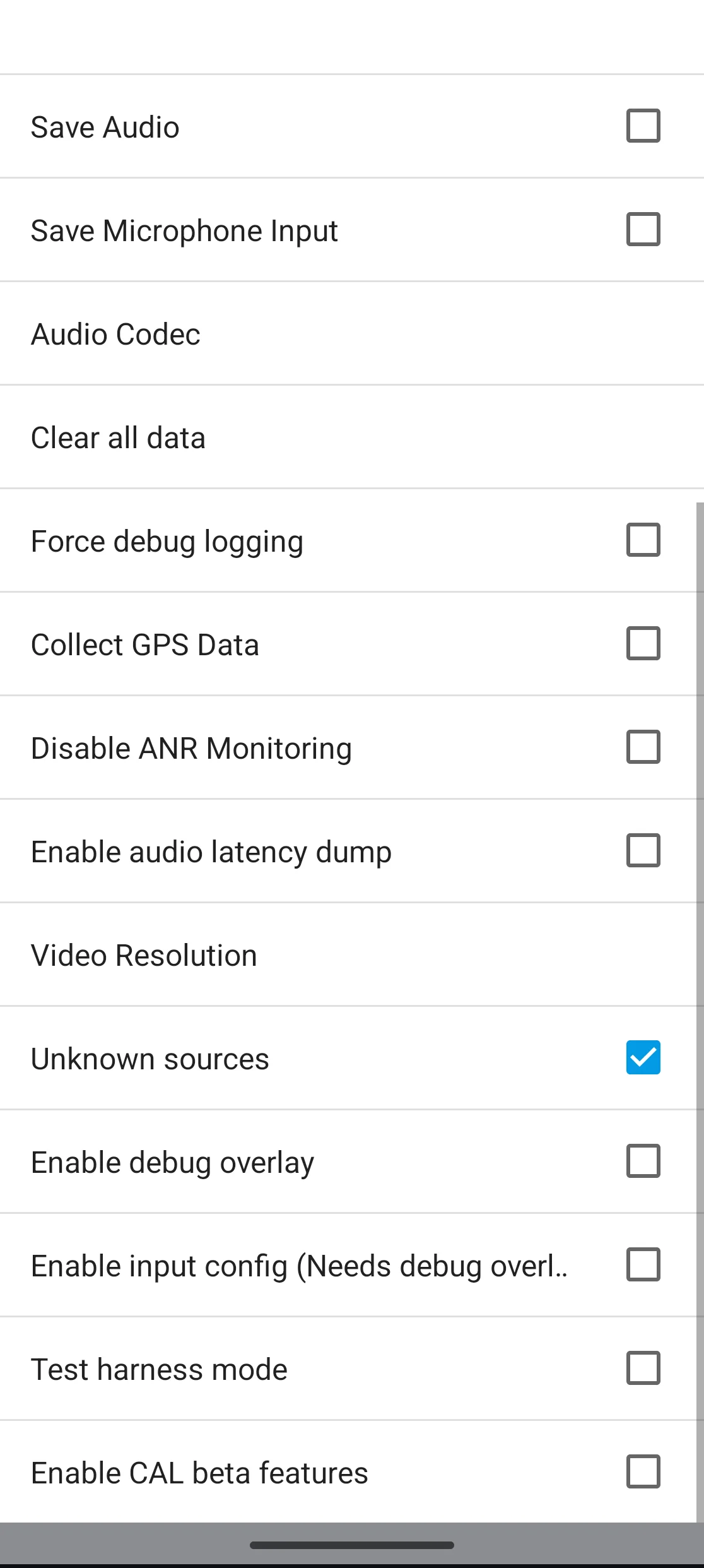
Back in the overflow menu, tap
Start head unit server.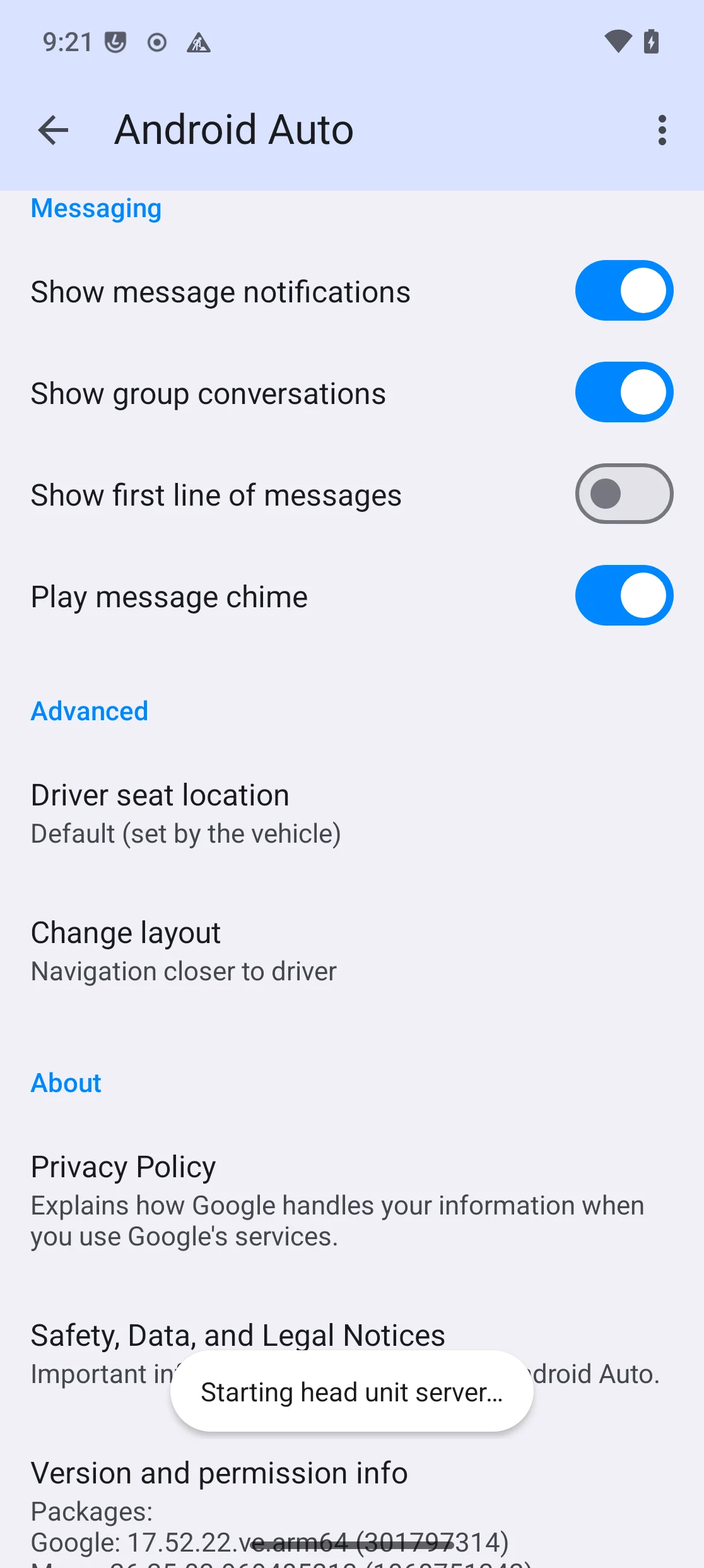
Connect and launch the DHU
Plug the /e/OS device in over USB (unlocked, USB debugging authorized),
then start the DHU in USB transport mode, using the device’s serial number
(adb devices):
desktop-head-unit --usb <device-serial>
Once the DHU attaches over USB and completes its TLS handshake with the phone, accept the consent screen:
Unlock the phone when prompted.
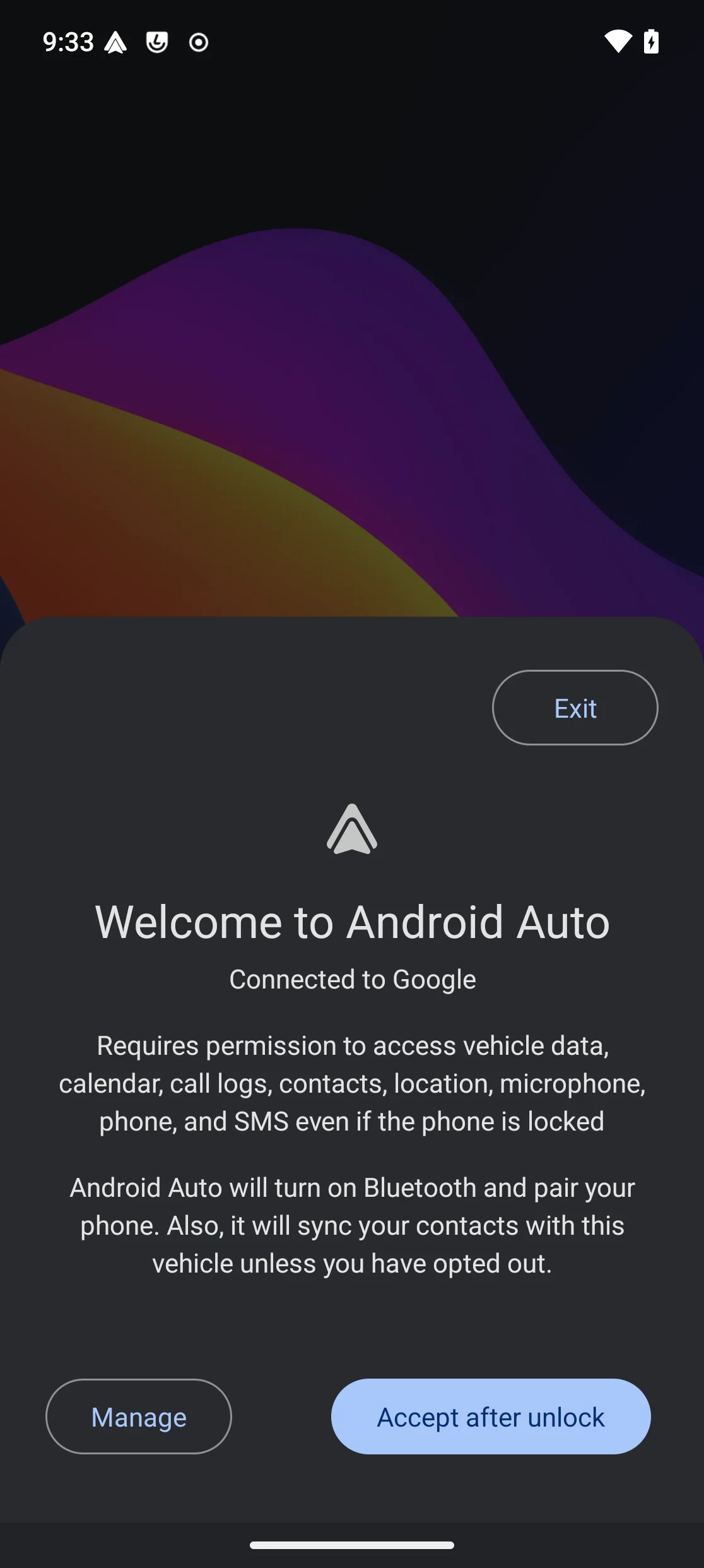
Tap
Continue.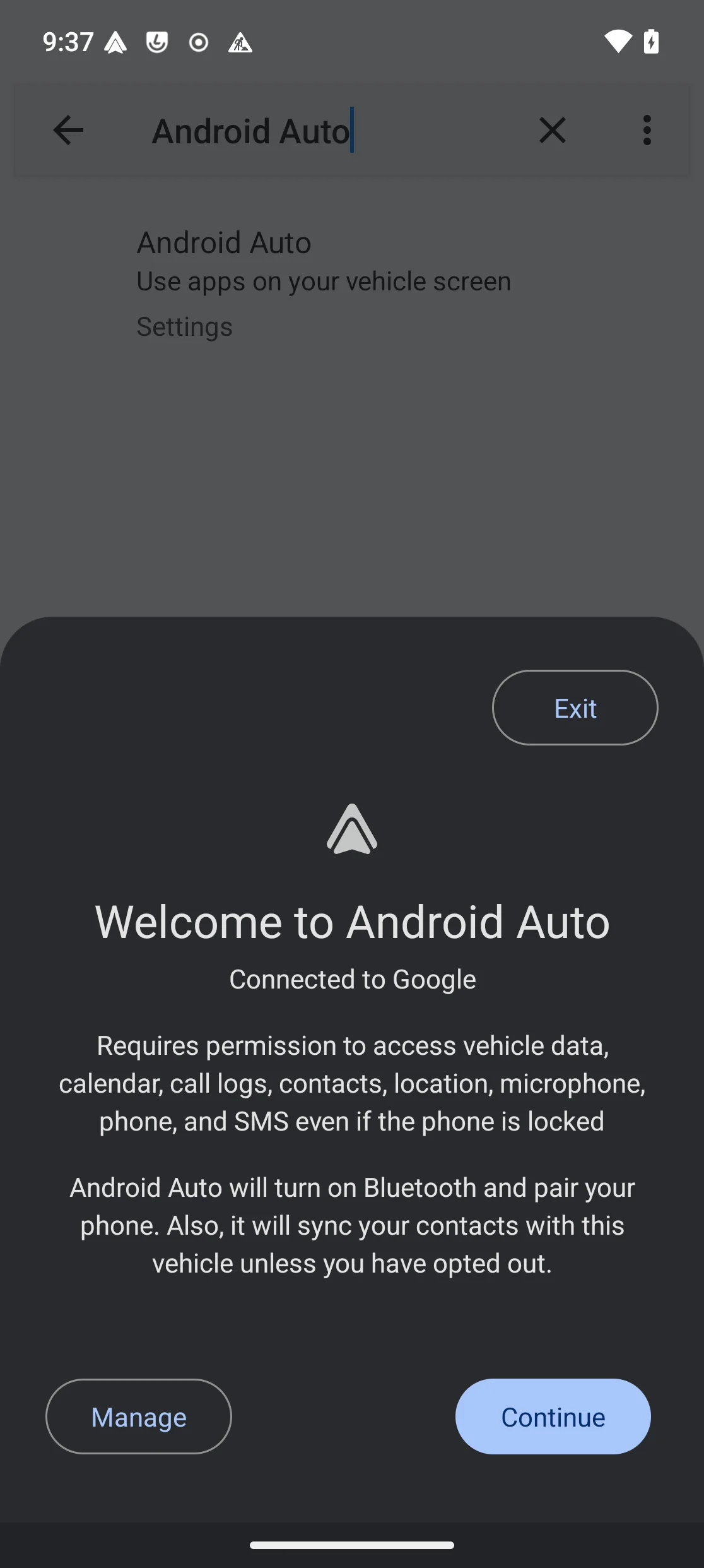
Grant notification access
Android Auto needs notification access to work — without it, the DHU connects but never shows more than a blank/loading state, even though the phone reports itself as connected.
Settings→ searchNotification accessshows Android Auto under “Not allowed”.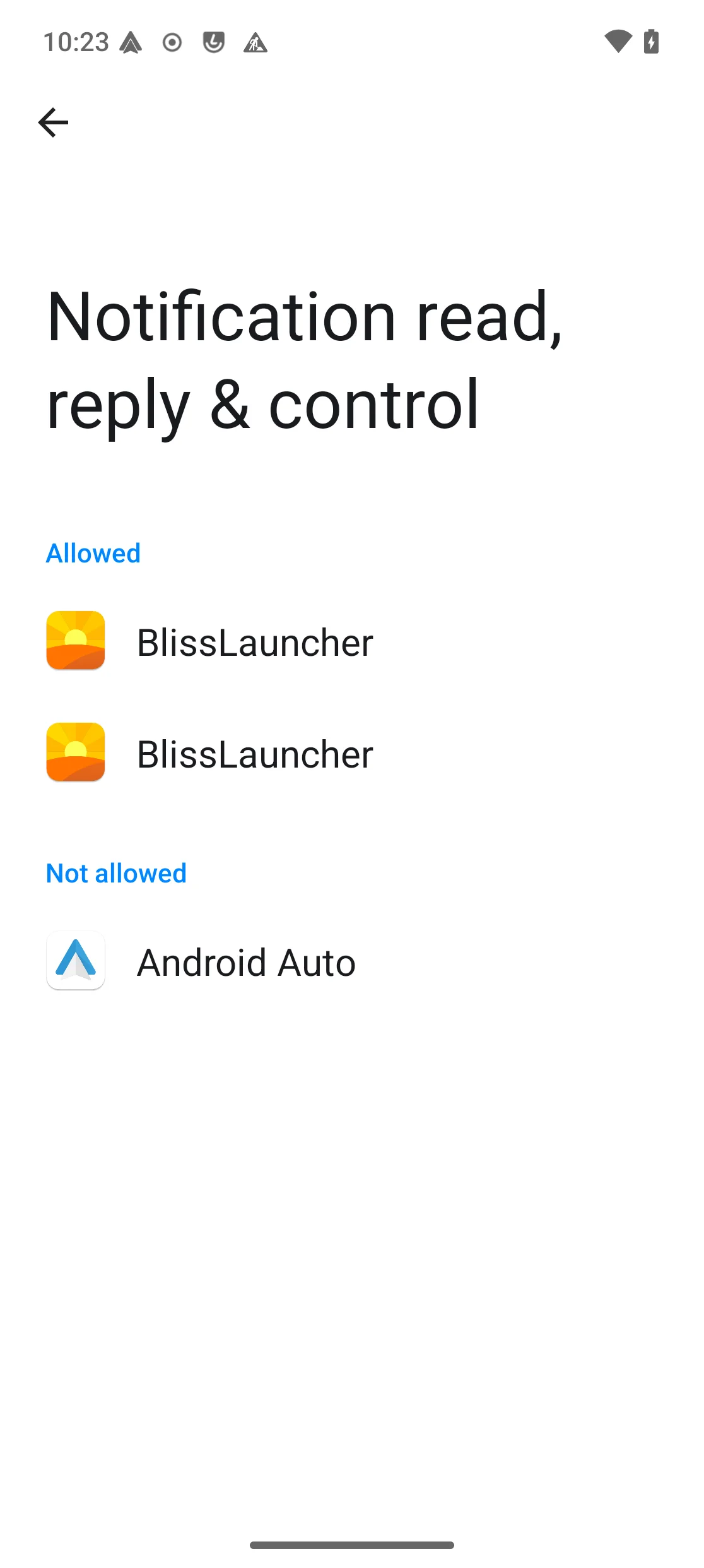
Tap it, then turn on
Allow notification accessand confirm.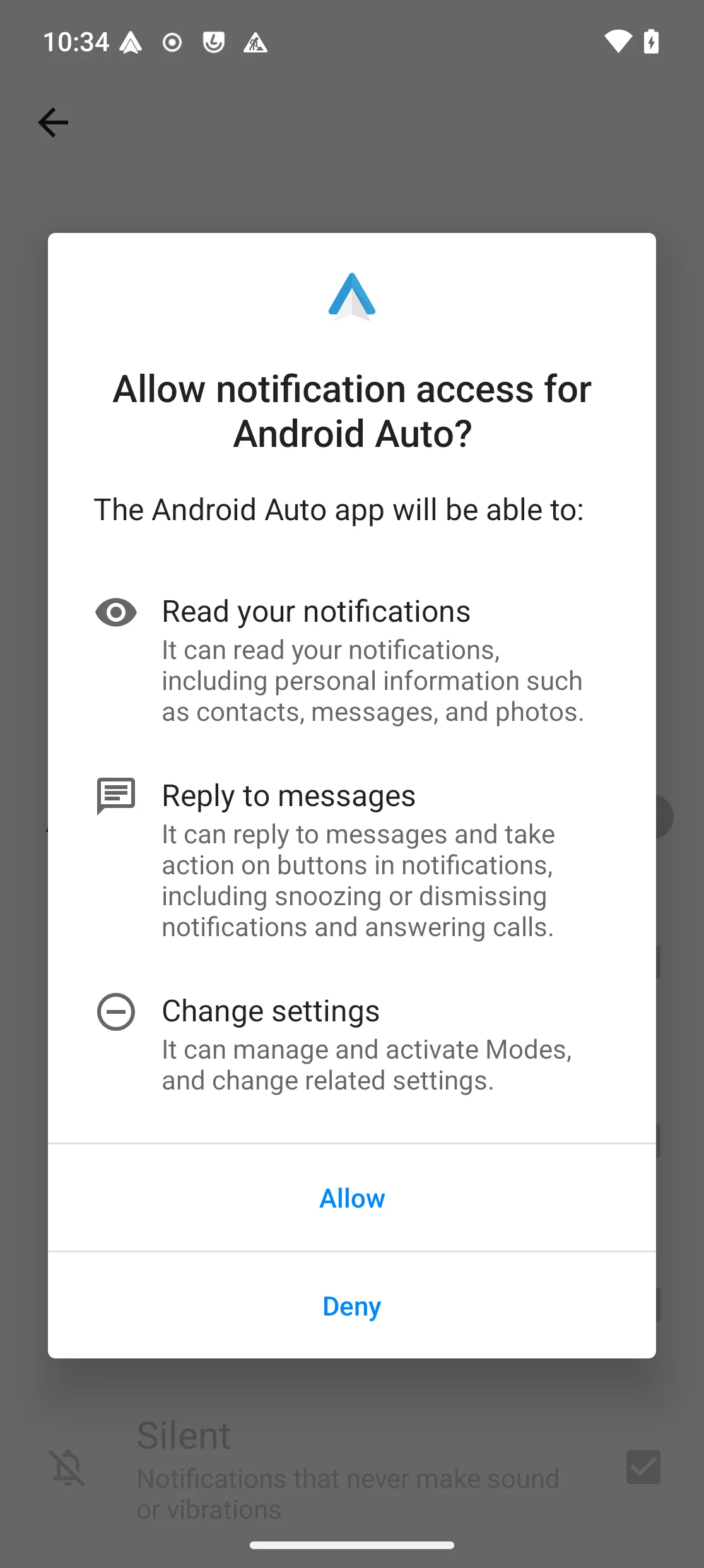
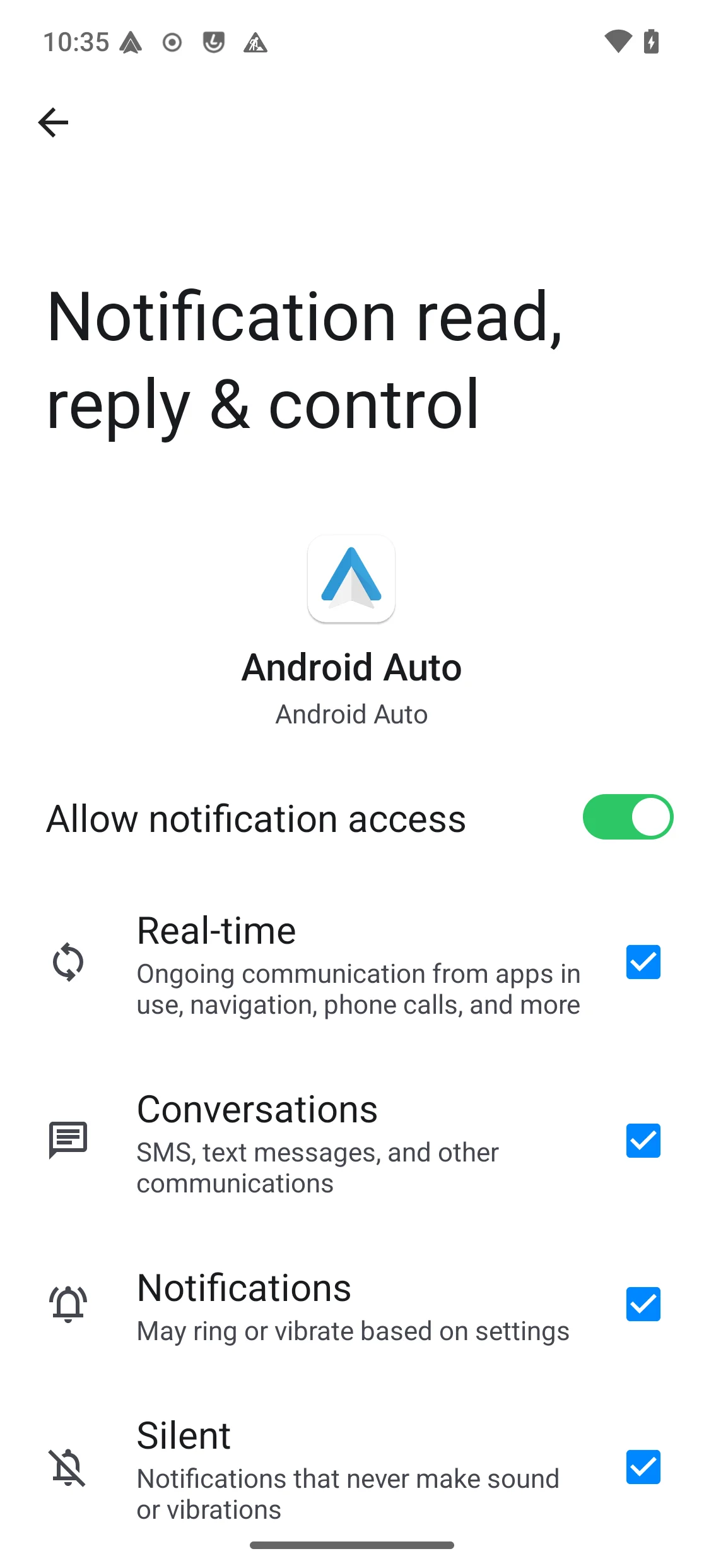
It now shows as allowed.
Result
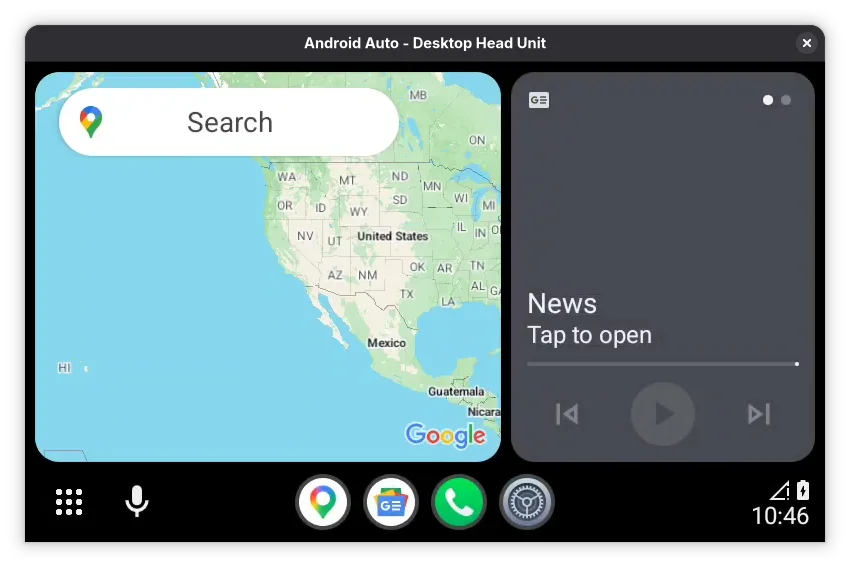
With everything granted, the DHU window switches to the full Android Auto interface: app grid, media card and navigation, matching a real car’s head unit.
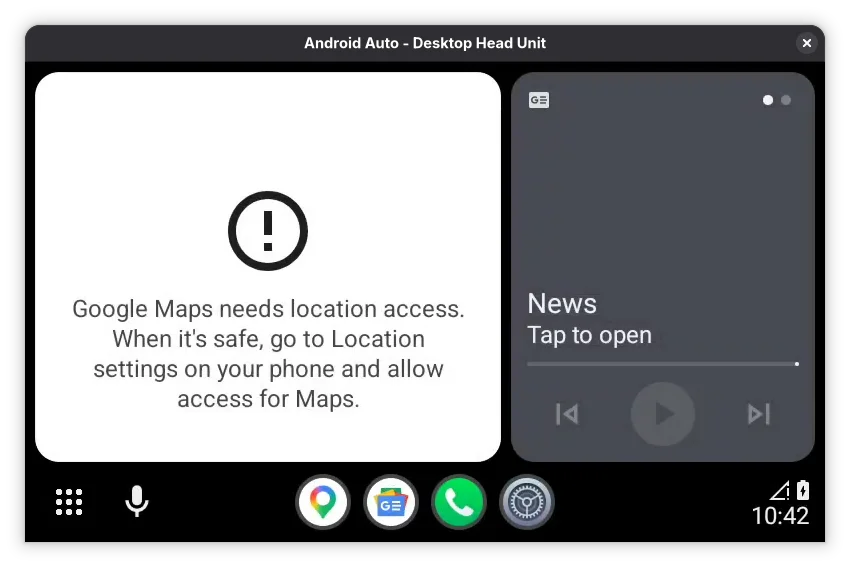
Google Maps needs its own location permission, granted the same way as any other app — see Setup Google Maps. Once granted, Maps loads normally inside the DHU:
Useful commands
Once connected, the terminal running the DHU accepts commands:
| Command | Effect |
|---|---|
help | List available commands |
screenshot | Save a screenshot of the head unit |
dpad up|down|left|right|click | Send a d-pad input |
mic begin / mic play | Simulate a voice-assistant press |
day / night / daynight | Force day/night mode |
quit / exit | Disconnect |
See the official DHU documentation for the full command and flag reference.
Troubleshooting
“Android Auto has disconnected”, stuck on screen: this Android Auto overlay does not clear itself, and stopping/restarting the head unit server or the DHU does not bring back the consent screen either. It requires a genuine physical USB reconnection.
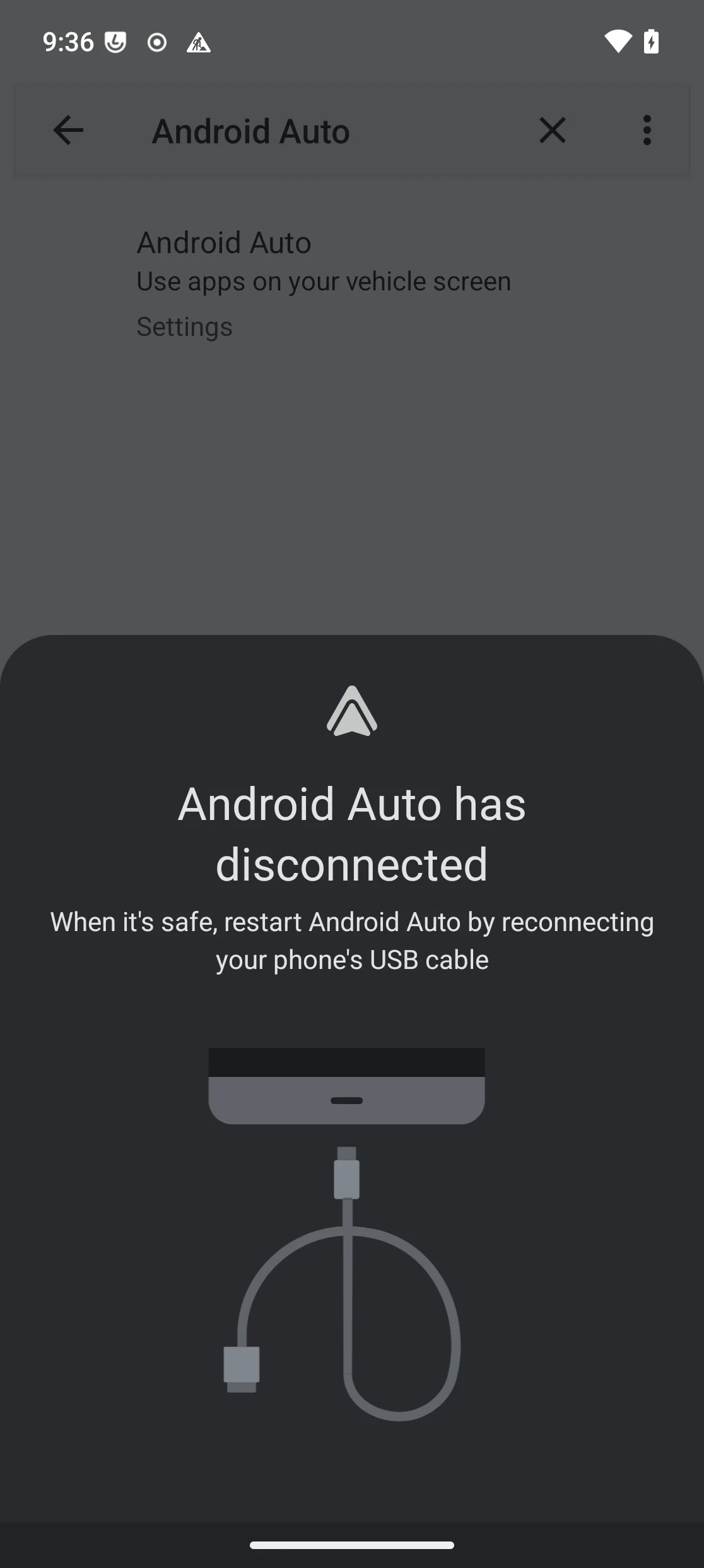
Unplug and replug the device’s USB cable, then relaunch the DHU.
App Lounge stuck on “Open” for Android Auto: see the stub-package tip under Steps to Install Android Auto — remove the stub package with
pm uninstall --user 0and search again.DHU process exits immediately, no error: it was likely killed by whatever launched it rather than failing on its own — see the warning under Connect and launch the DHU.