
Backup and Restore
Edit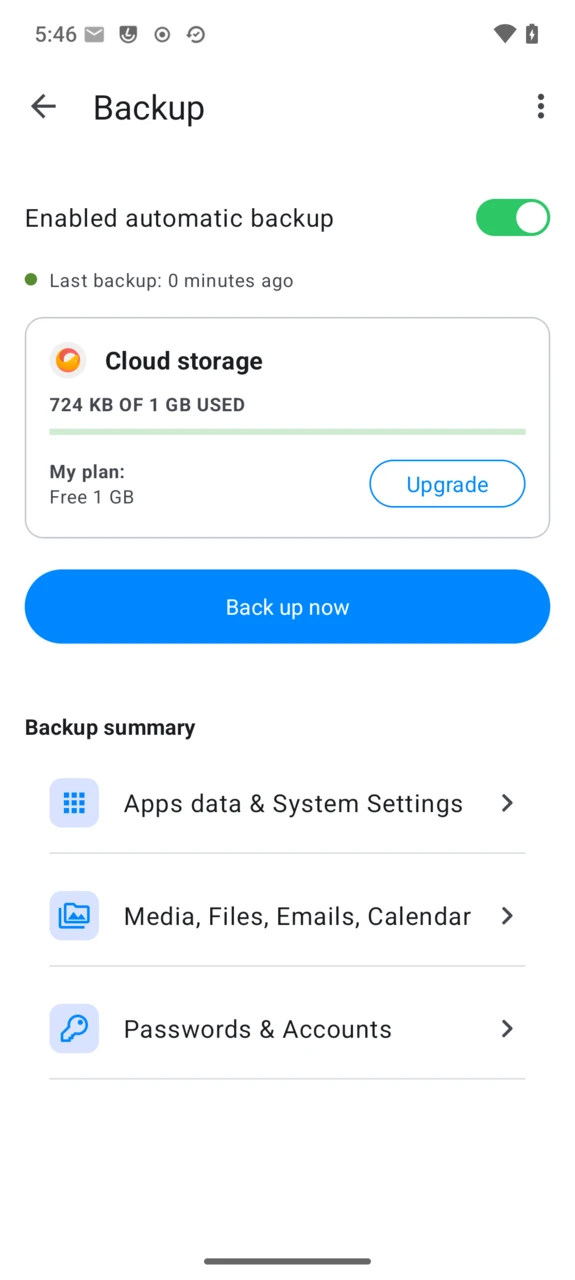
Backup is the backup and restore app built into /e/OS. It is a Murena fork of Seedvault, the open-source Android backup framework, adapted to back up to Murena Workspace with no setup beyond signing in. Like Seedvault, Backup is compiled into the system: it cannot be installed or removed as a regular app.
That dependency is what makes restore possible in the first place: your backup is encrypted with a key kept in Passwords, itself tied to your Murena Workspace account, so that signing in with the same account on any phone — the one you backed up, or a replacement — is enough to find and unlock that backup.
Open Backup
Open Settings → System → Backup.
Set up backup
- The first screen explains what Backup does. Tap
Continueand enableEnabled automatic backups.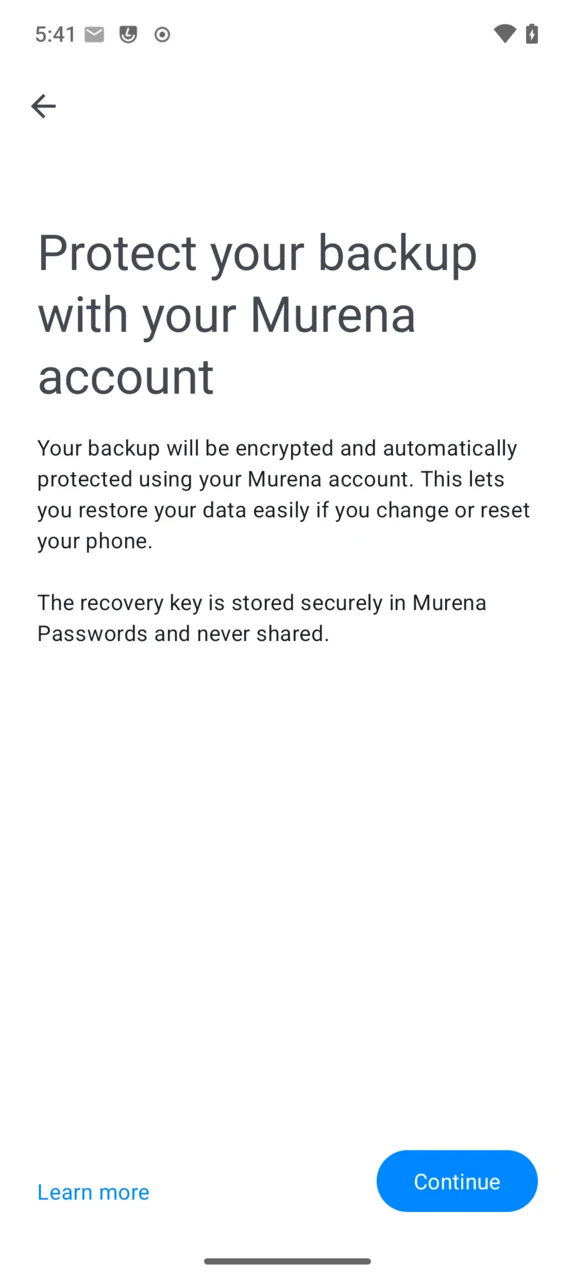
- Backup needs your Murena Workspace account to store the backup and its encryption key. If the device isn’t signed in yet, you’re taken through the usual /e/OS account sign-in first.
- Backup then fetches its encryption key from the Passwords app: tap
Open Passwords, unlock Passwords with your Murena Workspace password (or your separate encryption password, if you set one up — see Passwords), and return to Backup once the key is retrieved.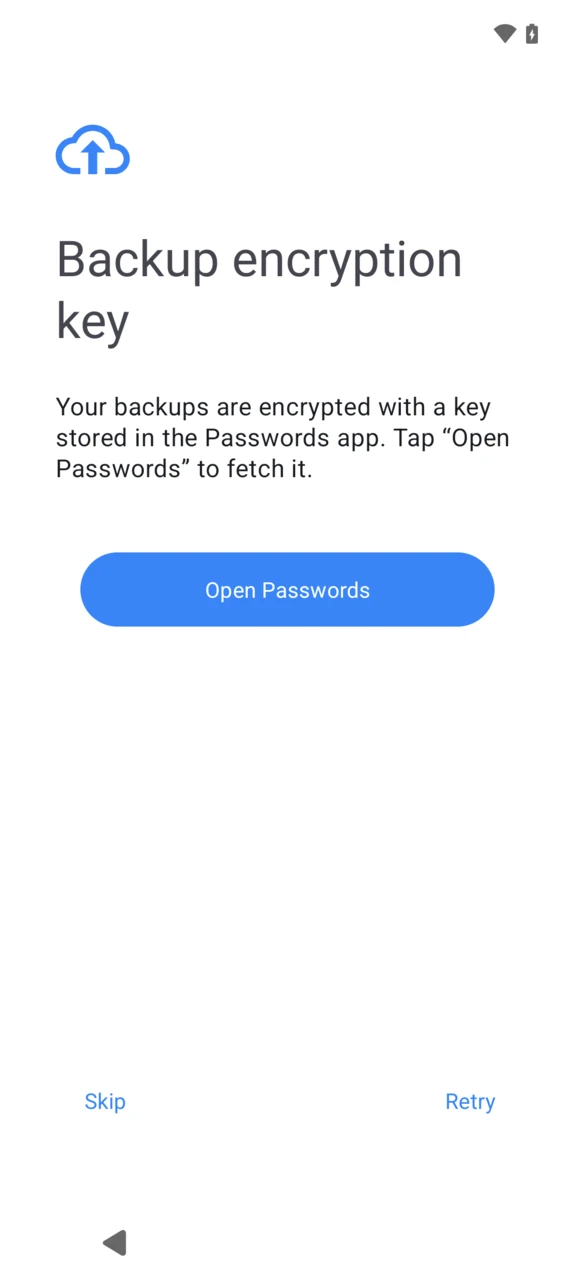
- Backup is now active:
Enabled automatic backupis on, and the dashboard shows your Murena Workspace storage usage.
Start a backup
Automatic backups run on their own in the background, according to the timing settings below. To back up right away instead of waiting, open Settings → System → Backup and tap Back up now.
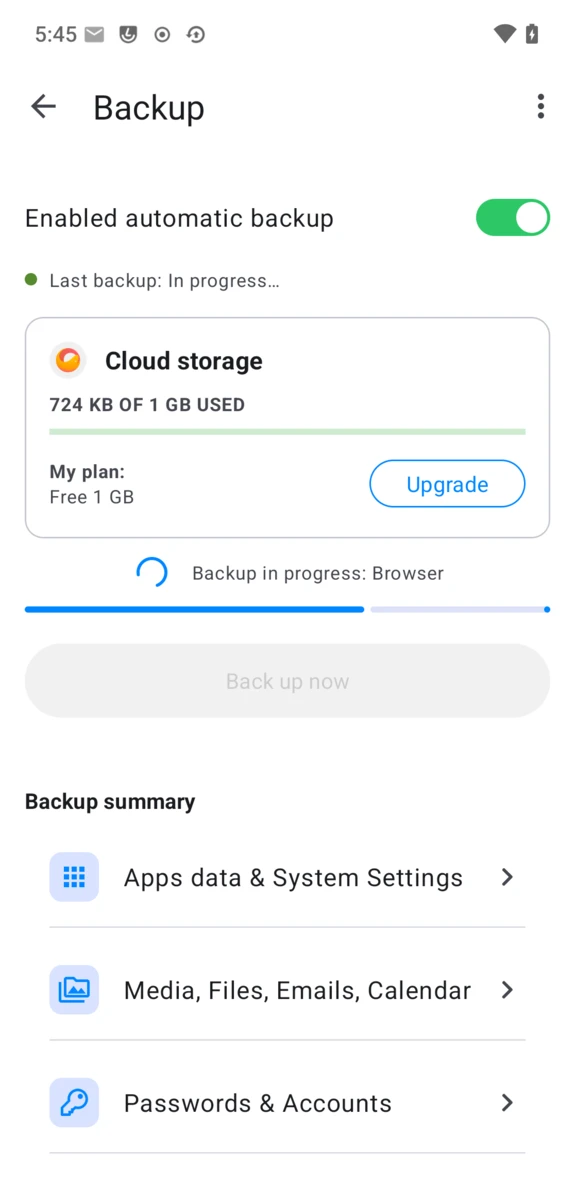
While a backup is running, Backup shows what it’s currently working on and a progress bar; Back up now is disabled until it finishes.
What gets backed up
The dashboard’s Backup summary lists three groups, but only the first is actually handled by Backup itself:
- Apps data & System settings — installed apps’ data, device settings, and, if enabled, the apps themselves (see Settings). This is the only category Backup itself actually handles.
- Media, Files, Emails, Calendar — not handled by Backup at all: photos, videos and documents are kept in sync continuously by eDrive, while mail, calendar, contacts, and notes sync through your Murena account. Tapping this row opens Account Manager’s sync settings, not a Backup screen.
- Passwords & Accounts — same story: it opens your account’s sync settings, where Passwords syncing is turned on or off.
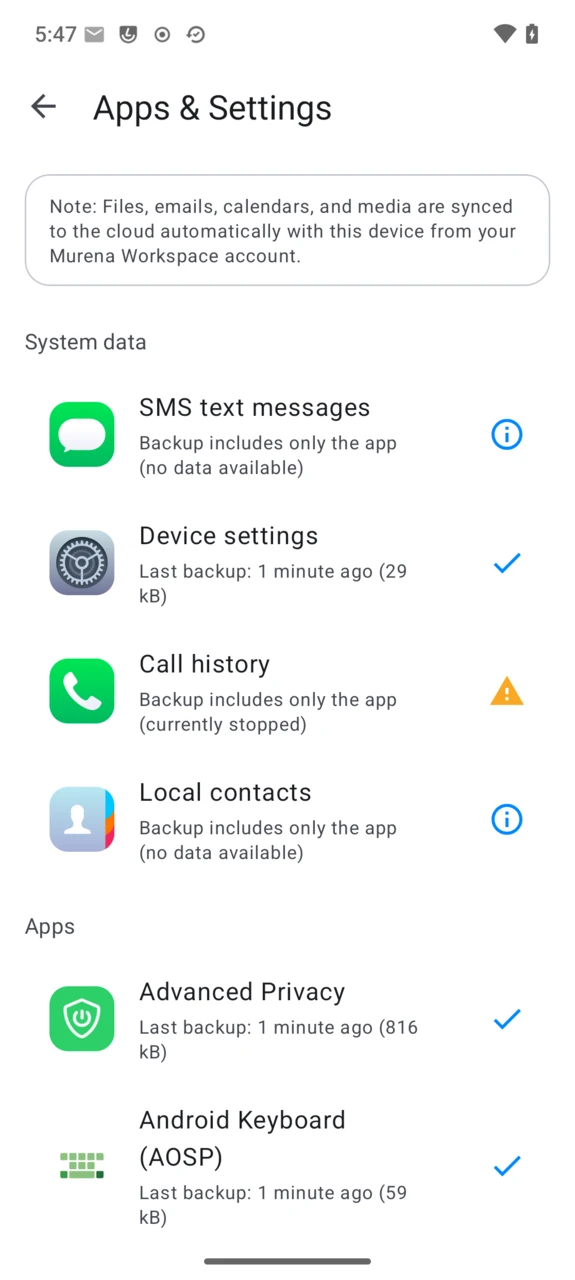
Last backup time and size for each.For SMS text messages, Call history, and Local contacts specifically, the per-app detail lists them as “Backup includes only the app (no data available)”: Android does not let Backup read their data without being the default SMS or contacts app. Your actual contacts are still preserved — through Murena account sync, not through Backup.
Settings
Open the ⋮ menu on the Backup dashboard, then Settings.
- APK backups (off by default) — also back up the installed apps themselves, not just their data. Without it, restoring reinstalls apps from the app store instead.
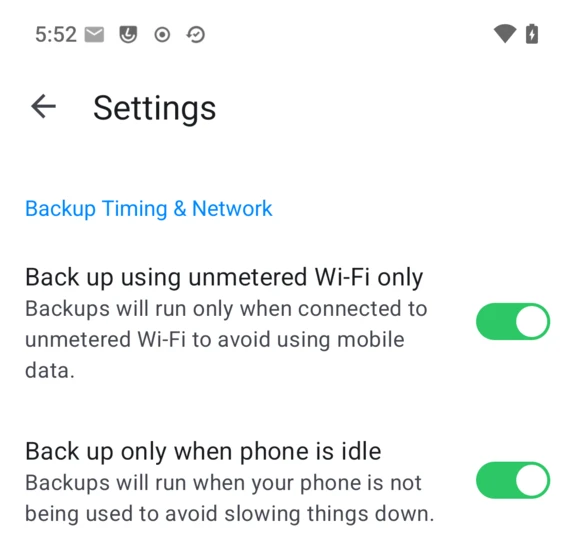
- Back up using unmetered Wi-Fi only / Back up only when phone is idle — when automatic backups are allowed to run.
Restore from backup
Restore is only offered during initial device setup — when the phone is new or fresh out of a factory reset — since restoring apps and their data has to happen before those apps are otherwise installed. There is no restore option once /e/OS is already set up.
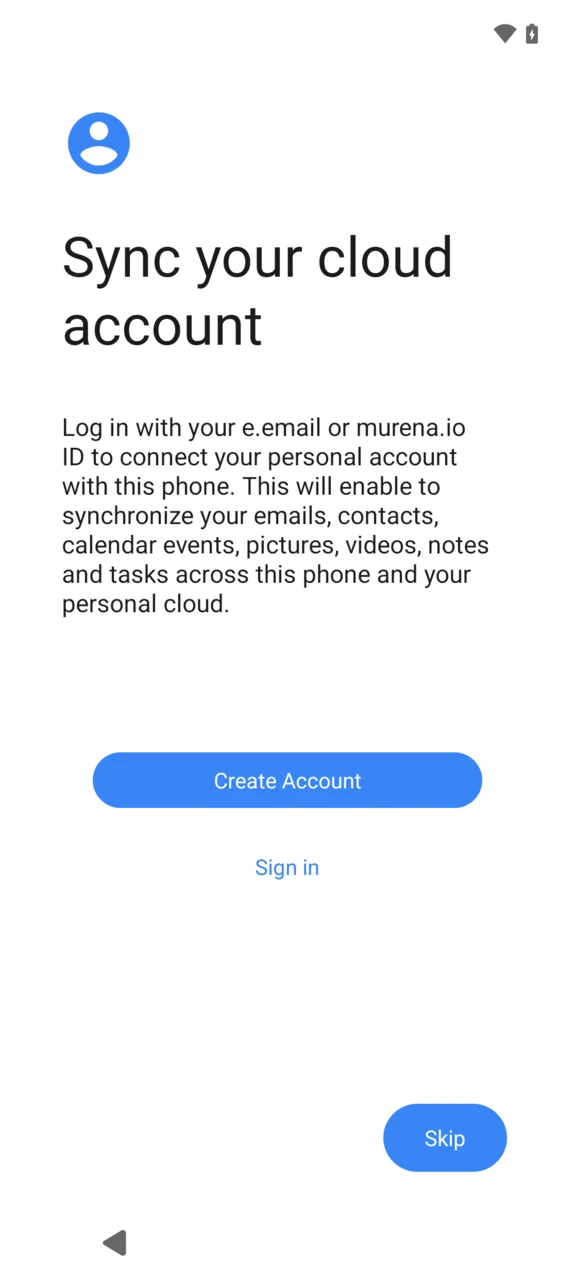
- During setup, sign in to the Murena Workspace account that has the backup.
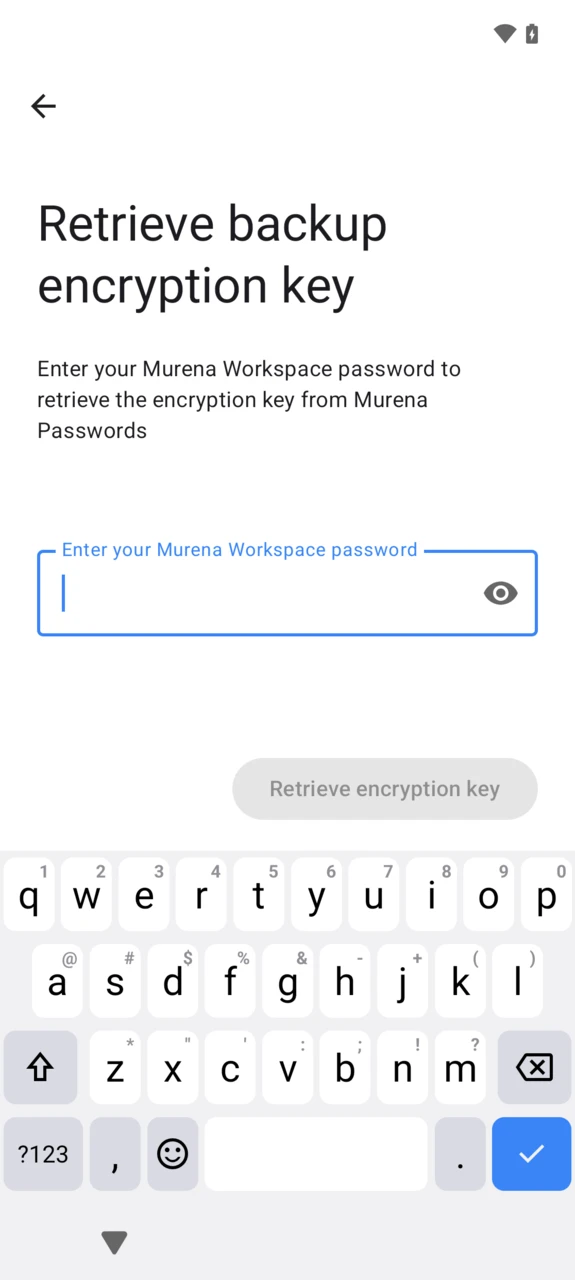
- If a backup is found for that account, setup asks to fetch its encryption key from Passwords — the same step as setting up Backup. Enter your Murena Workspace password (or separate encryption password) to unlock Passwords and retrieve it.
- Choose the backup to restore from the phones associated with your account.
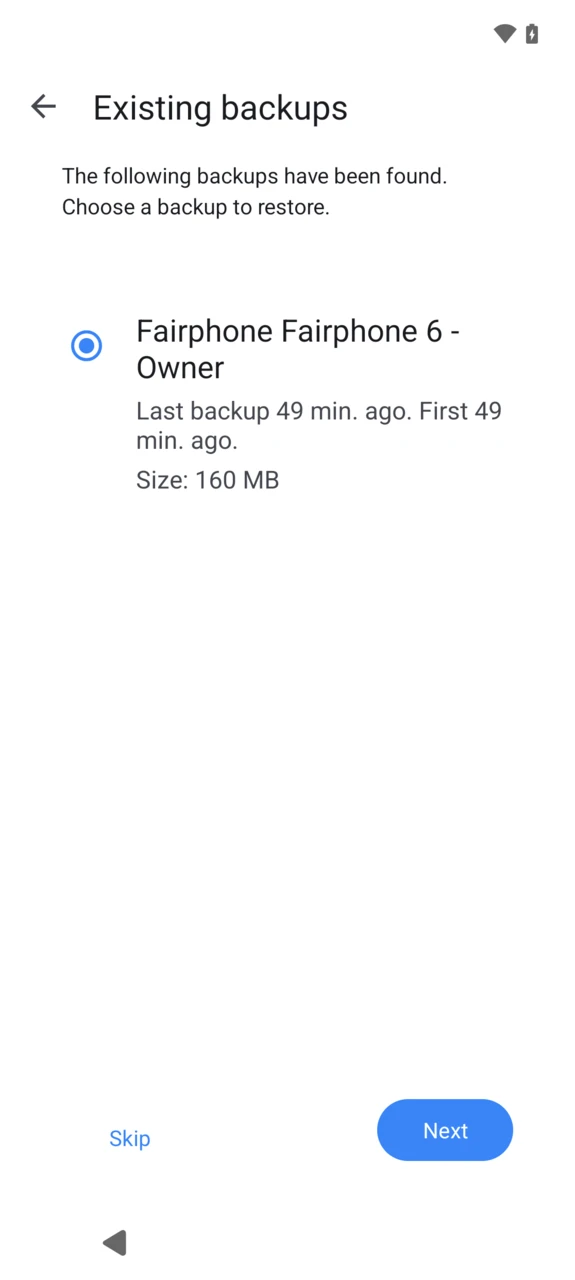
- Apps are reinstalled and their data restored one by one; watch the list until it reaches
Finish.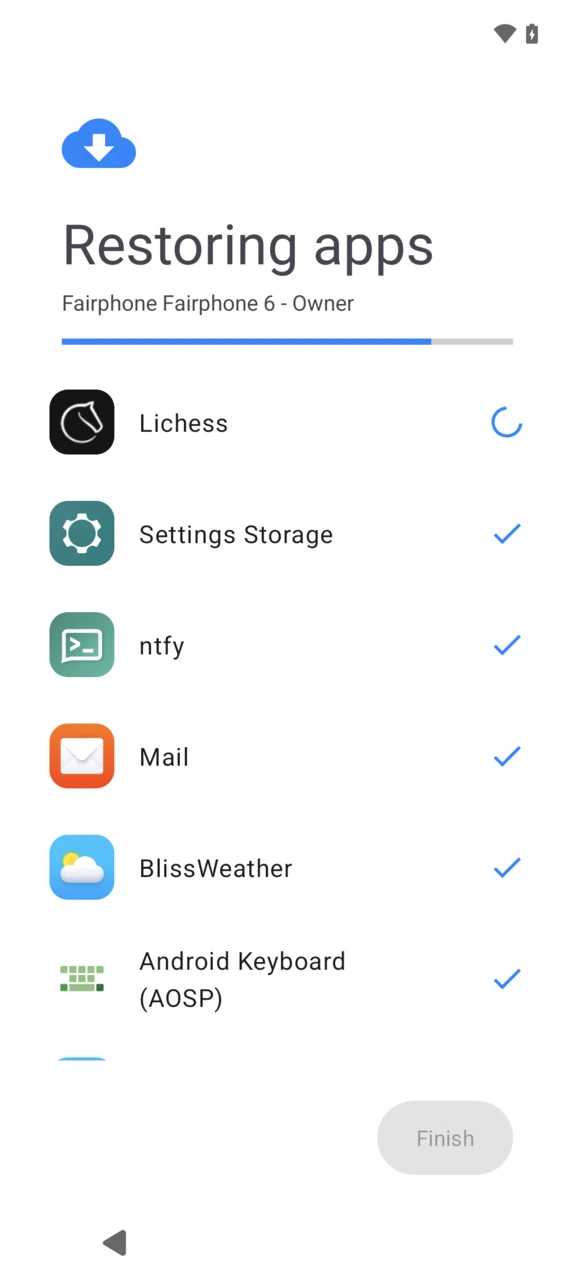
FAQ
Does Backup work without a Murena Workspace account?
No. Murena Workspace is where the backup itself is stored and where its encryption key lives (in Passwords), so Backup cannot be turned on, and a previous backup cannot be found or restored, without it.
Why does Backup need the Passwords app too?
Your backup is encrypted with a key, and that key is kept in Passwords rather than inside Backup itself. Setting up or restoring a backup both go through Passwords to fetch that key — if Passwords isn’t reachable (locked out, or its encryption not set up), Backup cannot proceed.
Why does the app list say “no data available” for SMS, call history, or contacts?
Android only lets a backup tool read that data if it is the default SMS or contacts app, which Backup isn’t. Those three keep syncing normally through your Murena Workspace account instead — see What gets backed up.
I don’t see a restore option in Backup’s own menu
Restore only appears during initial device setup, right after a factory reset or on a new phone — never from within an already set-up /e/OS. See Restore from backup.
Coming from a phone that isn’t running /e/OS?
Backup can only restore a backup it made itself, on a device that already runs /e/OS — it cannot read data from Android, iOS, or any other system. Before switching to /e/OS, export what you need from your current phone’s own tools instead (contacts to a .vcf file, photos over USB, and so on), then bring it into Murena Workspace once /e/OS is set up.
Is Backup open source?
Yes — it’s Murena’s fork of the open-source Seedvault project.