
How to set up a company phone with Microsoft Intune
Edit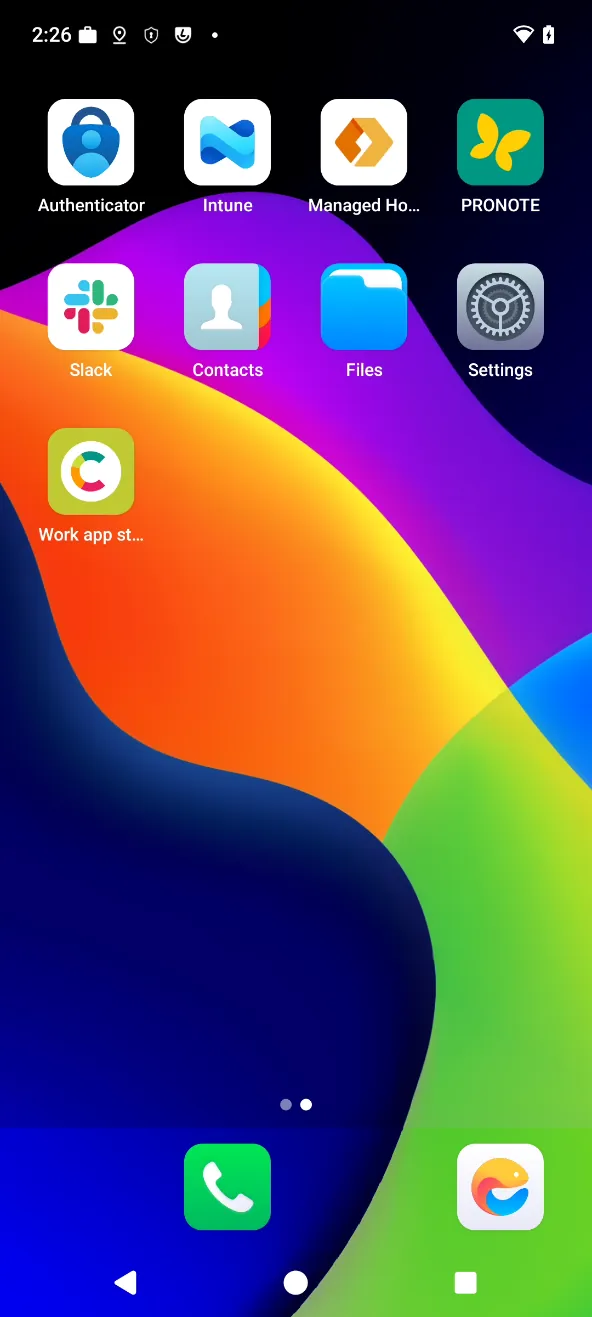
Use this guide when your organization gives you an /e/OS phone it owns and manages with Microsoft Intune. Enrollment starts from the very first setup screen with a QR code, and takes about fifteen minutes. The whole phone is a fully managed device: your IT admin can manage all of it, and the apps your organization requires install on their own.
If the phone is yours and you only want work apps on it, follow How to set up a personal device with Microsoft Intune instead.
Before you start
- A phone running /e/OS, new or reset to factory settings (this guide was made on a Motorola moto g 5G with /e/OS 4.5).
- The enrollment QR code, given by your IT admin.
- Your work account (email and password), given by your IT admin.
- A Wi-Fi connection.
Scan the enrollment QR code
On the
Welcome to /e/OSscreen, tap six times on an empty area of the screen. Do not tapStart.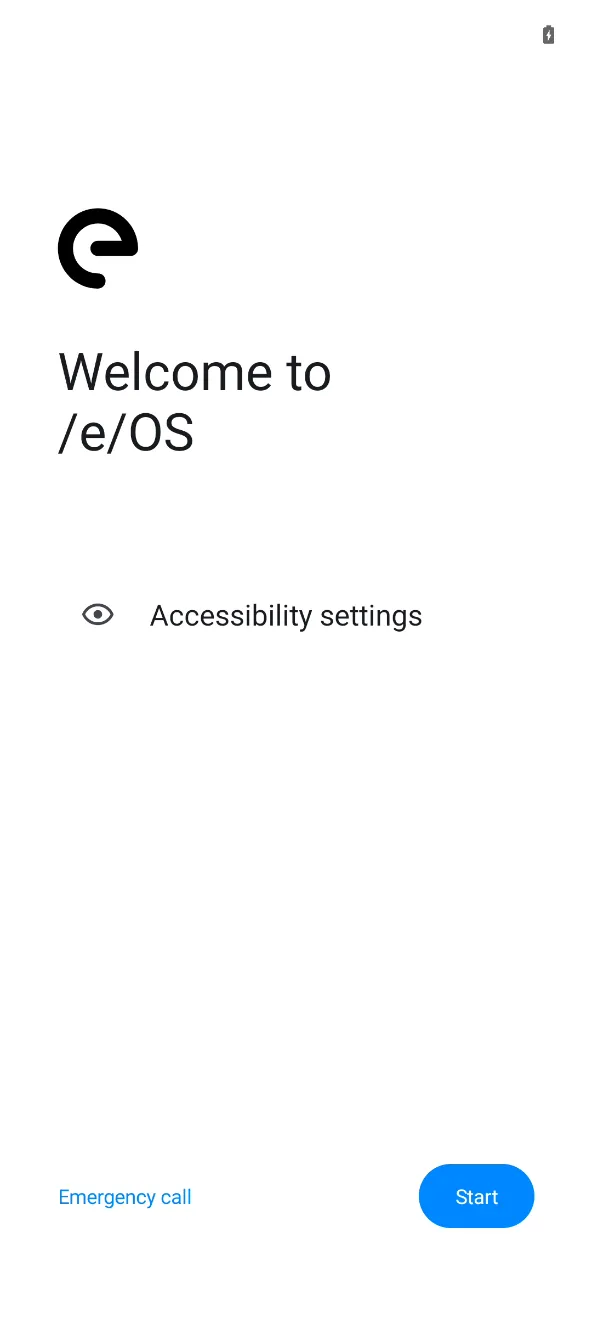
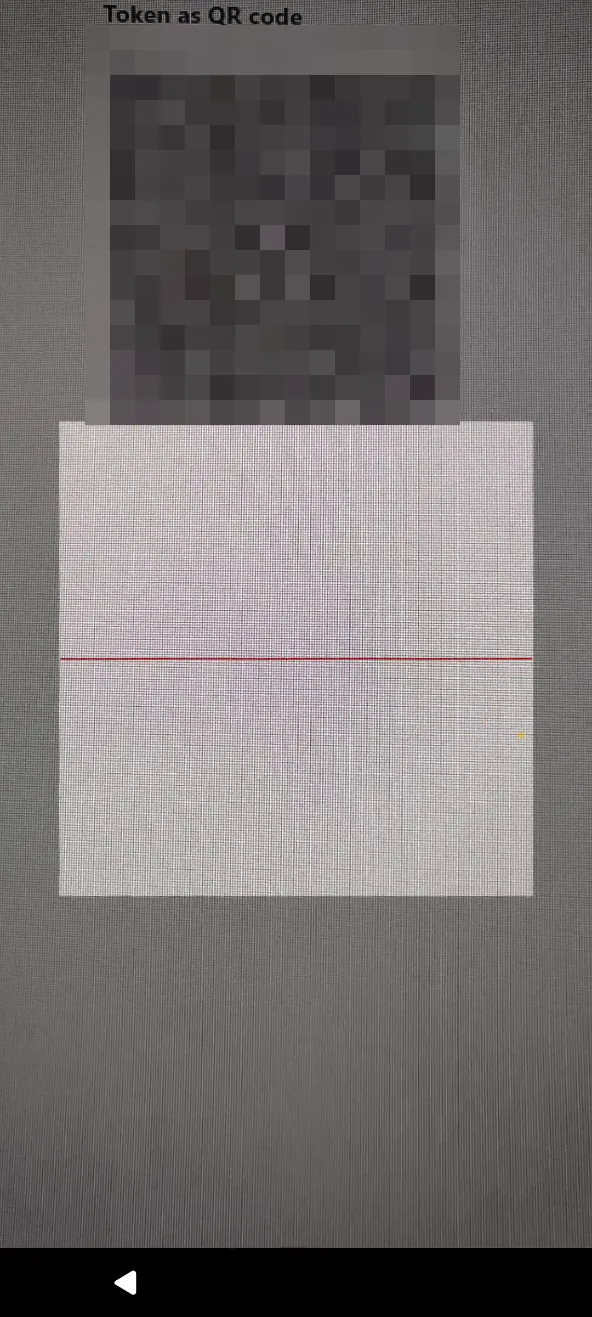
The QR code scanner opens. Point the camera at the QR code from your IT admin.
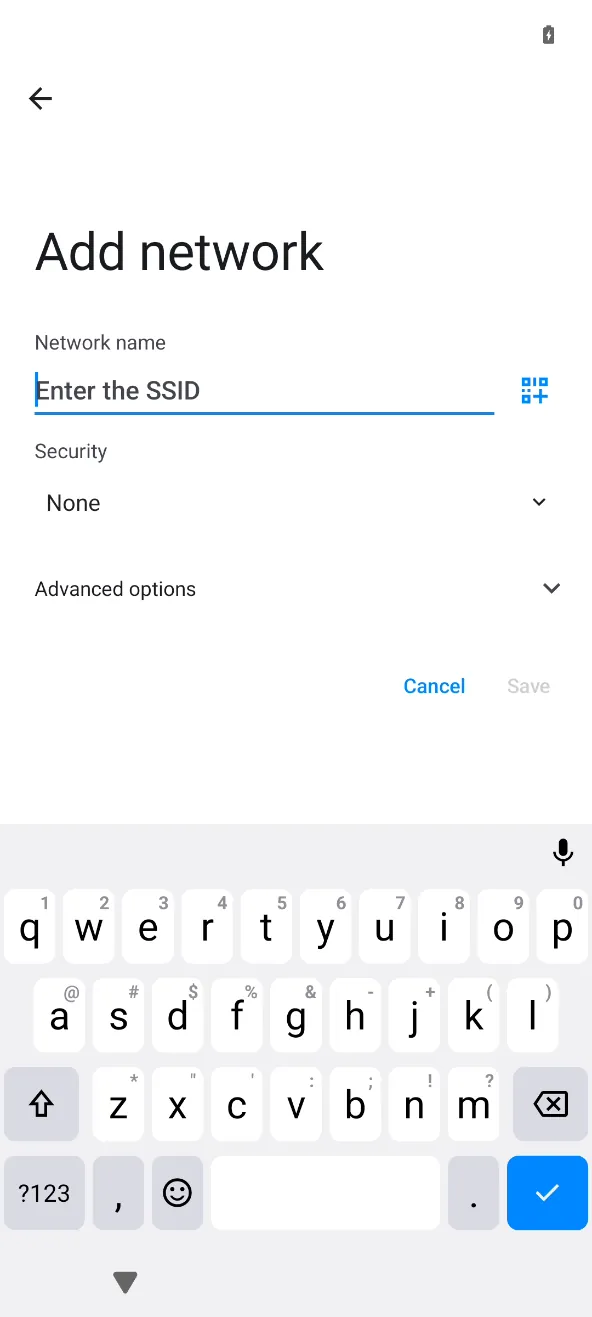
If the QR code does not include a Wi-Fi network, the phone asks you to connect to one. Enter your network and its password.
Let the phone set itself up
The phone downloads Android Device Policy, the app that manages it for your organization. When
MDM application is installed!shows, tapNext.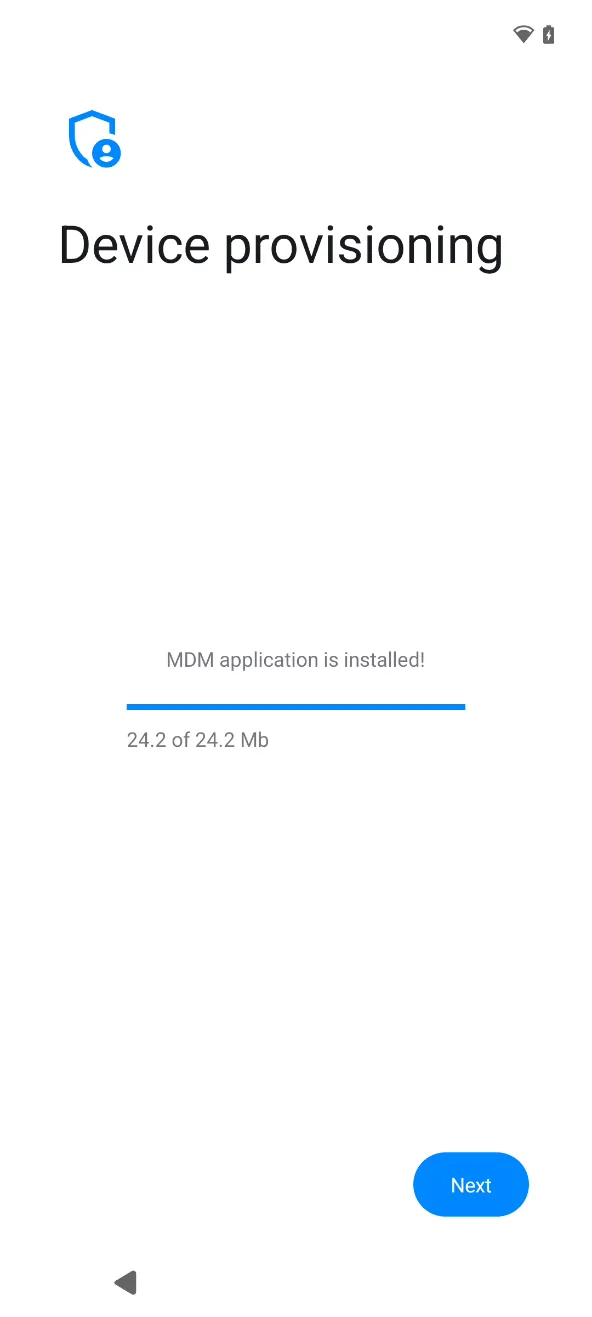
On
This device belongs to your organization, tapNext.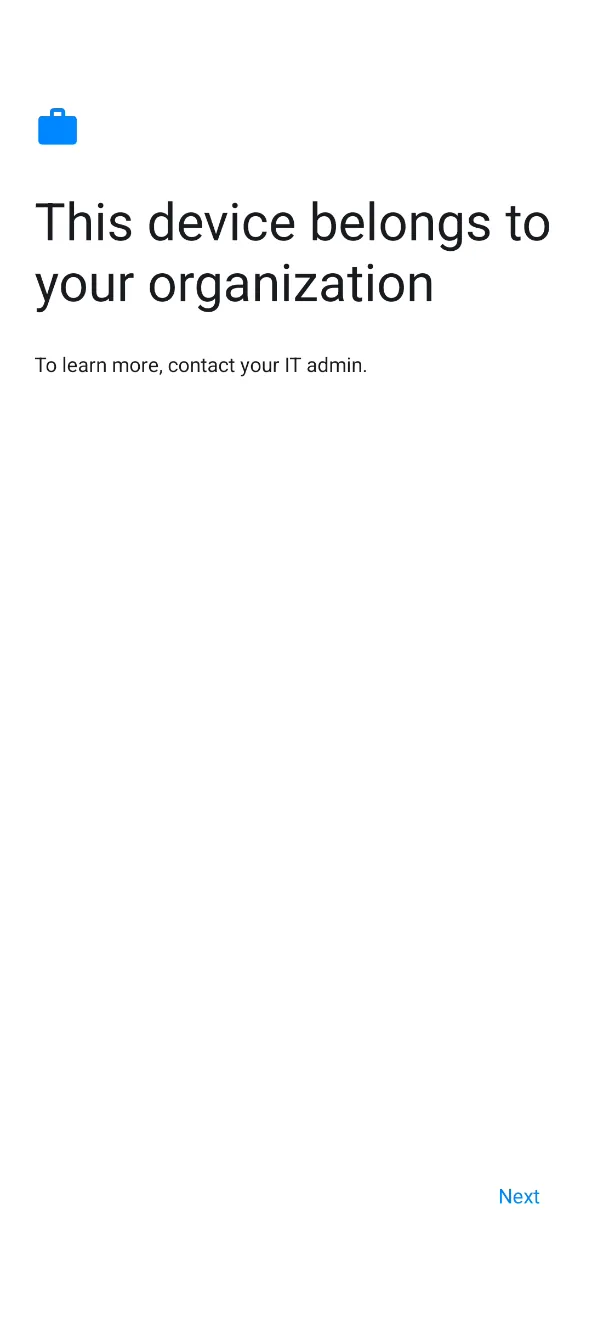
On
Let's set up your work device, tapAccept & continue.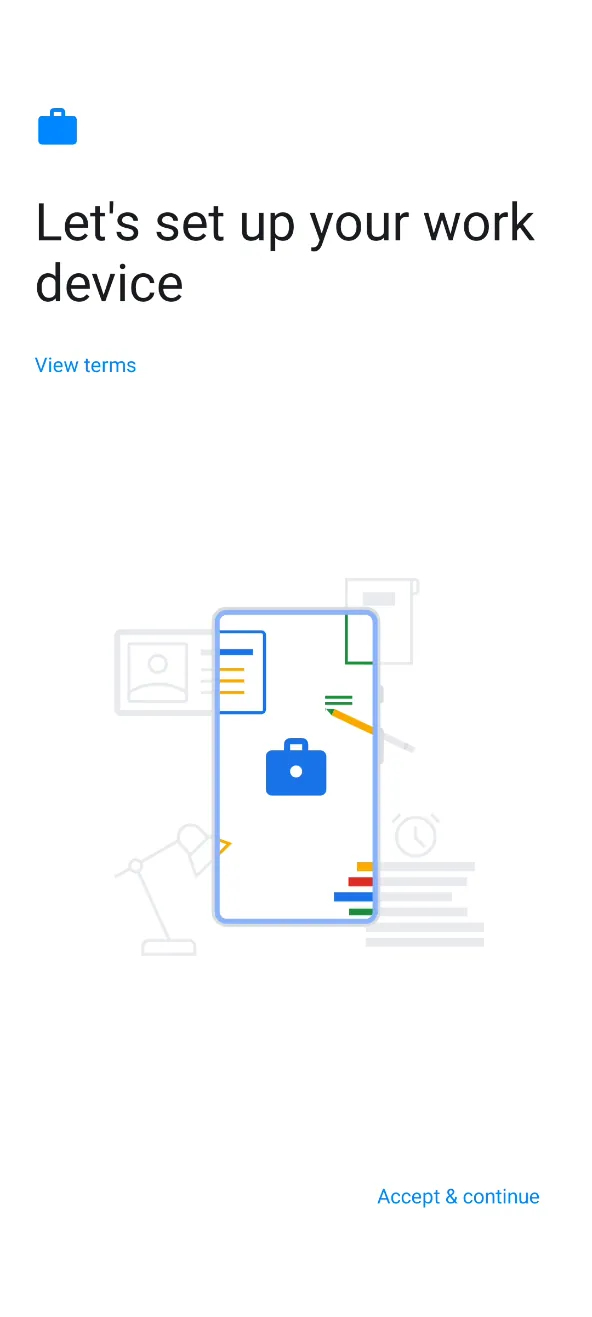
This device isn't privateexplains what your IT admin can see and control. The phone carries on by itself.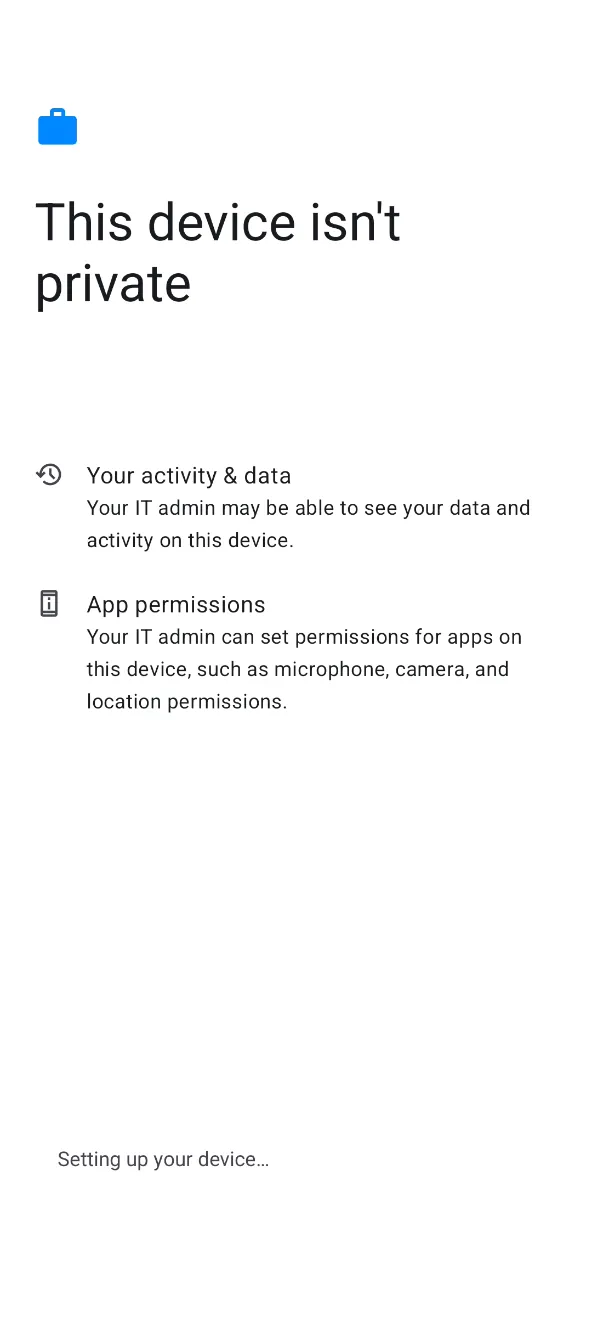
Updating device...can take a few minutes.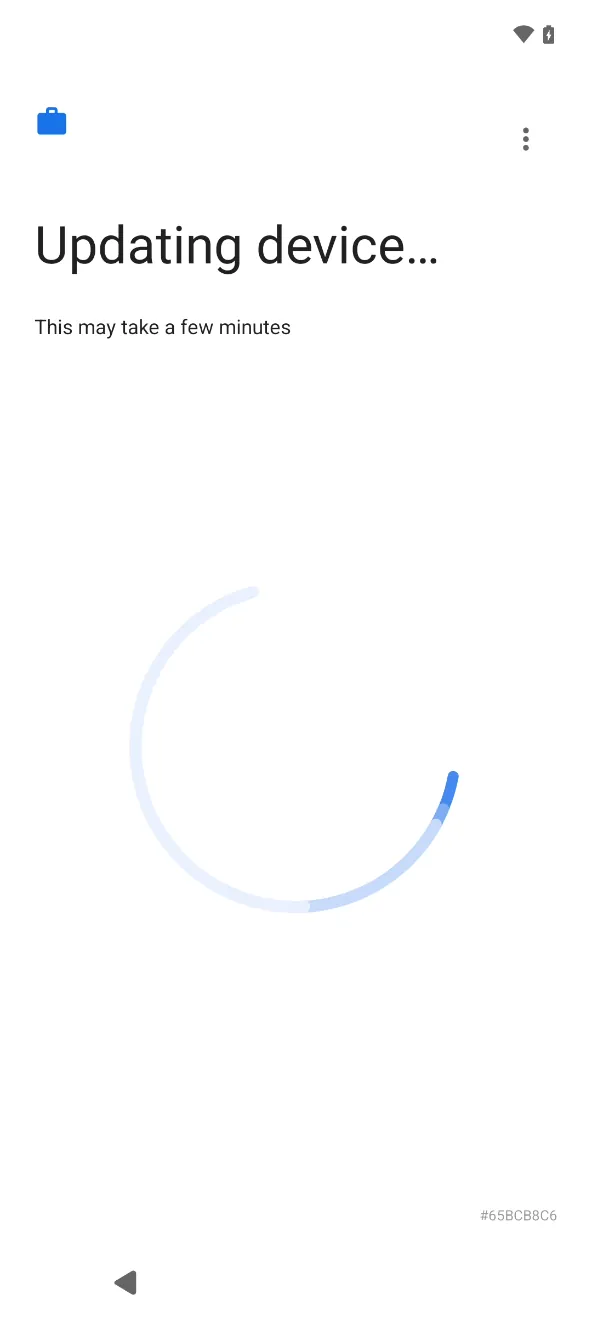
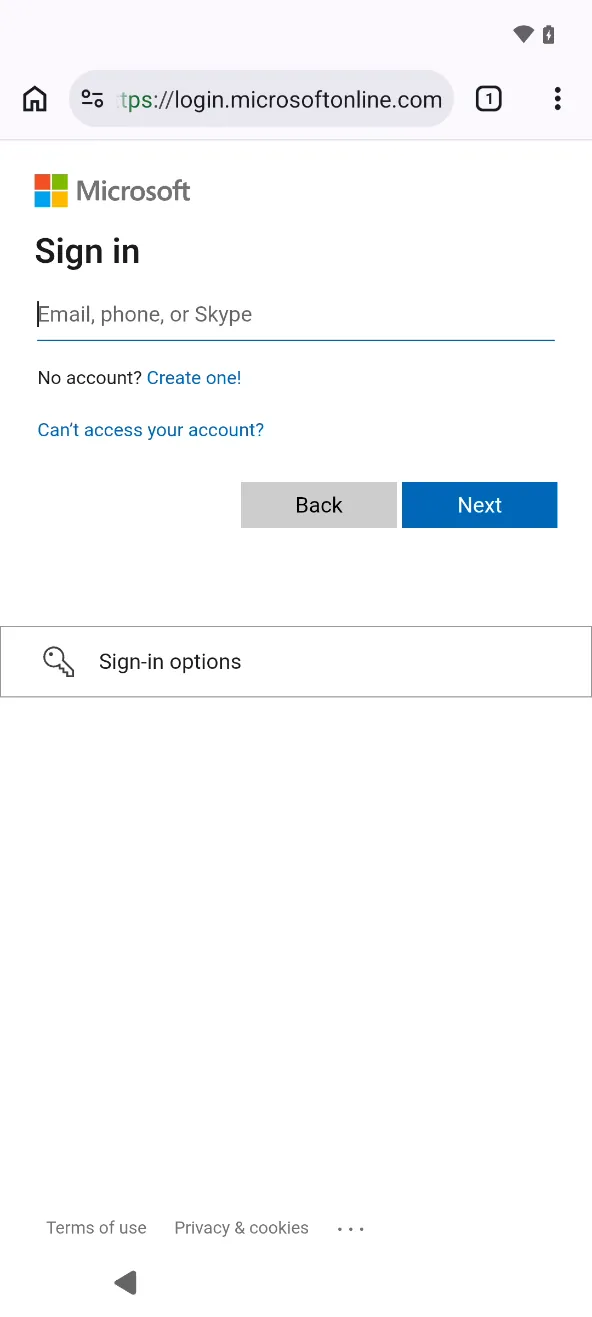
Sign in with your work email and password.
Install the work apps
Your work checklistopens. UnderInstall work apps, tapInstall.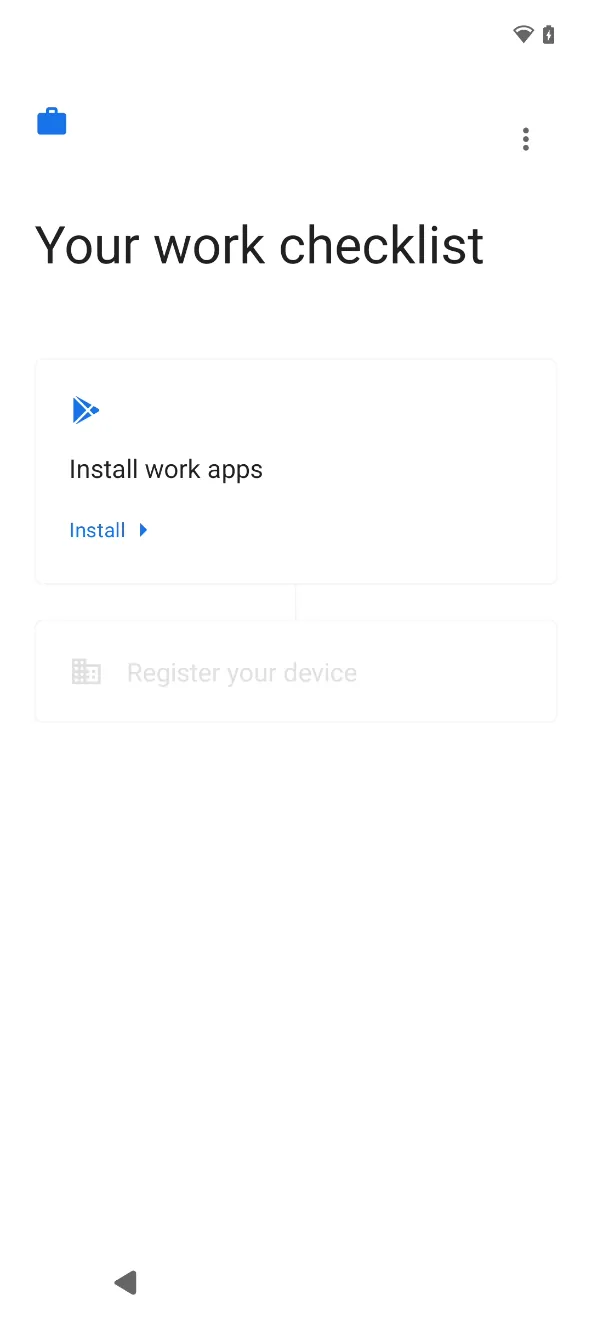
The phone installs the apps your organization requires. Right after enrollment, the list can take a few minutes to start.
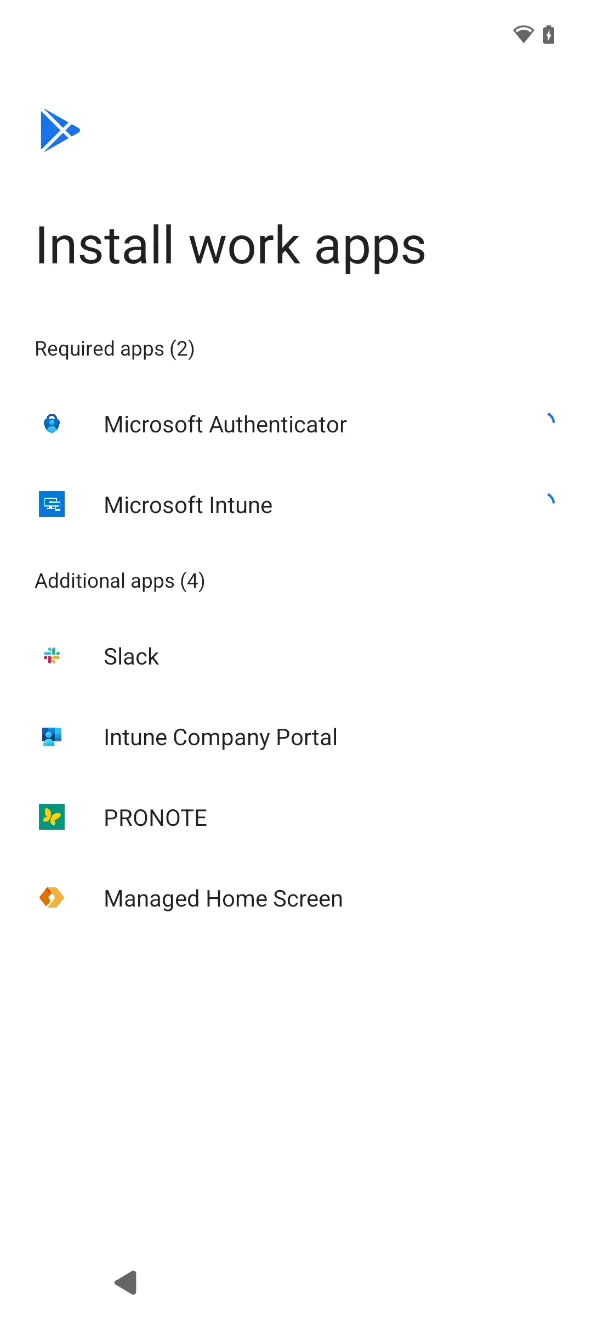
When the required apps show a green check, tap
Done.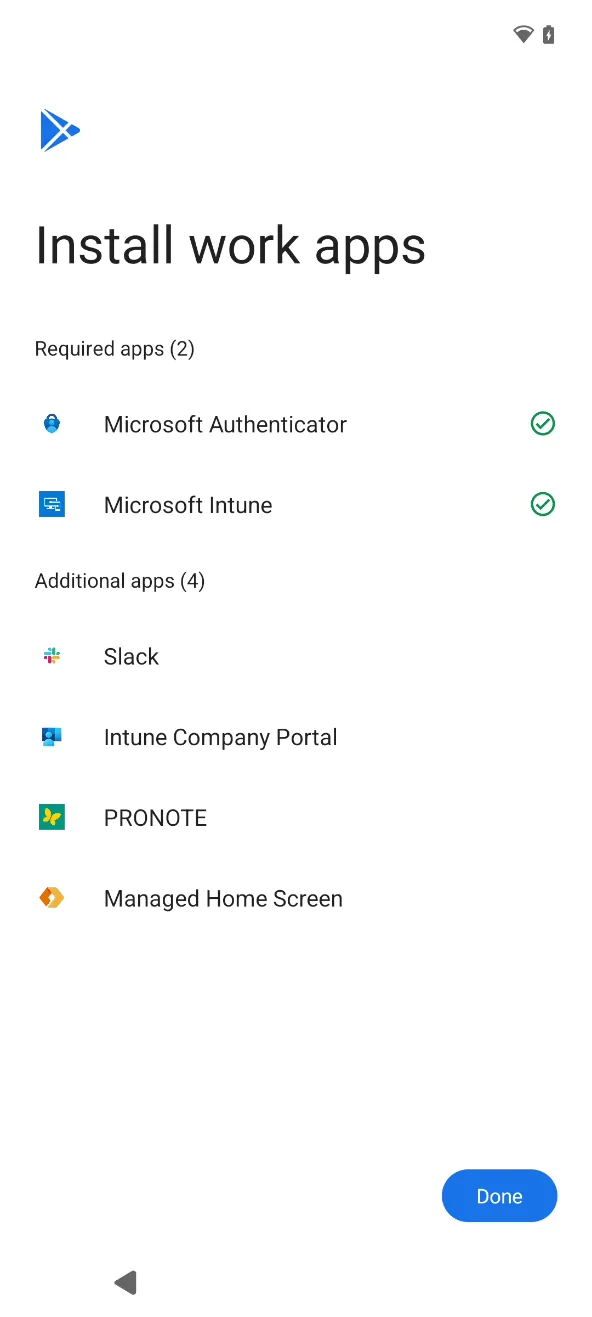
Register the phone with Intune
The setup screens carry your organization’s name (Murena in these screenshots).
Back on
Your work checklist, underRegister your device, tapSet up.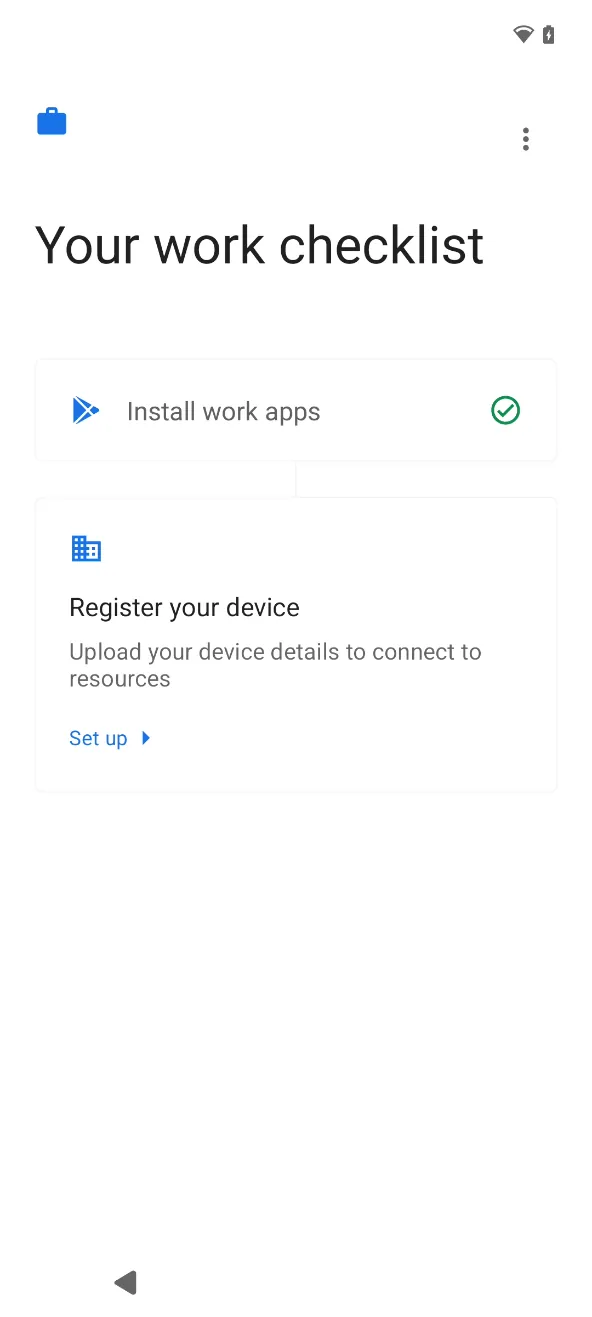
The Intune app opens. Tap
SIGN IN.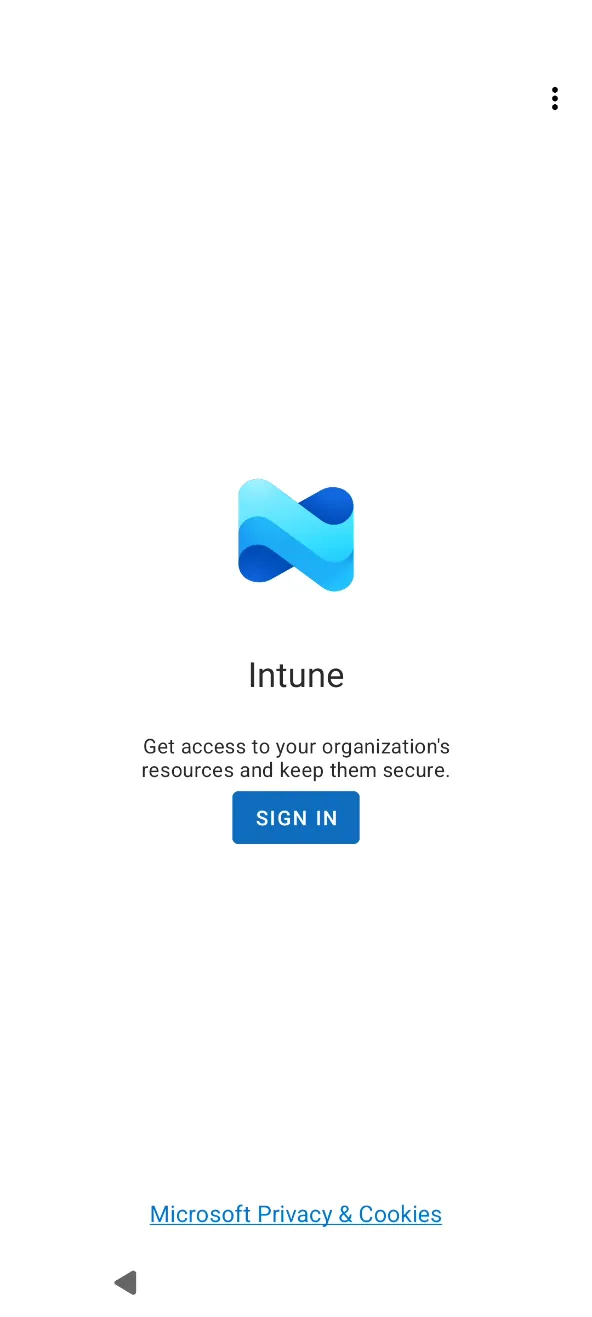
Enter your work password and tap
Sign in.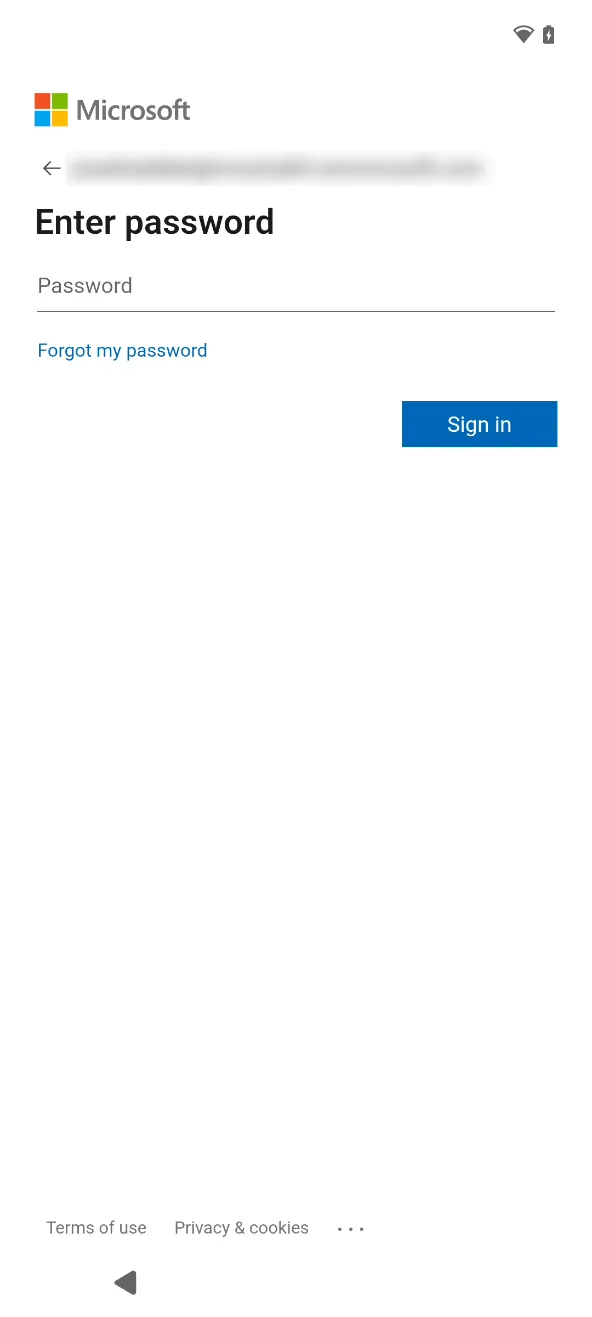
On
Help us keep your device secure, tapRegister.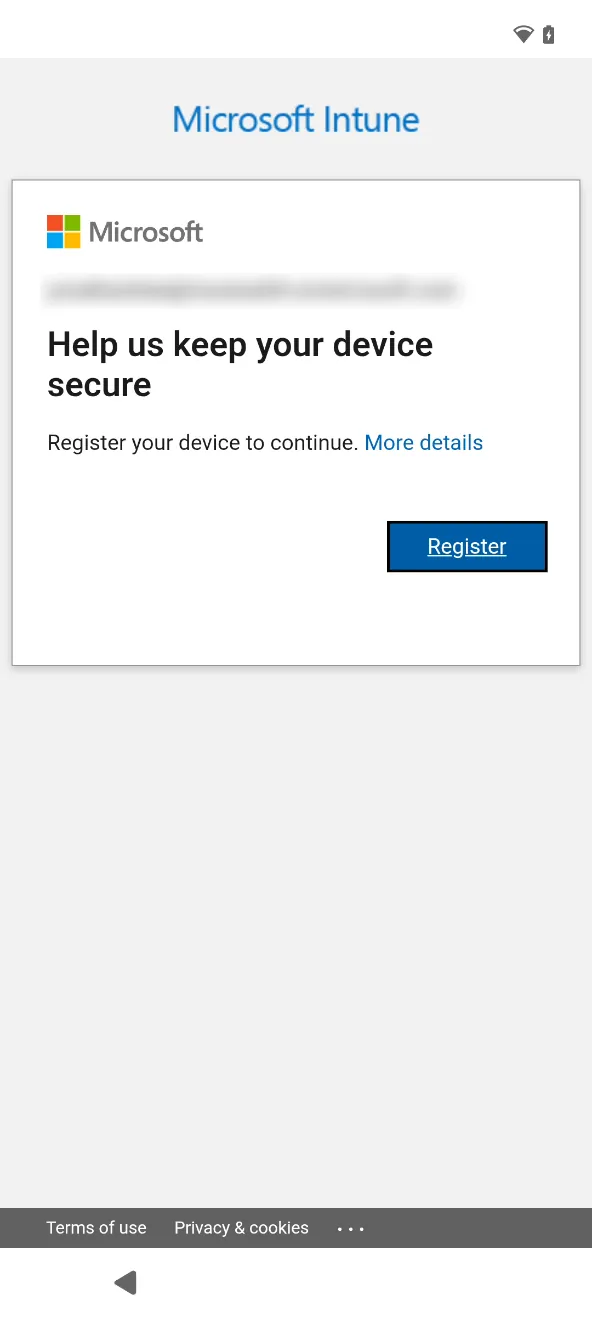
On
Set up Murena access, tapNEXT.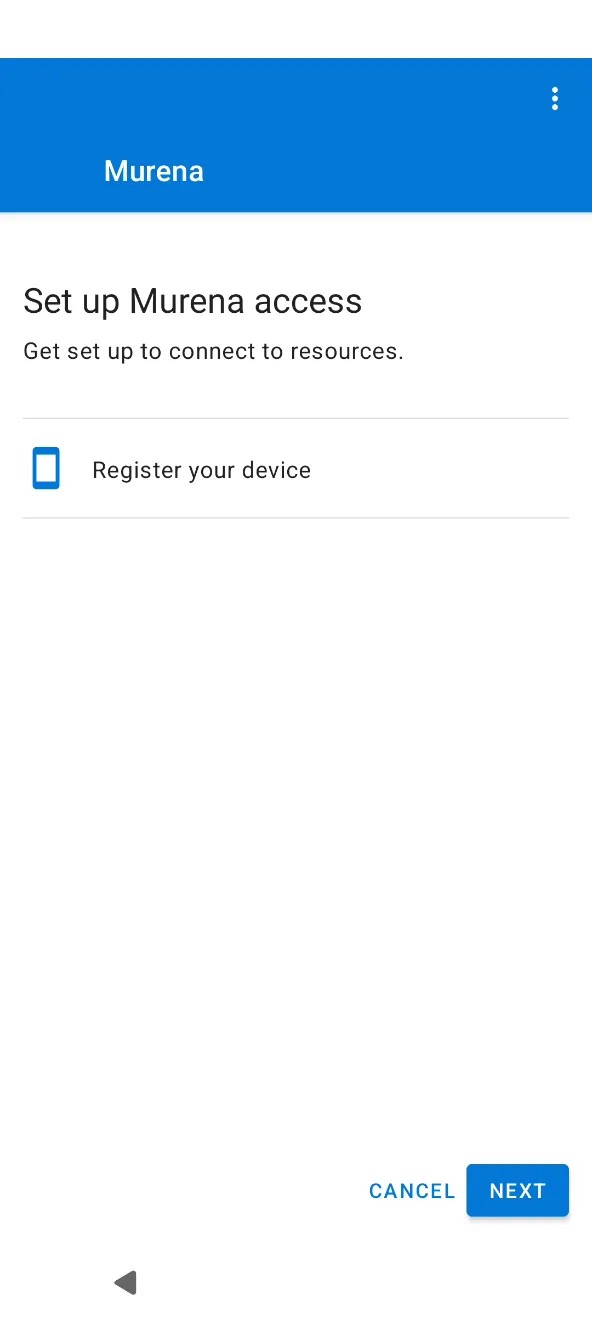
When
Register your deviceshows a check, tapDONE.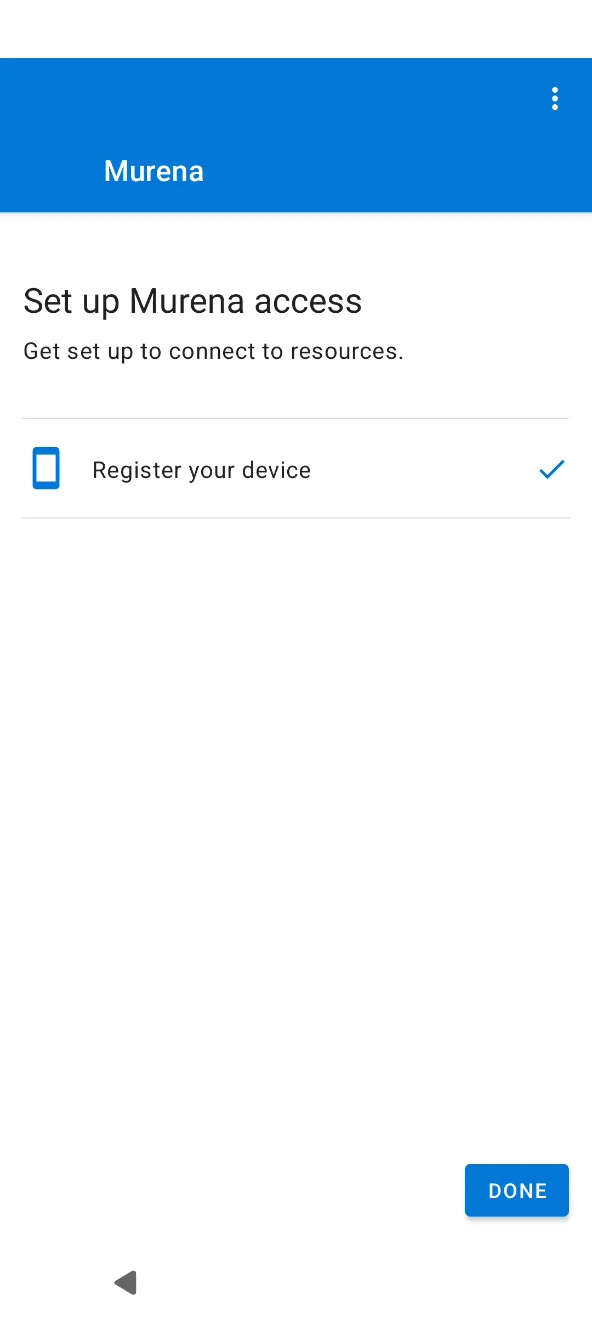
Check that it worked
The phone asks which home screen to use. Pick
BlissLauncherto keep the /e/OS home screen, orManaged Home Screenif your IT admin asked you to.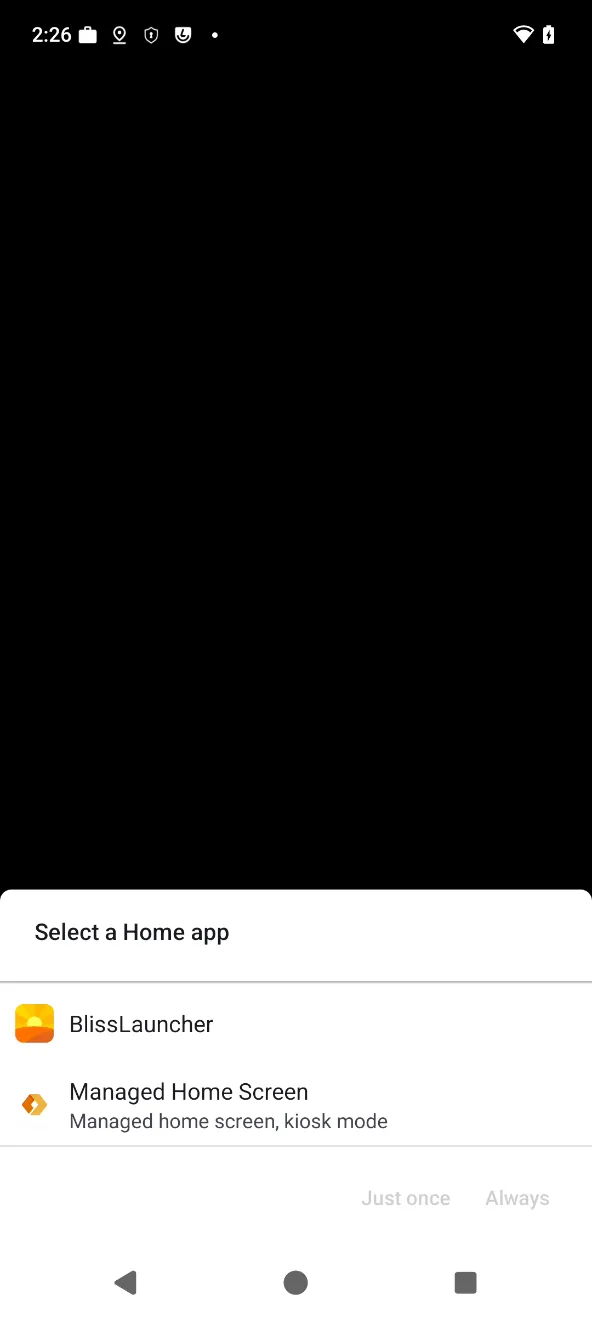
The home screen lists the work apps installed for you, like
Authenticator,Intuneand theWork app storeto install more.
Troubleshooting
| Problem | Fix |
|---|---|
| Tapping the welcome screen does not open the QR code scanner | The phone has already been set up. Reset it to factory settings, then tap six times on the welcome screen again. |
Install work apps keeps spinning | Right after enrollment, Google can take a few minutes to send the list of apps. Wait, the installs start on their own. |
| Sign-in is refused | Check with your IT admin that your account is allowed to enroll a company-owned Android device. |
| You want to give the phone back | Ask your IT admin to retire it in Intune. The phone is then reset to factory settings. |