
How to set up a personal device with Microsoft Intune
Edit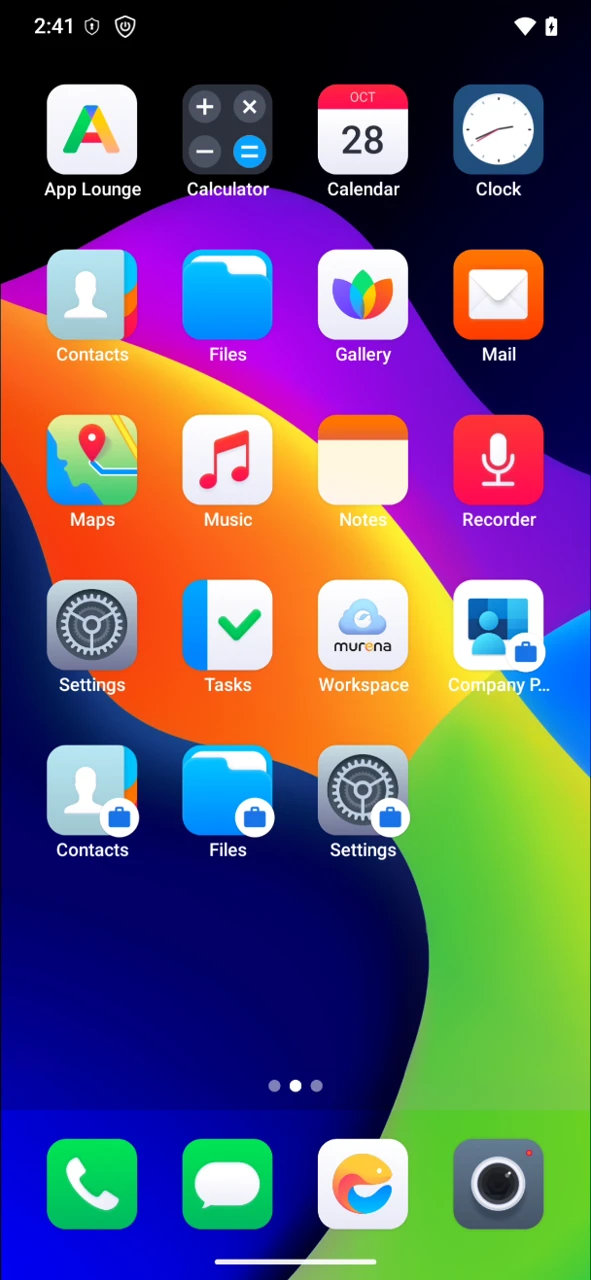
Use this guide when your organization manages its phones with Microsoft Intune and you want to use your own /e/OS phone for work. Enrollment takes about five minutes and creates a work profile: a separate space for work apps and data, marked with a briefcase badge. Your IT admin can see and manage the work profile only, not your personal apps, photos or messages.
Before you start
- A phone running /e/OS (this guide was made on a Fairphone 4 with /e/OS 4.3.1).
- Your work account (email and password), given by your IT admin.
- A Wi-Fi or mobile data connection.
- About 100 MB of free storage for the Company Portal app.
Install Intune Company Portal
Open App Lounge, search for
Intune Company Portal(by Microsoft Corporation) and tapInstall.
The
Company Portalicon appears on your home screen. Do not open it yet.
Allow work account setup
/e/OS blocks work profile setup by default. Turn it on once, before you sign in to Company Portal. This setting belongs to microG.
Open
Settings, tapSystem, thenApp compatibility.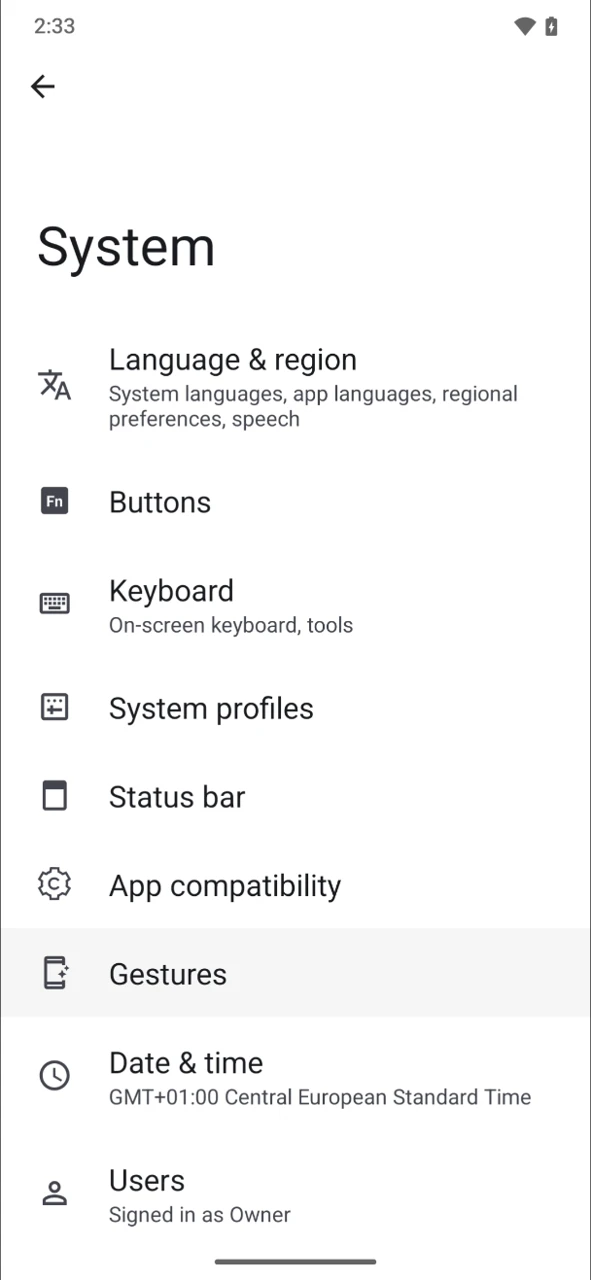
Under
Google Services, tapWork profile.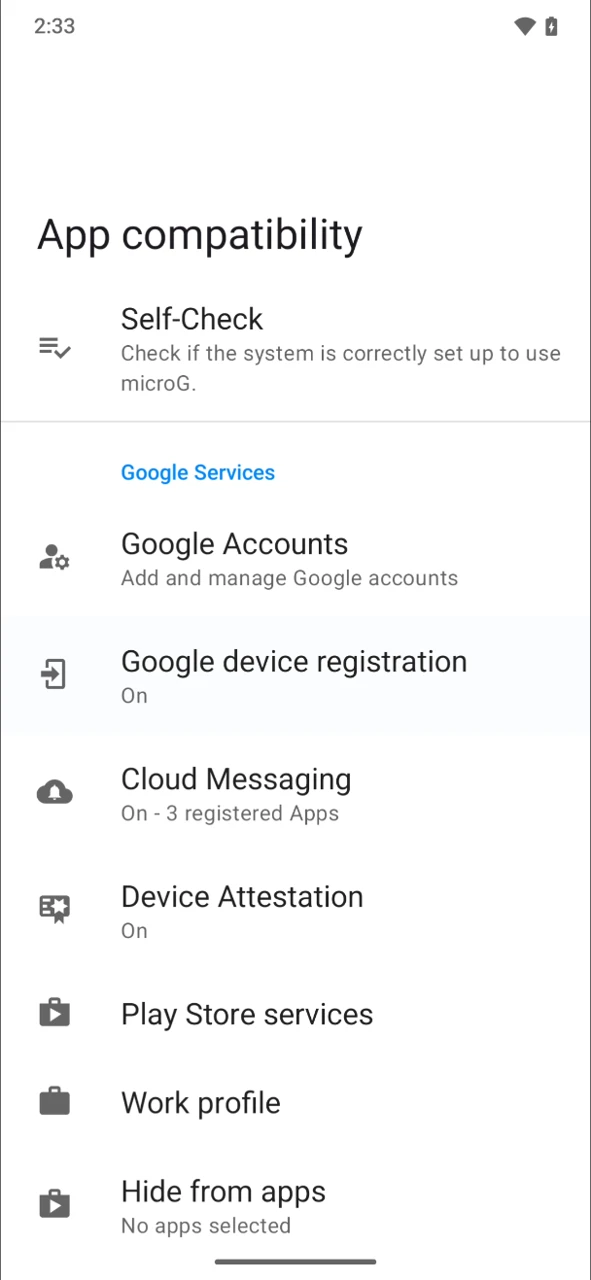
Turn on
Allow work account setup.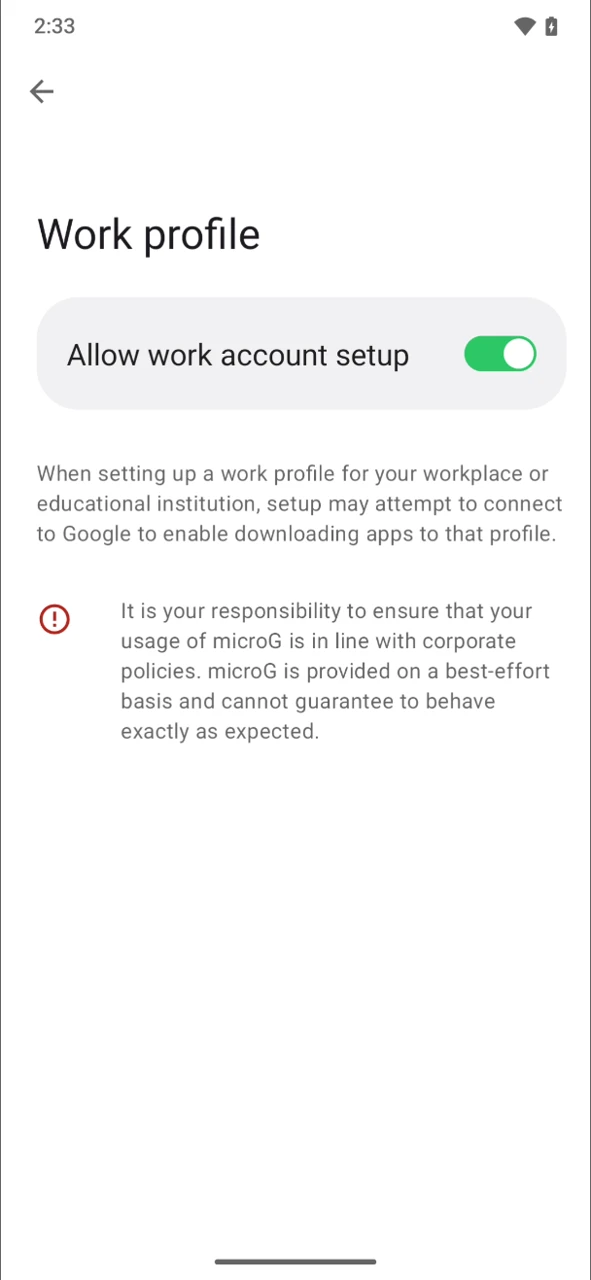
Sign in to Company Portal
Open
Company Portal. When it asks to send notifications, tapAllow: Intune uses them to tell you about required actions.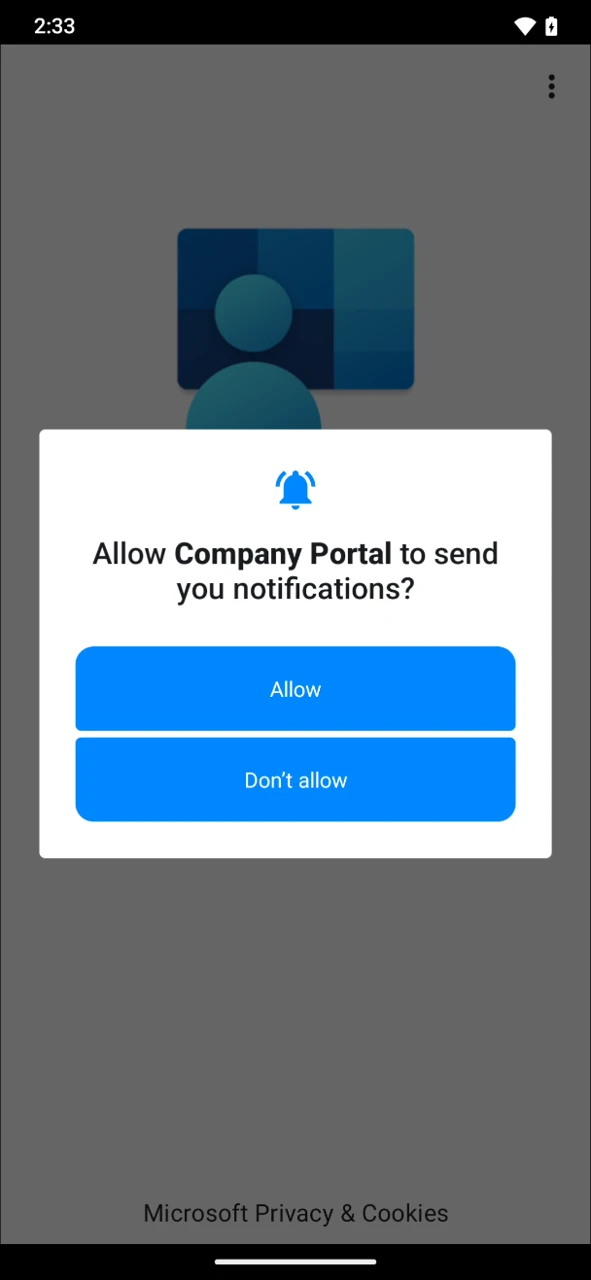
Tap
SIGN INand log in with your work email and password.
Create the work profile
The setup screen carries your organization’s name (Murena in these screenshots).
On the
Access Setupscreen, tapBEGIN.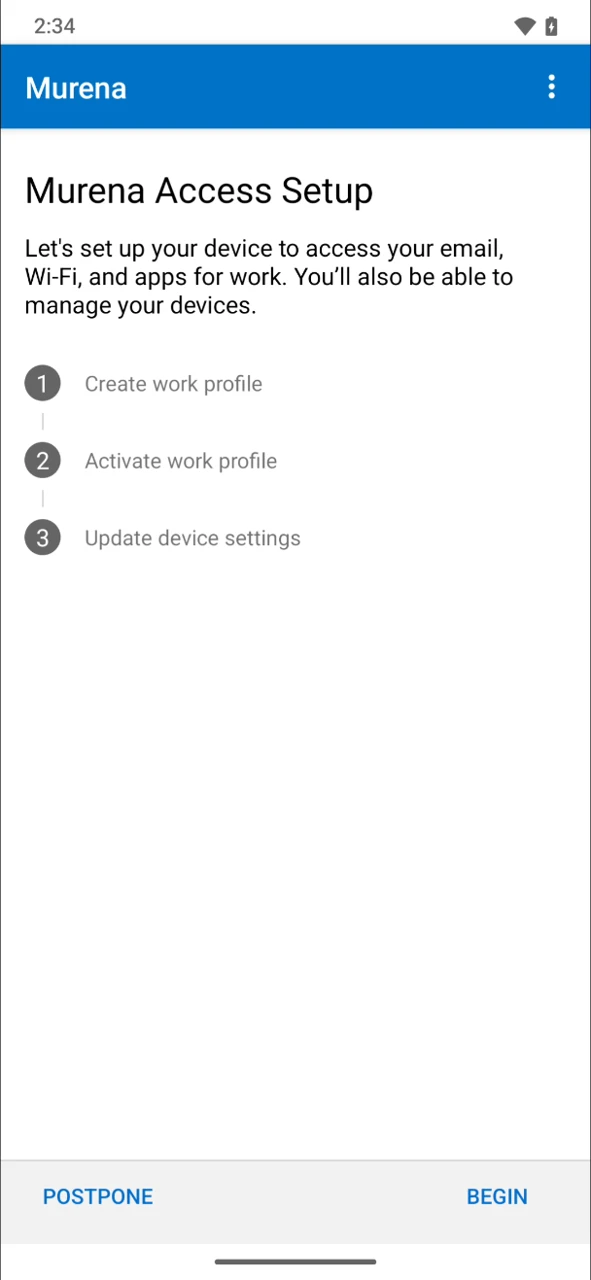
On
Let's set up your work profile, tapAccept & continue.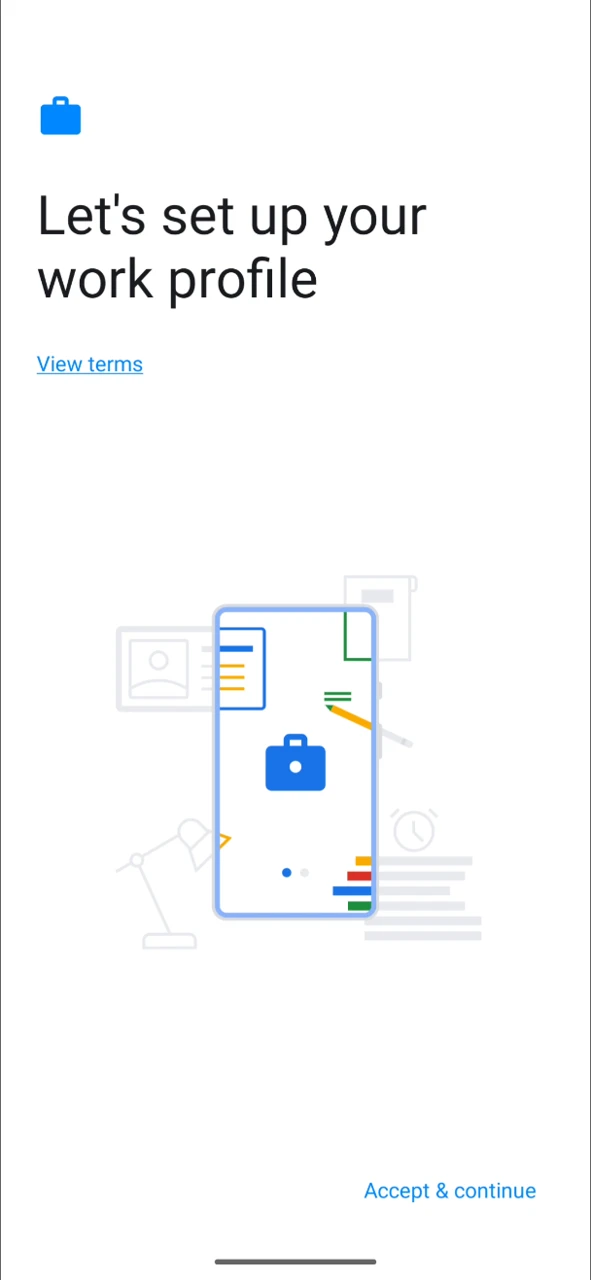
Read
Data in your work profile is visible to your IT admin, then tapNext. The phone creates the work profile, which takes about a minute.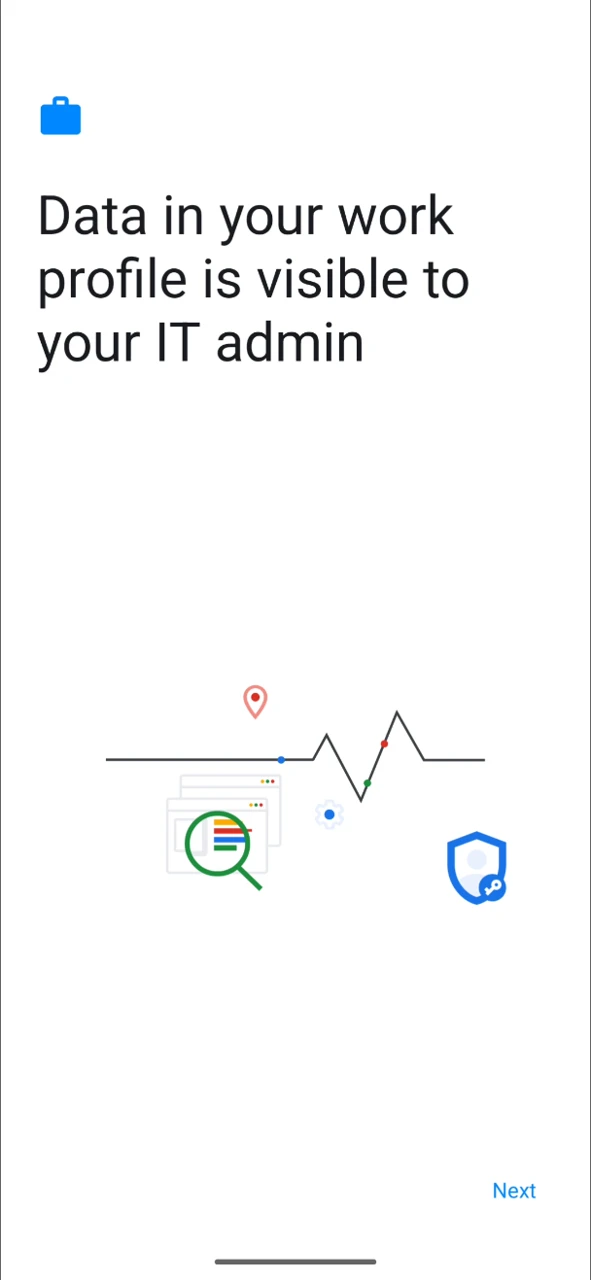
Back in Company Portal,
Create work profileis checked. TapCONTINUEto activate the profile and apply the device settings.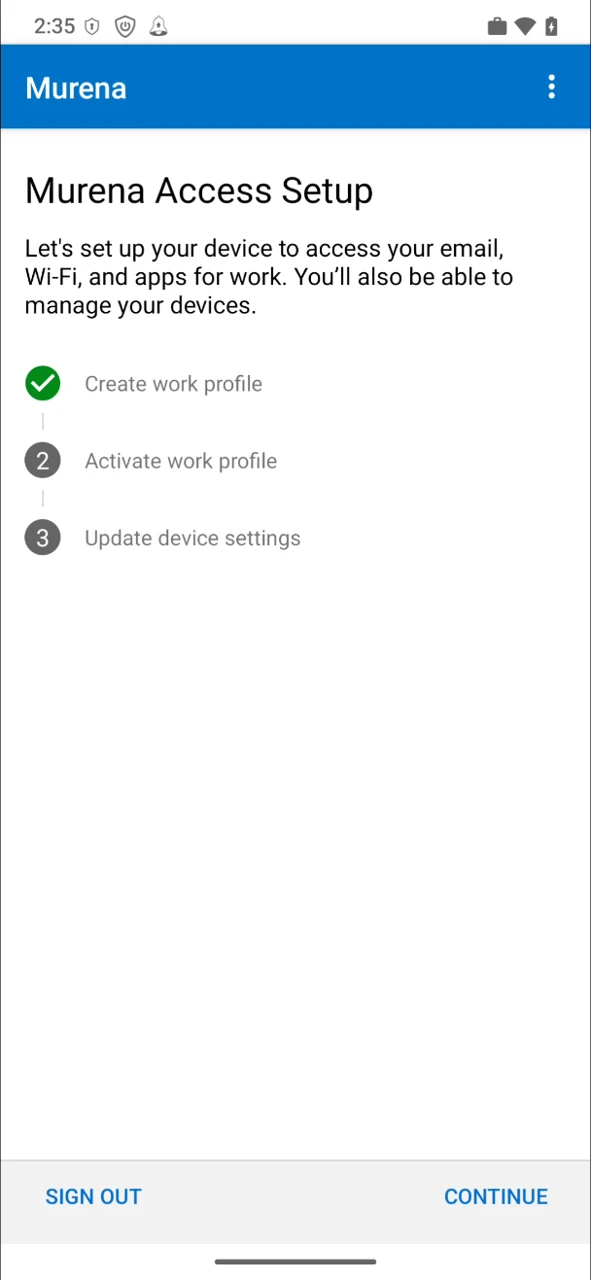
When all three steps show a green check, tap
DONE.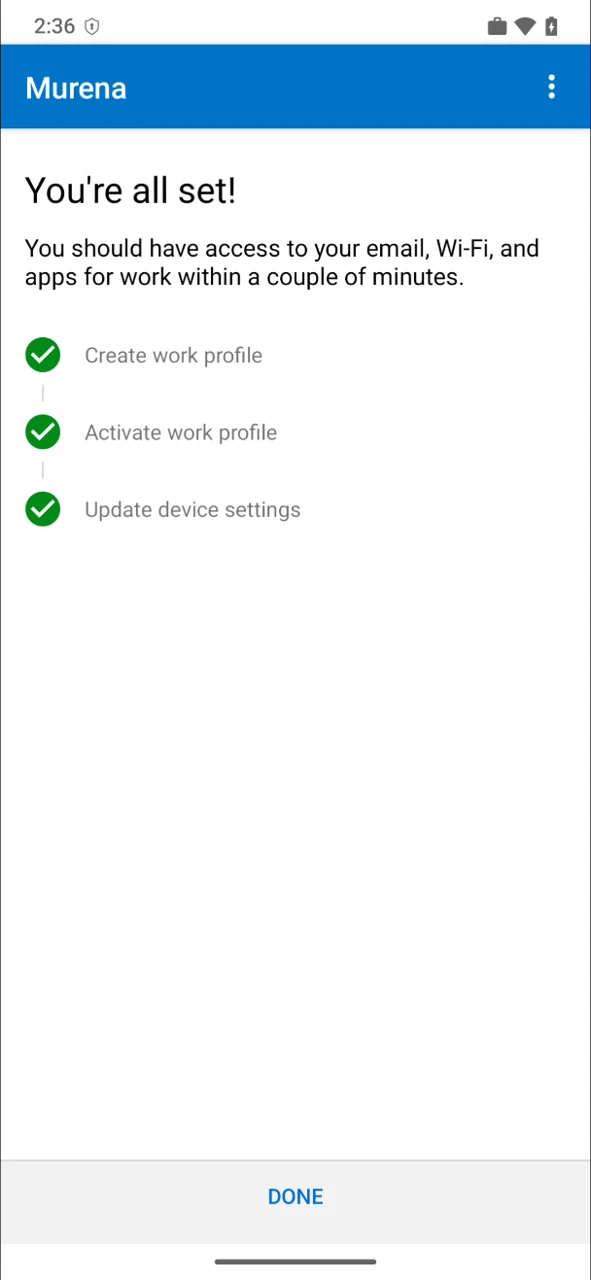
On
Your new work setup, tapGOT IT.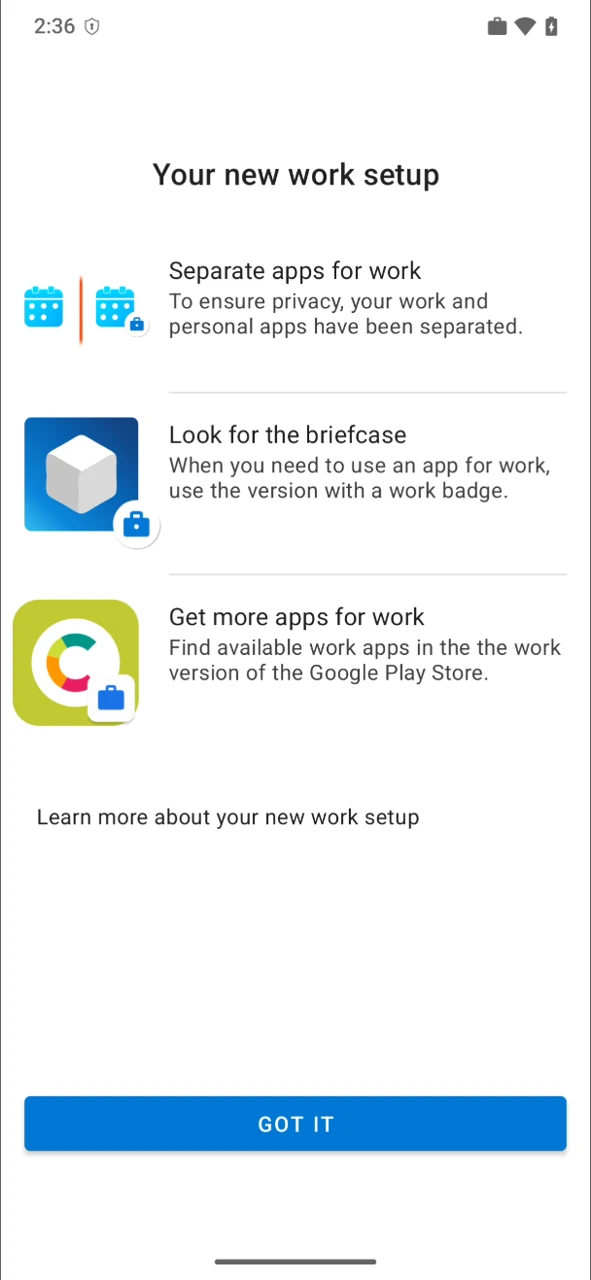
Check that it worked
Company Portal now lists your phone under
DEVICES. You can dismiss the prompt to open the badged Google Play.
On the home screen, work apps carry a briefcase badge (Contacts, Files and Settings for example). Always use the badged version for work. The briefcase icon in the status bar shows the work profile is active.
Install your work apps
Your IT admin picks the apps your work profile needs. You install them from the Work app store, reached through Company Portal.
In Company Portal, open the menu (top left) and tap
Get Apps.
The
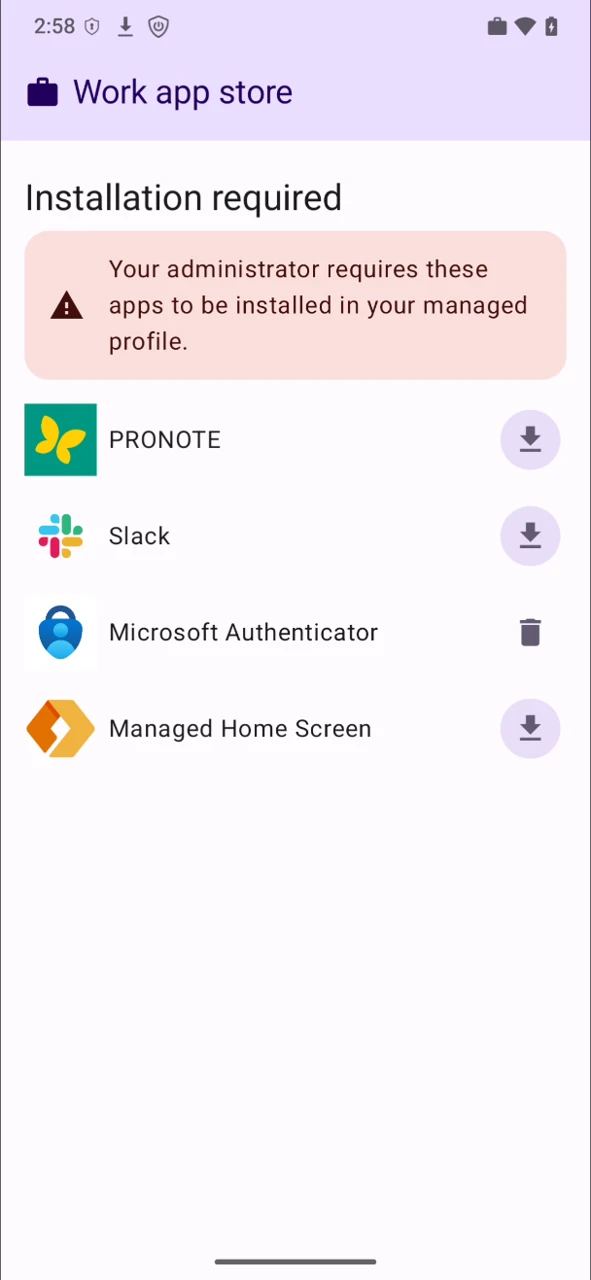
Work app storelists the apps your admin requires underInstallation required. Tap the download button next to each app.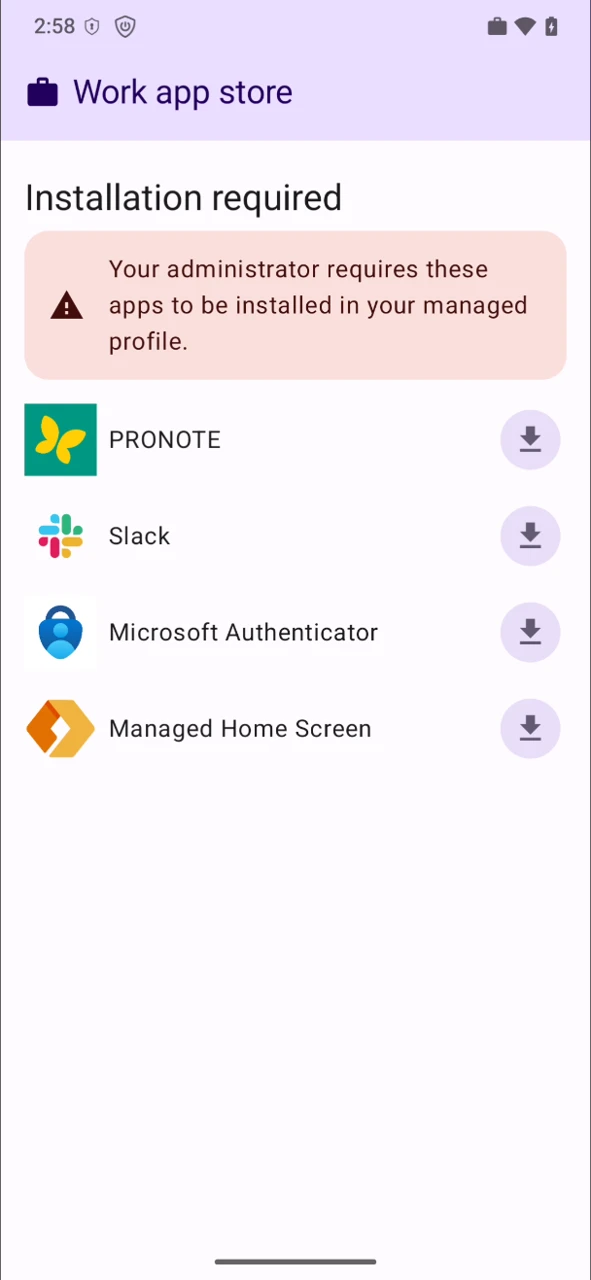
Once an app is installed, its download button turns into a trash icon.
The installed apps show up on your home screen with the briefcase badge, like
Authenticatorhere.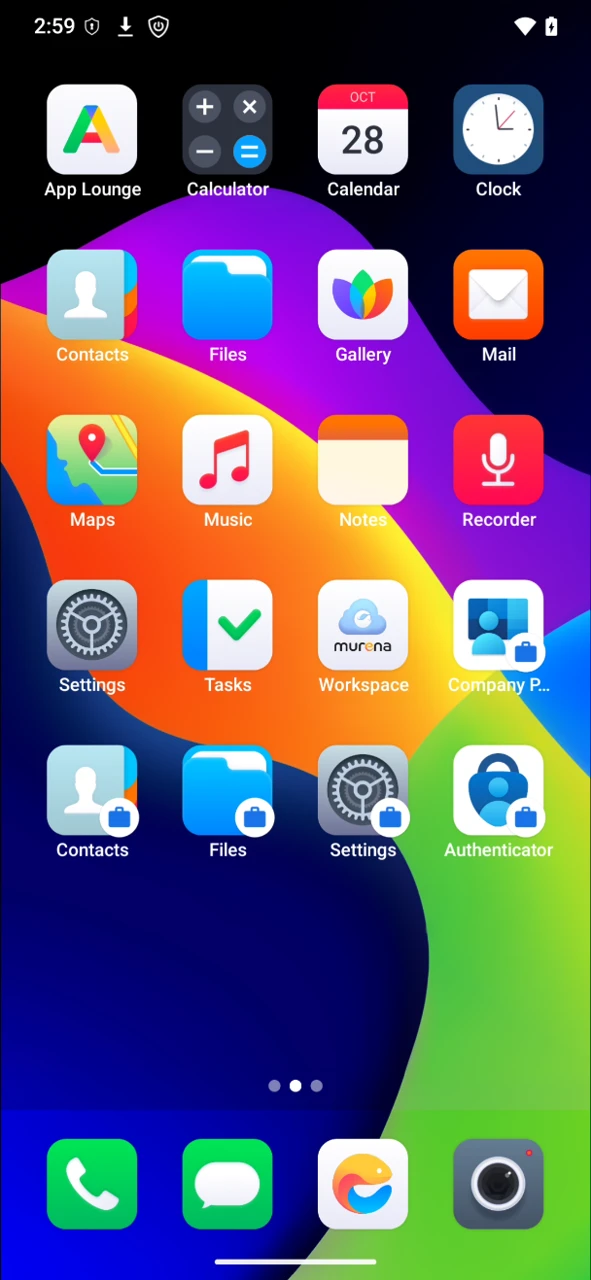
Troubleshooting
| Problem | Fix |
|---|---|
Work profile setup fails silently, or Get Apps shows a microG error | Allow work account setup was off during enrollment. Turn it on, remove the work profile in Settings, then enroll again. |
| Company Portal freezes or stops responding after a reinstall | Restart the phone, then open Company Portal again. |
| Sign-in is refused | Check with your IT admin that your account is allowed to enroll a personal Android device. |
| You want to leave Intune | Remove the work profile in Settings → Accounts. Only work apps and data are deleted, your personal data stays. |