
Install or update /e/OS using an SD card
EditRequirements
- Back up your data (recommended).
- Charge your phone to at least 50%.
- Get an SD card, at least 8 GB, ideally empty and working. Any existing files on it will be erased, since your device formats it before first use.
- Check your device’s documentation for its SD card slot. Some devices need the back cover removed; others have the slot in the SIM tray.
- Have a laptop ready to download the build and later transfer it to the device.
- Have a working data cable.
Setup the SDCard
- Power off the device. With the screen on, long-press
Poweruntil a menu appears.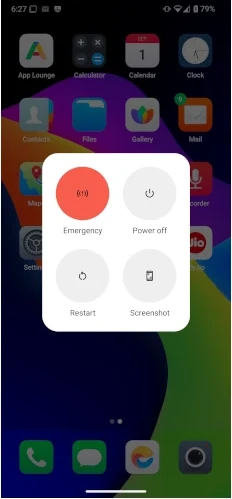
- Tap
Power off.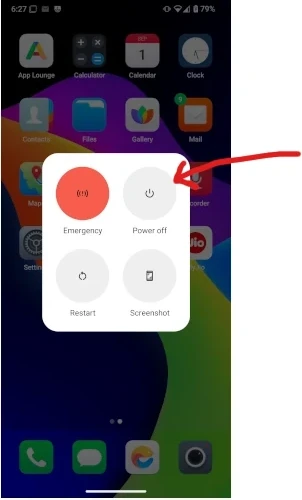
- Wait at least 10 seconds after the phone is fully off.
- Insert the SD card. Open the back cover and insert the SD card from Murena. If the slot is in the SIM tray, remove the tray and seat the card as shown.
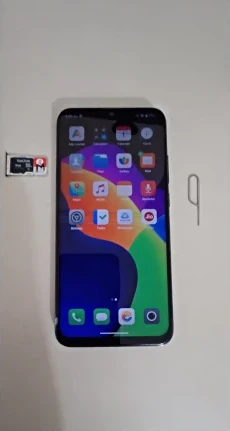
- Close it back up. Reinsert the SIM tray, or refit the back cover if you removed it.
- Power the device back on.
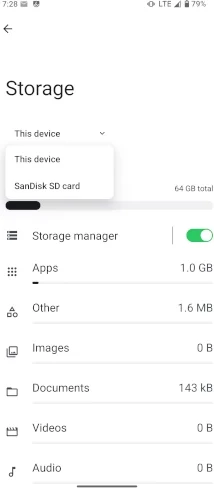
- Confirm the SD card is detected. Go to
Settings>Storage>This device, and tap the downward arrow beside it. If a popup asks to format the card, accept it.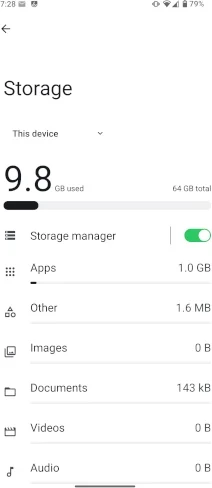
- Check the card appears in the drop-down once detected.
- Continue to the next section,
Download the Update.
Download the update
Open a browser and find your device’s download page. Go to our documentation site and open the Devices tab. Search the device table and select your device (GS290, the device we used for this guide, is shown above).
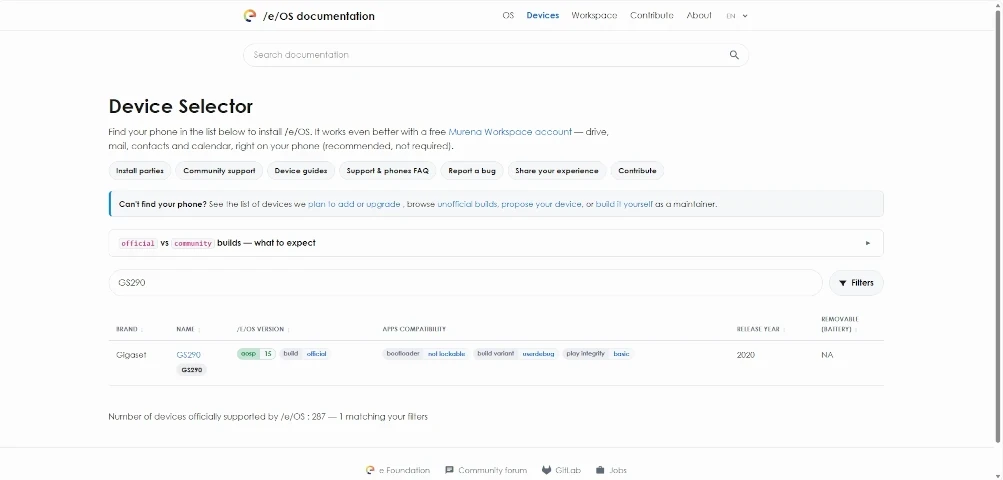
Copy the build’s OTA URL. On your device’s Install page (Command Line tab), click
Download for GS290to copy its URL — don’t download the file itself. Then edit the copied URL: drop theIMG-prefix from the filename to get the OTA image instead.For example:
Before:https://images.ecloud.global/official/GS290/IMG-e-4.3-a15-20260917677554-official-GS290.zip
After:https://images.ecloud.global/official/GS290/e-4.3-a15-20260917677554-official-GS290.zip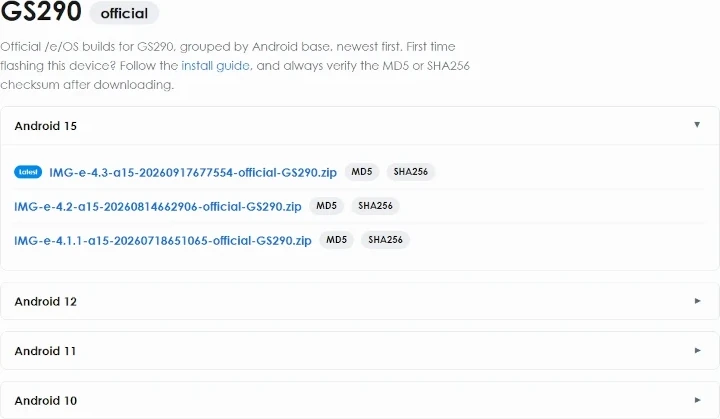
Download the build to your laptop using that URL.
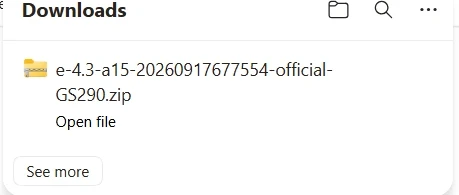
Connect your phone to the laptop with a USB cable.
Copy the zip file to the
rootof the SDCard.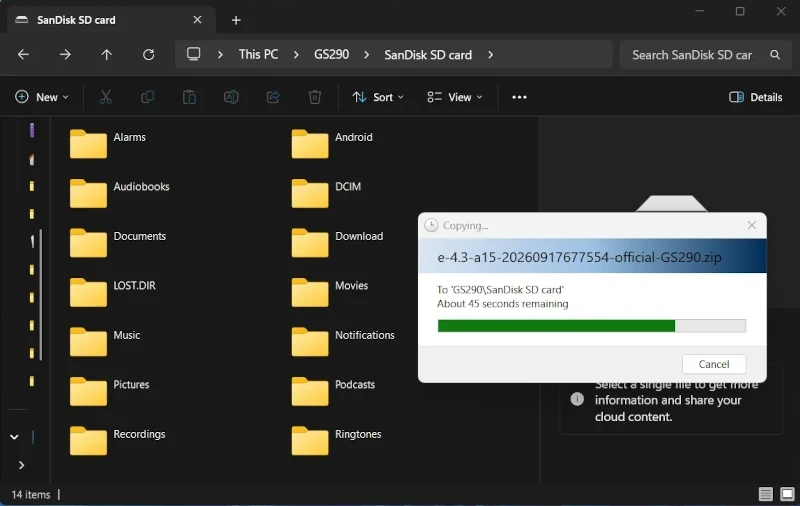
Confirm the zip is in the SD card’s
root. The zip file should not be inside any folder.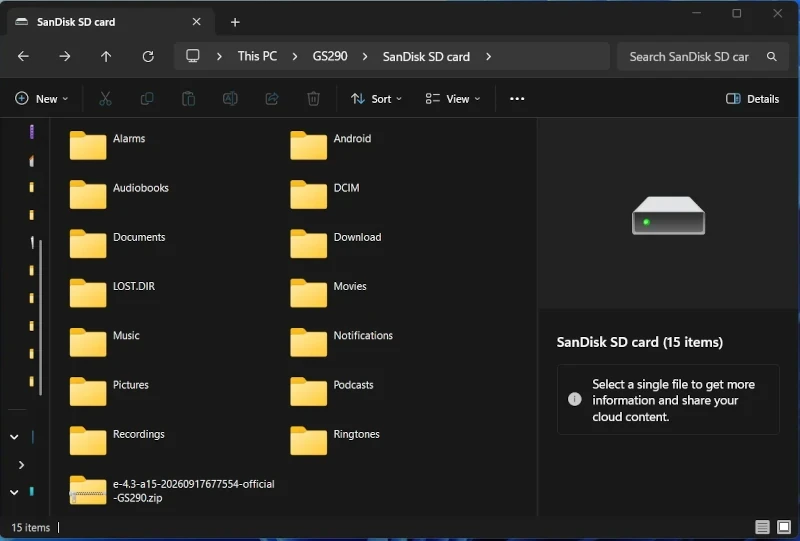
Continue to the next section to install the update.
Install the update
- Get ready to install the build: boot into recovery mode. First power off your device, then find the key combination to get your device to the recovery mode.
In our example we selected the Gigaset GS290.
The key combination is with the device powered off - holdVolume Up+Powerfor few seconds. Release buttons when menu appears. UseVolume Upto navigate toRecovery optionandVolume Downto select it.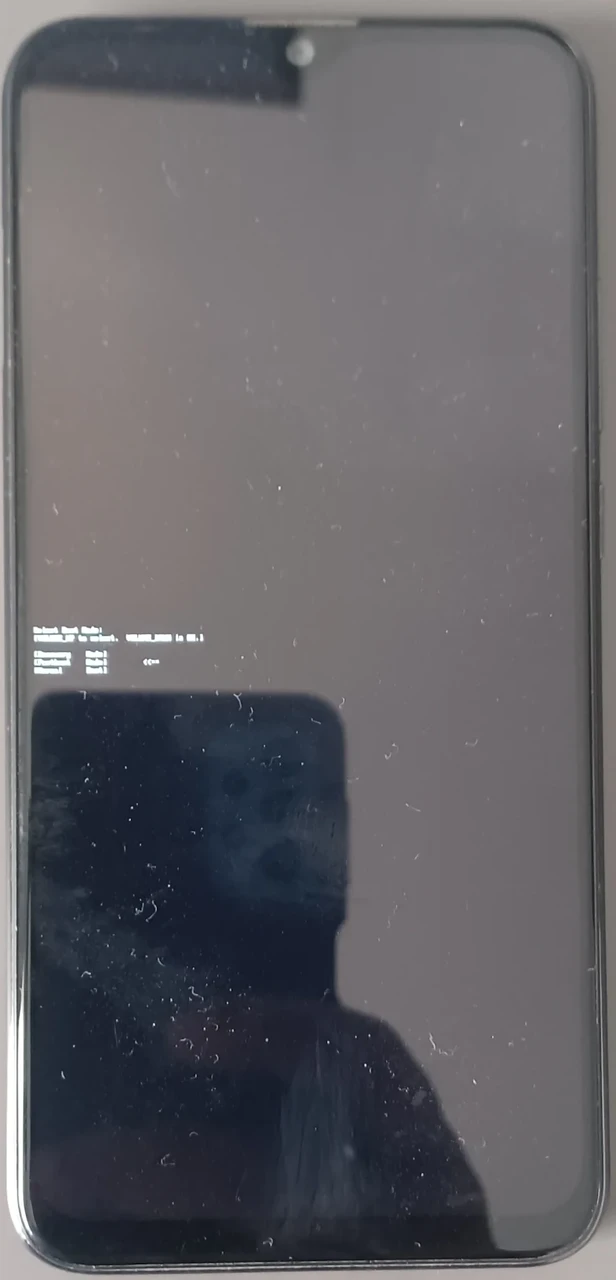
- Select
Advancedonce the device boots into recovery mode and you see the /e/OS logo.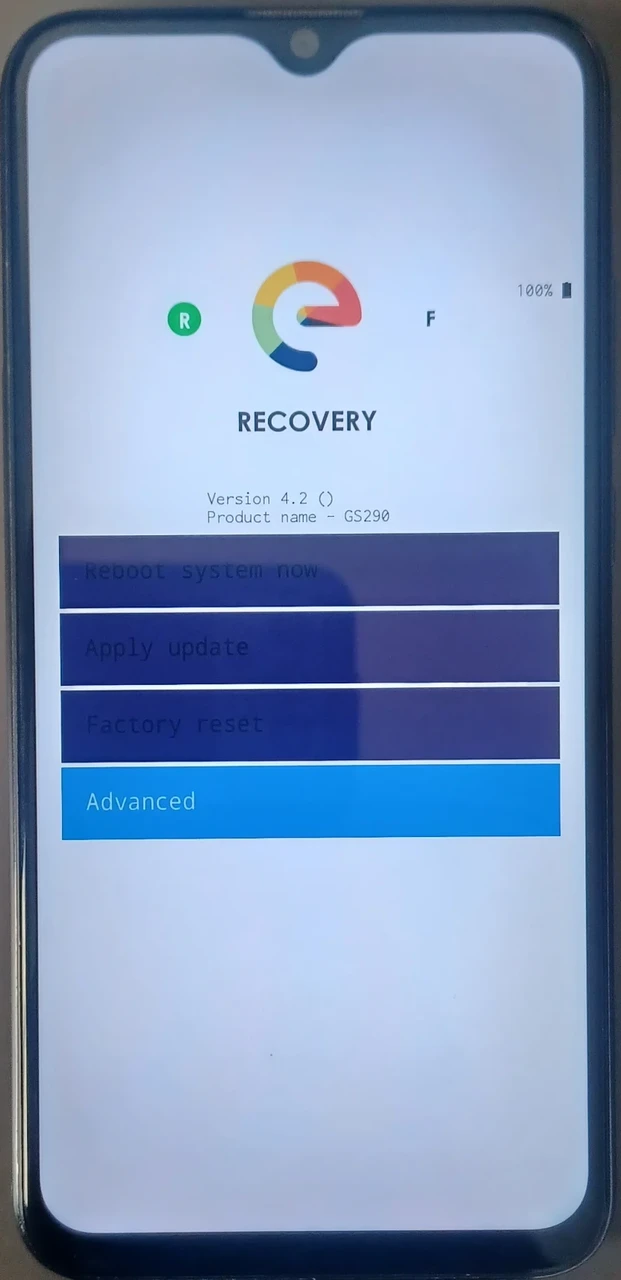
- Select
Apply Updateon the next screen.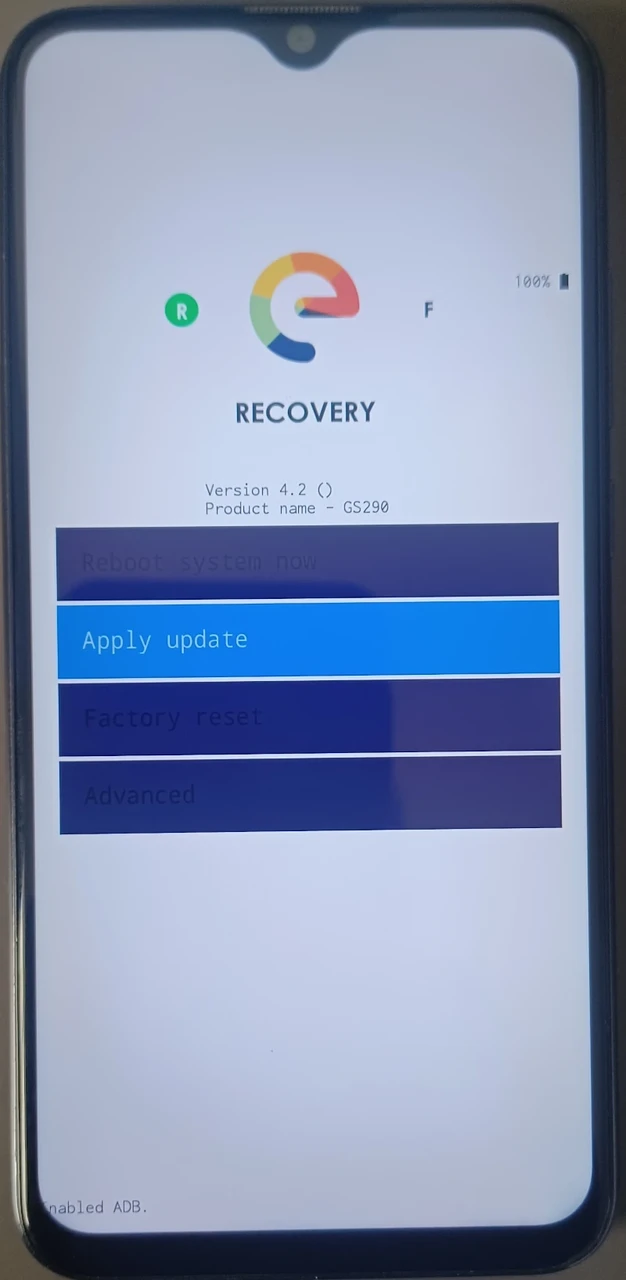
- Select the SD Card as the location of the update — this is where we copied it to in the previous steps.
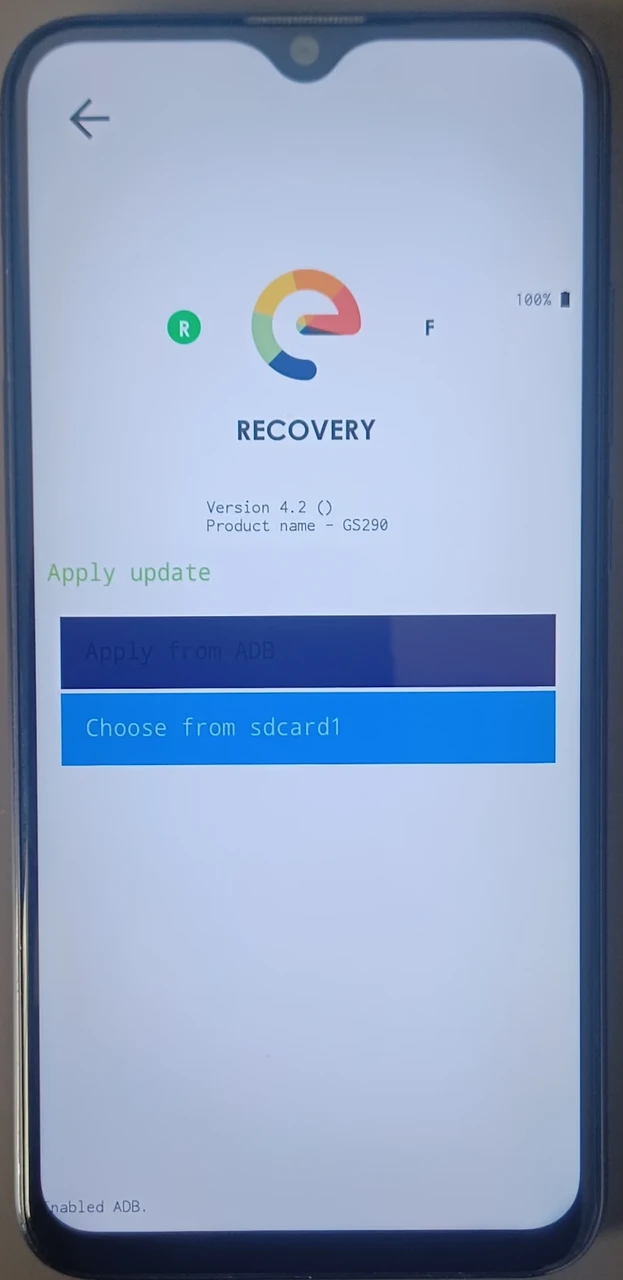
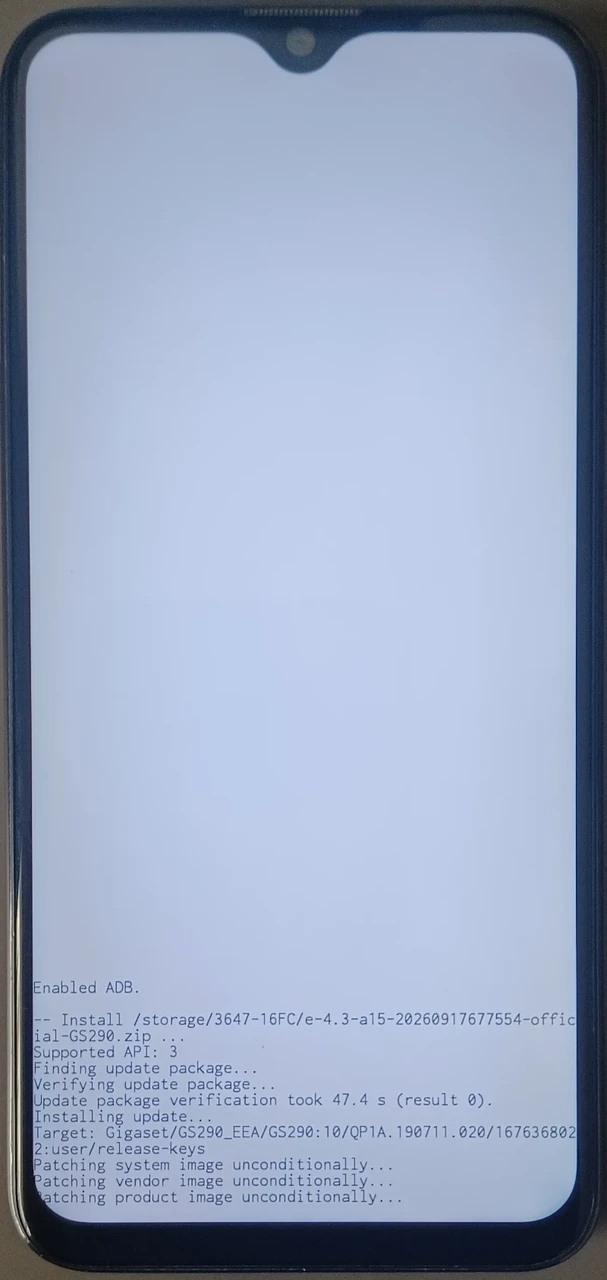
- Wait for the build to install from the SD Card.
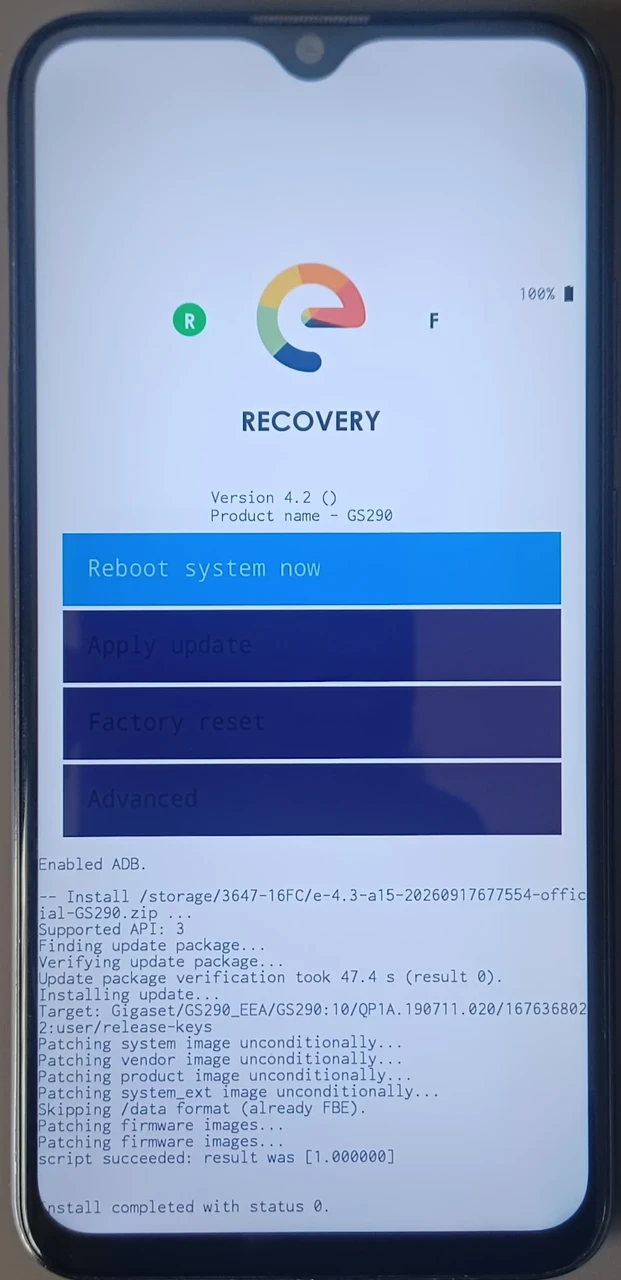
- Select reboot to System once the installation is complete.
- Wait for the device to restart. This may take some time.
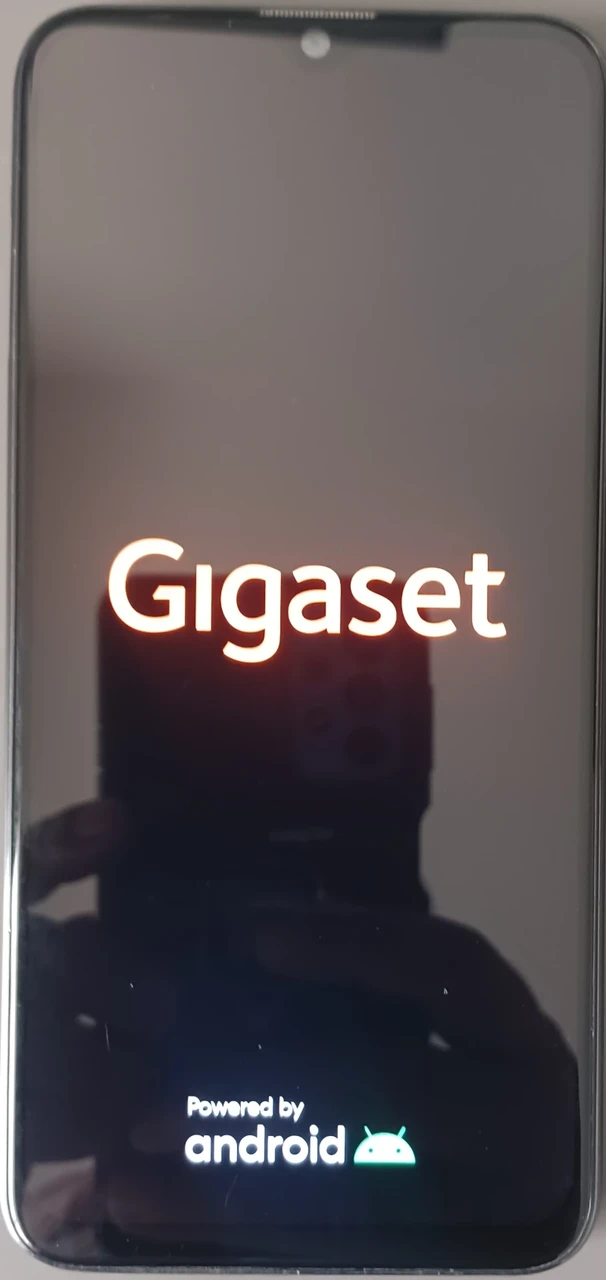
- Continue to the next section to validate the installation.
Validate the installation
- Check the installed version. Once the phone has restarted, go to
Settings>System update, and confirm the /e/OS version at top is the version you installed. In our example we installed the e-4.3-a15-20260917677554-official-GS290 build. On the Settings page, under System Updates you can also see the short version number in the format v x.x.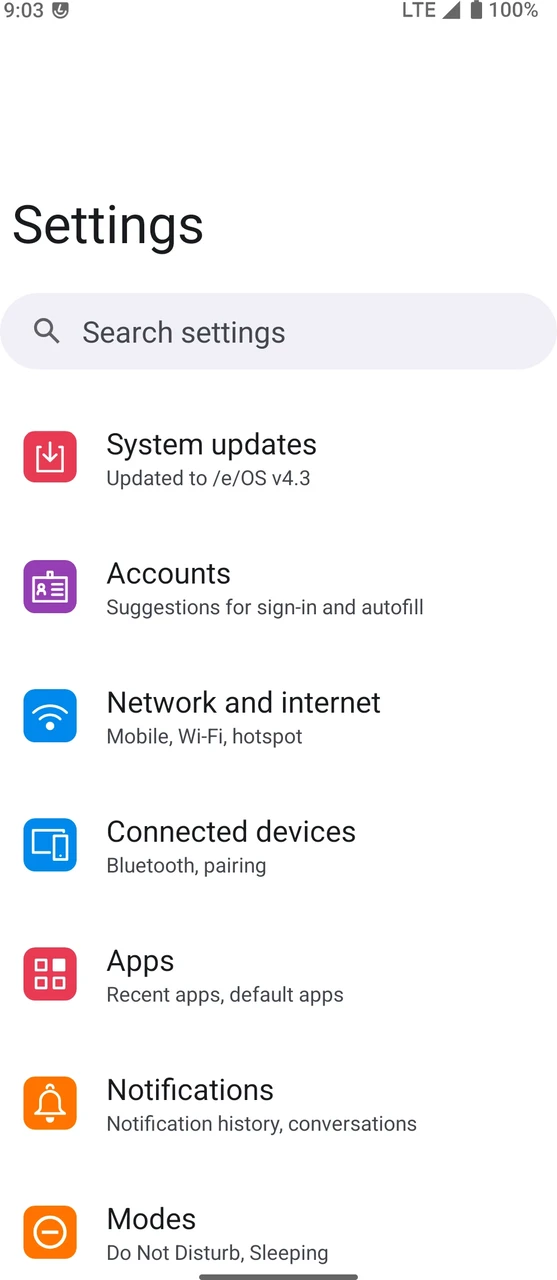
- Check the full build details under
Settings»System Updatesfor more precision.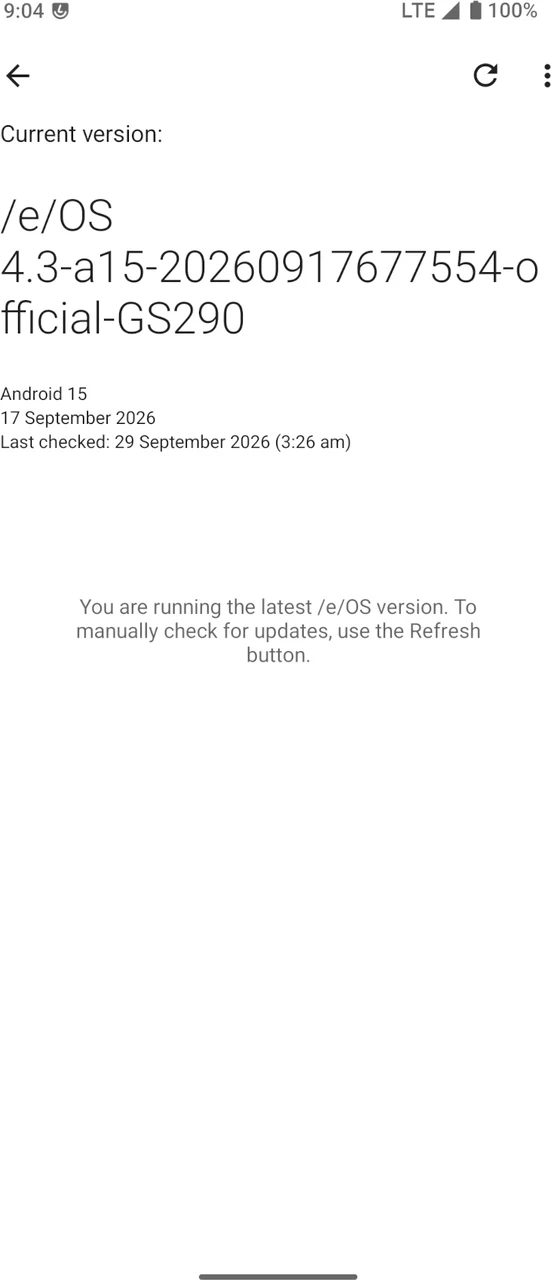
- Congrats! An updated version of /e/OS was successfully installed on your device. Have fun with the update!