Learn more about Backup in /e/OS
EditBackup in /e/OS helps keep a copy of your important data, including contacts, messages, call logs, apps, and app settings.
Regular backups make it easy to restore your data when switching phones, resetting your device, or recovering from accidental data loss.
/e/OS Backup is based on Seedvault, an open-source Android backup solution, and is maintained by the /e/OS project.
Set up backup
-
Open the
Settingsapp and go toSystem > Backup.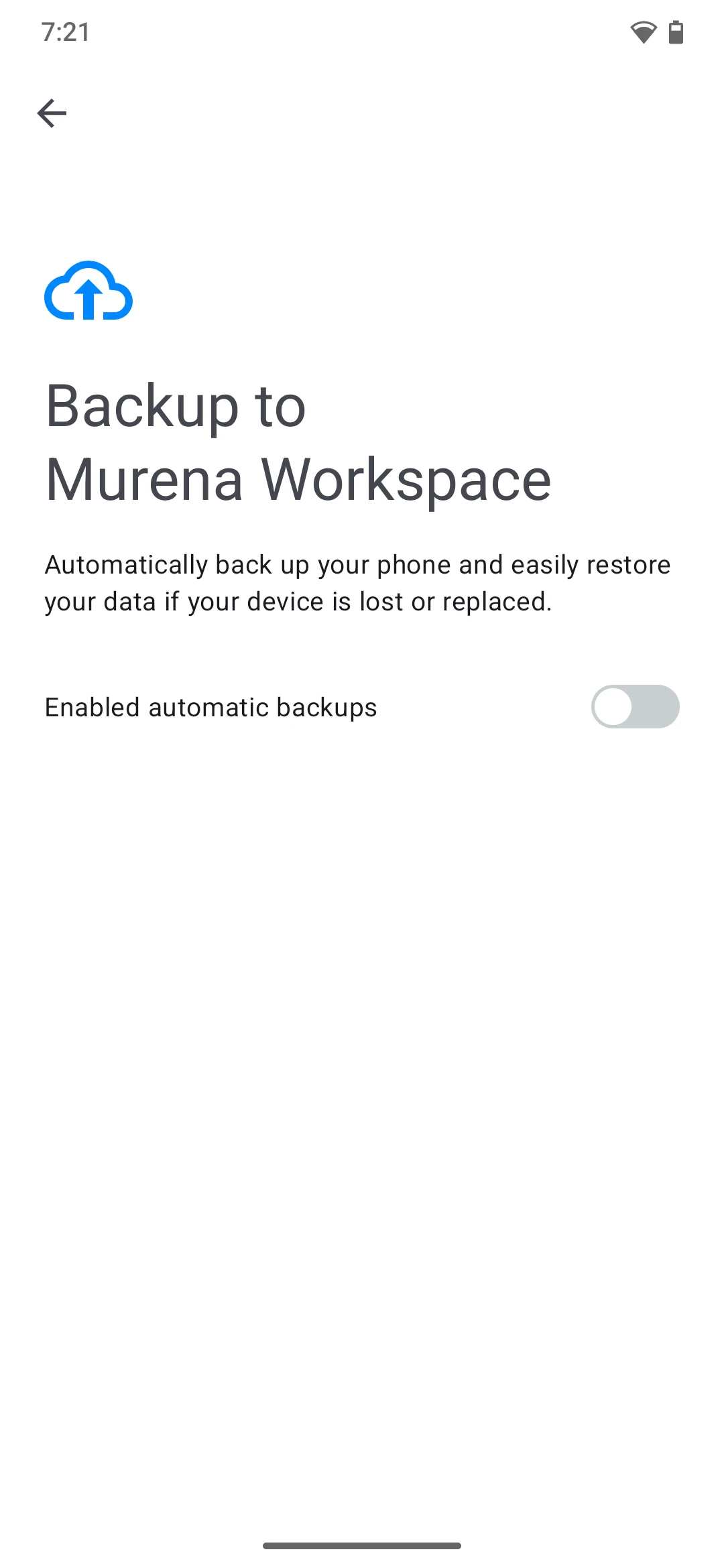
-
Tap to continue and enable automatic backups.
-
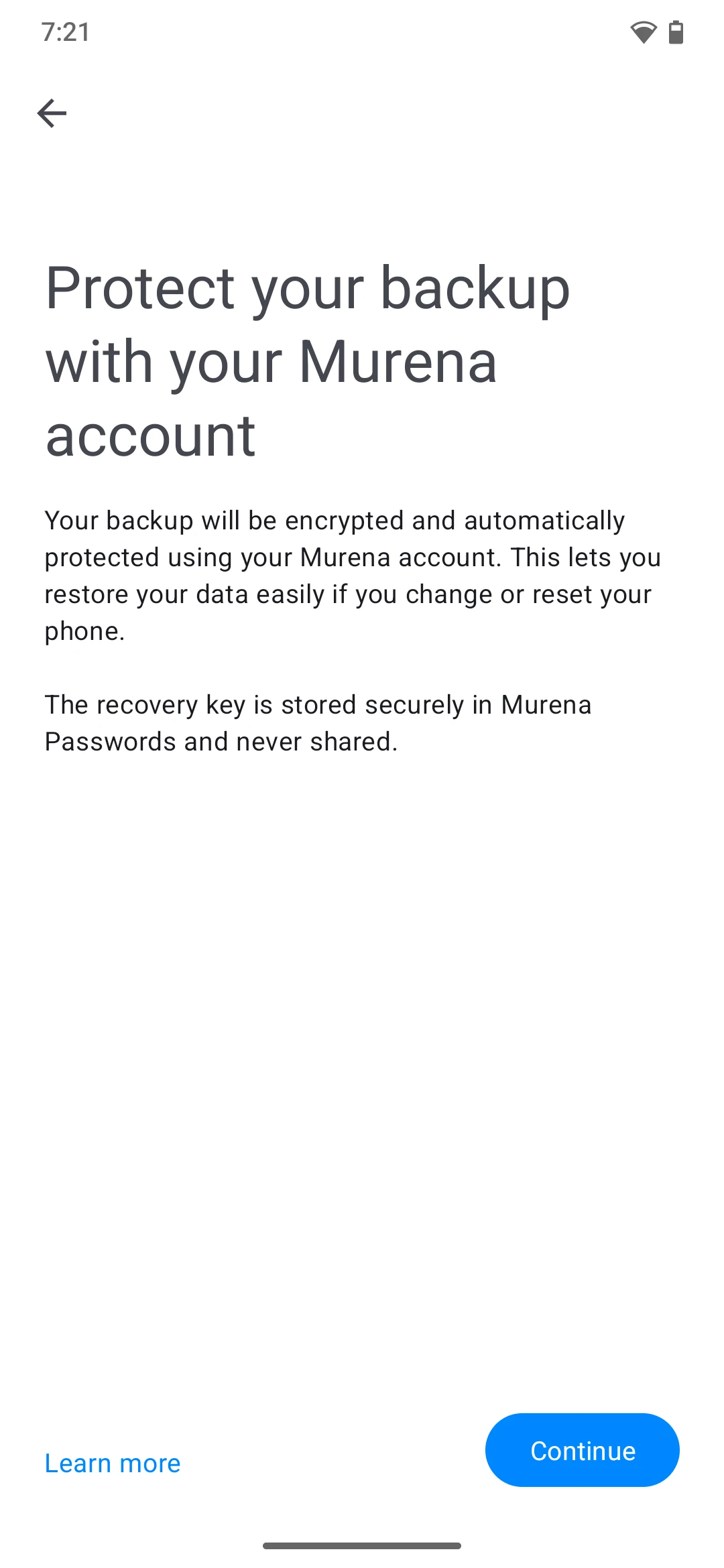
Sign in to your Murena account when prompted.
-
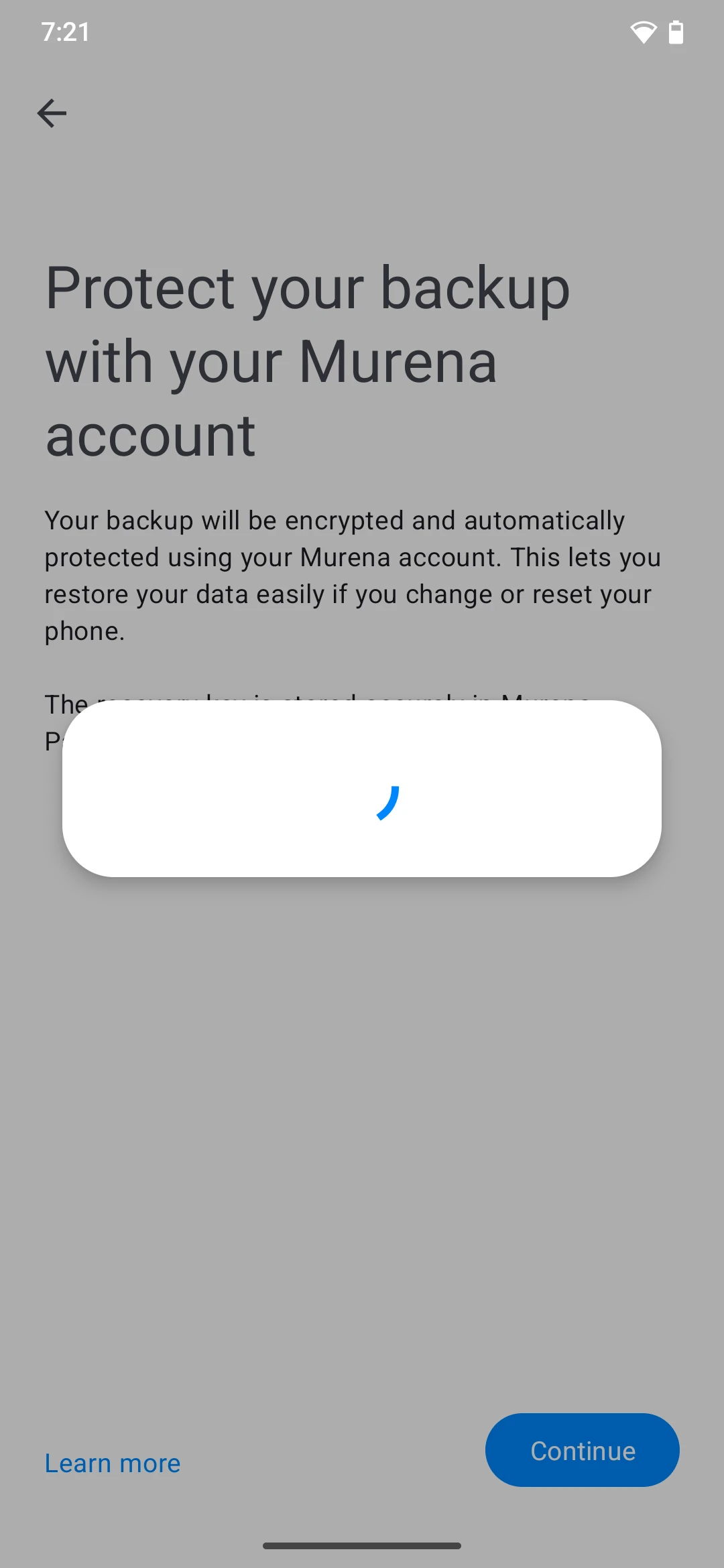
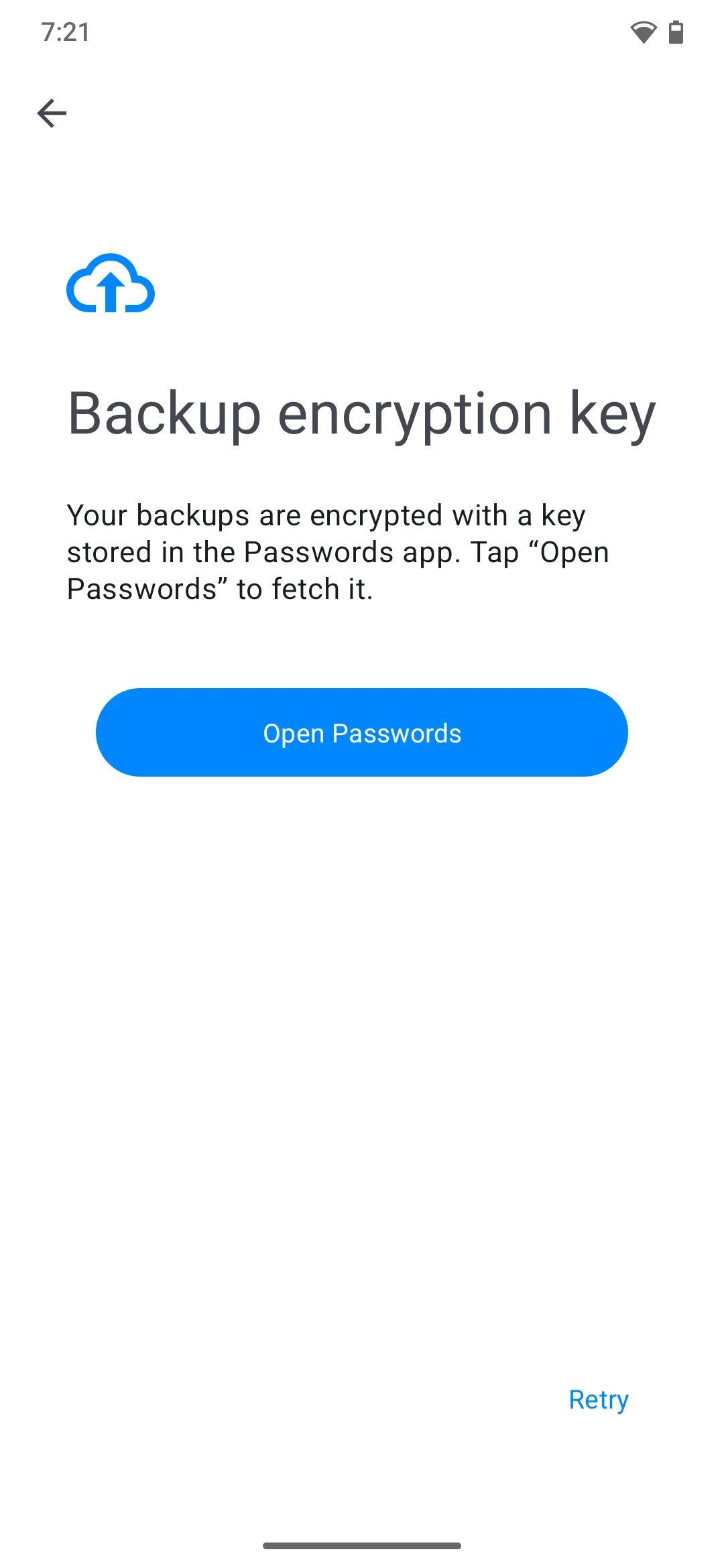
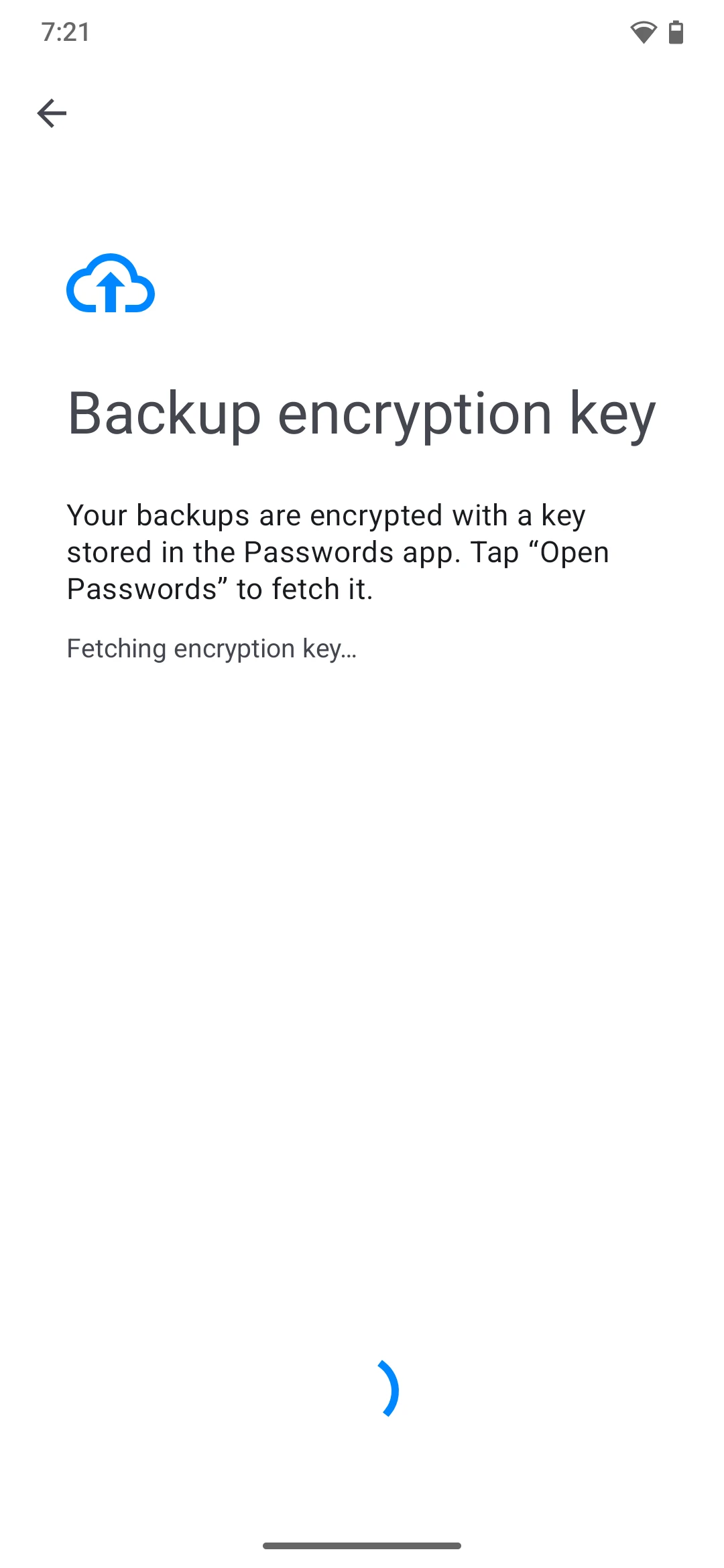
Tap to open the Passwords app to manage your backup key.
-
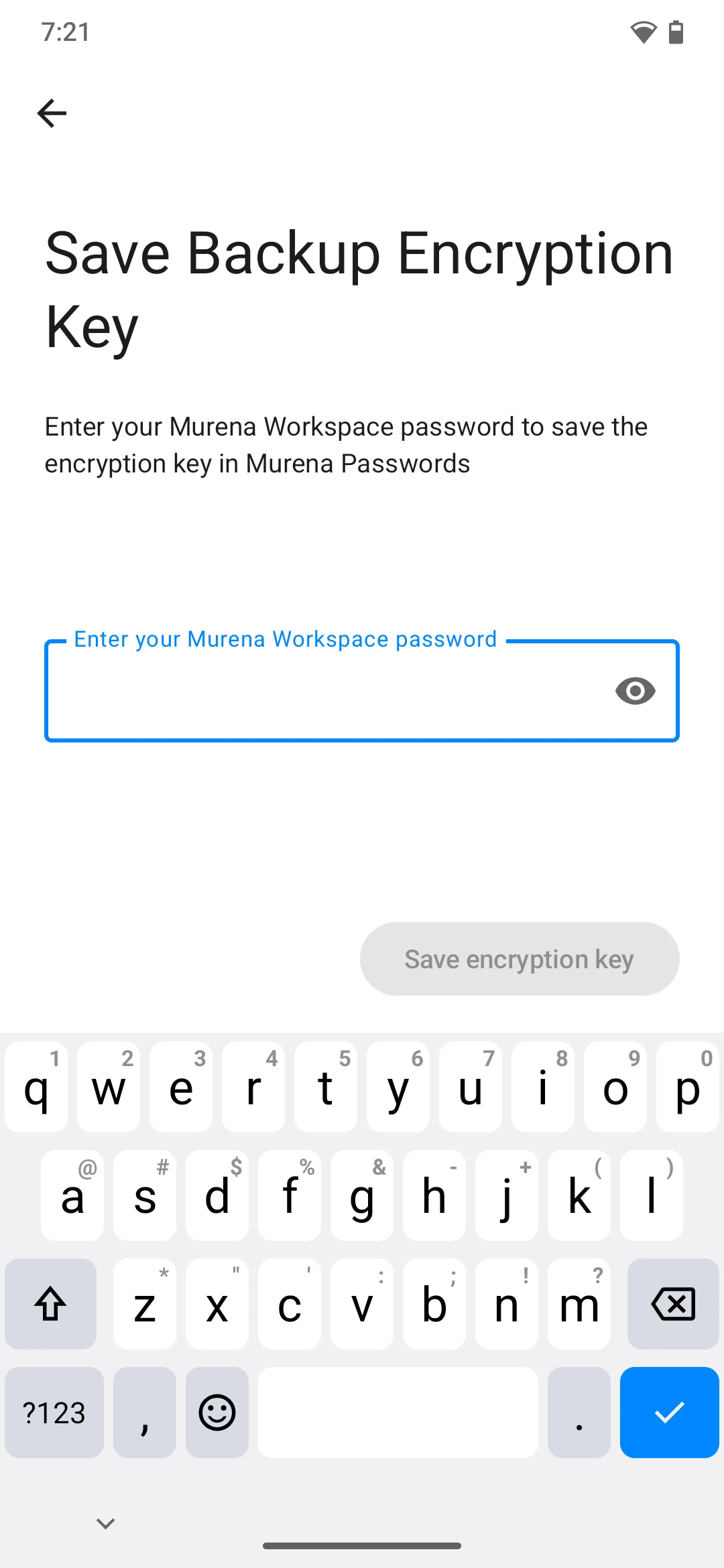
Enter your Passwords app password or encryption key to unlock it.
-
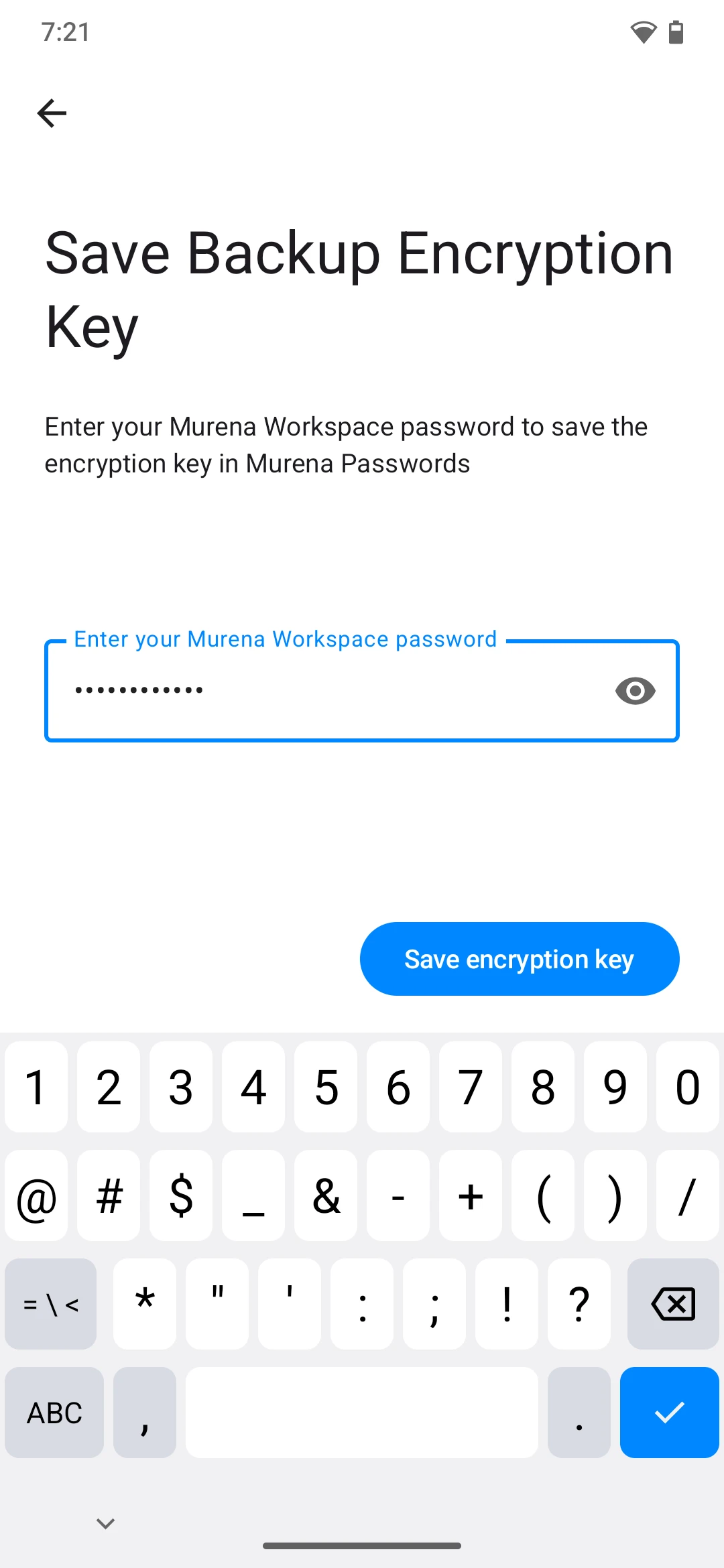
Continue after your backup key is generated or retrieved.
-
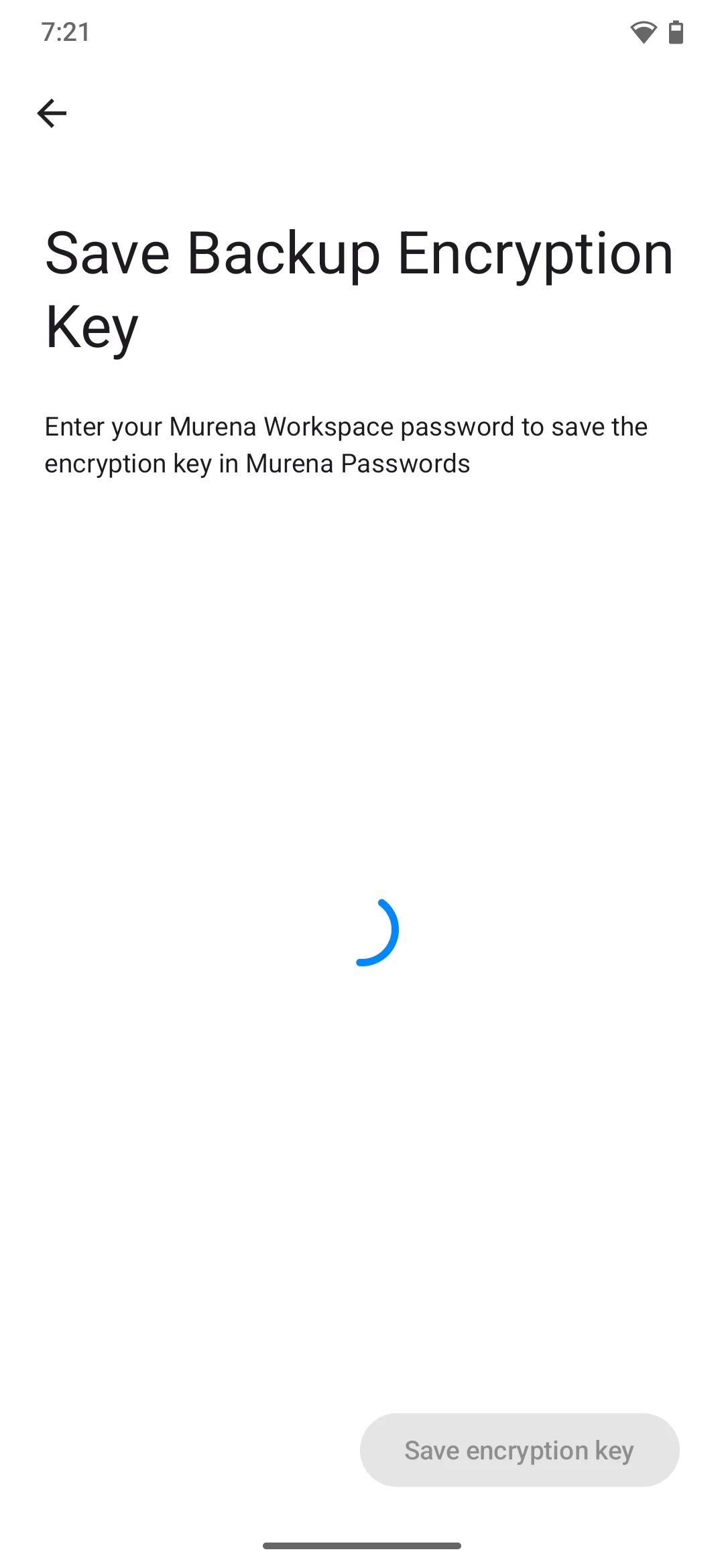
Confirm the setup and finish the backup configuration.
-
Return to the Backup dashboard.
Start a backup
-
Open the Backup dashboard and tap
Back up now.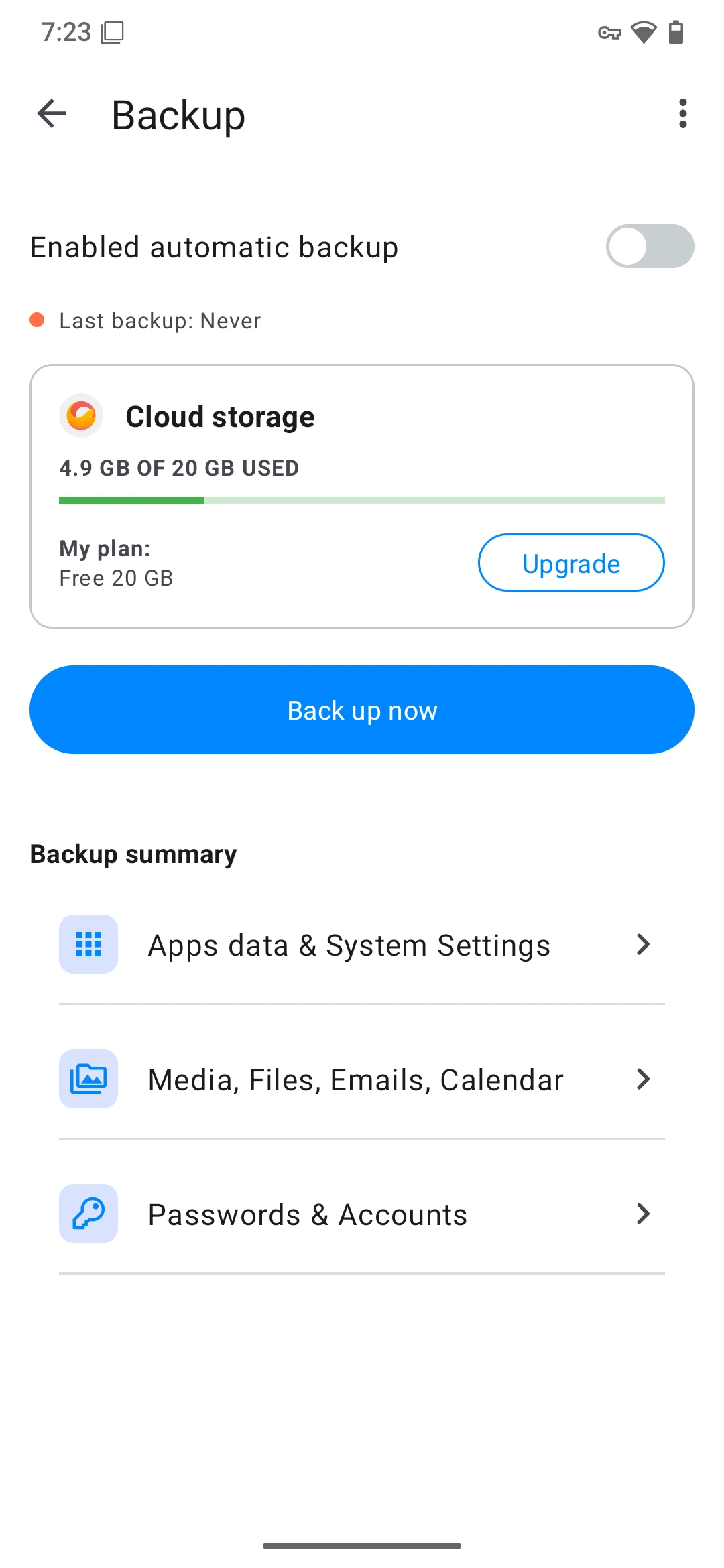
-
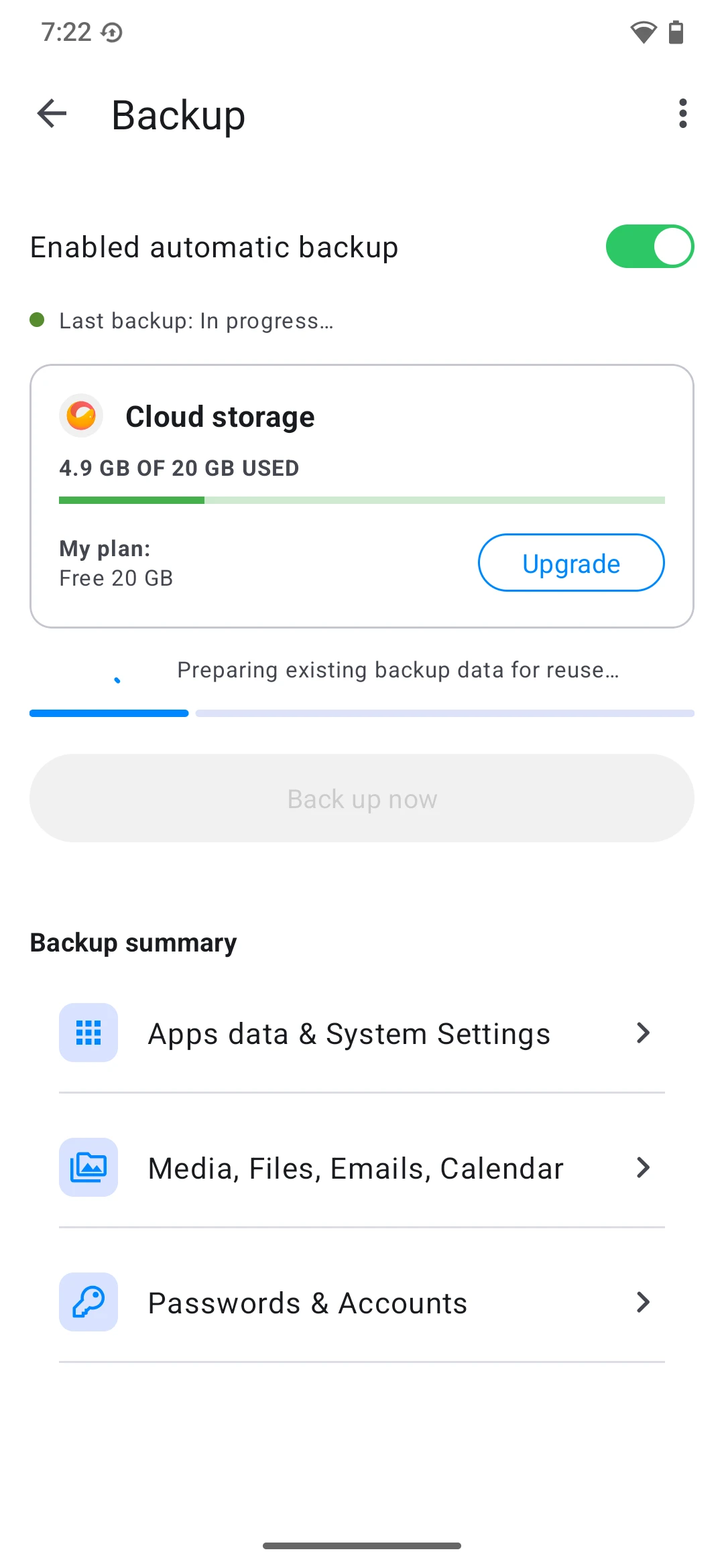
Confirm the backup action in the Backup app.
-
Wait while the backup starts and runs.
Backup configuration and status
-
To change the preferred network and backup trigger options, open
Settings > System > Backup, tap the⋮(three-dot menu), then select Settings.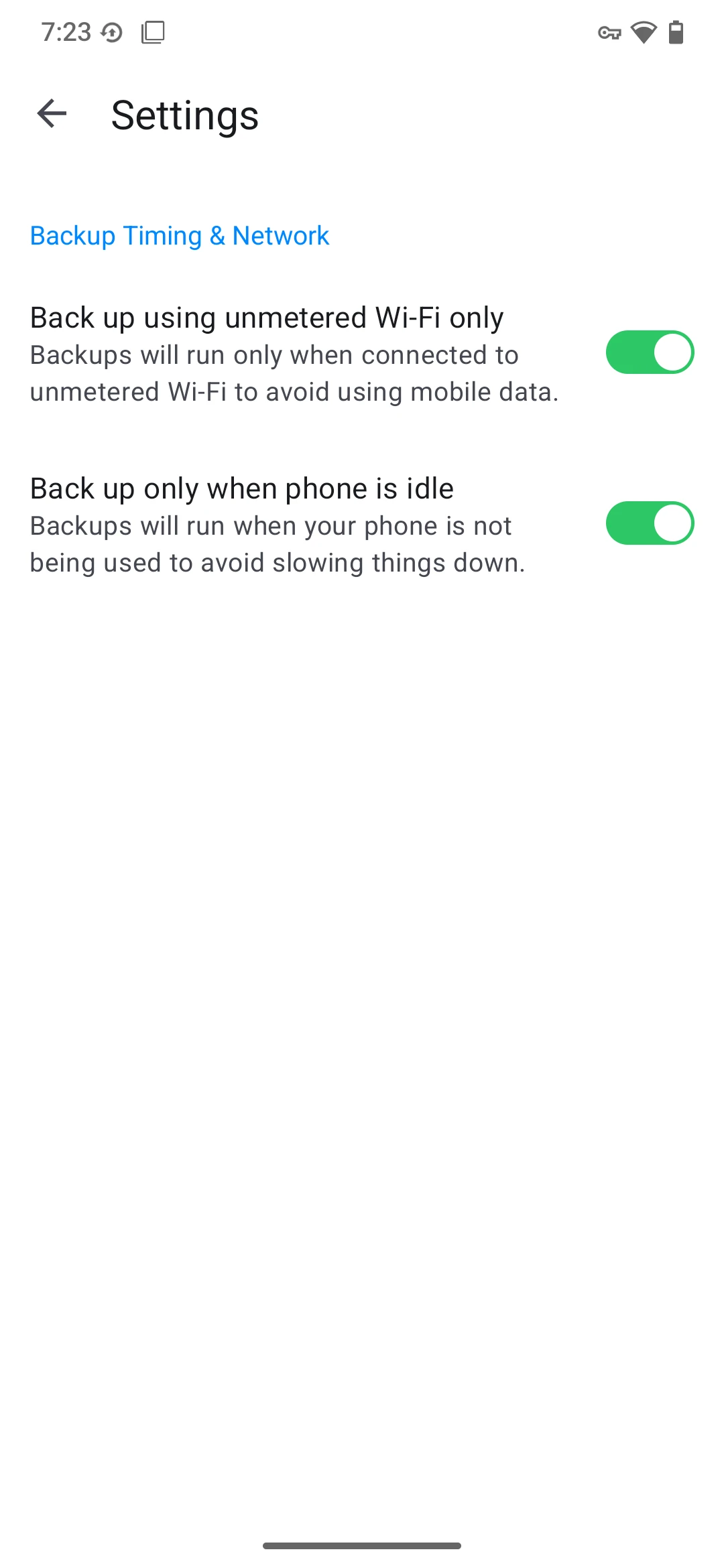
-
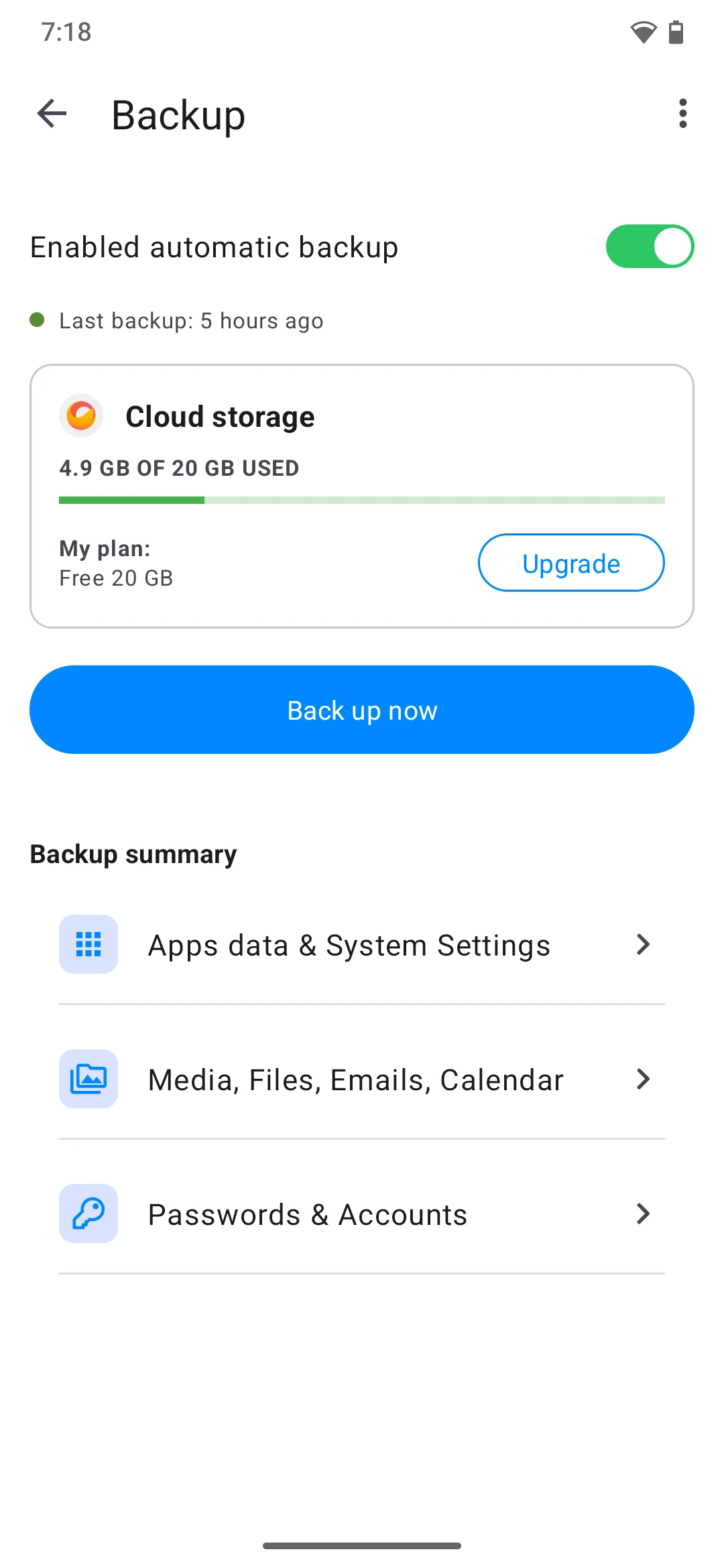
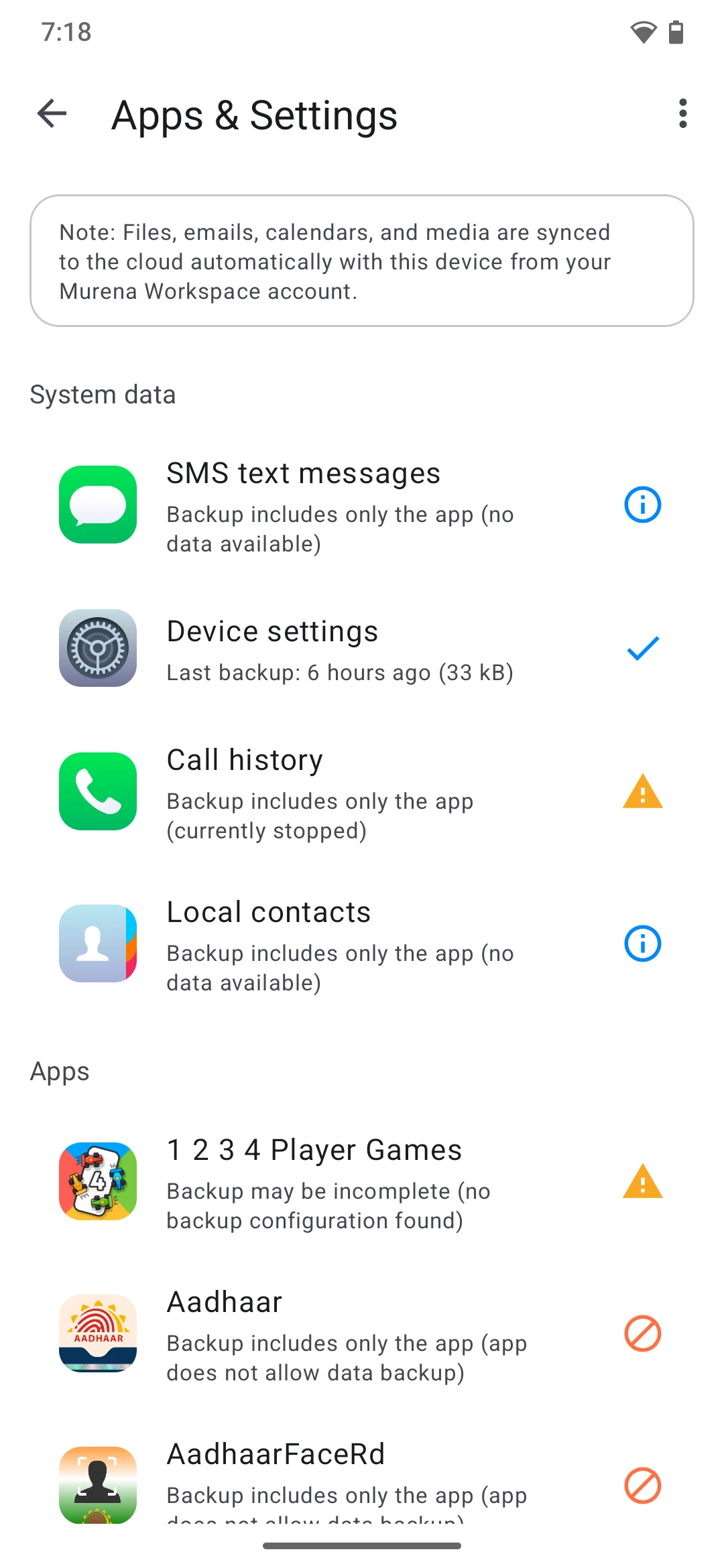
Review app backup status.
-
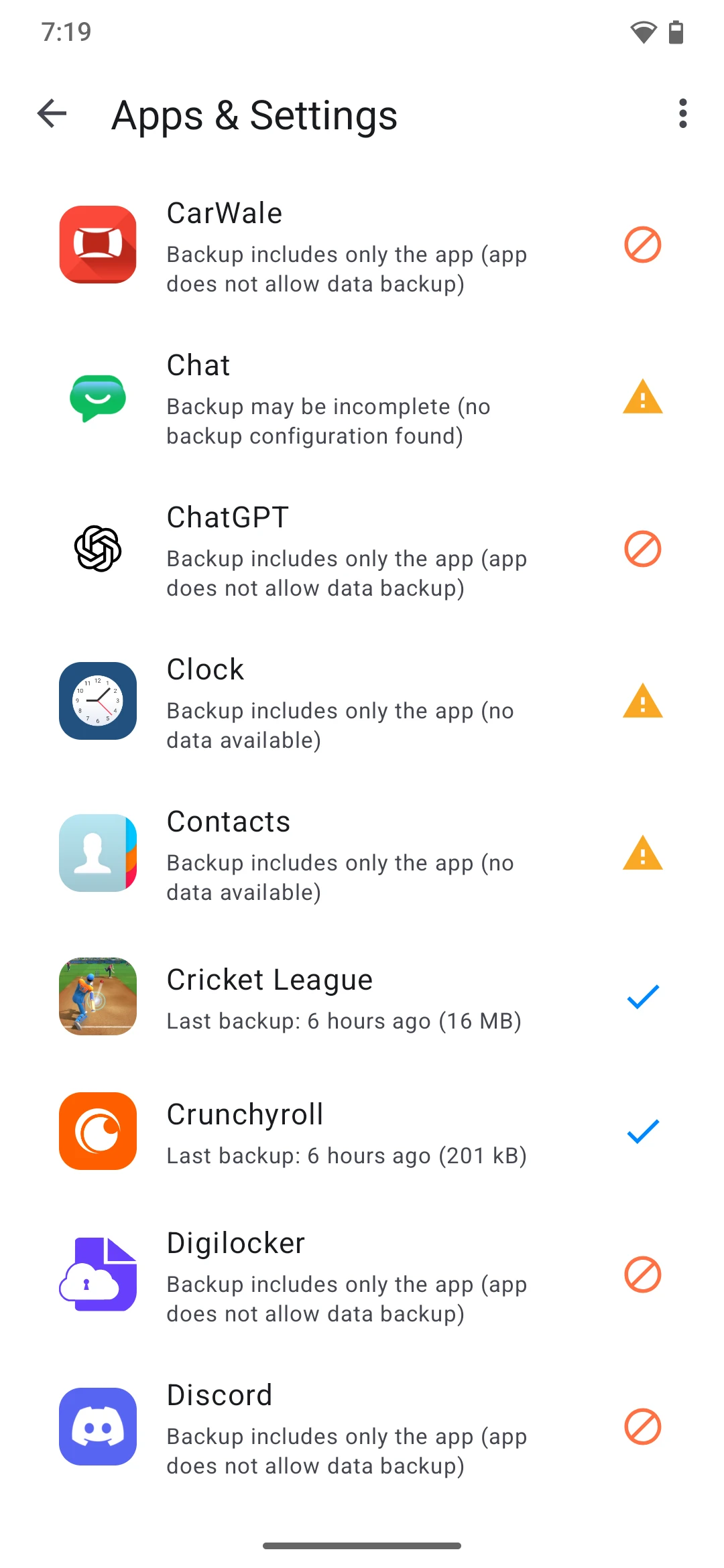
Confirm your backup configuration.
-
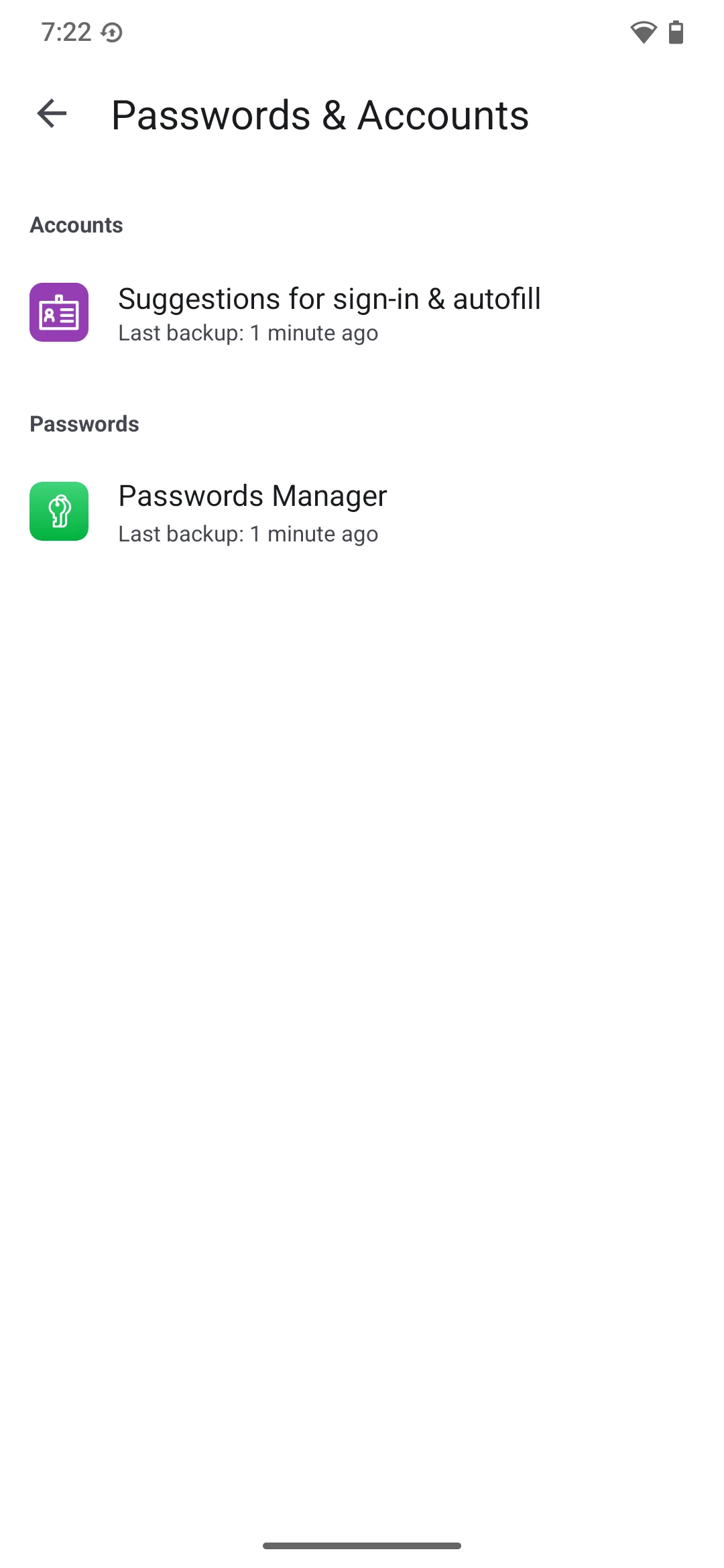
Check sync status and wait for completion.
Restore from backup
-
During initial device setup or after a factory reset, sign in to your account.
-
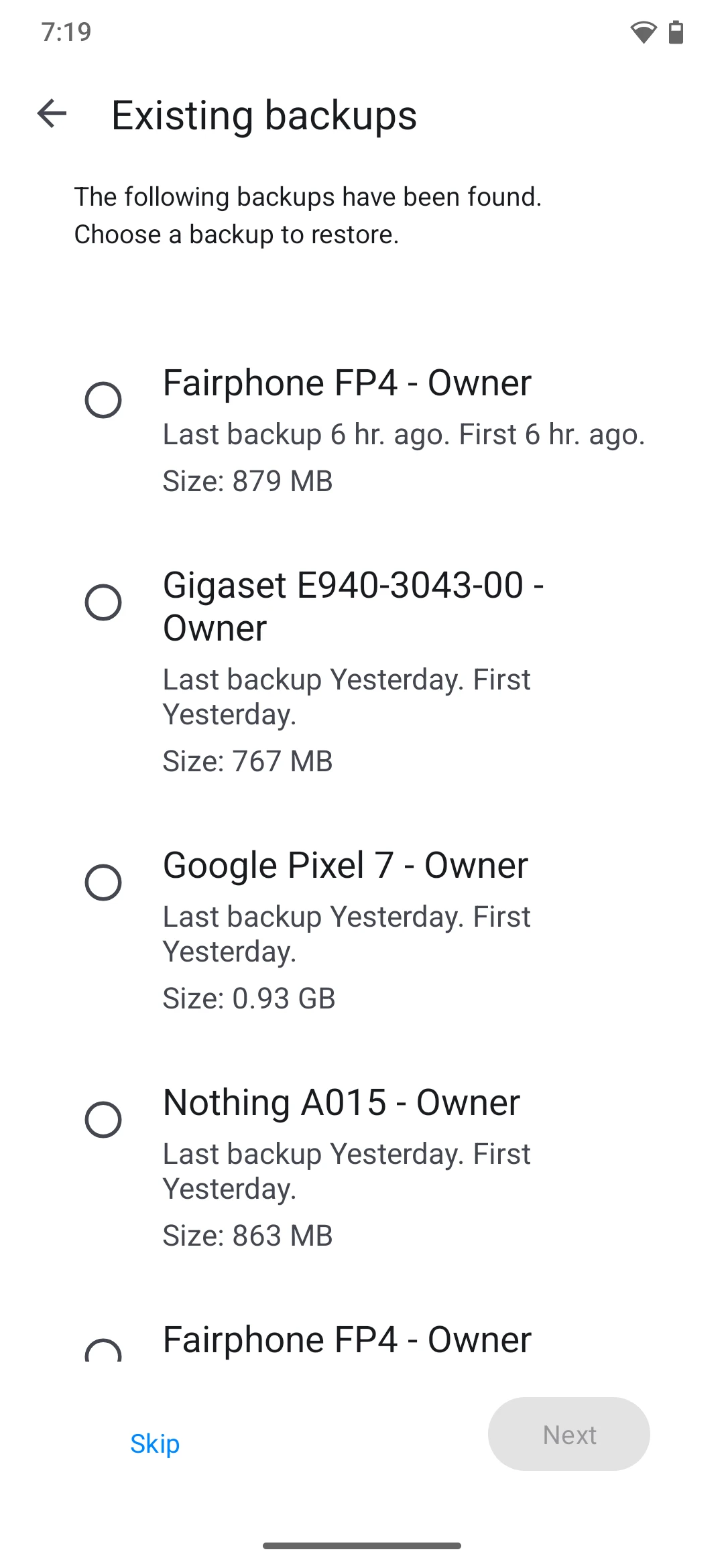
Select the backup you want to restore.
-
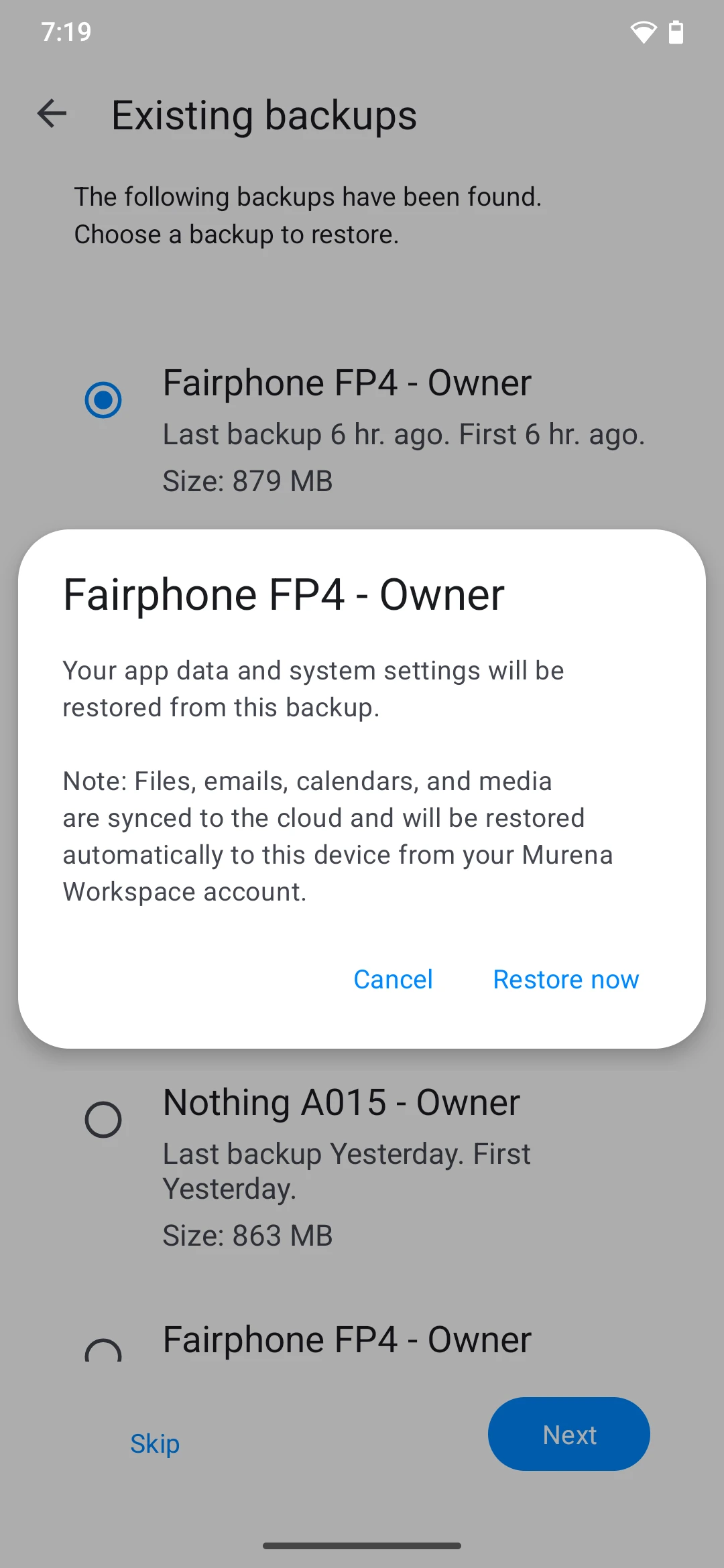
Confirm the selected backup and continue.
-
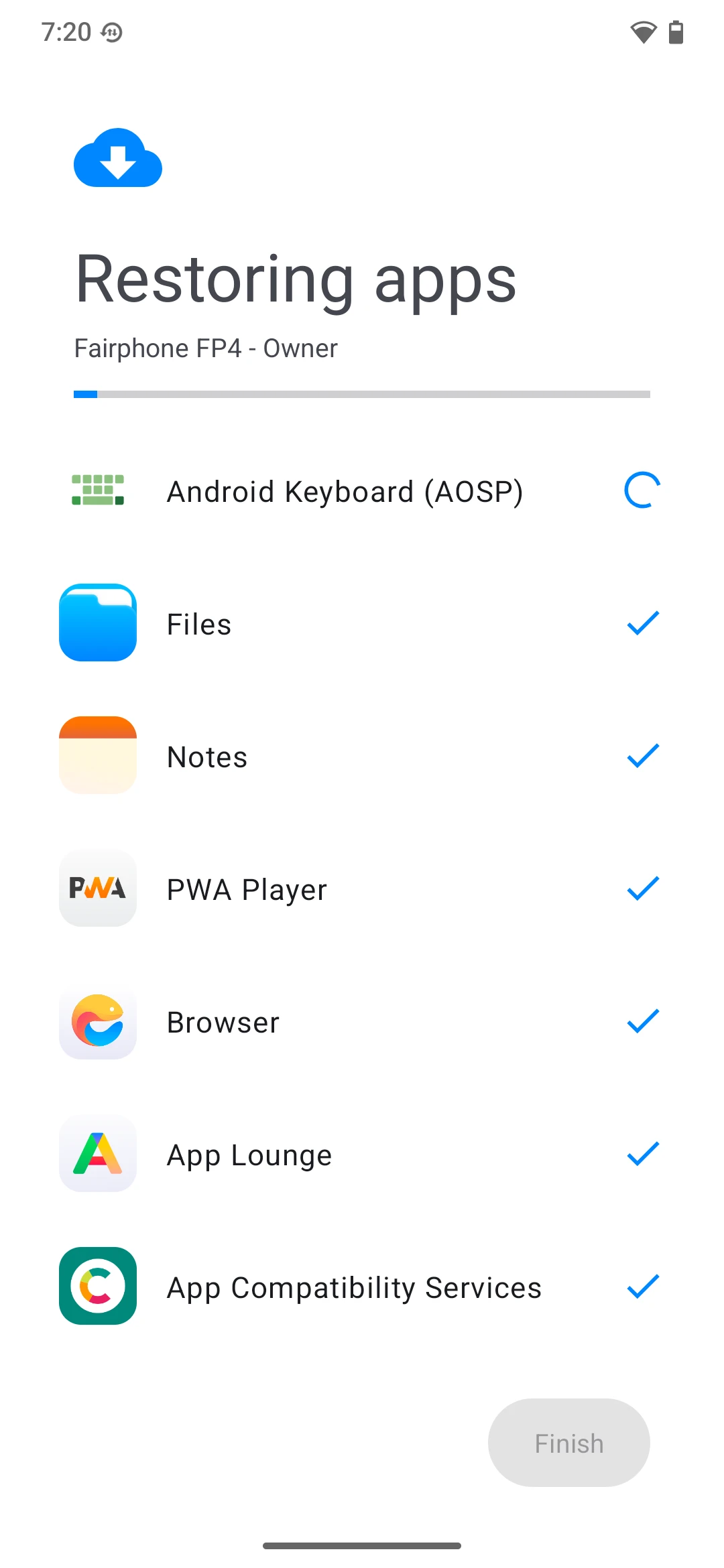
Watch the live restore status and wait for completion.