
Create a free Murena Workspace account
Murena Workspace provides you with the possibility to create a free 1GB account.
Advantages of a Murena Workspace account
- having a new brand email address @murena.io
-
having a single identity to access all Murena Workspace services :
- Murena Workspace Email : username@murena.io
- Murena Workspace Files : photos, videos, documents…
- Murena Workspace Calendar
- Murena Workspace Contacts
- Murena Workspace Notes
- Murena Workspace Tasks
- in your /e/OS smartphone and online at : https://murena.io
- having an option to migrate your data from Google Cloud to Murena Workspace
Storage Options
-
Your free account will be limited to 1GB online storage.
-
Murena also proposes premium storage plans, to upgrade from 20GB to 2TB, while supporting the /e/OS project through Murena.
Creating your own Murena Workspace account
- Go to https://murena.io/signup you should see a screen like this:

-
Fill the fields correctly! This example will create a Murena Workspace identity as John Doe john.doe@murena.io
- Your username may contain Latin letters (a-z), digits (0-9) and special characters (- . _)
- Your username must be at least 3 characters long and at most 30 characters long
- Your username must not contain special characters in succession
- Your username must not start or end with special characters
- Please note that your username will be automatically converted to lowercase during account creation (i.e. “John.Doe@murena.io” becomes “john.doe@murena.io”)
- Please read carefully Murena Workspace’s Terms Of Service.
- Accept at least the Terms of Service, by clicking on the checkbox
I have read and accept the Terms of Service. - Optionally, you can opt-in to receive news about /e/OS, Murena products and promotions, and Murena for Business offers.

- Go through the Captcha Verification

-
Finally, set a recovery email address
- Ensure you add a valid recovery email address to your Murena Workspace account. The recovery email is important in case you lose access to your Murena Workspace account for any reason.
- This email address cannot be a murena.io address, and should not be already used as a recovery email address on another Murena Workspace account.
- Please note that as long as you don’t set and verify a recovery email address your Murena Workspace account will have limited functionality.

- Once the recovery email address is set, the creation of your Murena Workspace account should be successful, and you should see this screen

- Please note that you need to verify the email address you have set as recovery email address, by clicking on the link in the email sent to this recovery address. Upon successful verification of the recovery email address, you will be able to see the message
Recovery email is verified.displayed in yourMurena Workspace Dashboard»Profile icon(top right) »Settings»Security»Recovery Email.

- If you want to change the recovery email address you’ll have to go to the
Murena Workspace Dashboard» Click on yourProfile icon(top right) »Settings» in the left pannel click onSecurity»Recovery Email.
Using a Murena Workspace account
- Now that your Murena Workspace account is created, you can use it in your /e/OS smartphone
- In the first time usage wizard just after /e/OS installation
- Or you can add account by going to:
Settings»Accounts»Add account»Murena.io - On the web at https://murena.io to retrieve all the pictures, videos you took with your /e/OS smartphone
-
To access on the Murena Workspace all you emails and check your calendar
- Your Murena Workspace identity at murena.io is also compatible with our various websites and forums. This means that you will be able use it to:
- login to our shop at murena.com
- create accounts on community.e.foundation and gitlab.e.foundation.
Having trouble creating an Murena Workspace account?
- If you don’t receive the verification email in your recovery email inbox, please check your SPAM folders.
- If you cannot login in your /e/OS smartphone or at https://murena.io try to reset your password with the reset link available at https://murena.io
- Make sure that you use your username@murena.io as email for the reset process, NOT your recovery email.
- If you are still facing issues you can contact helpdesk - Paying customers can write in here with issue details. - Users who use the /e/OS or Murena cloud for free can write on the forum to seek assistance
How can I delete my Murena Workspace account?
- Log in to your Murena Workspace account using the ID you want to delete
- Take a backup of your data and emails (if required) before proceeding
- Click on your profile image
- This will open up a menu
- Click on Settings
- This will display the Setting options as shown in the screenshot below

- Click on “Delete Account”
- This will open up a screen with the text “Check this to confirm the deletion request”
- Select the check box
- Click “Delete my Account” button
- The operation could take up to a minute. Please wait
This action will remove your Murena Workspace account, data stored on the Murena Workspace if any and all emails.
- You will be logged out of murena.io
- The Murena Workspace account deletion is complete
If you are still facing issues you can contact helpdesk - Paying customers can write in here with issue details. - Users who use the /e/OS or Murena cloud for free can write on the forum to seek assistance
I have a Murena Shop account created with this Murena ID. What happens if I delete my Murena Workspace account?
With an expired or cancelled subscription if you choose to delete your Murena Workspace account you have two options:
Option 1: Delete your Murena Workspace account only, while retaining your Murena Shop account
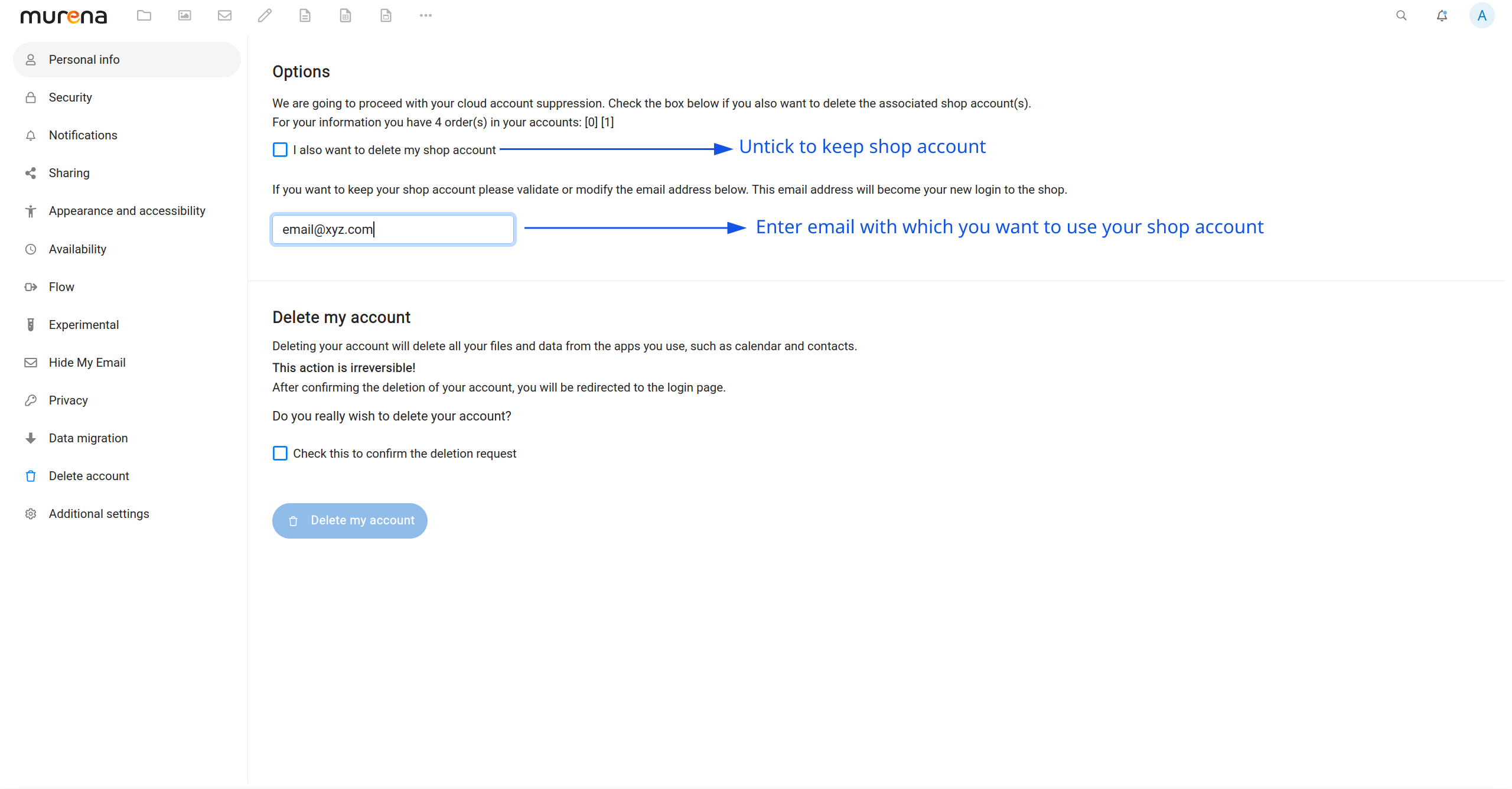
- You can delete your Murena Workspace account but retain the Murena Shop account
- The recovery email address you had set will be your new Murena Shop account’s login
- You will be sent a link to reset your password.
- Future invoices will be sent to this recovery email address
- Your Murena Workspace account will be deleted.
- You can continue using your Murena Shop account with this recovery email address.
Option 2: Delete your Murena Workspace account as well as your Murena Shop account.
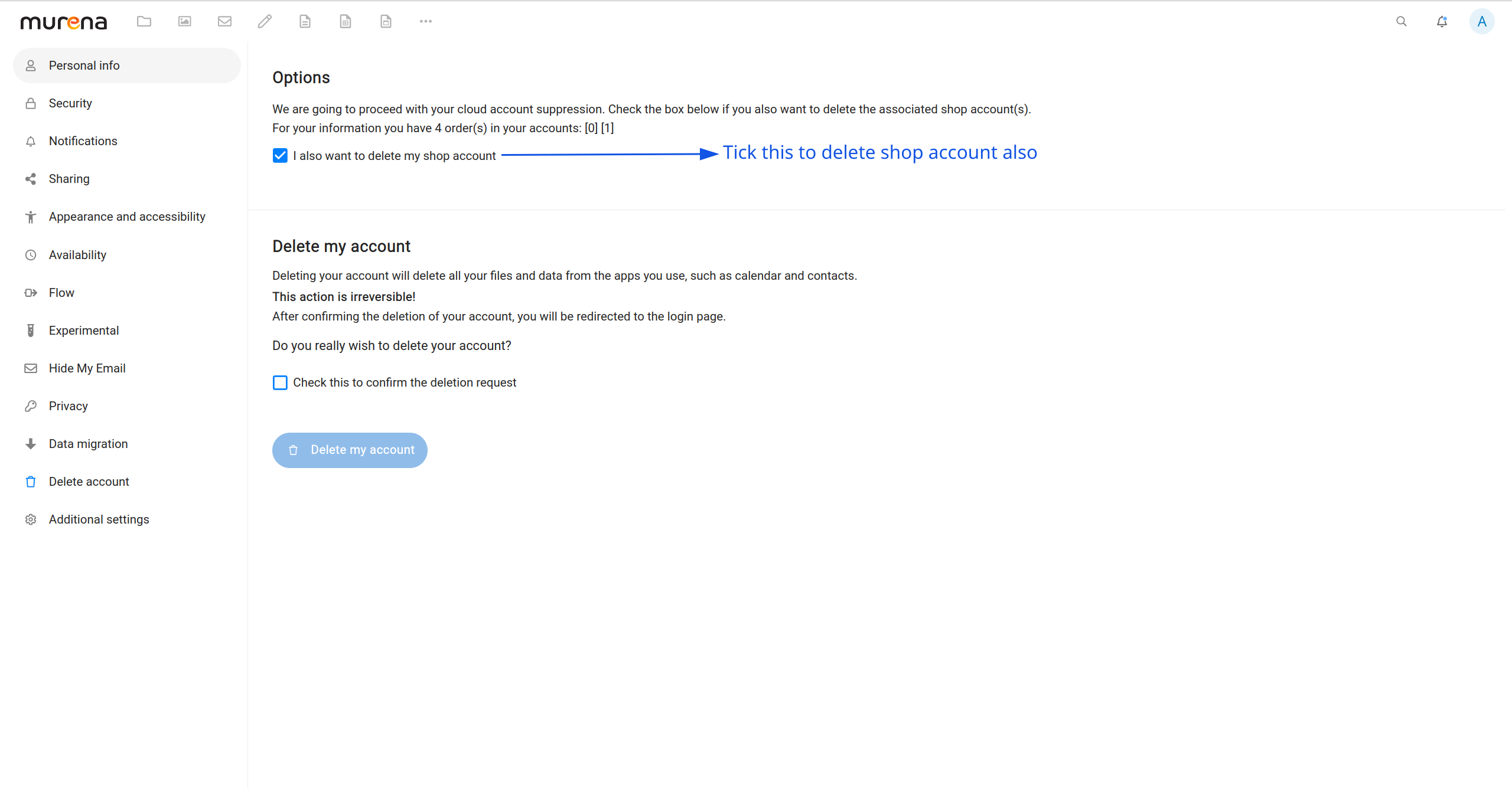
- If you have any orders, you can check them and download invoices using the links
[0](for murena.com) and[1](for murena.com/america) - Both your Murena Workspace account and your Murena Shop accounts will be deleted
Want to manually configure your mail client for Murena Workspace?
Most mail clients should be able to configure your Murena Workspace ID automatically, once you input your Murena Workspace username and password. In case that is not possible, please use these settings to manually configure:
- SMTP/IMAP server: mail.ecloud.global
- SMTP/IMAP username: your Murena Workspace email address in full (example: john.doe@e.email or john.doe@murena.io)
- SMTP/IMAP password: your Murena Workspace email password
- SMTP port: 587, plain password, STARTTLS, requires authentication
- IMAP port: 993, SSL/TLS, requires authentication
Is a Murena Workspace account mandatory to use /e/OS ?
A Murena Workspace account at murena.io is not mandatory to use /e/OS, but is highly recommended if you want to benefit from the full Murena experience as described in this guide.
What about e.email accounts, are they still valid?
Murena Workspace is the new name of Murena Workspace. Users with an e.email account, or legacy accounts, can still use their e.email account with no issues on Murena Workspace.
Legacy e.email accounts have both e.email address (by default) and now a new murena.io alias (needs to be enabled in account settings).
Also, legacy e.email account benefit too from the Hide my email feature and new features on Murena Workspace.
To add an e.email account on a phone with /e/OS, just follow the standard process: go to the account manager, add an Murena Workspace account, enter the e.email ID and your account password.
To sign in to your Murena Workspace account, just browse to https://murena.io with your e.email user ID. https://murena.io replaces https://ecloud.global